
Tailscale is the VPN used to access Cockpit Staging, Cockpit Pre-Production, and Cockpit Production.
Windows
1. Open Tailscale
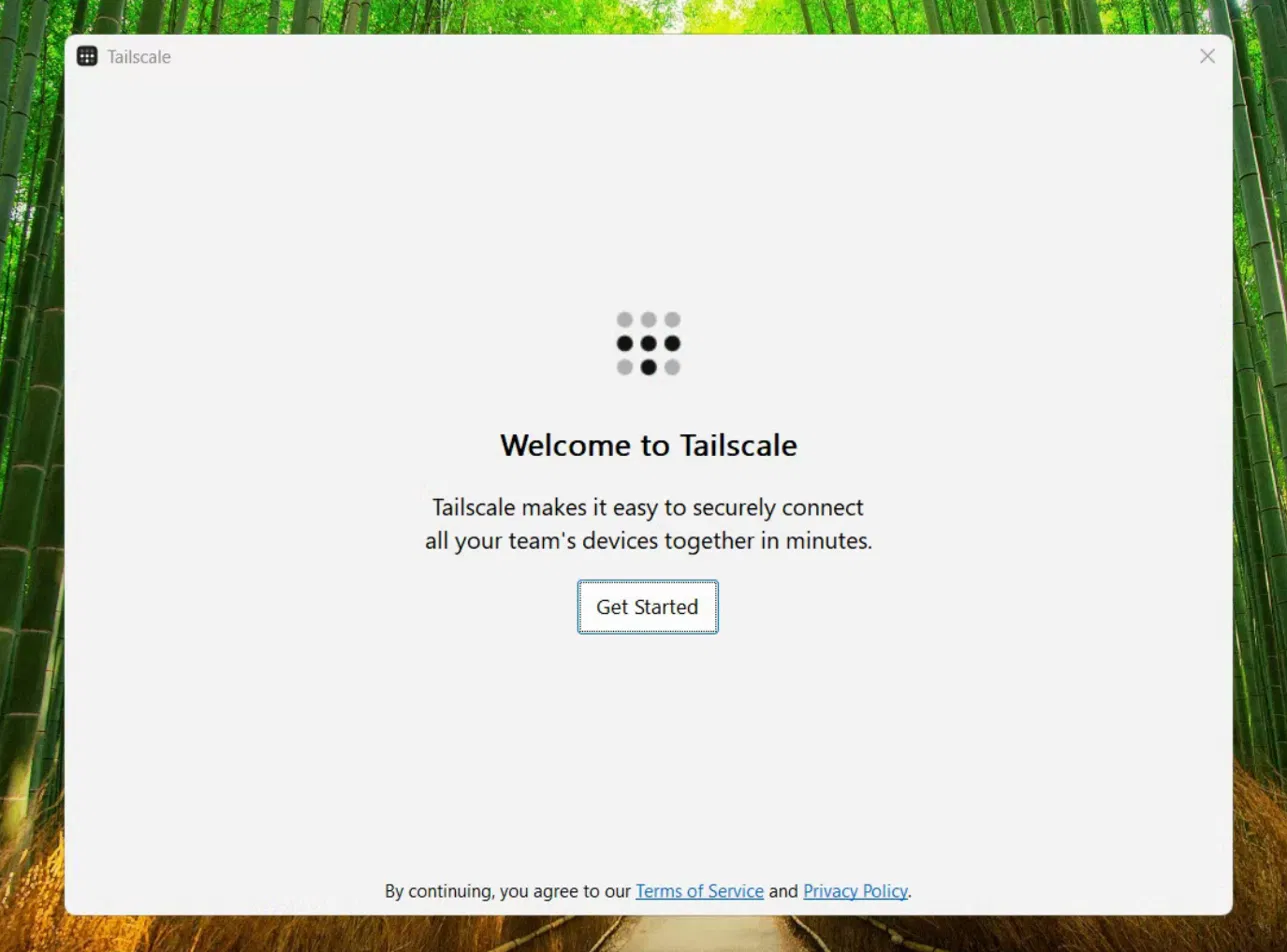
After IT installs Tailscale, the Welcome to Tailscale screen opens automatically. Click Get Started.
If IT has not started the VPN onboarding process yet, close this window and wait for instructions.
2. Start the sign-in process
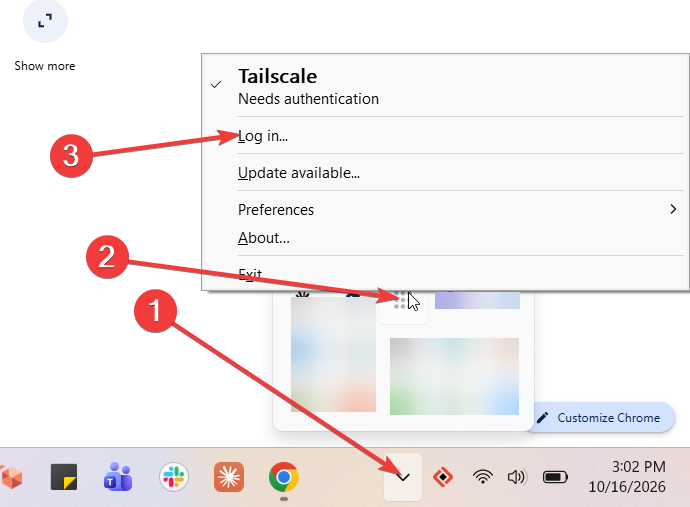
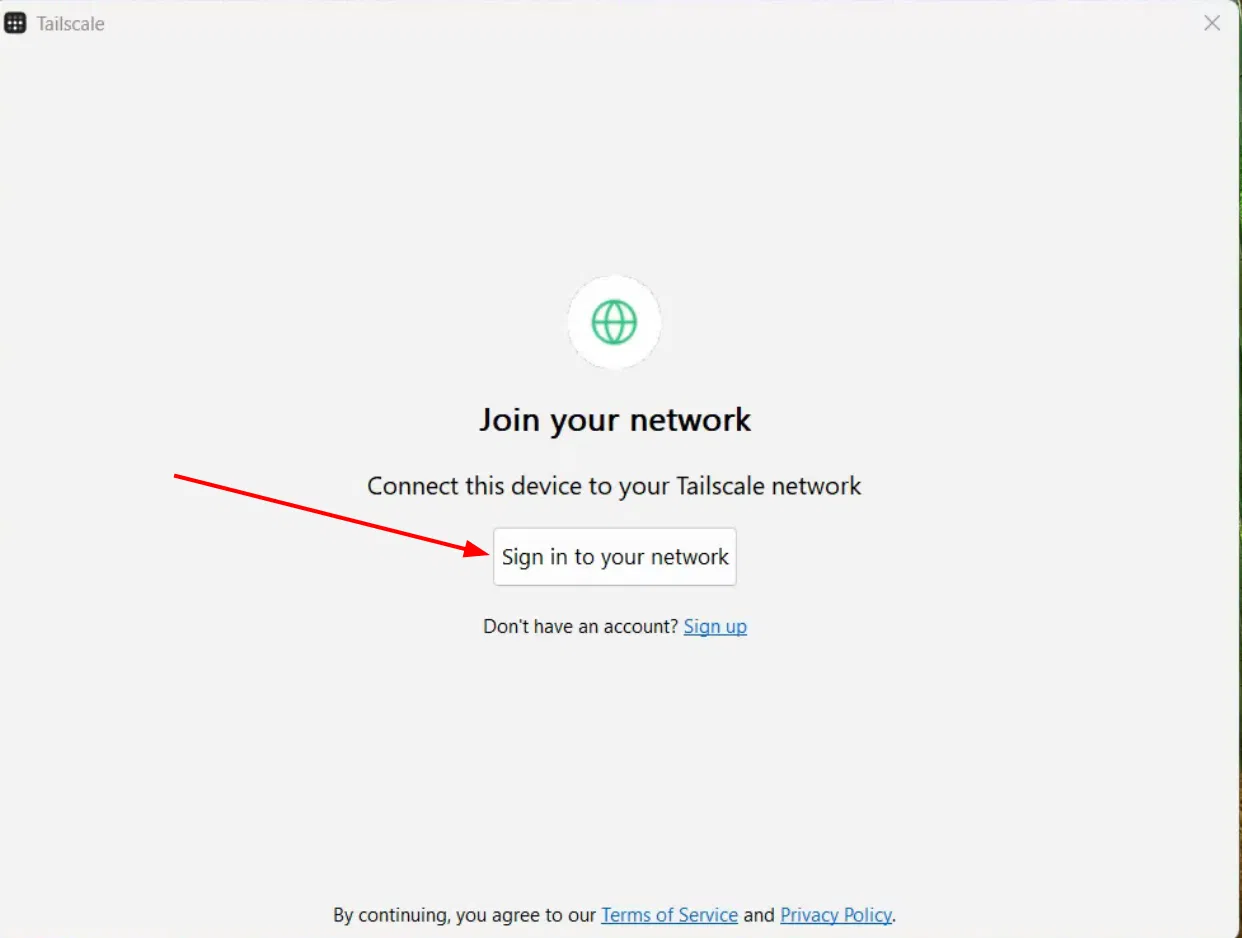
Click Sign in to your network. If a browser does not open automatically to start the authentication process, right-click the application in the taskbar, then click Login. Chrome will open, and you can continue with the next steps.
3. Enter your email address
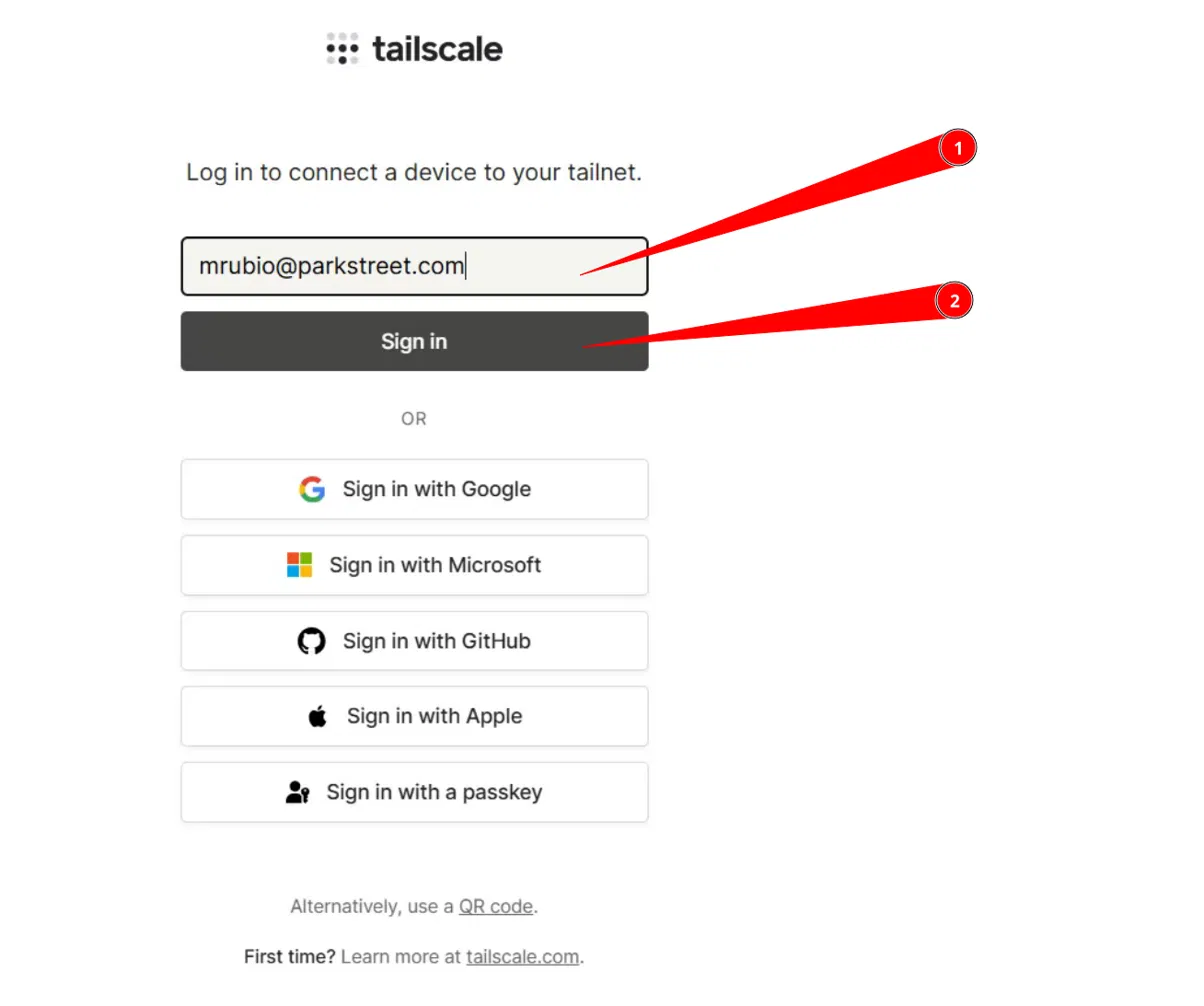
On the Tailscale login page, enter your Park Street email address and click Sign in.
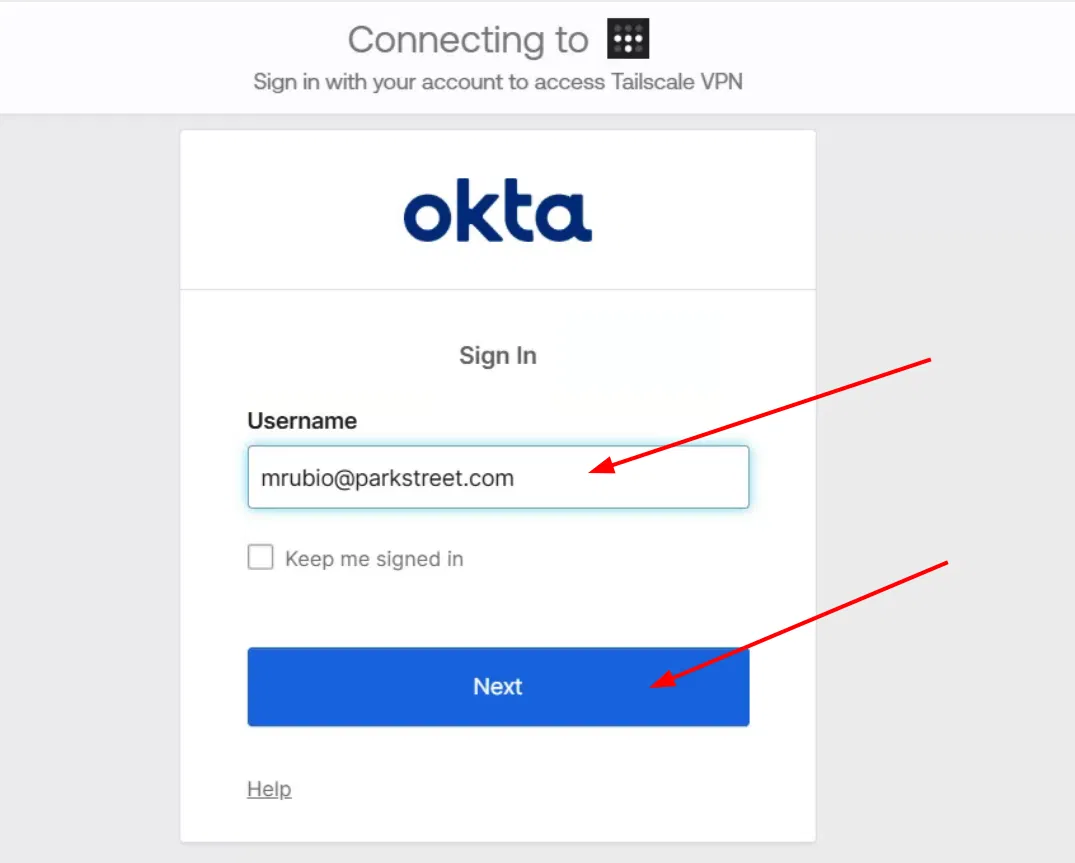
4. Authenticate with Okta
Okta opens automatically to verify your account. Enter your credentials and complete authentication as usual.
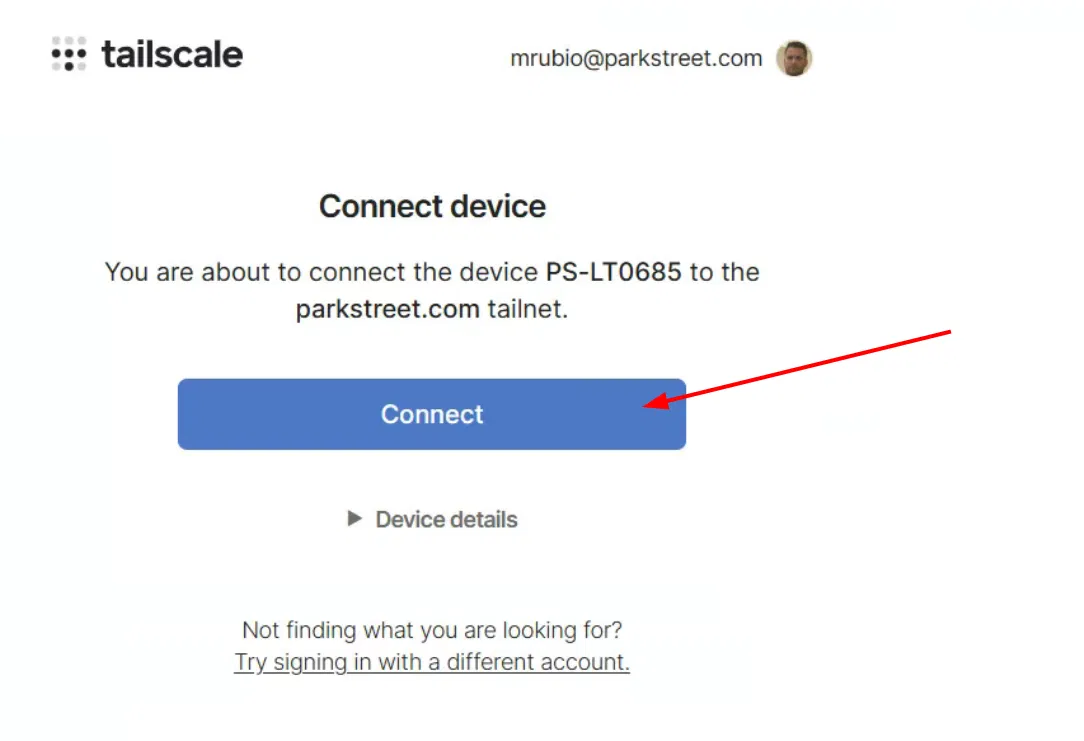
5. Connect the device
When prompted to add the device to the parkstreet.com tailnet, click Connect.
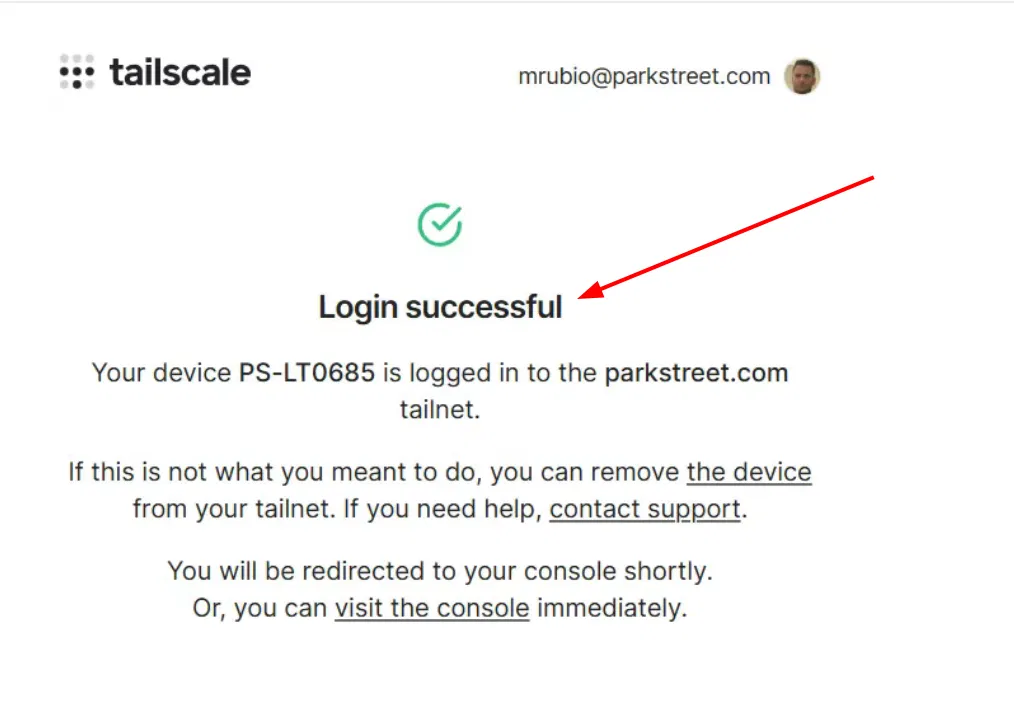
6. Confirm successful authentication
Verify that the Login successful screen appears.
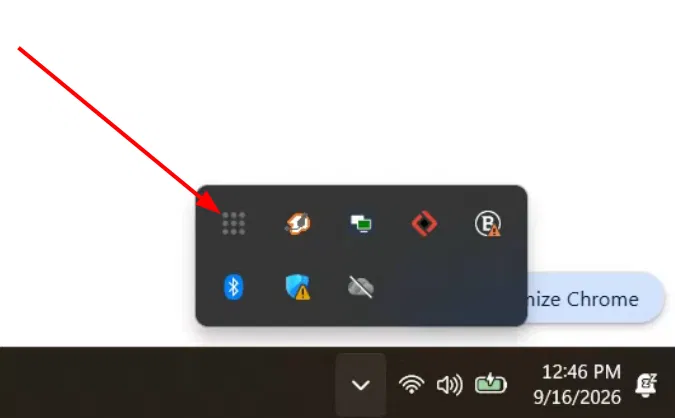
7. Find Tailscale in the system tray
In the Windows taskbar, open the system tray next to the clock and click the Tailscale icon.
8. Connect or disconnect the VPN
Use the first menu option to connect or disconnect. When it displays Tailscale — Connected, selecting it disconnects the VPN; clicking the tray icon again reconnects it.
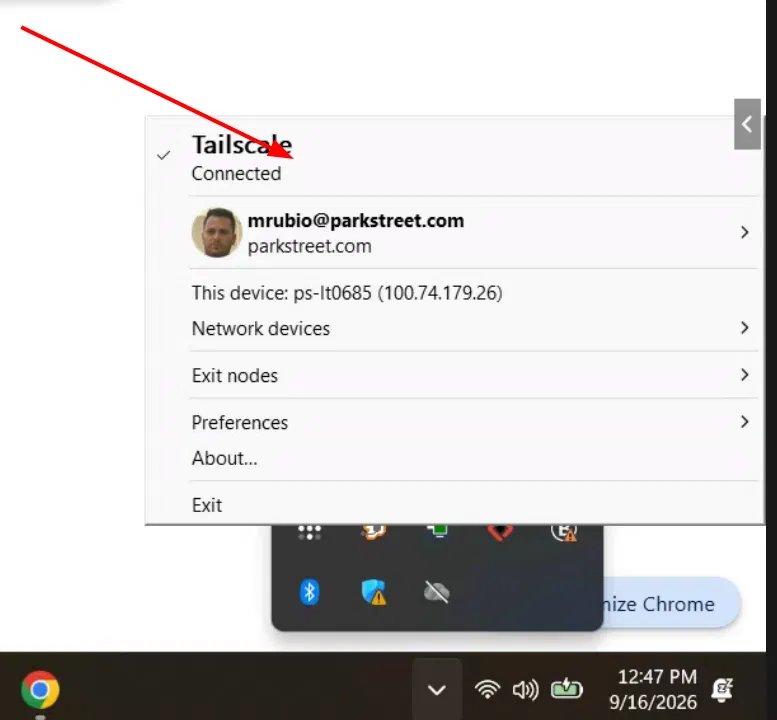
Once connected, you can access internal Park Street applications such as Cockpit.
For security, disconnect Tailscale when you no longer need access to Park Street's internal applications.
If you encounter any issues during the installation or configuration, please contact the IT department by submitting a ticket through Linear Ask.
If you encounter any issues during the installation or configuration, please contact the IT department by submitting a ticket through Linear Ask.
macOS
1. Open Tailscale
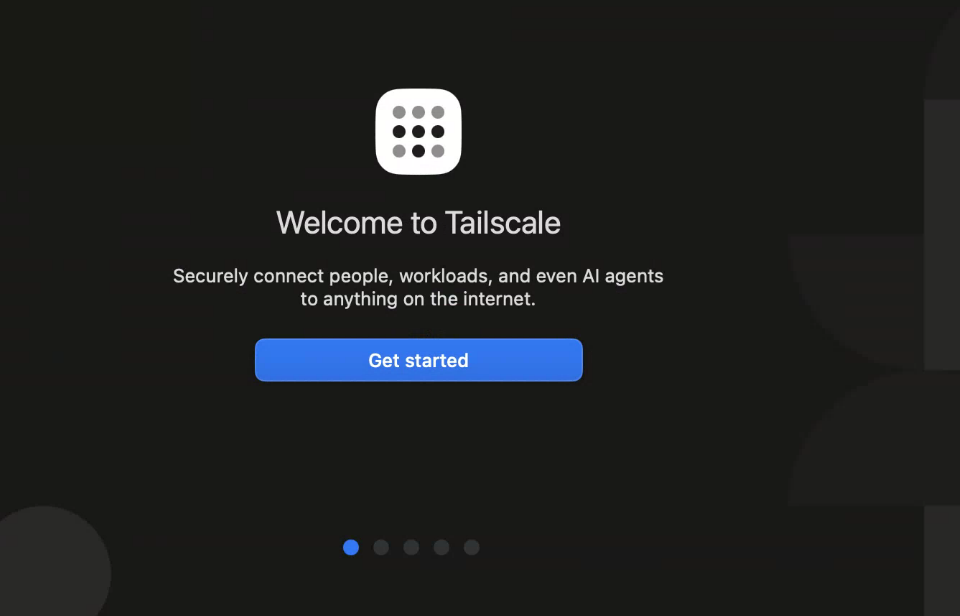
After installation, the Welcome to Tailscale screen appears. Click Get started.
2. Verify the required permissions
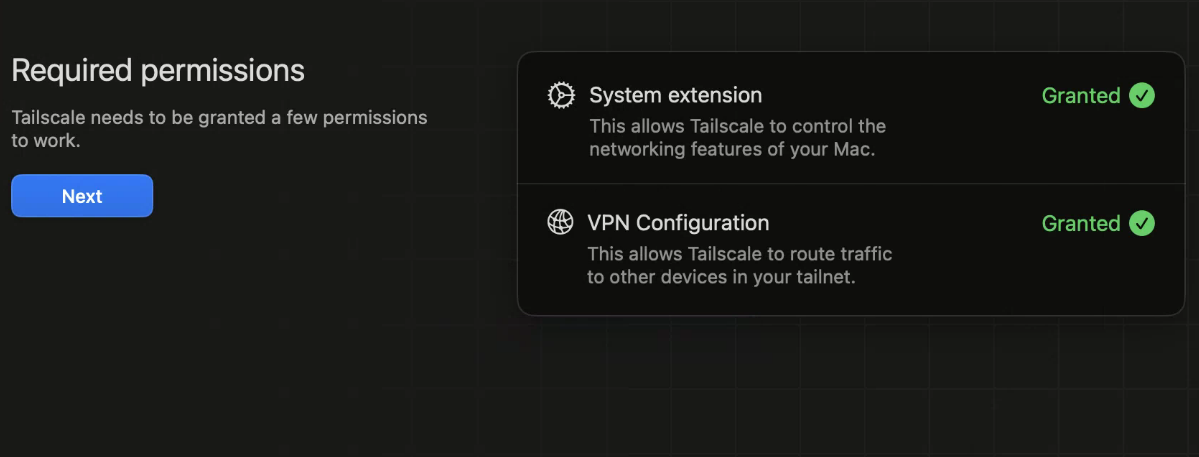
Confirm that System Extension and VPN Configuration both show Granted, then click Next.
If either permission is not granted, contact IT Support.
3. Review the startup settings
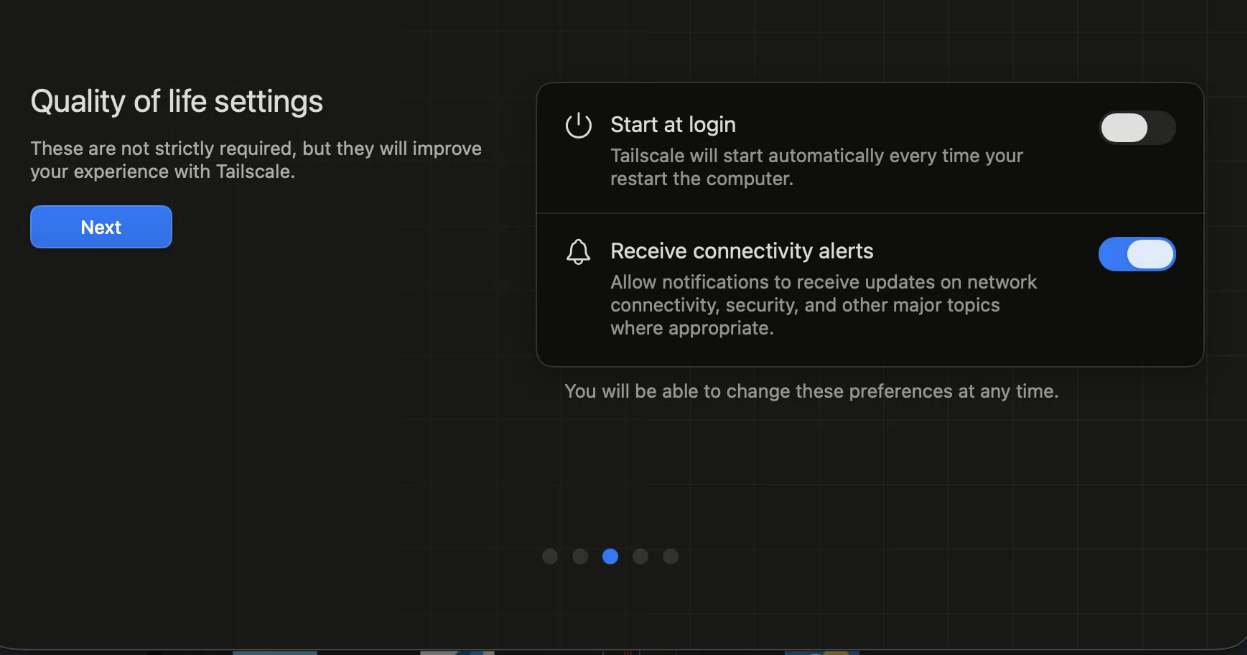
On the Quality of life settings screen, we recommend leaving Start at login disabled. Turn on the VPN only when you need access to Cockpit or another protected Park Street application. Click Next.
4. Start the sign-in process
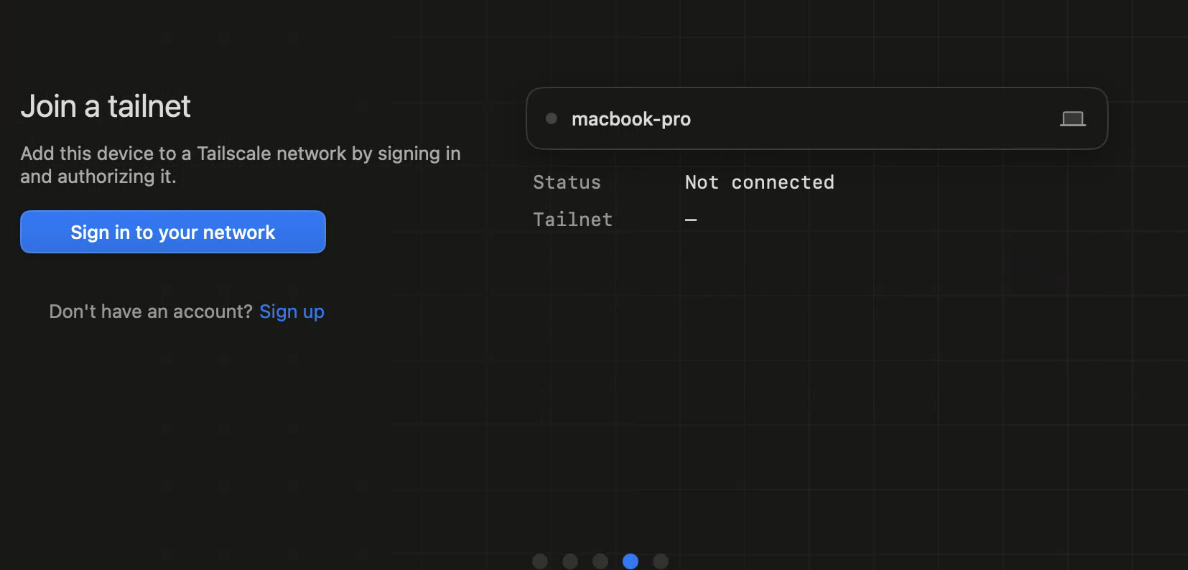
On the Join a tailnet screen, click Sign in to your network. If a browser does not open automatically, open it and click the button again.
5. Enter your email address
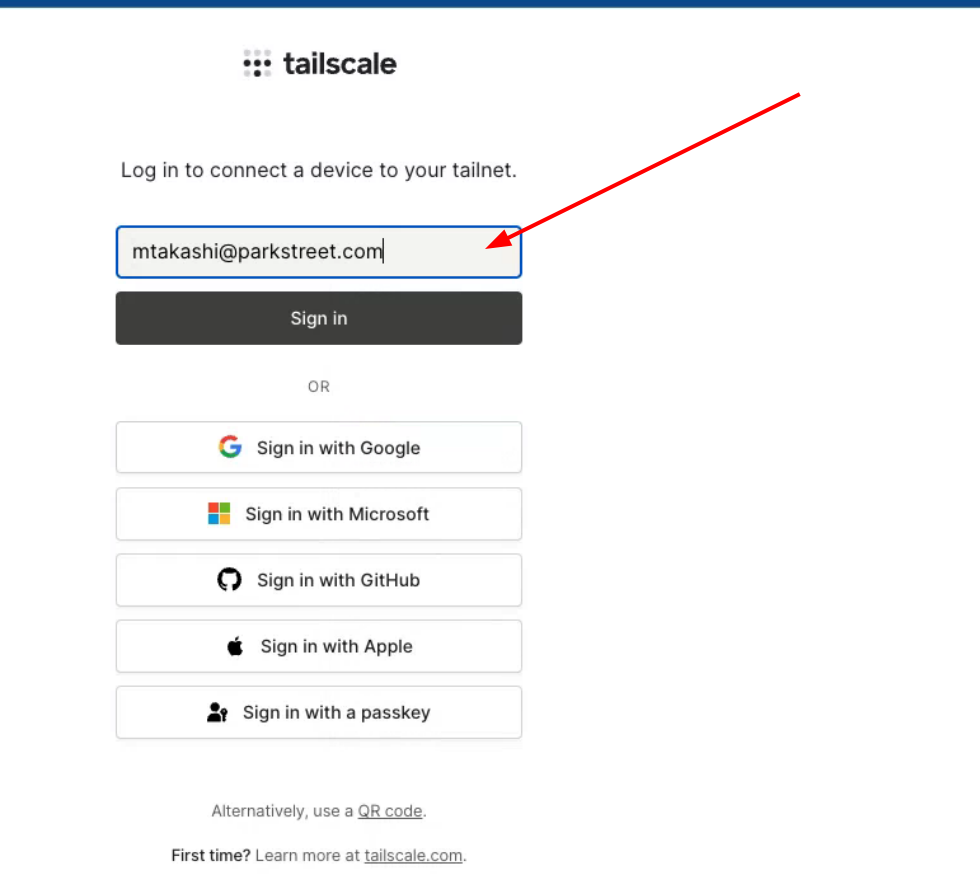
Enter your Park Street email address and click Sign in.
6. Authenticate with Okta
Authenticate with Okta using your usual credentials.
7. Connect the device
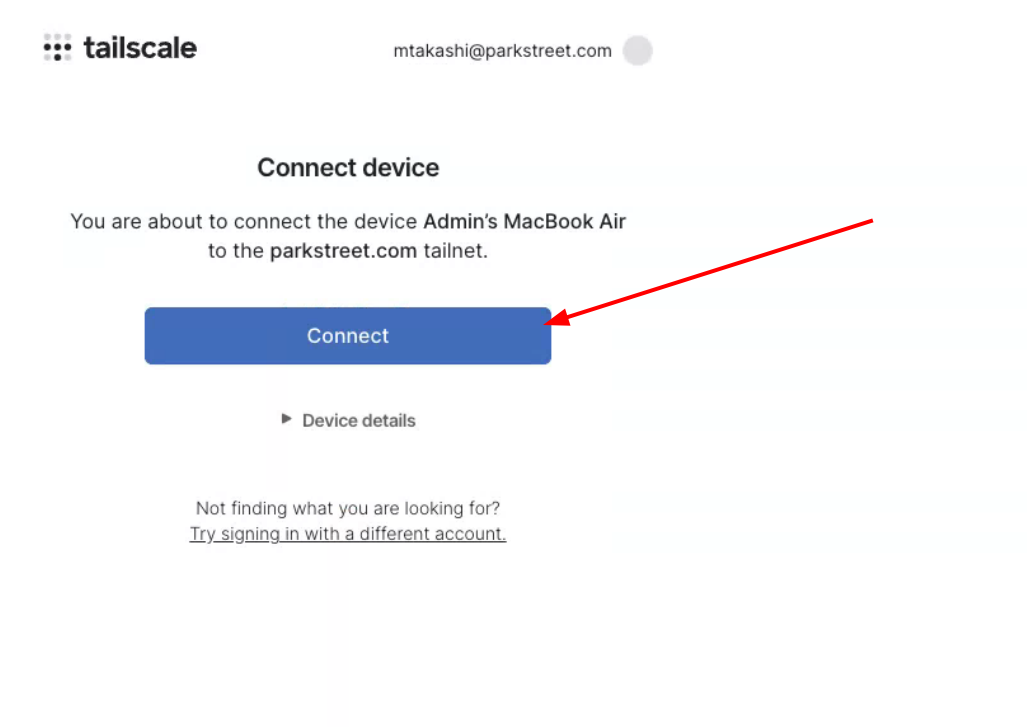
When prompted to add the Mac to the parkstreet.com tailnet, click Connect.
8. Confirm successful authentication
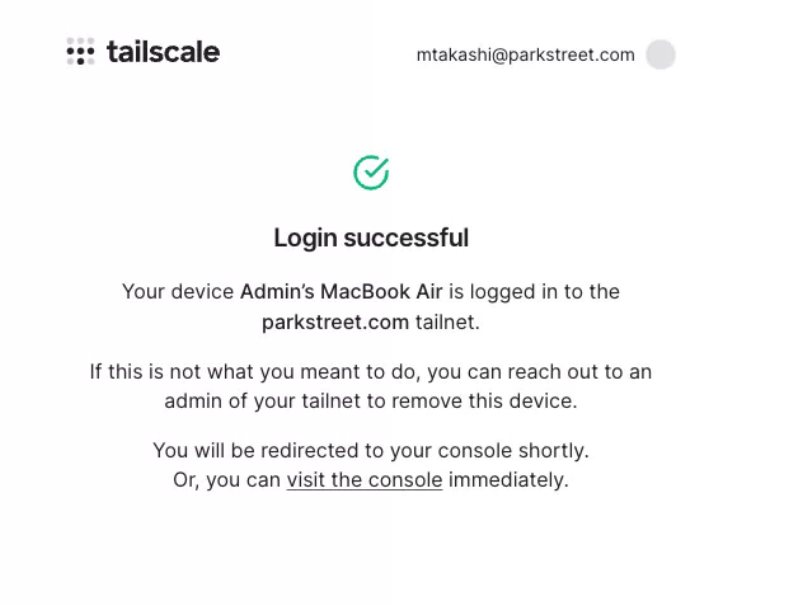
Verify that the Login successful screen appears.
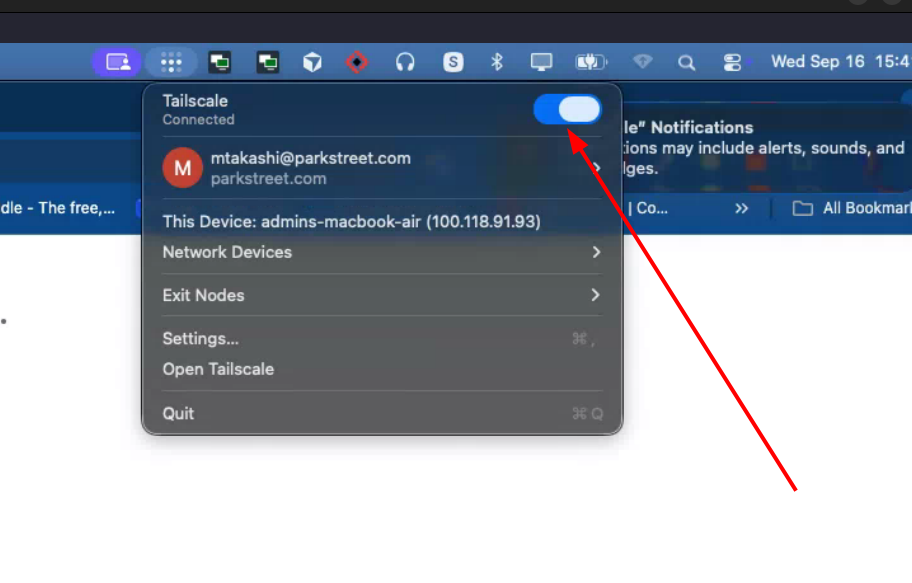
9. Connect or disconnect from the menu bar
Click the Tailscale icon in the macOS menu bar and use the toggle.
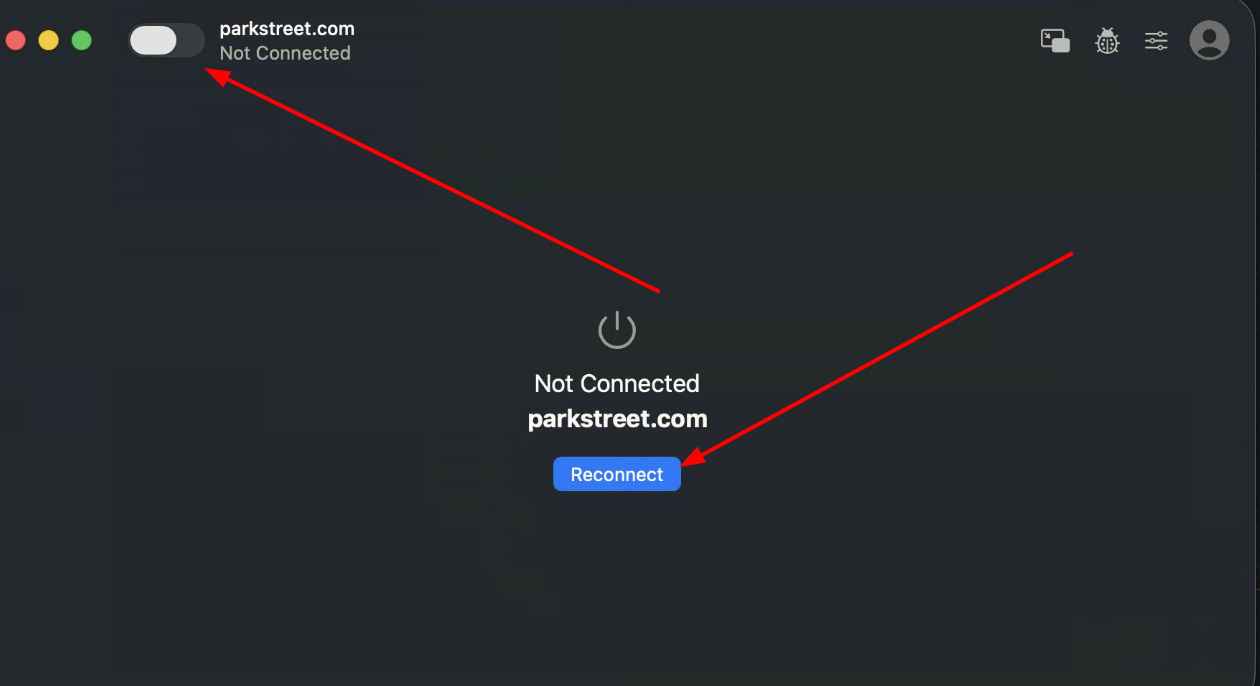
10. Reconnect from the app
You can also open the Tailscale app and use its toggle, or click Reconnect when the VPN is disconnected.
For security, disconnect Tailscale when you no longer need access to Park Street's internal applications.
If you encounter any issues during the installation or configuration, please contact the IT department by submitting a ticket through Linear Ask.