
https://youtu.be/Wj2z-hQHcIw?t=74
Windows users must have previously configured Windows Hello.
Steps to Create a Google Account Passkey
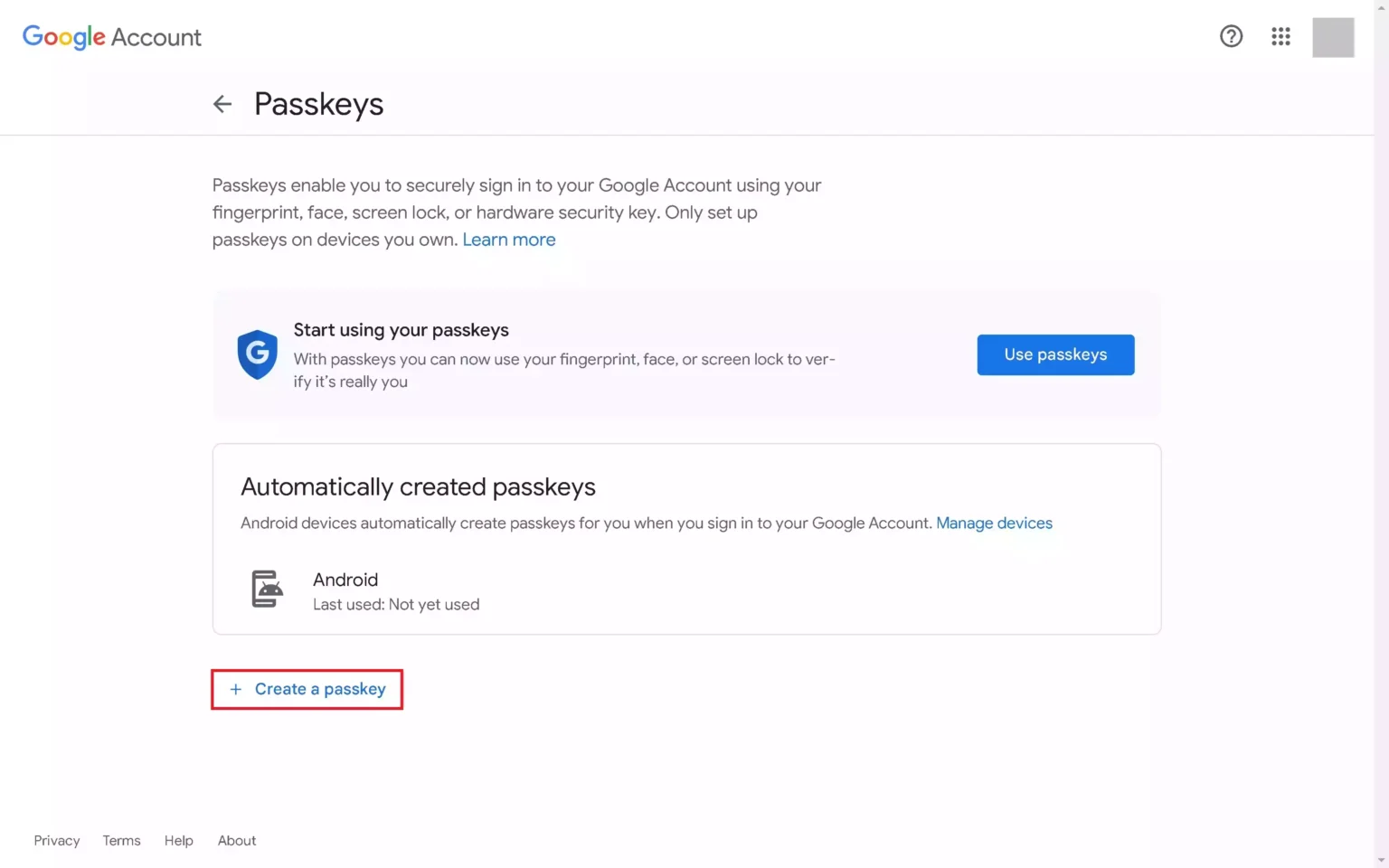
- Open a web browser on the device you want to set up a Google passkey on and then navigate to the Google Passkeys website. Log in to the Google account you want to set up a Google passkey for when prompted. You’ll land on your Google Account Passkeys screen.
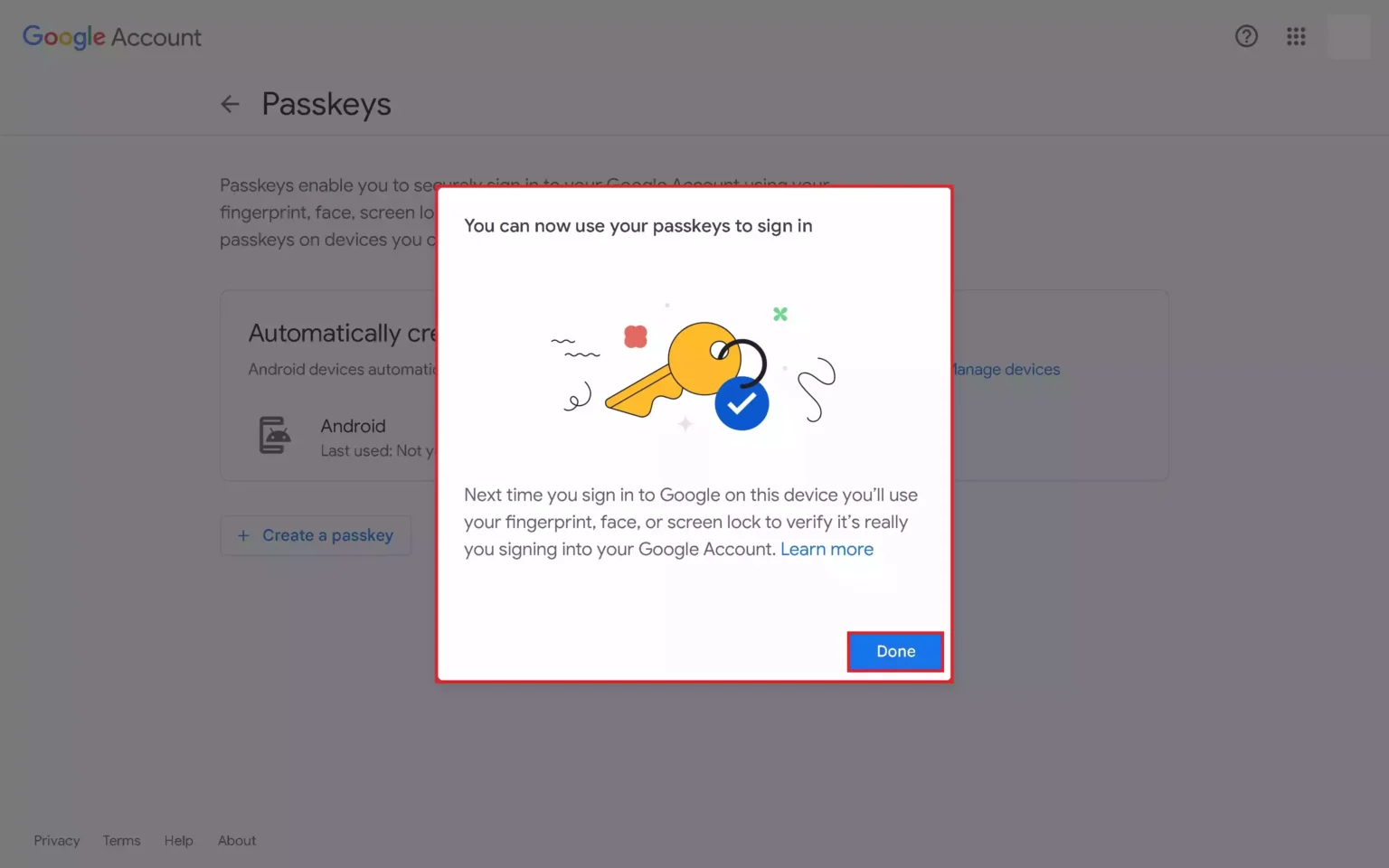
- Click “Create a Passkey.” A window pops up letting you know that the next time you sign in to Google on this device you’ll use your fingerprint, face or screen lock to verify that it’s really you.
- Click “Done” in this message. The next window will give you more information about passkeys. Click “Continue” after reviewing this information. You’ll be prompted to provide a fingerprint, face or screen lock information to confirm your identity.
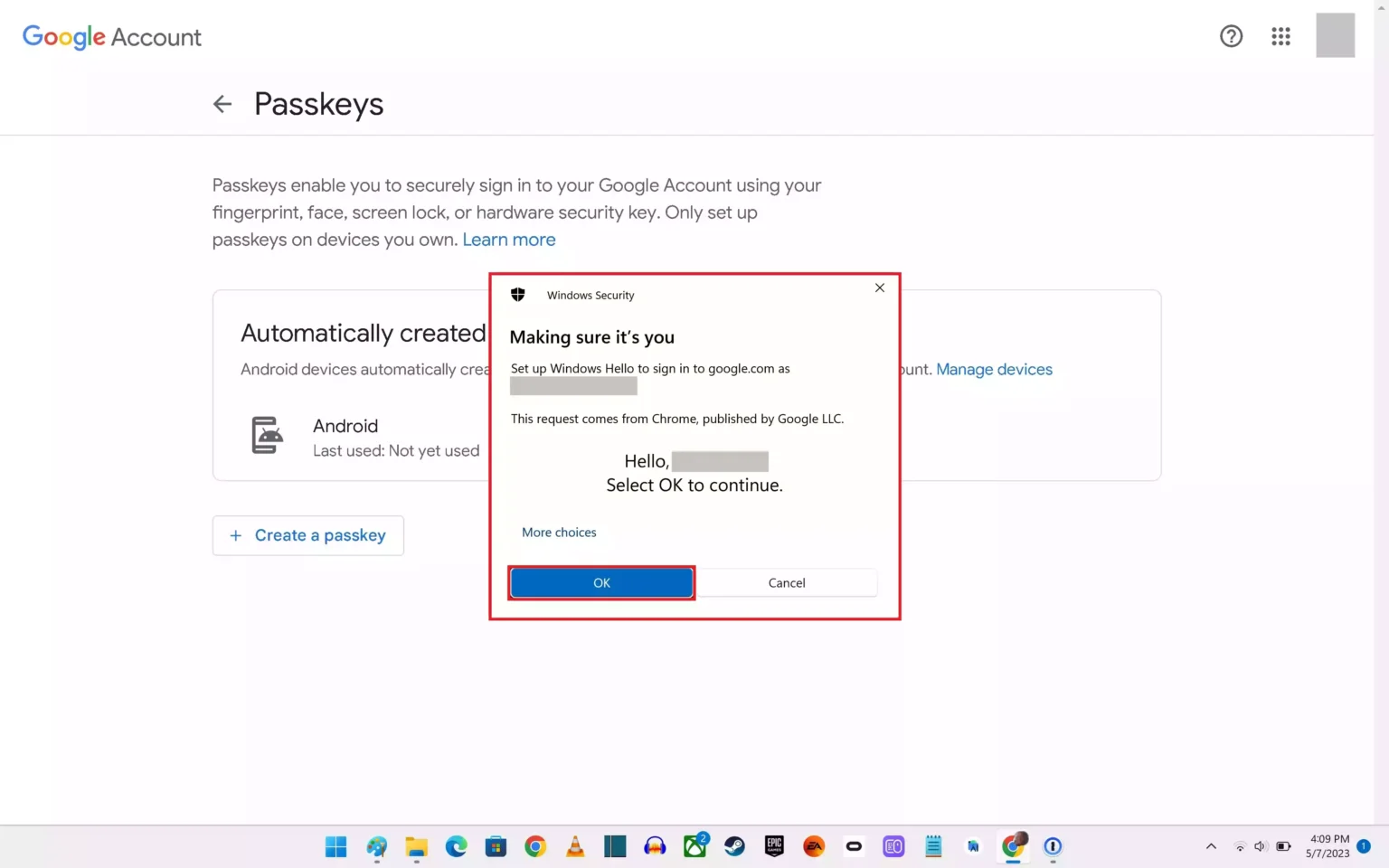
- Click “OK” after confirming your identity. The next window will let you know that your passkey has been created on this device. You’re now able to use your fingerprint, face, or screen lock information to verify your identity to use your Google account on this device.
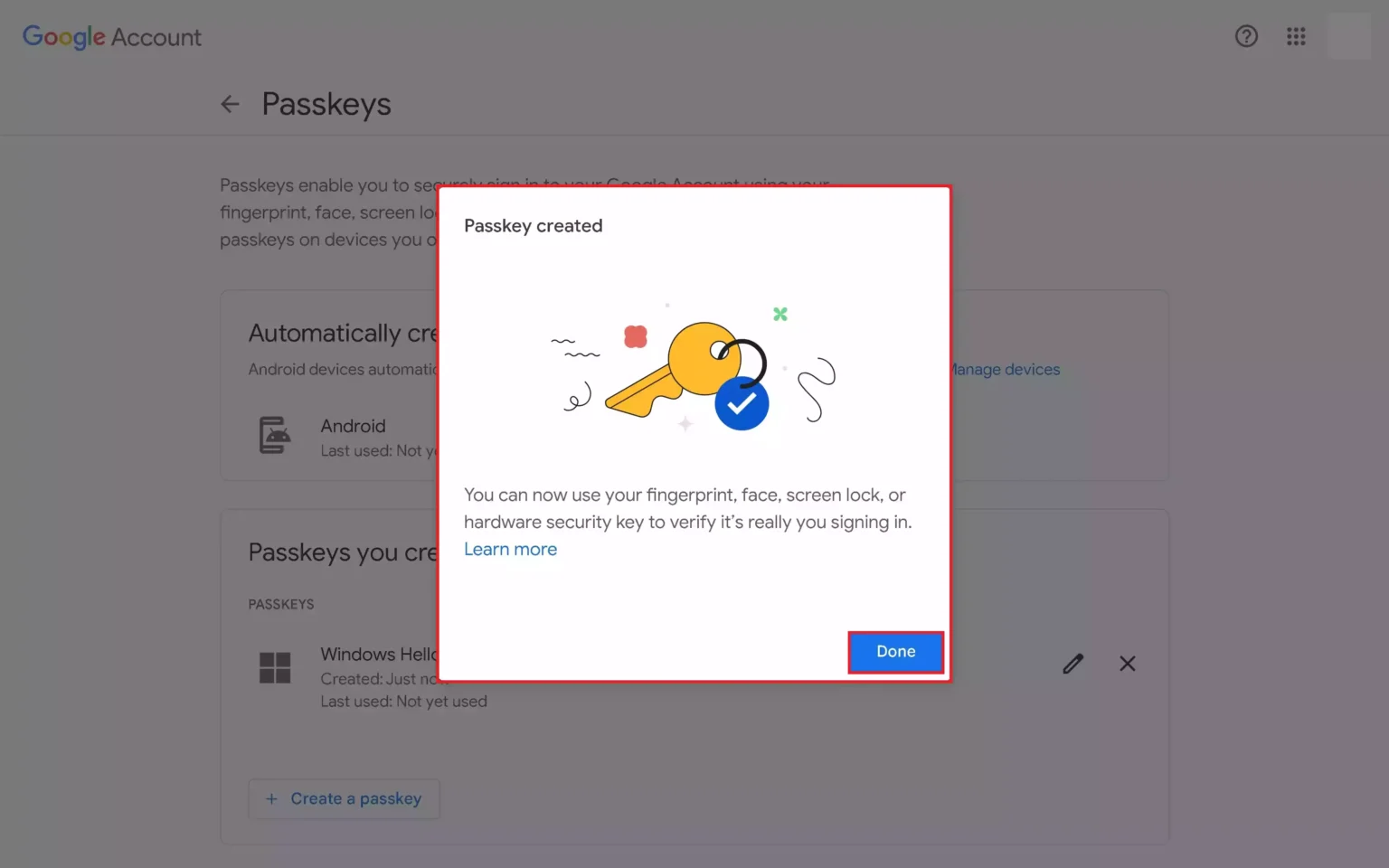
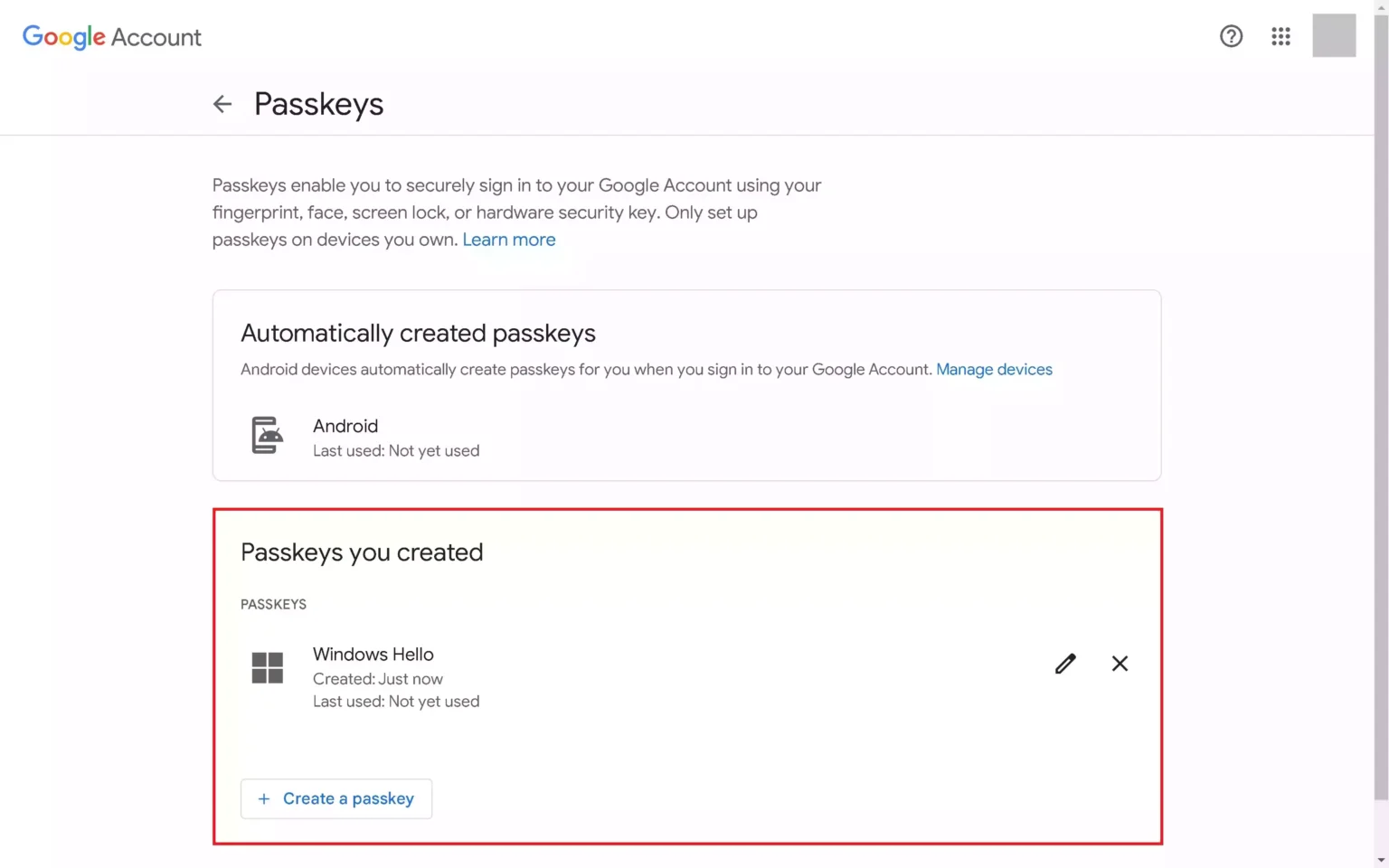
- Click “Done.” You’ll return to the Passkeys screen, where you’ll now see your new Google account passkey has been created for this device. As a reminder, passkeys are device specific, so if you have other devices you want to set up a Google account passkey for, you’ll need to do that separately.
Key Benefits of Google Passkey: