
This guide is intended to provide quick guidance on microphone settings in regards to Zoiper. These are quick basic troubleshooting solutions that any user can use to fix or configure their Zoiper softphone.
1. Check Zoiper microphone selection
The first step is to check your microphone selection in Zoiper. Automatic microphone selection is a default setting in Zoiper, if this setting is off, then whenever a headset or microphone is connected to the computer, Zoiper will not change the microphone on it’s own.
To reach these settings, go to small gear icon in Zoiper:
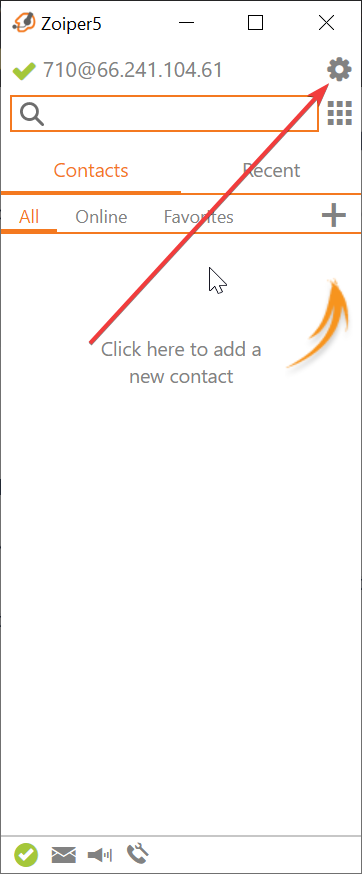
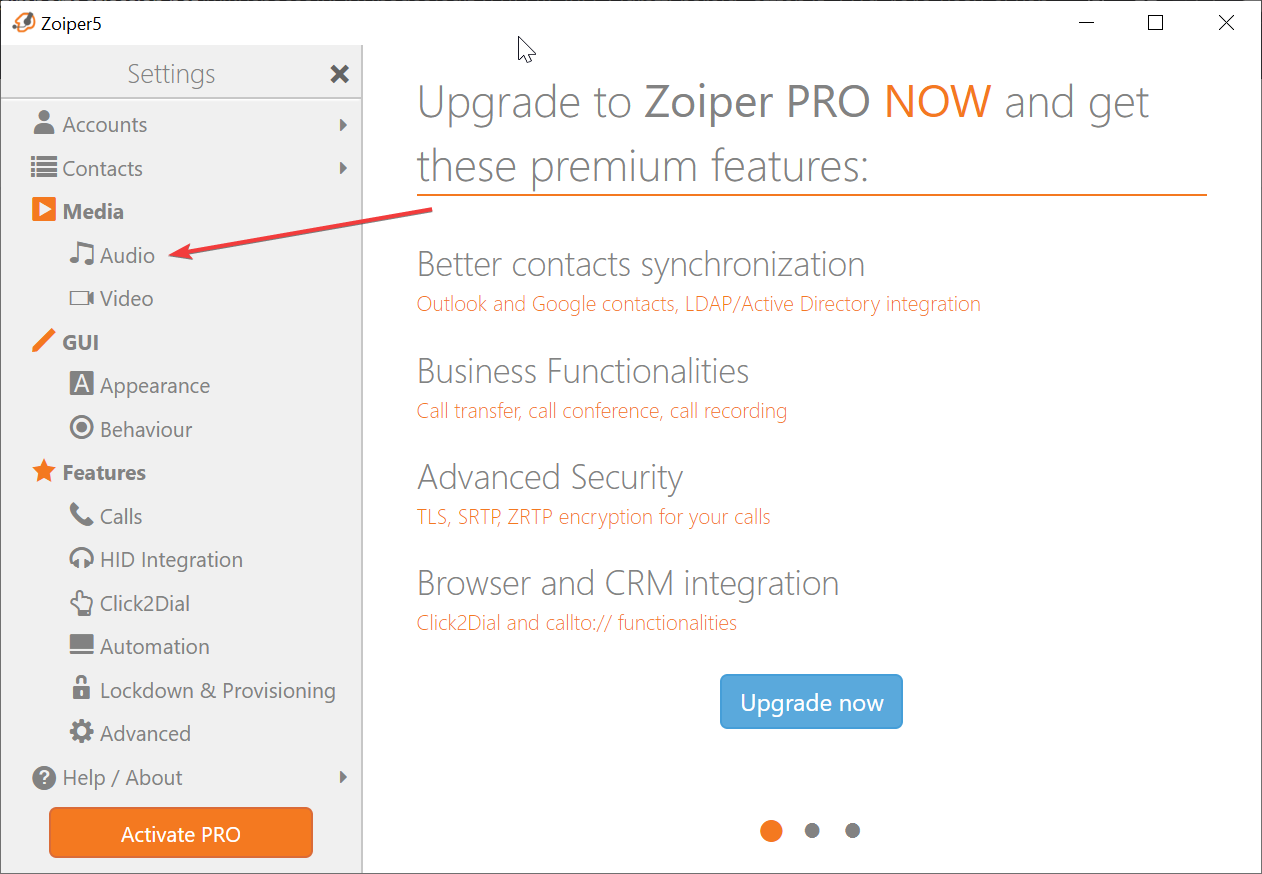
Once you click on the gear, the following menu will appear. Continue by clicking on Audio:
The following menu allows you to select the different audio devices you have connected to your computer. To ensure that automatic microphone selection is enabled, check the following check box:
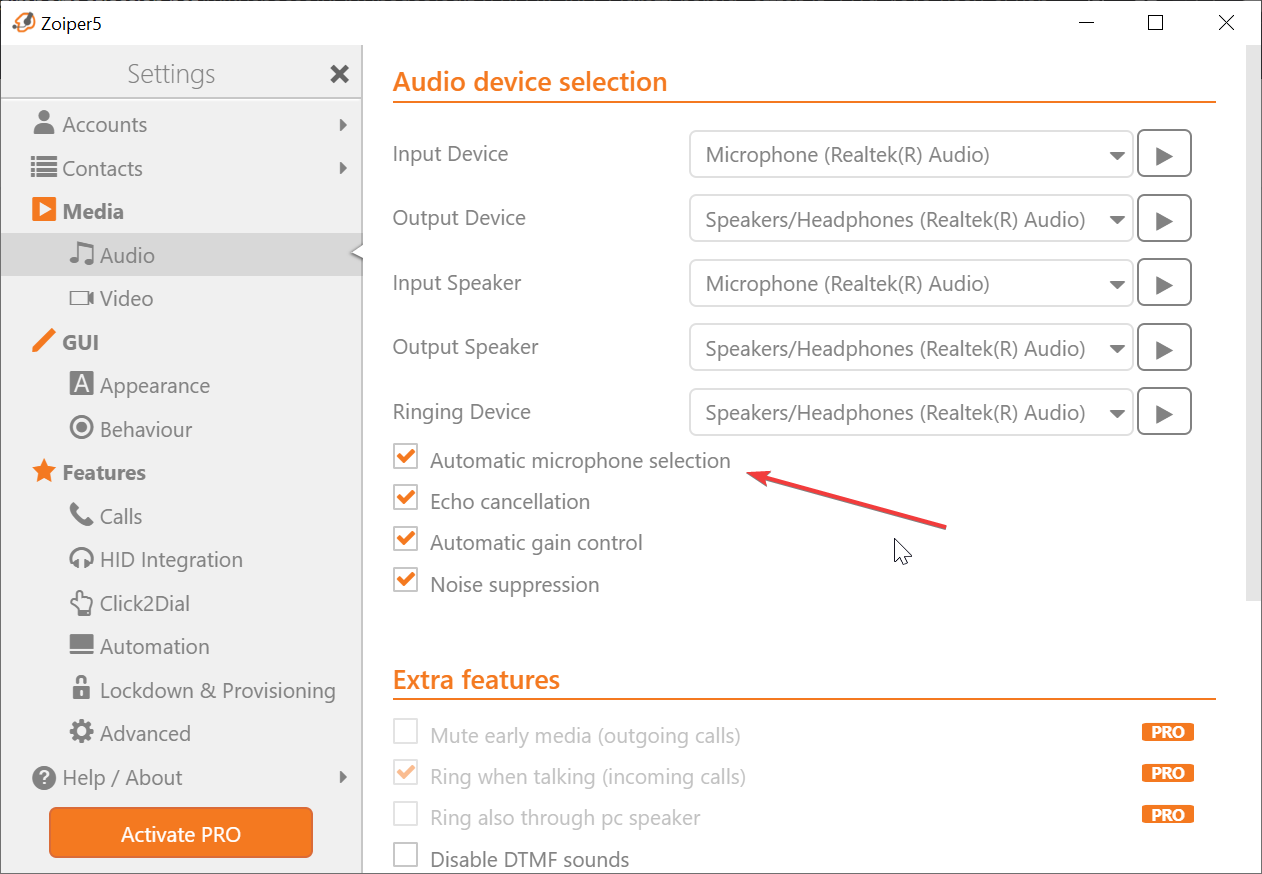
This menu allows you to also test each microphone to ensure that the right one is selected and working by clicking on the small play box next to each drop-down box. These devices are also registered on Windows and if you are using an external microphone device, the displayed options should match the devices registered in Windows.
2. Windows Microphone settings
Windows automatically changes system settings after some updates. When this occurs, the default microphone is sometimes set to mute without any user input. When this occurs, the microphone does not work since it is muted from the system settings. To fix this issue, try the following:
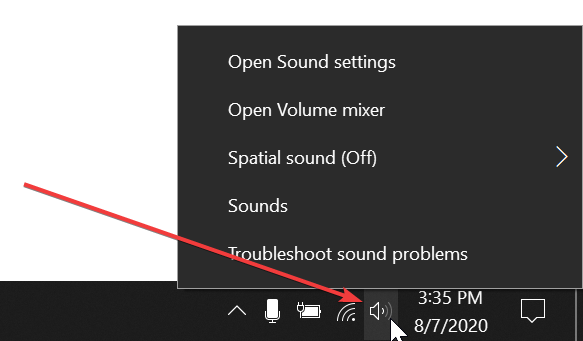
Right-click on the speaker icon on the Windows Taskbar and click on Open Sound settings.
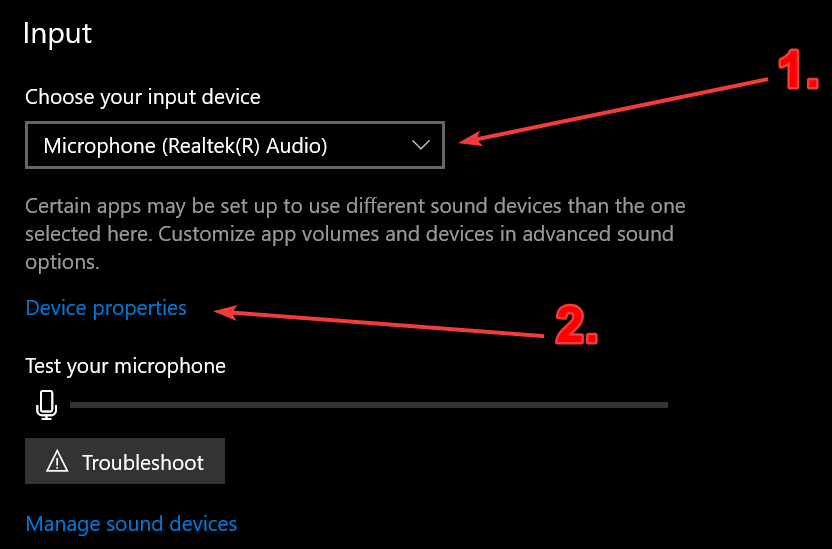
- First, ensure that the correct microphone is selected.
- After ensuring that the correct microphone is selected, select the Device properties option.
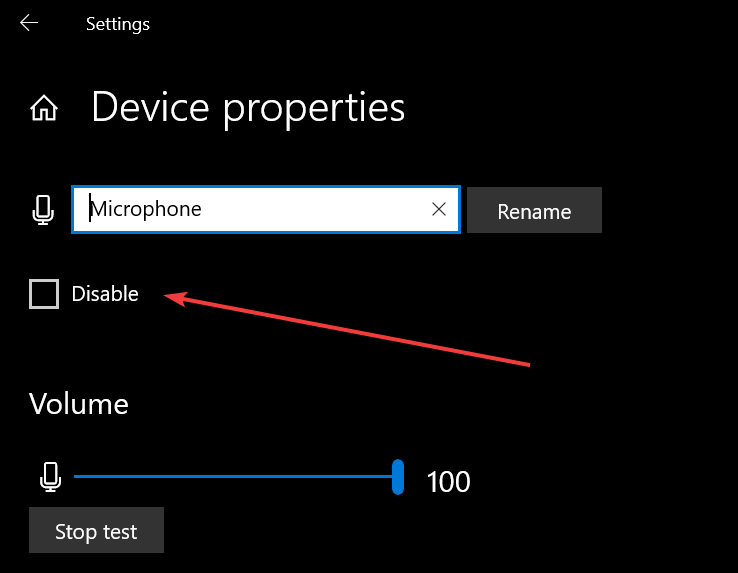
The following menu appears and what we want to make sure of is that the microphone we have selected is not disabled.
3. Control Panel settings
Windows 10 provided multiple ways to change system settings. If the prior option does not show any devices, we can see all of the connected devices through the following route:
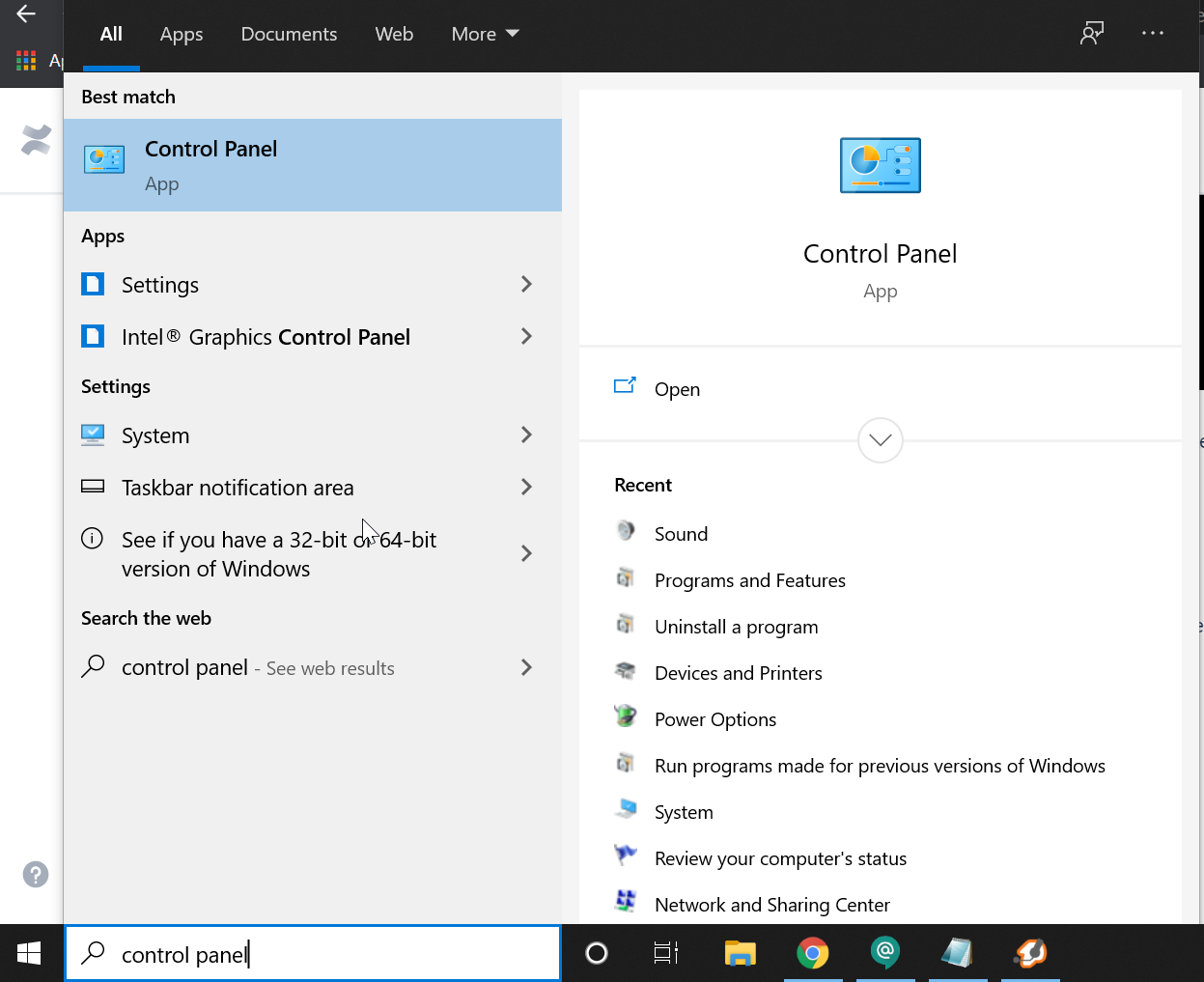
Search for control panel through the Windows Start Menu or through the Windows search bar.
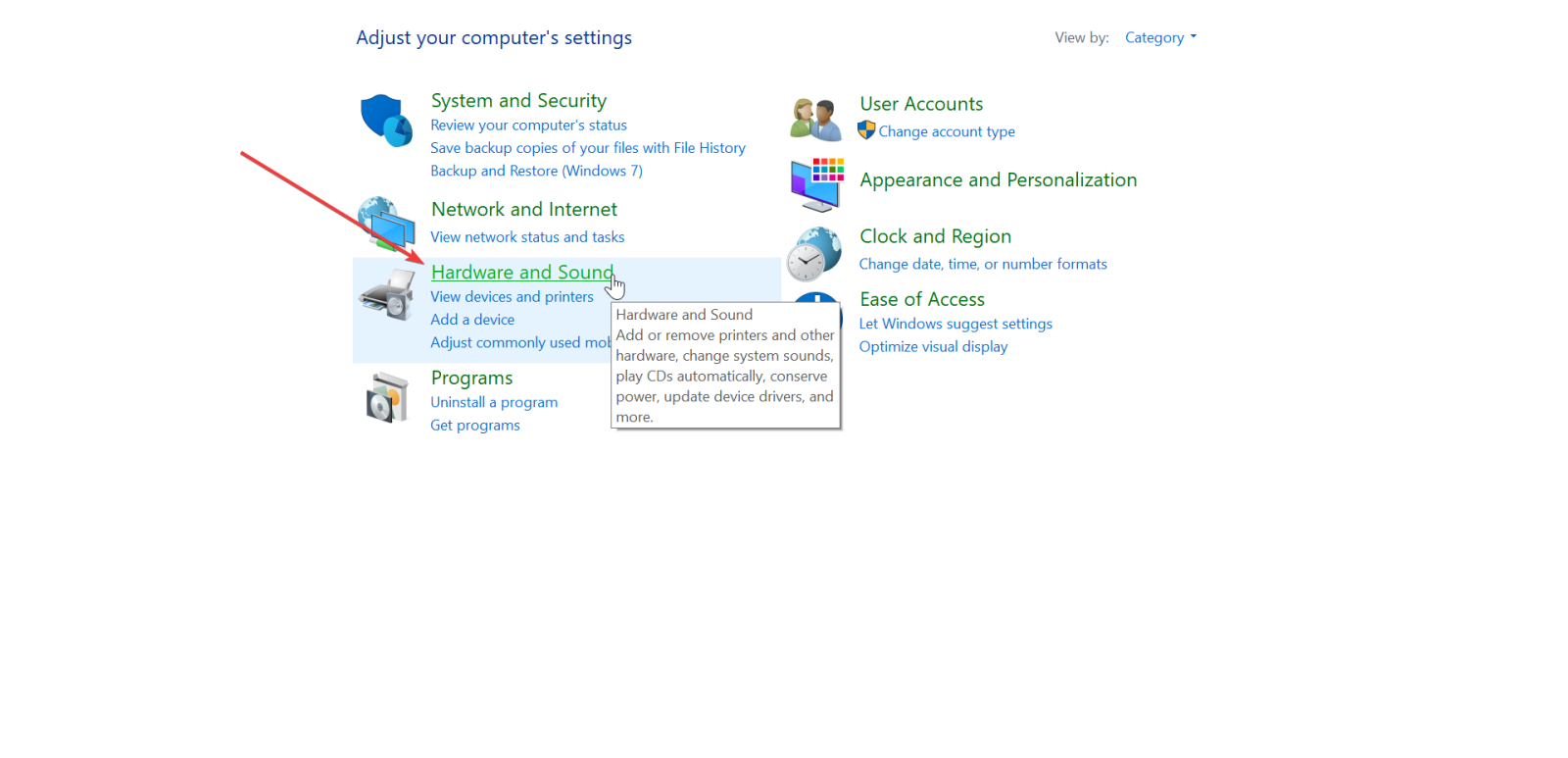
Select the Hardware and Sound option.
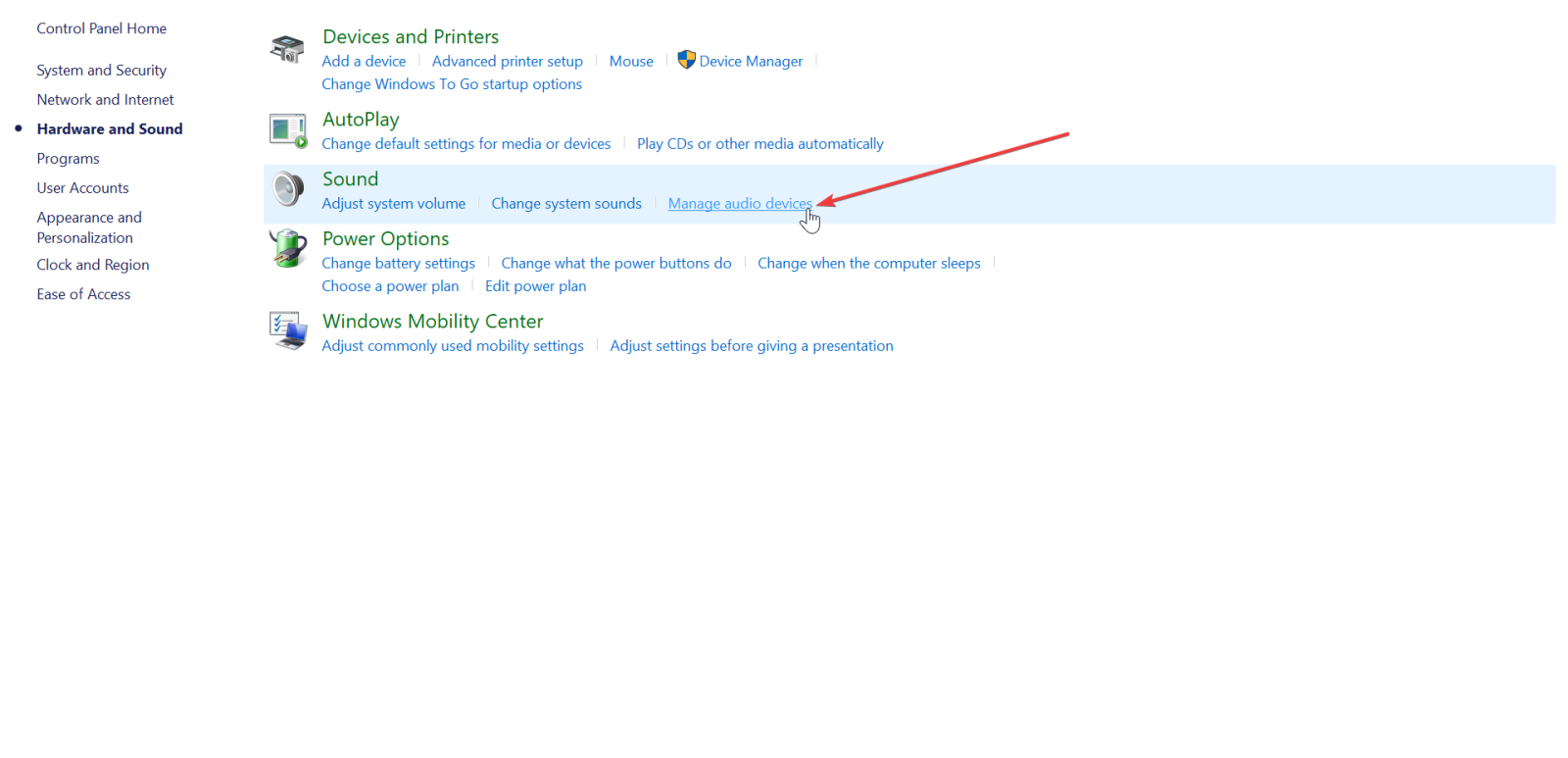
Select Manage audio devices.
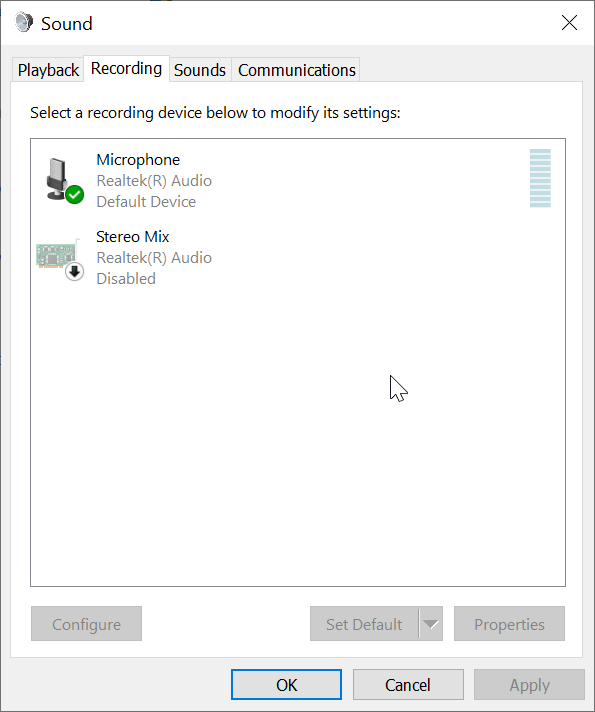
Click on the Recording tab at the top of the window. This tab shows us all of the recording devices that are connected to our computer. Please ensure that your microphone devices are set to enabled. If there is a device that is enabled but still does not work, right-click the device and select properties:
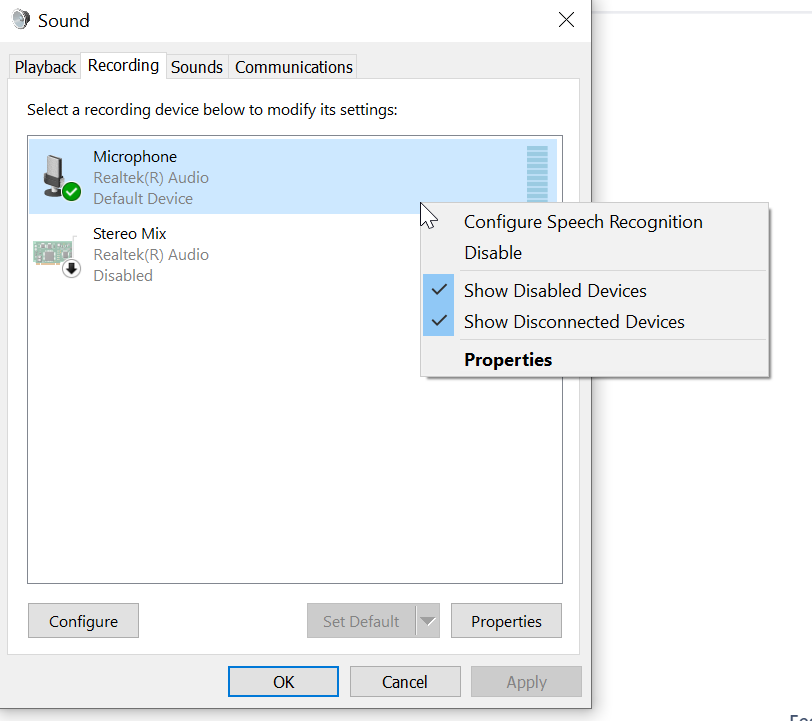
Once you click on properties, the following menu appears:
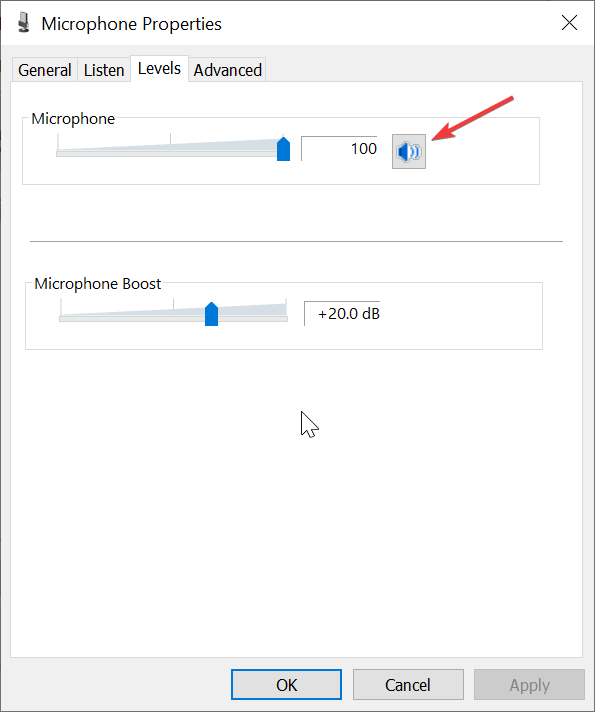
Click on the Levels tab and ensure that the following box shows that the devices is not being muted. If it it is muted the box looks like this:

Although the device is not disabled in the sound devices menu, it is still possible that the microphone you have selected is muted through this menu.
4. Zoiper Echo Test
Once you have check these settings and if no one is available for a test call, we can test the microphone and our sound by using the following feature code in our softphone.
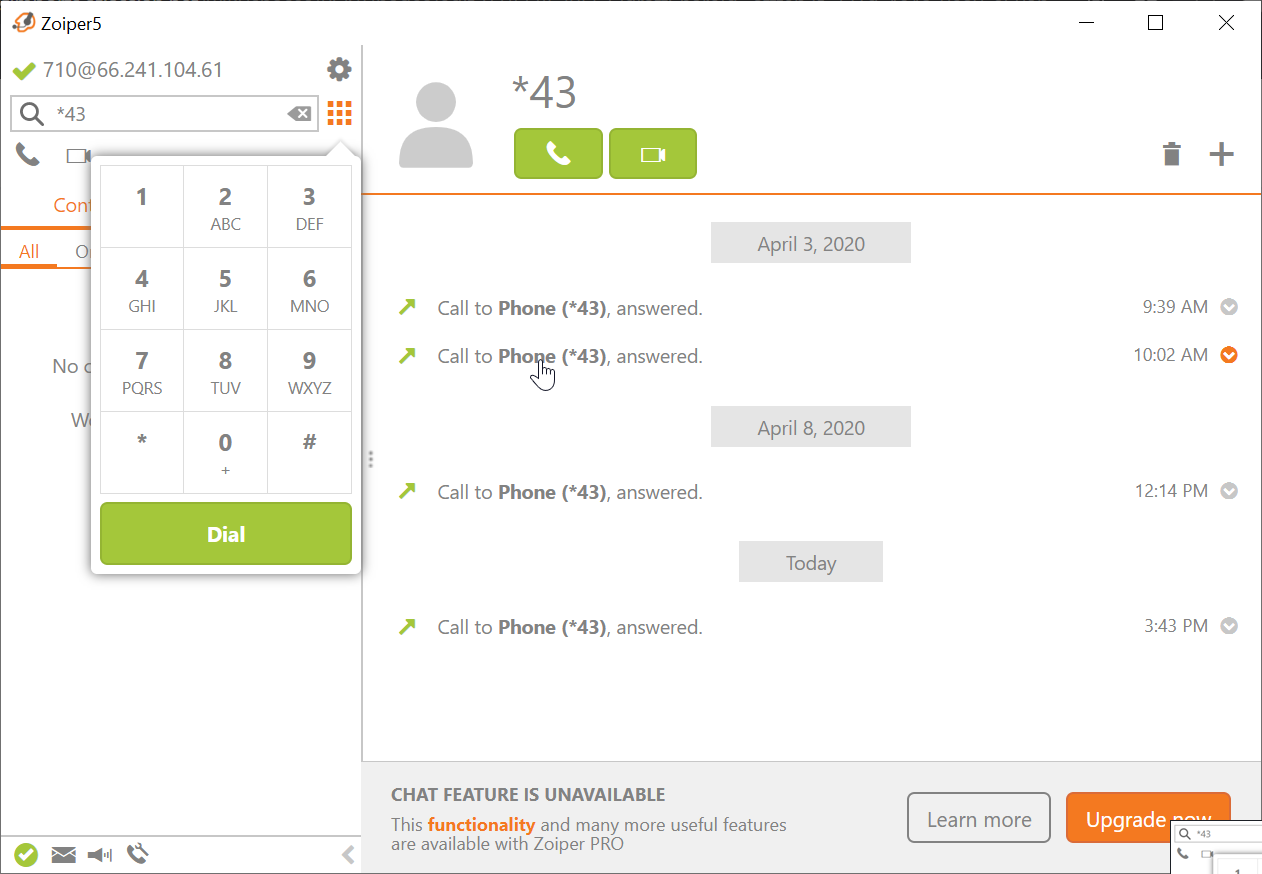
Within Zoiper, dial *43. This will prompt us for an automated message letting us know that the following number is intended as a test to see how responsive calling is from our location to the phone system. Once the automated message is done, we have the ability to hear any noise we input into our microphone so that we can test both input and output sounds.
5. Disable Stun Server
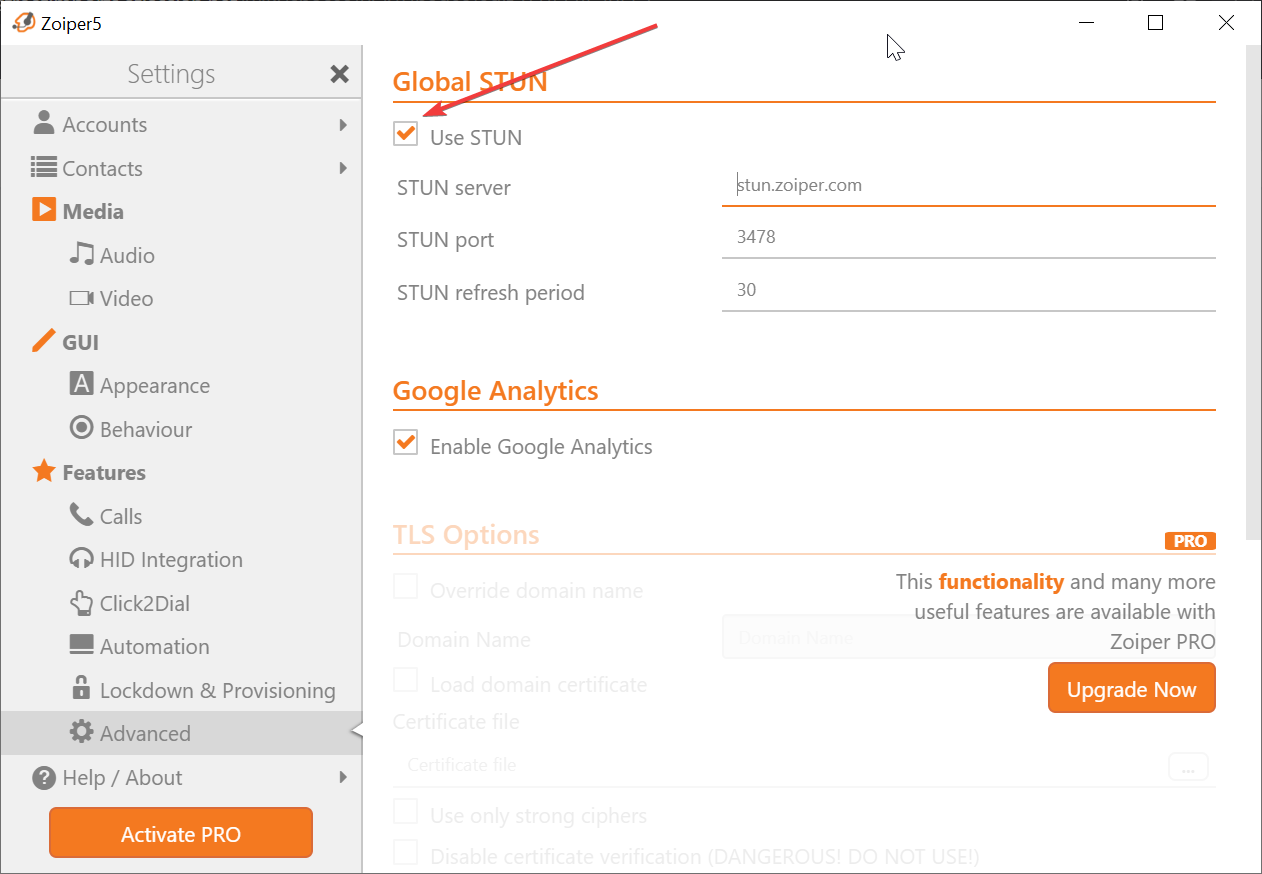
Some softphones have a protocol that allow communications to take place outside of the local computer, in this case, in a server. This can cause issues in communications such as not hearing anything or not microphones not working. For this reason, Zoiper has the option to disable this protocol. To reach this setting, do the following:
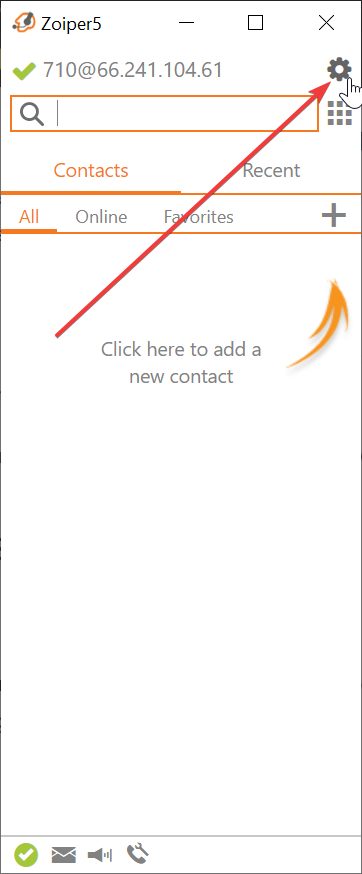
- Click on the gear icon on the top right:
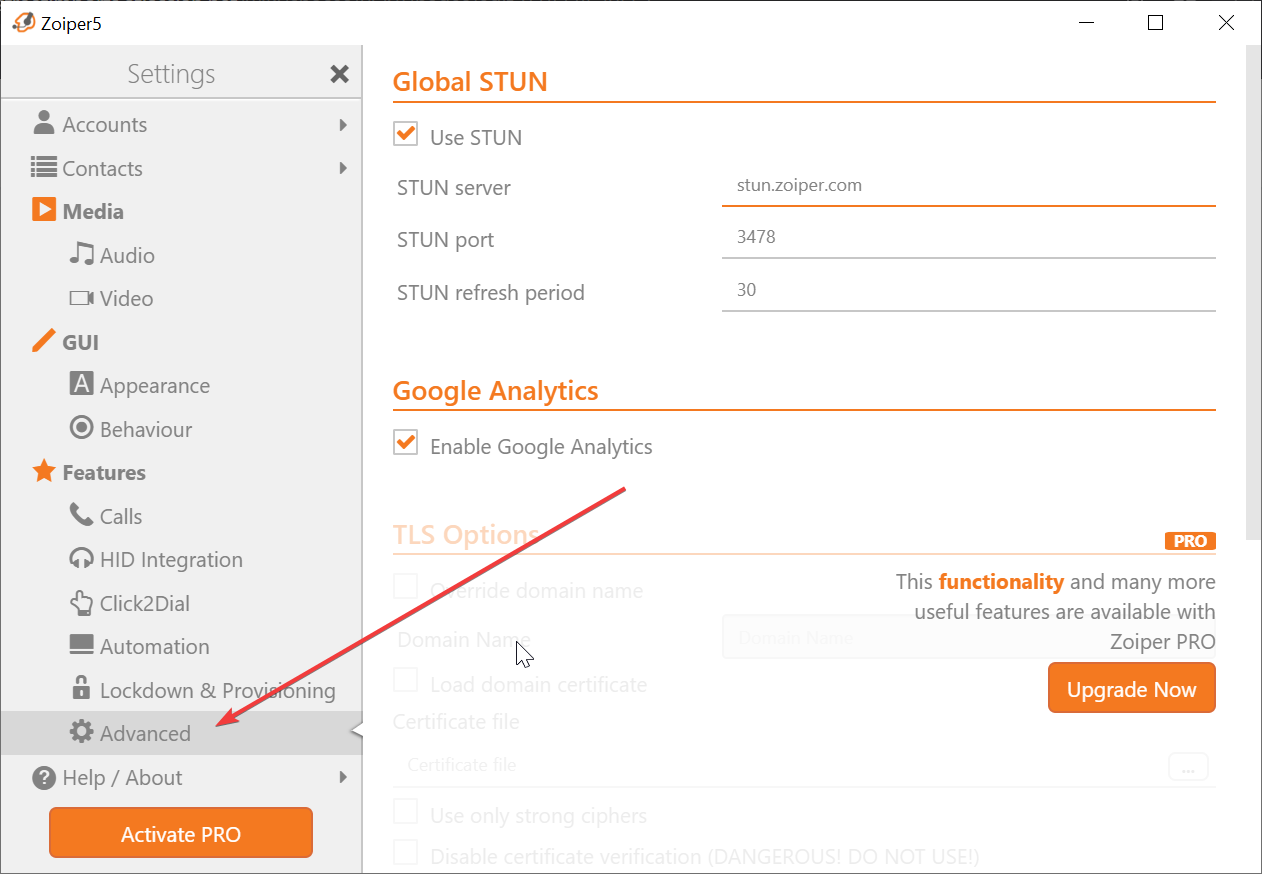
- Click on the Advanced option:
- Un-check the following check box:
- After this, place a test call with another employee to check if the audio is working.
Most of these solutions can also be used to check our output settings, so if you can’t hear anything, chances are one of the aforementioned tips can help you fix it.
If you have tried this guide and still are not able to fix it, follow up with a ticket.