This guide is to help you set up the Zoiper Softphone application for your Android device. In order for the application to properly function, your device needs to be connected to the same Wi-Fi network as your laptop.
To set up Zoiper, follow these steps:
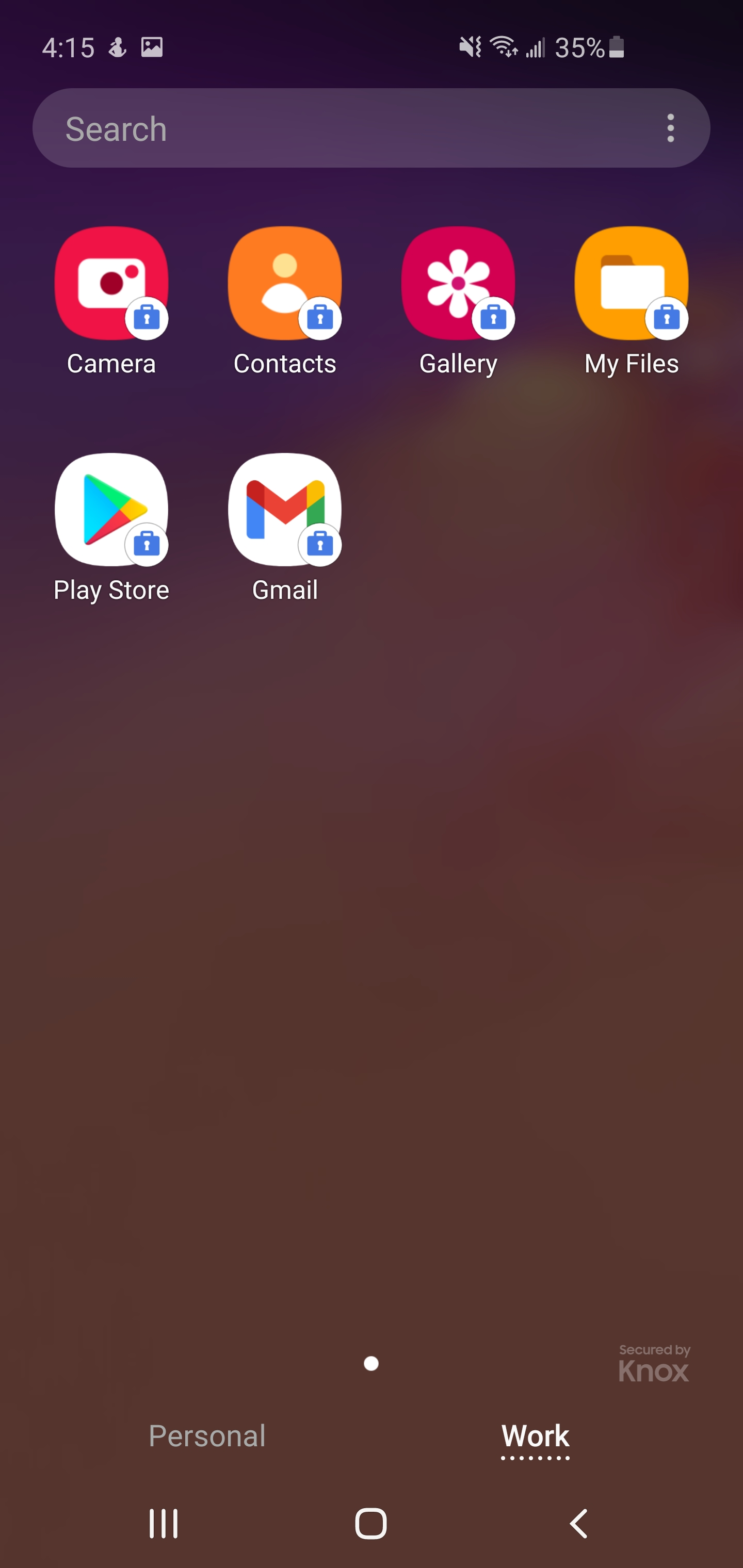
- Open the Google Play Store under your work applications:
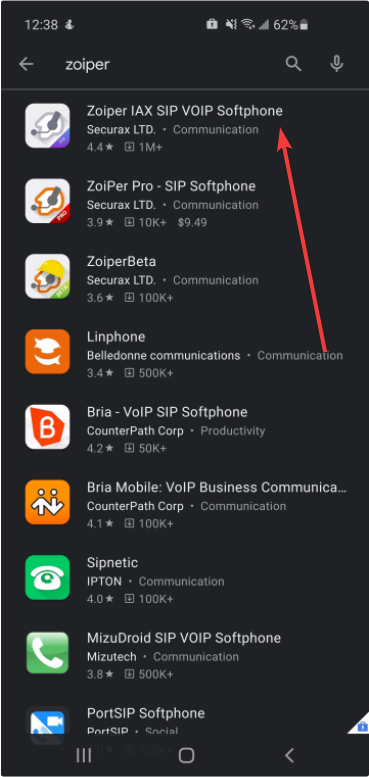
2. Search for Zoiper on the Google Play Store and select “Zoiper IAX SIP VOIP Softphone”
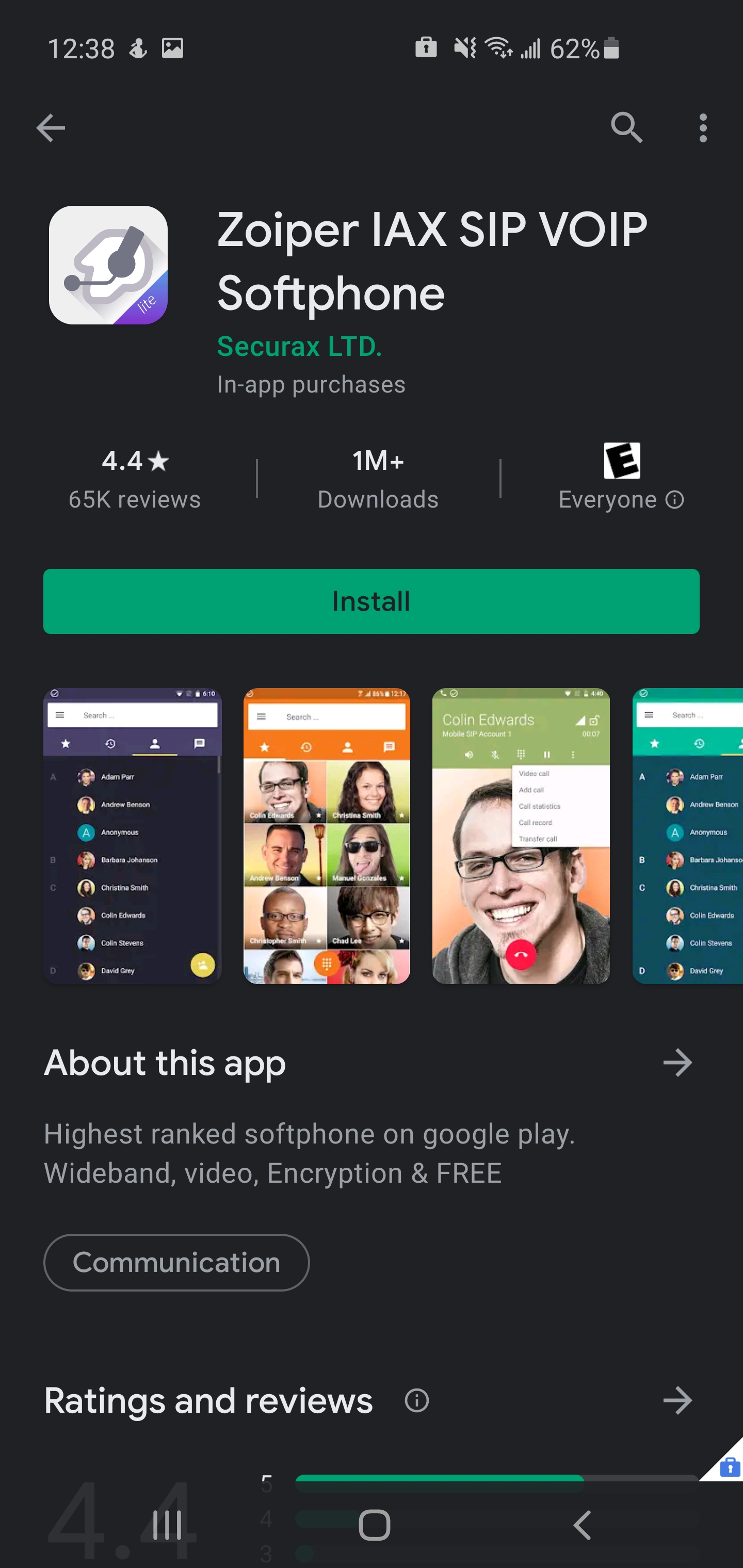
3. Install the application.
4. Accept the Terms and Conditions.
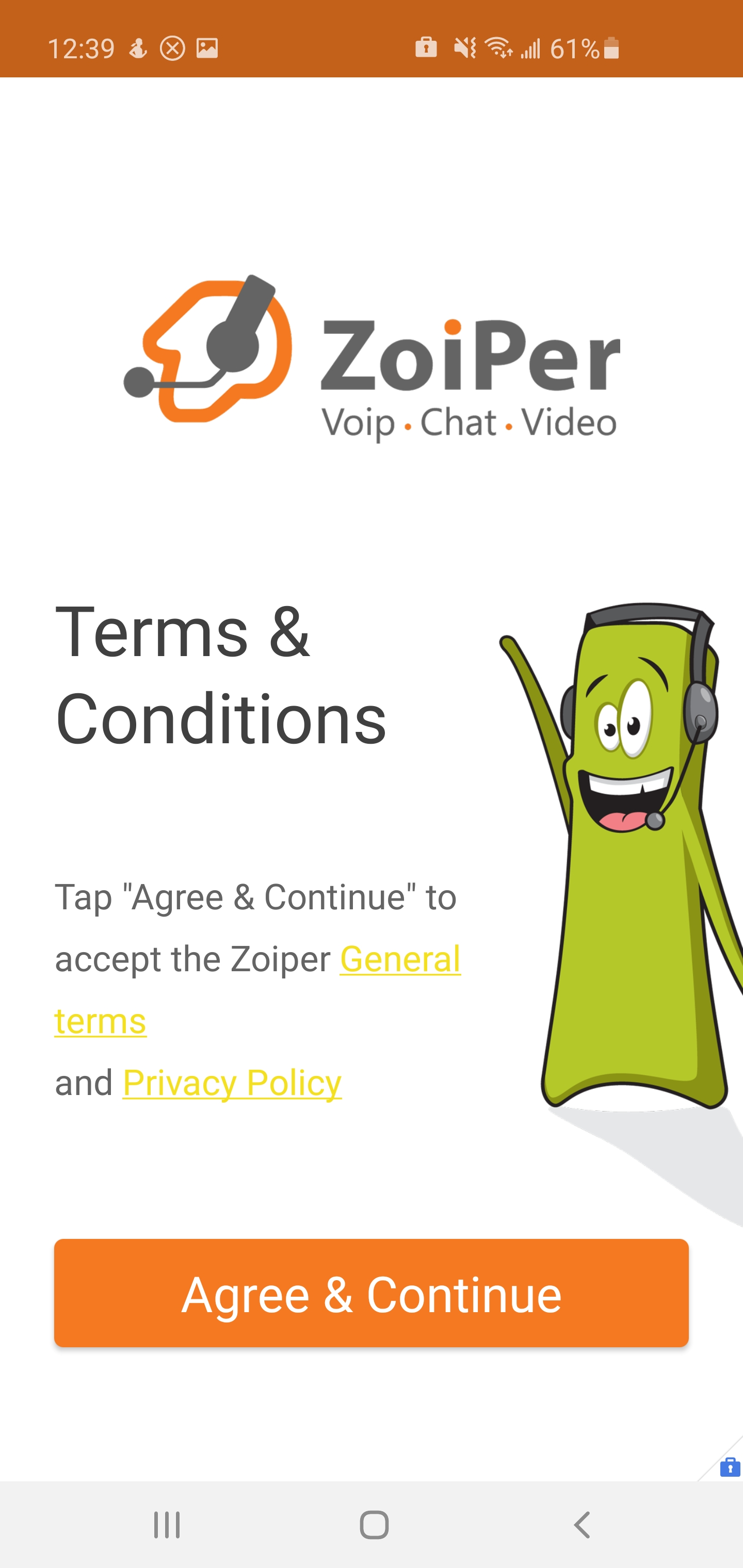
This image shows the default logon screen for Zoiper.
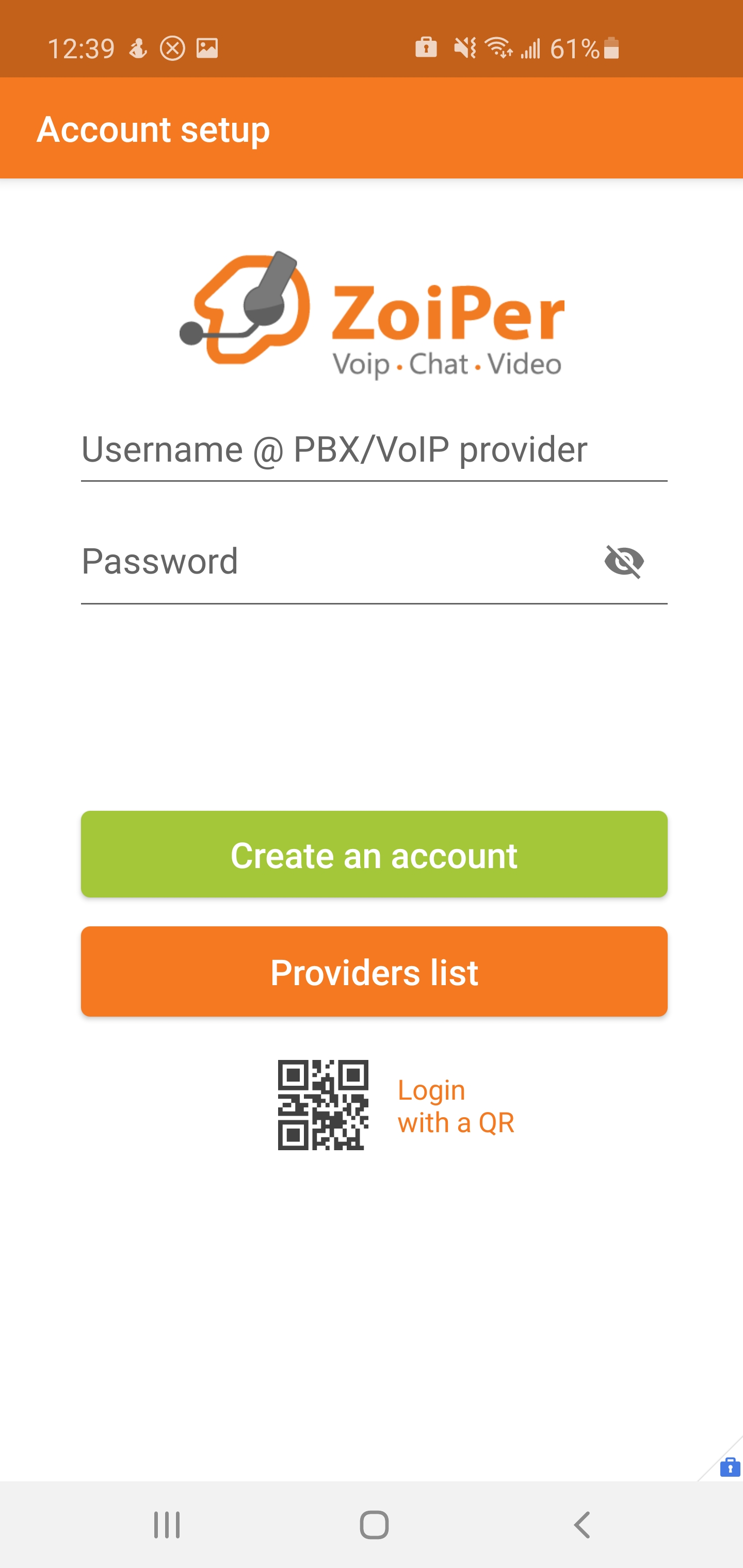
5. Sign in by using the following formats for your extension and password. For your username use: yourextension@pbx.parkstreet.com. For example, if your extension is 200, the format would be: 200@pbx.parkstreet.com. Your password should be the same that you received in the initial email for setting up Zoiper. If you cannot find it, please submit an IT ticket. Once you have typed in your password, select “Create an account”.
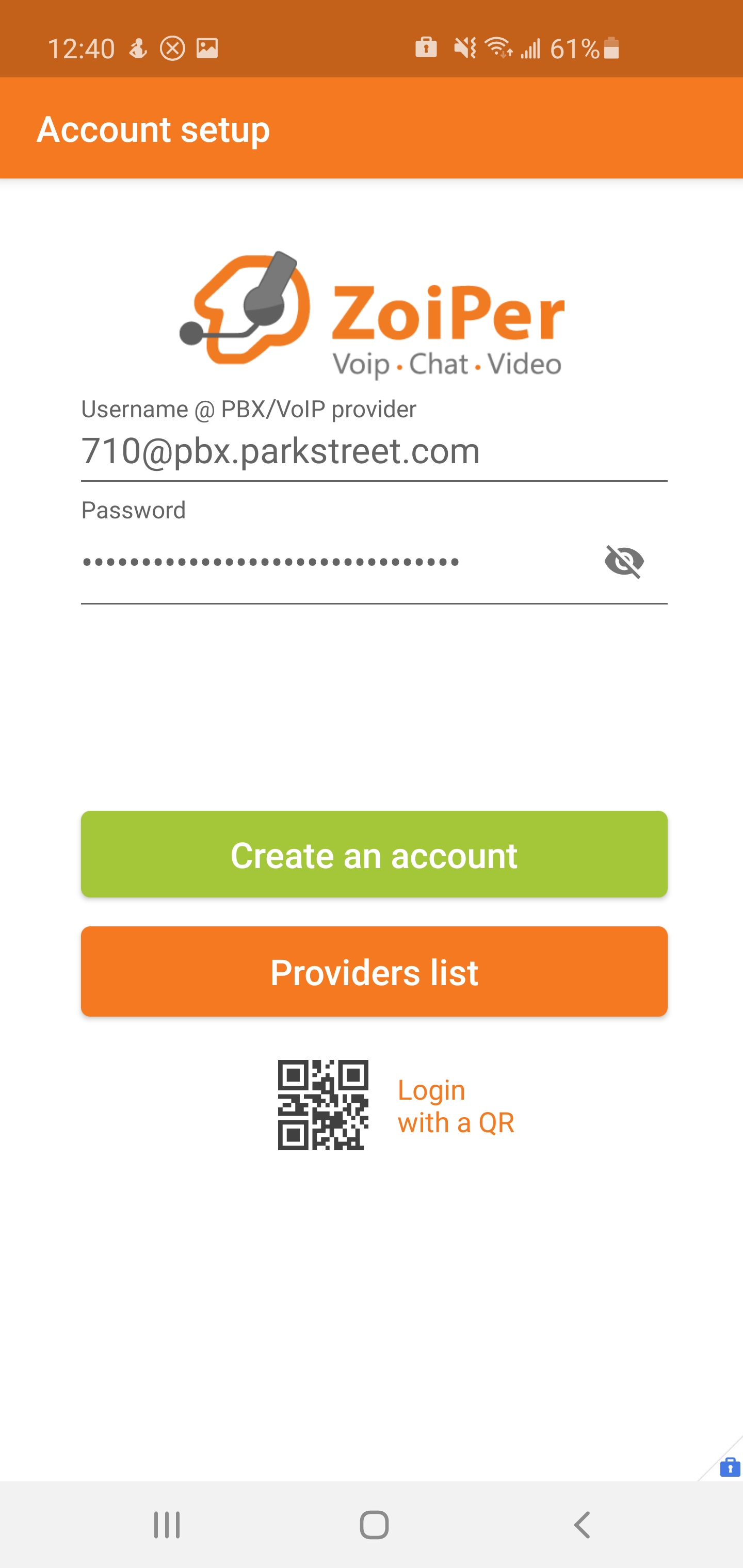
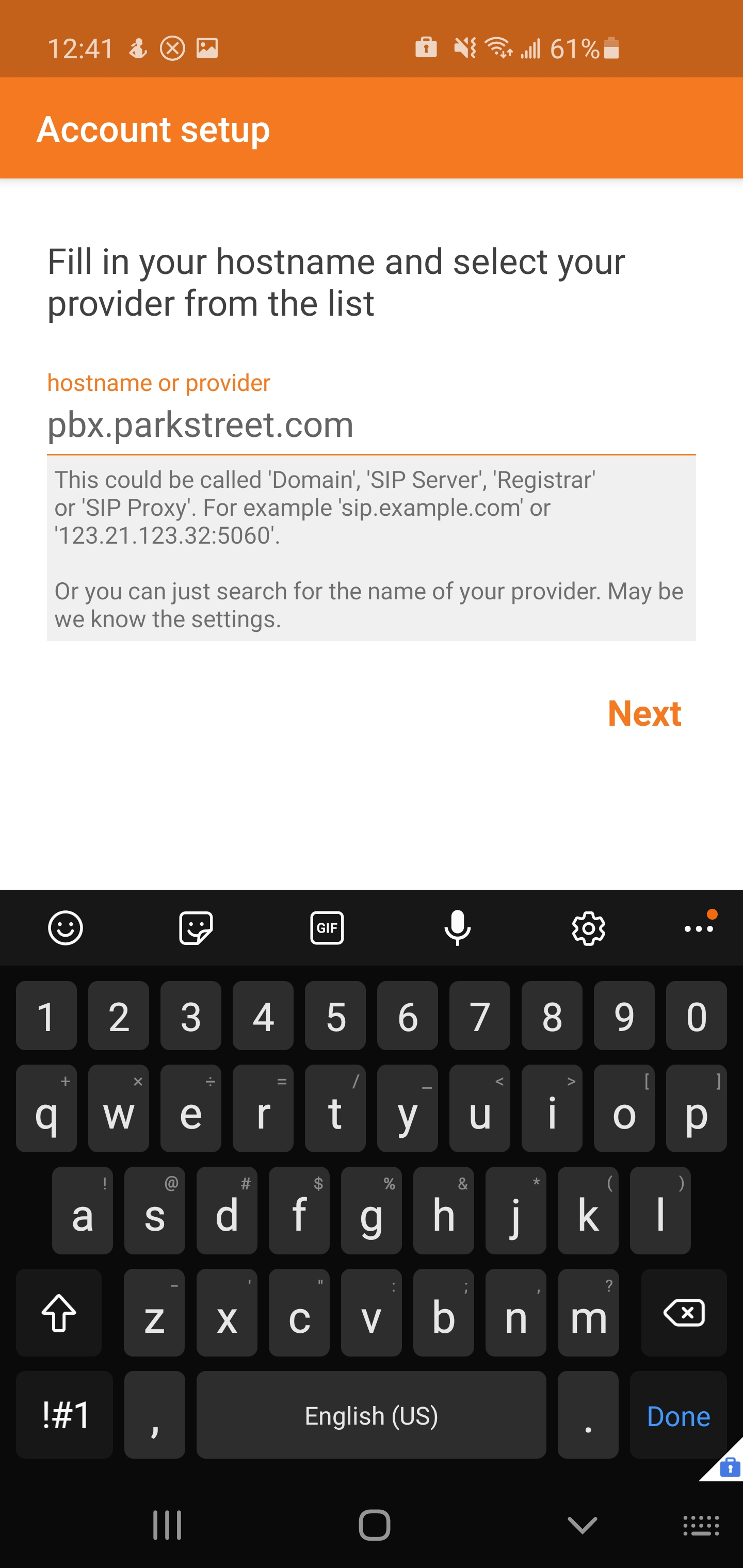
6. Once you create the account, the following page will appear. This page is automatically updated with the required information, to continue, just select “Next”.
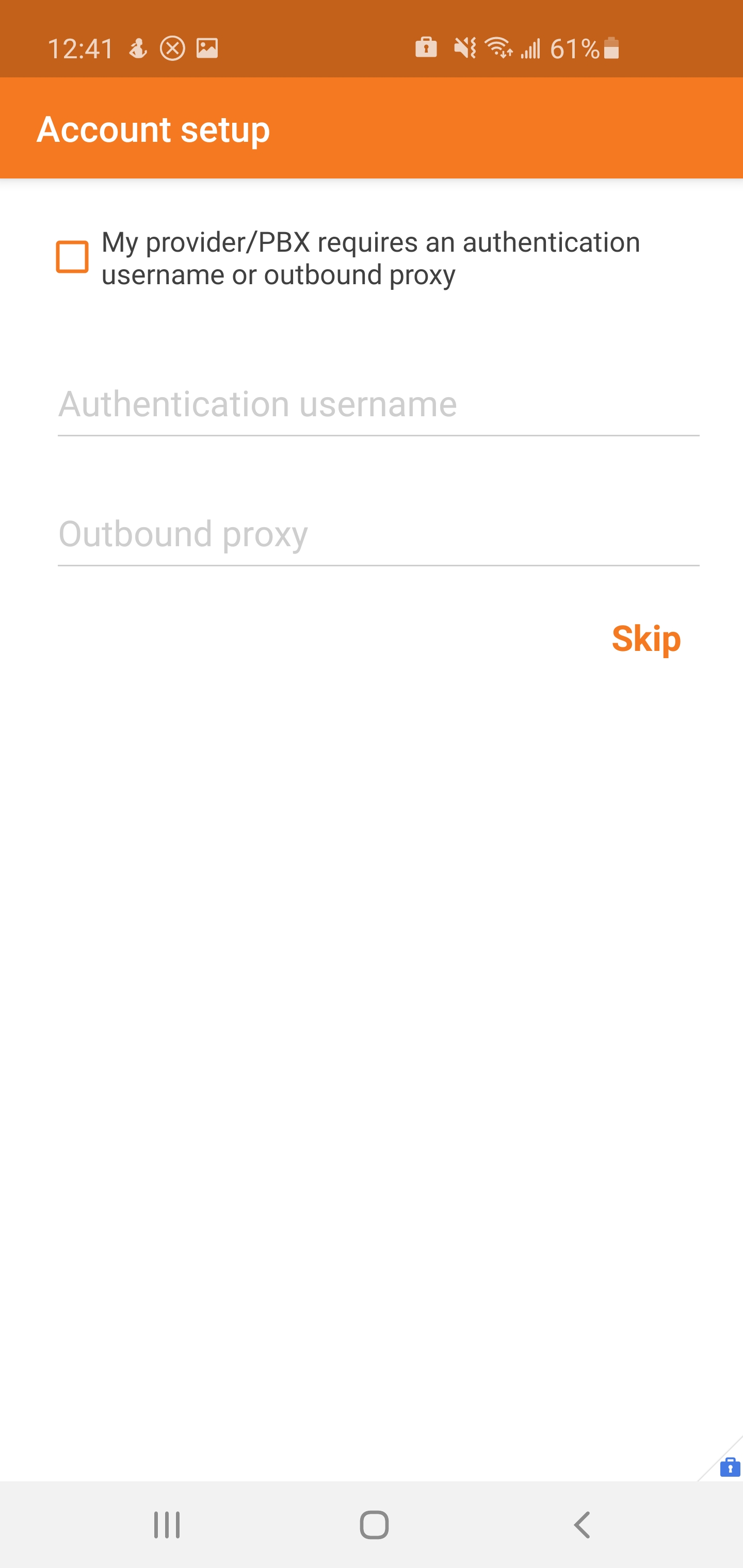
7. Select “Skip”.
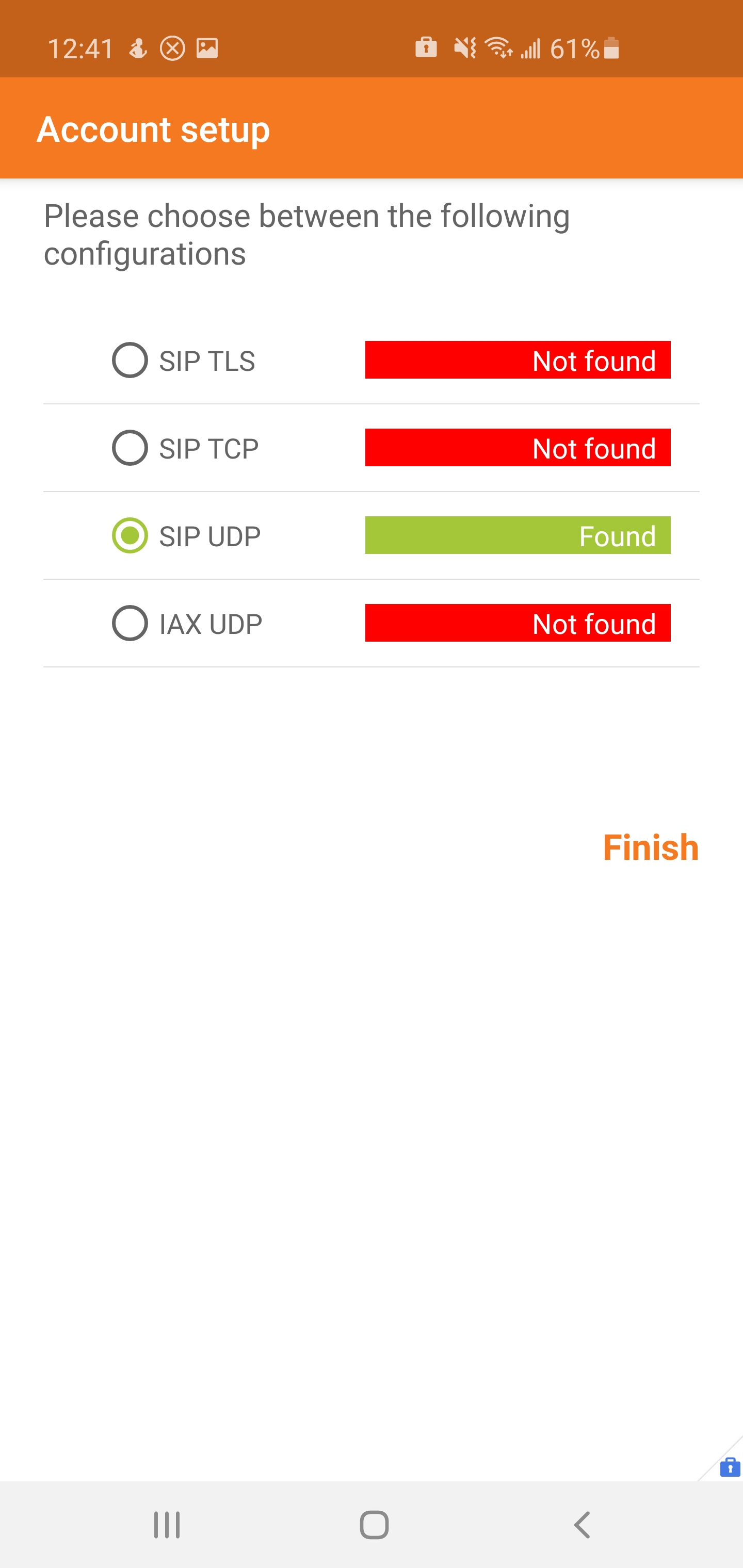
8. This page shows the connections that your Zoiper software is trying to initiate. Our phone system uses SIP UDP. Once you see that the SIP UDP option is green, select “Finish”. If all the options are listed red, it is possible that the credentials are incorrect. Ensure that there are no typos in the username or typo field.
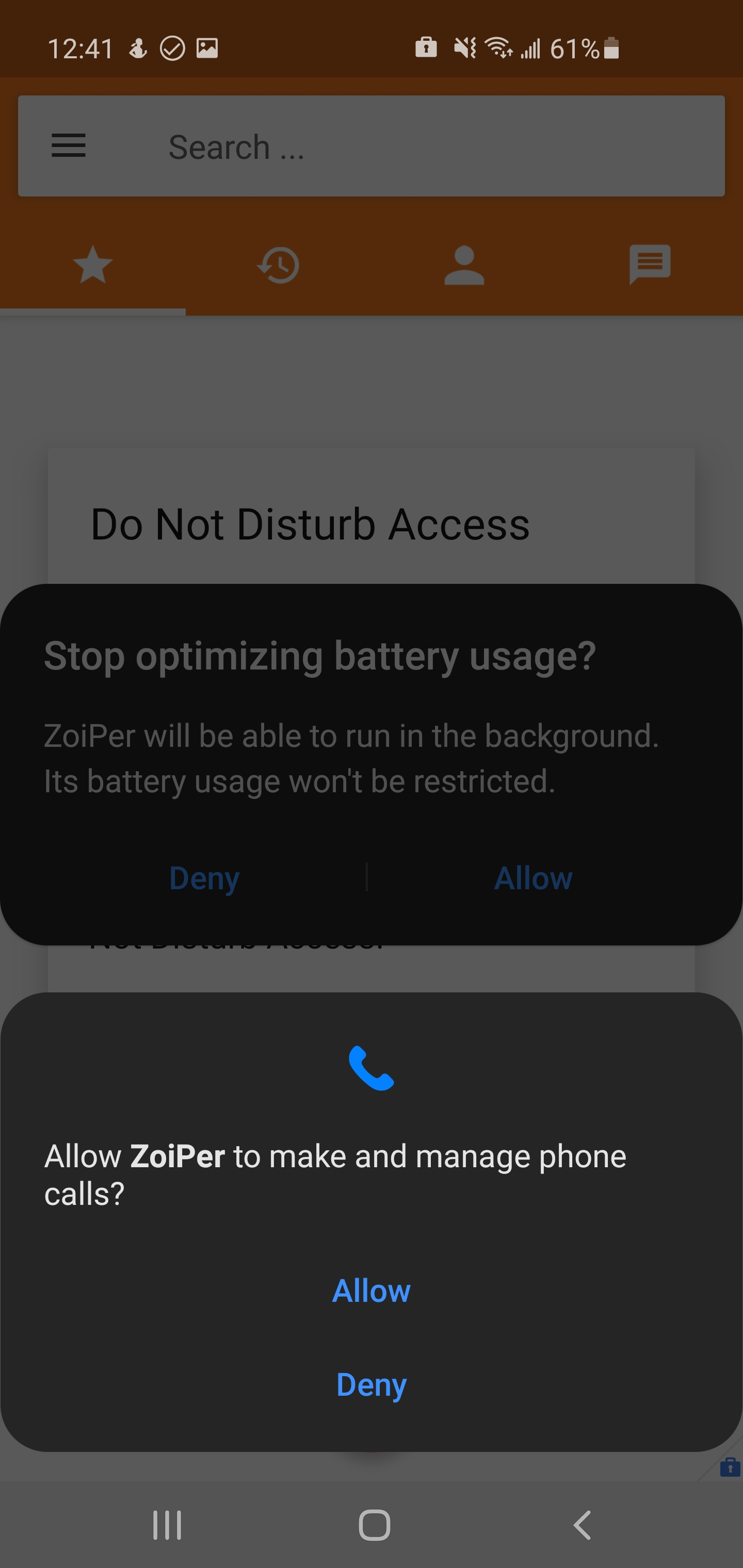
9. Grant Zoiper the permission to receive phone calls and to be ran in the background. In order to have Zoiper functioning, these permissions are required.
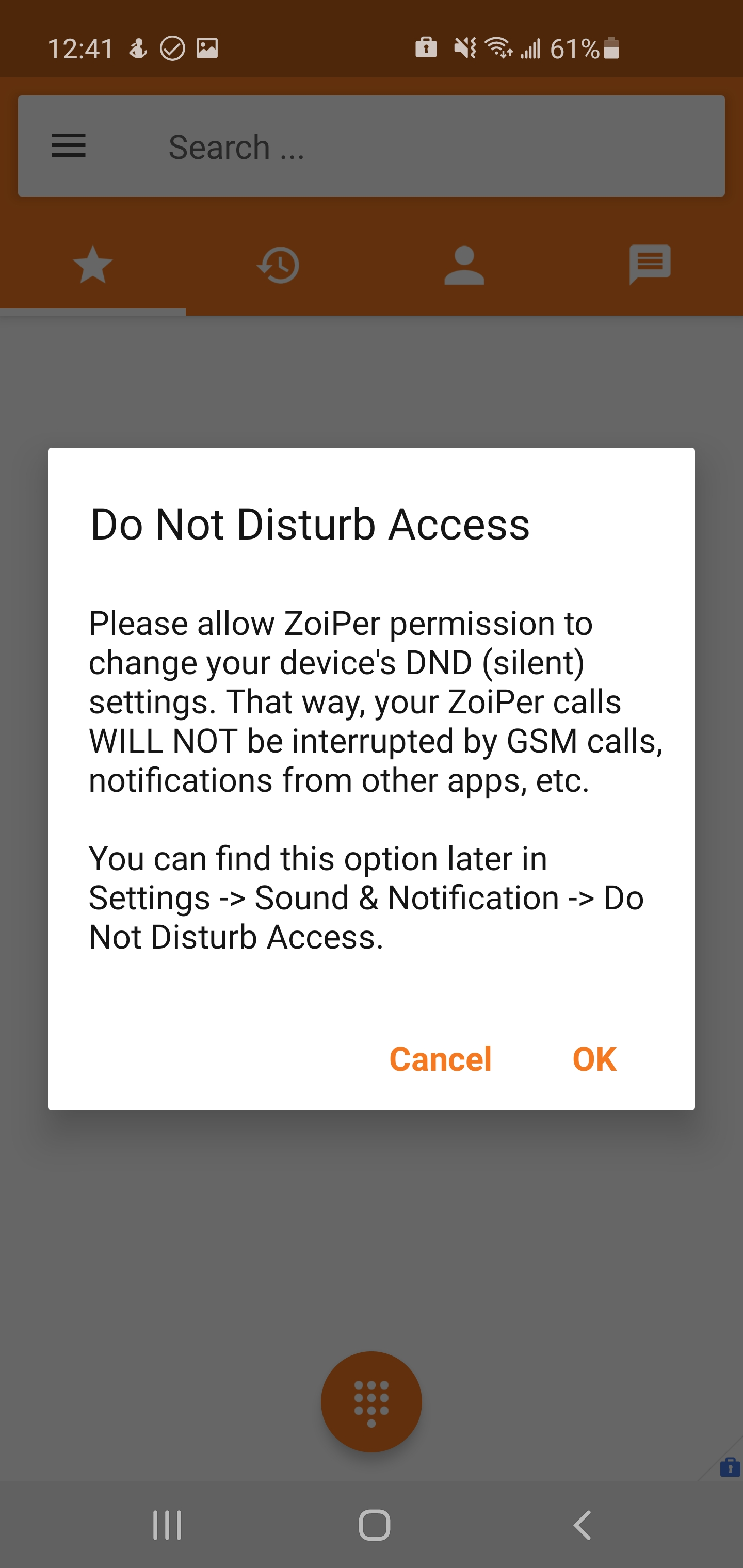
10. This setting enables Do-Not-Disturb access. If this setting is enabled, any calls that you receive from your personal carrier will interrupt any current calls in Zoiper. This means that if you are in a call with a client and receive a personal call, your call with the client will either be dropped or suspended.
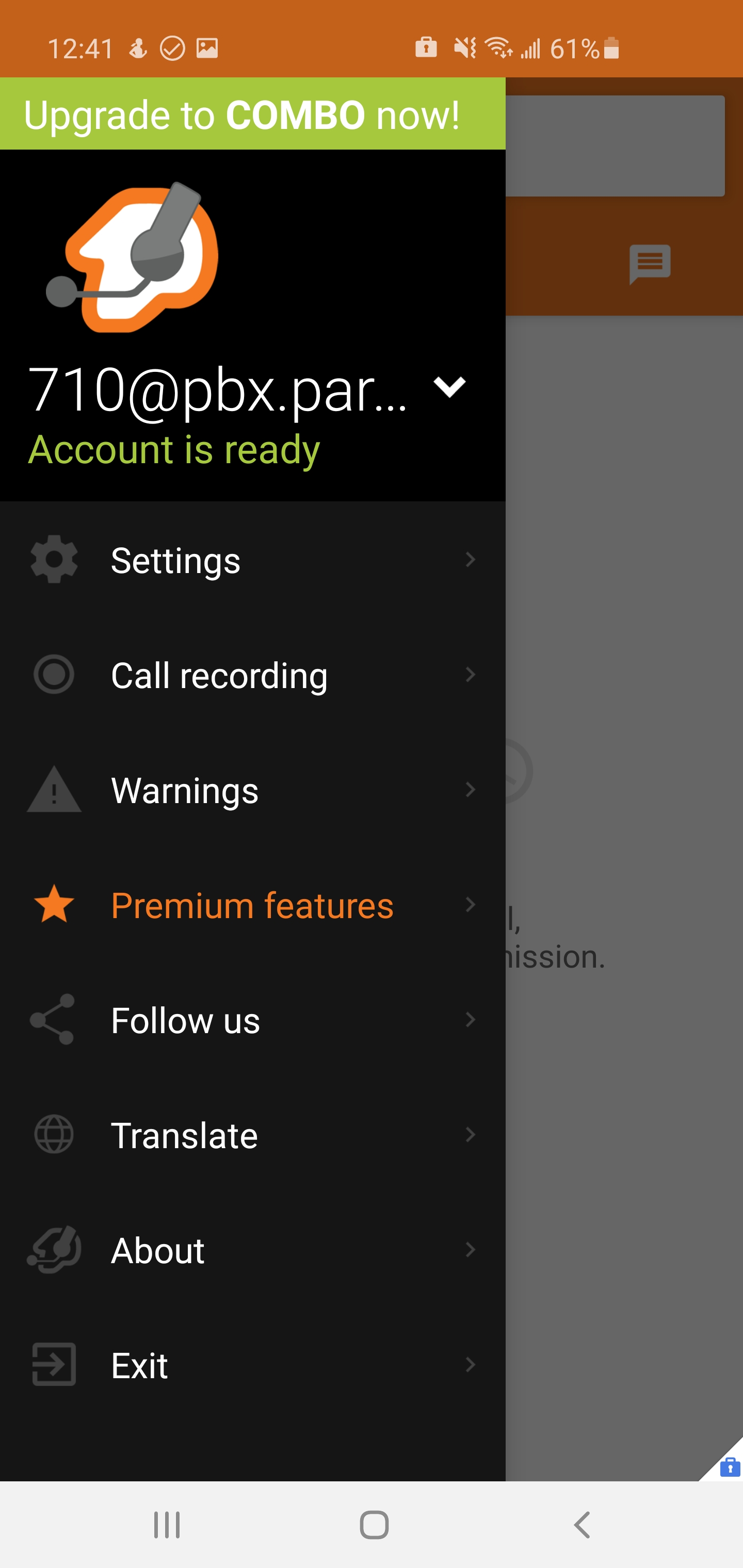
11. Once you have set everything up, open the Zoiper menu. Once you see “Account is ready”, you are now ready to make and receive calls through Zoiper for mobile.