
This guide explains how to add another Google account in Chrome and switch between accounts when using Google services such as Gmail, Drive, Calendar, or Google.com.
Use these steps when you need to access a secondary Google account, such as a shared inbox or another work account, from the same Chrome browser.
Before you begin
Make sure you have the email address and password for the Google account you need to add.
Step 1 — Open Gmail or Google
Open Google Chrome and go to Gmail or Google.
Step 2 — Open the Google account menu
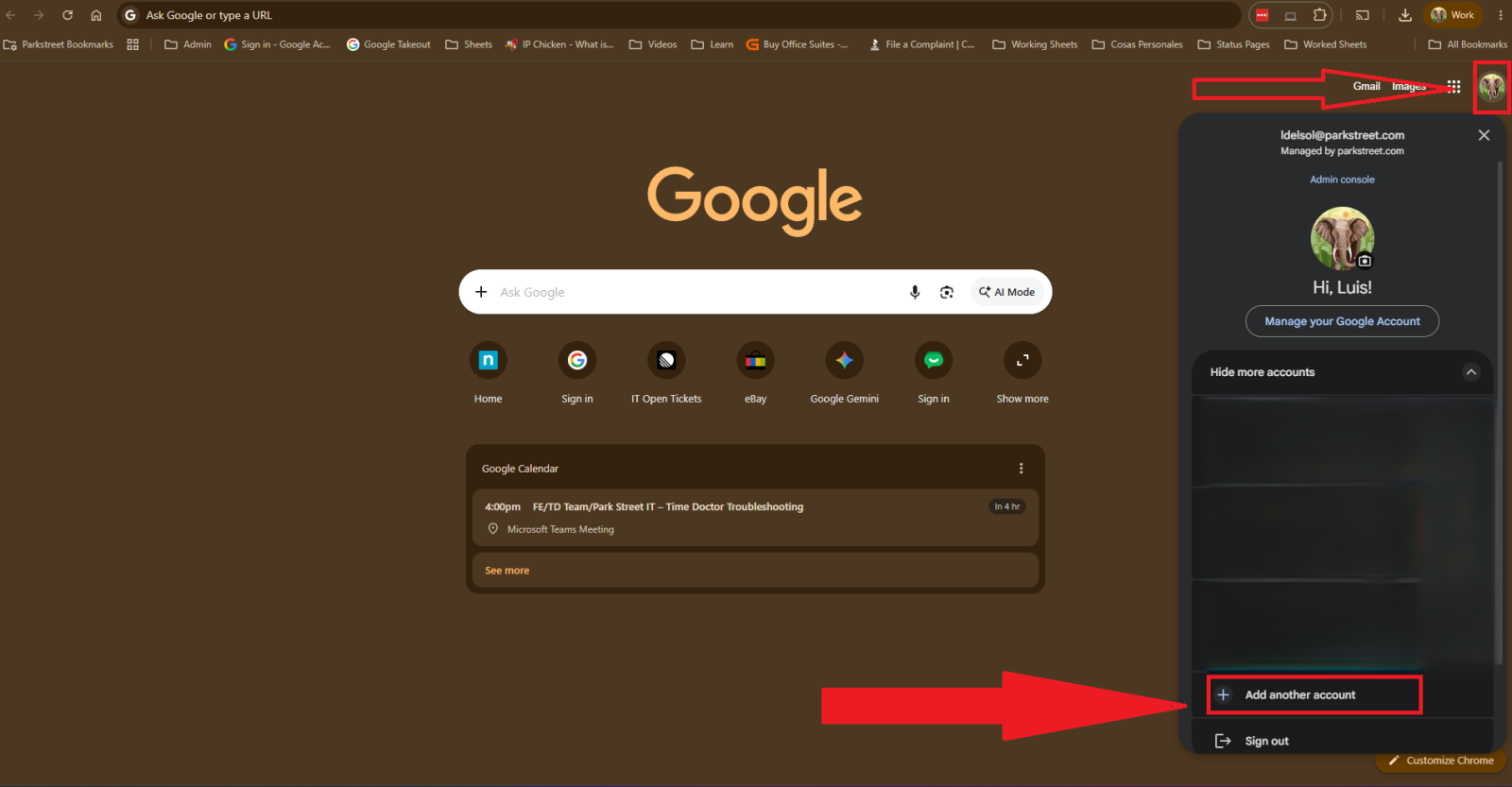
Click your profile picture or initials in the top-right corner of the page.
Step 3 — Add another account
From the account menu, select Add another account.
Step 4 — Choose another account
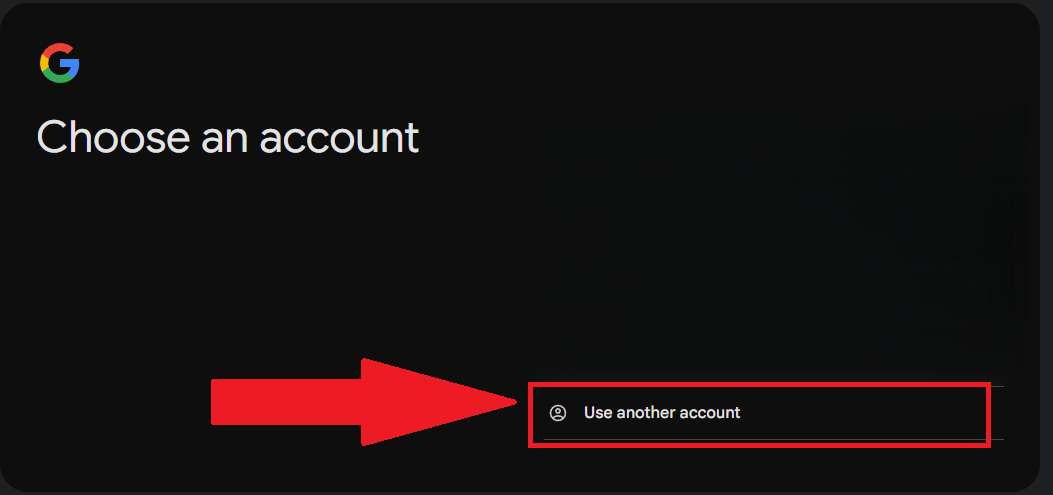
On the Choose an account screen, select Use another account.
Step 5 — Sign in
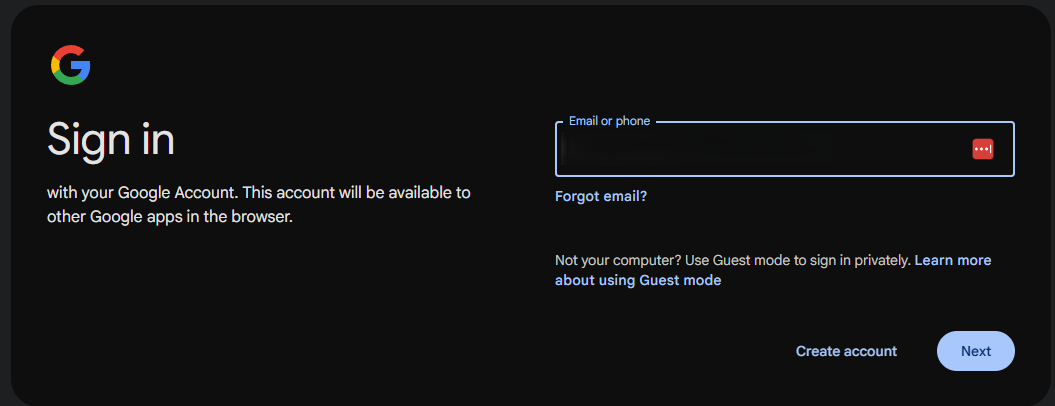
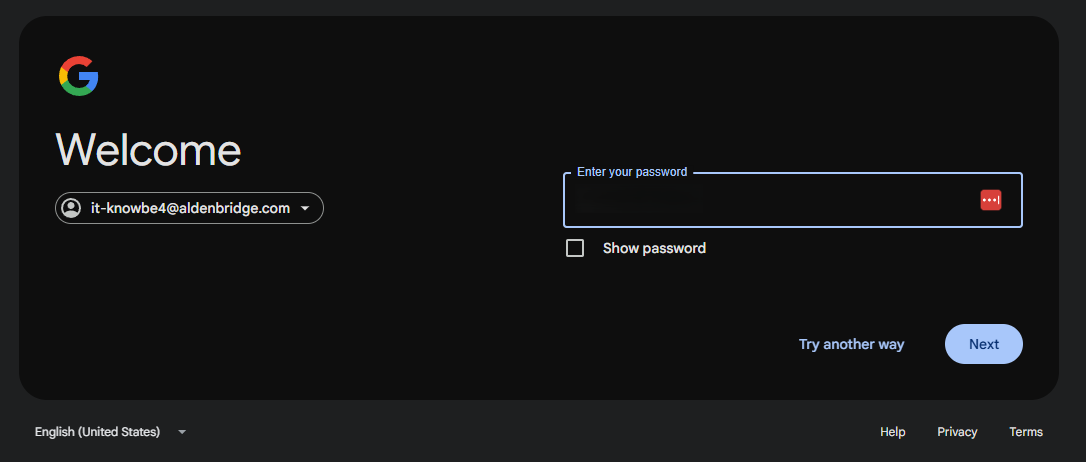
Enter the email address and password for the account you are adding, then follow any on-screen prompts to complete the sign-in process.
Step 6 — Switch between Google accounts
After the account has been added, you can switch between accounts from the same browser.
To switch accounts:
- Open Gmail, Google Drive, Google Calendar, or Google.com.
- Click your profile picture or initials in the top-right corner.
- Select the Google account you want to use.
- Confirm that the correct account is active before opening files, sending emails, or making changes.
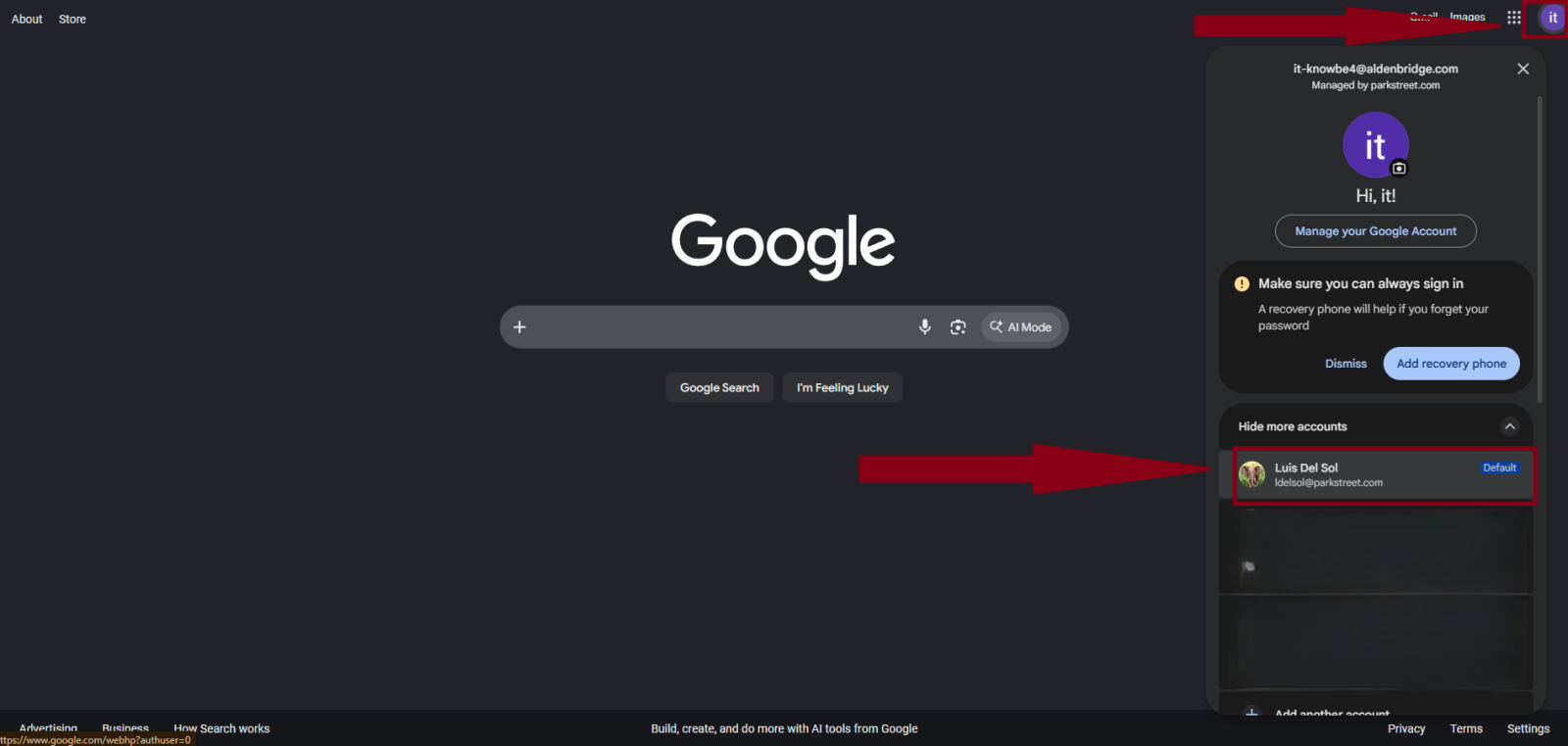
Always check the profile picture, initials, or email address in the top-right corner before using Google services. This helps ensure you are working from the correct account.