
This guide will help you to redirect files and folders to your Google Drive.
This process is highly recommended as it will ensure that each file and folder is imported to Google Drive. Due to the nature saving files on the local computer, it is highly recommended to have a backup method so that we can restore files in the event of an unforeseen hardware error.
Please follow these steps to set up Google Drive Syncing:
1. Open Google Drive Preferences
Open Google Drive from the Task Tray as shown:
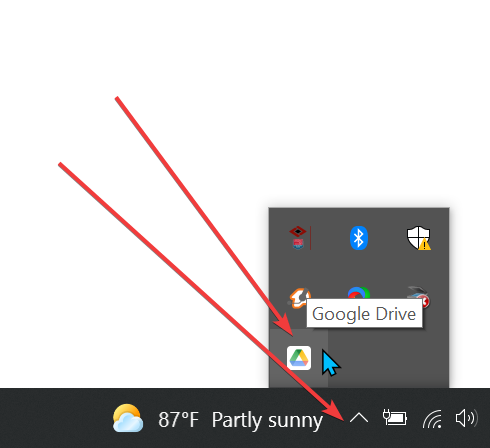
Click the Google Drive icon and the following menu will appear:
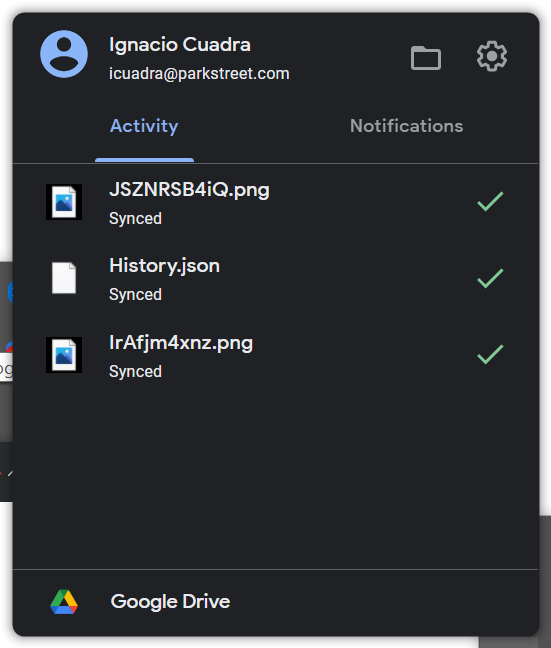
Select the gear icon for settings and select “Preferences”:
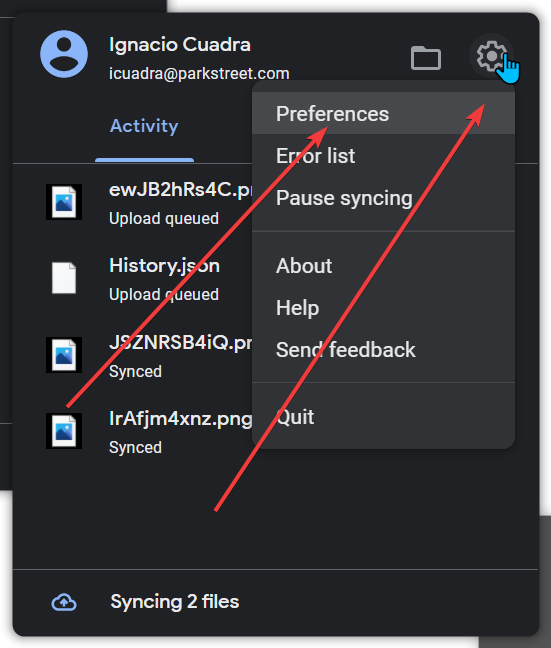
2. Add the Folders and Files You Will Be Syncing:
After selecting “Preferences” the following page will appear:
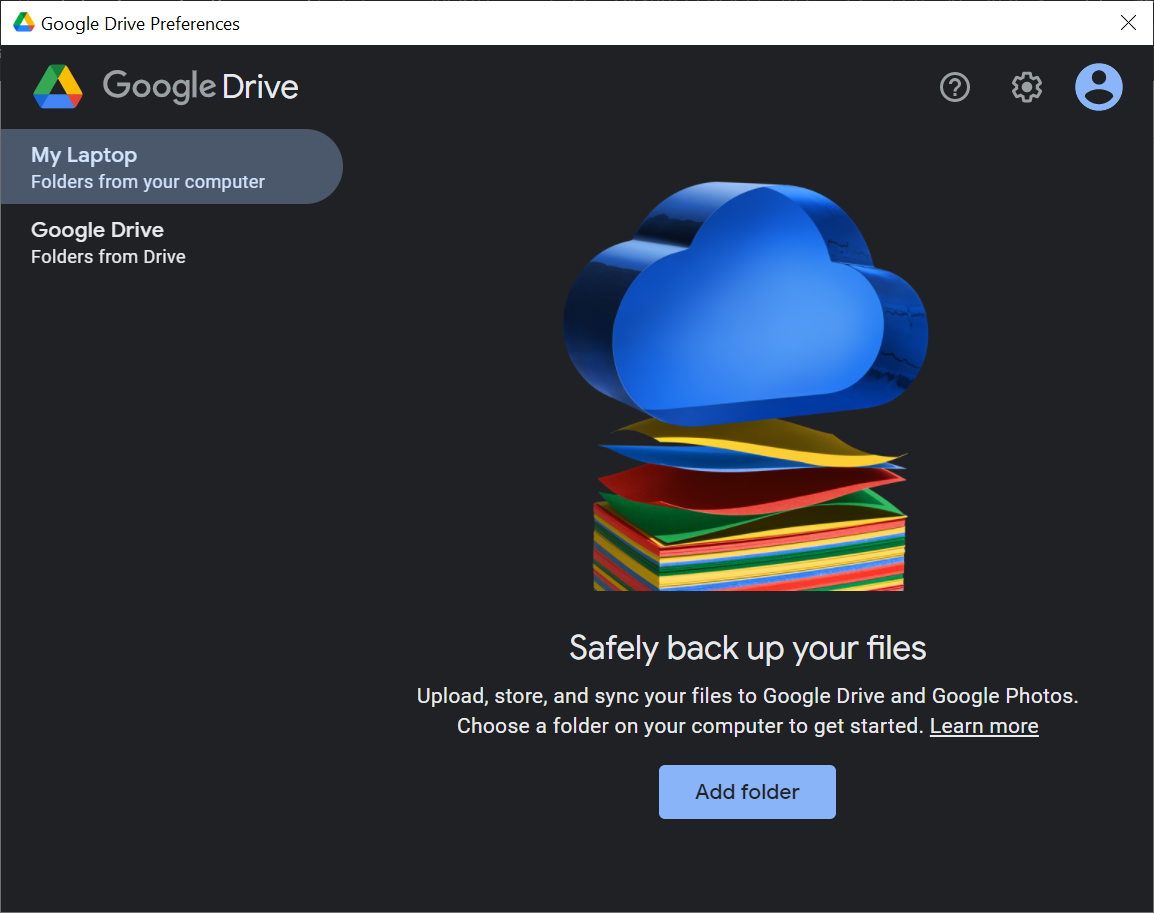
This is a very crucial part. Please remember to include any folders that you frequently work from. We strongly recommend that you select the entire Documents folder and the Desktop folder. In this guide I will walk through the steps for adding the Documents folder.
Continue by selecting the button “Add Folder”:
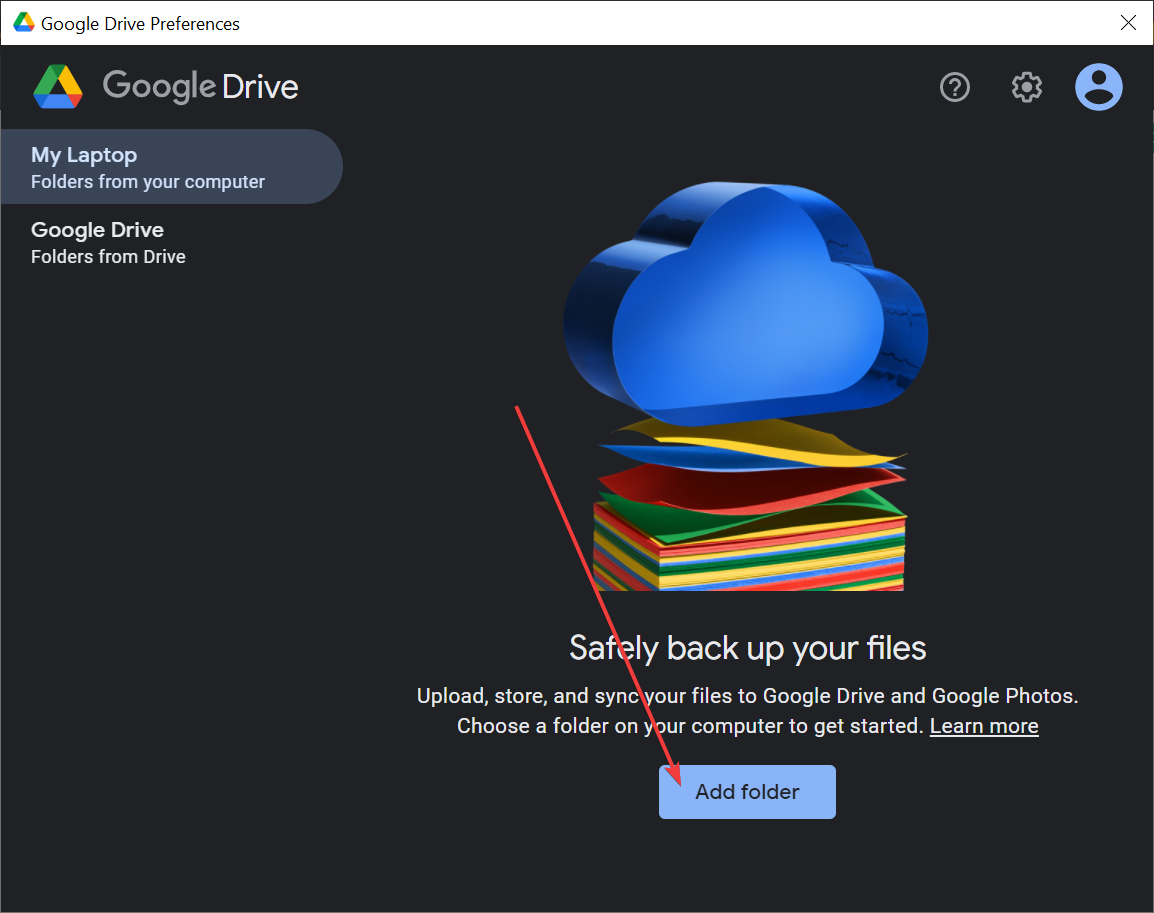
Select the folders that you will be including in the backups:
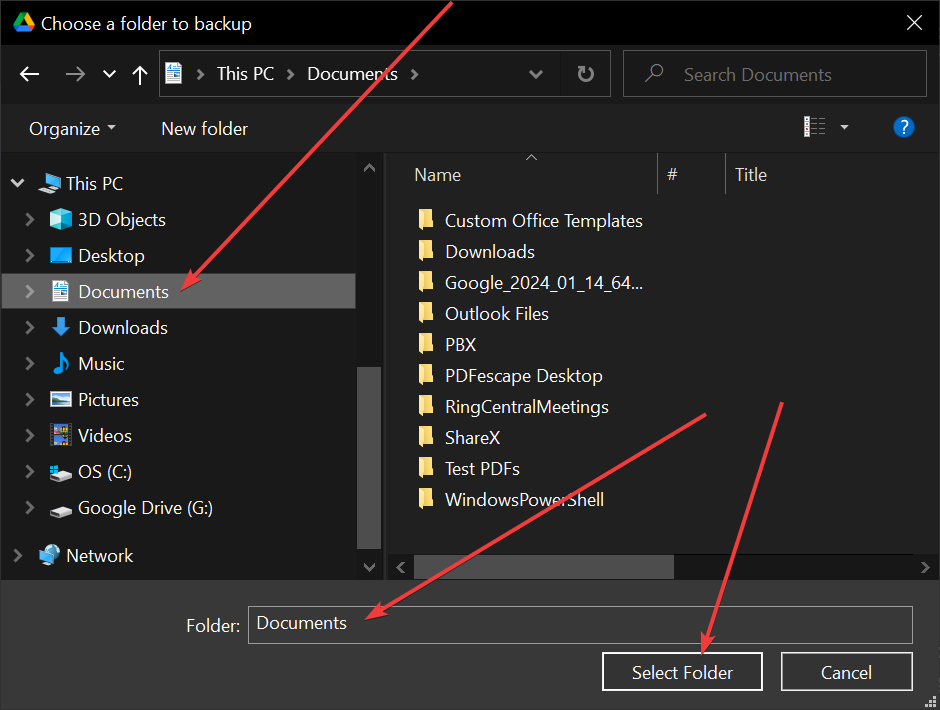
Please ensure that you select the folder. Failure to do so will lead to misconfigurations and potential loss of work or critical work. You can ensure that the correct folder is selected by checking the “Folder” field in the bottom of the image.
Once you click on “Select Folder” the following window will appear:
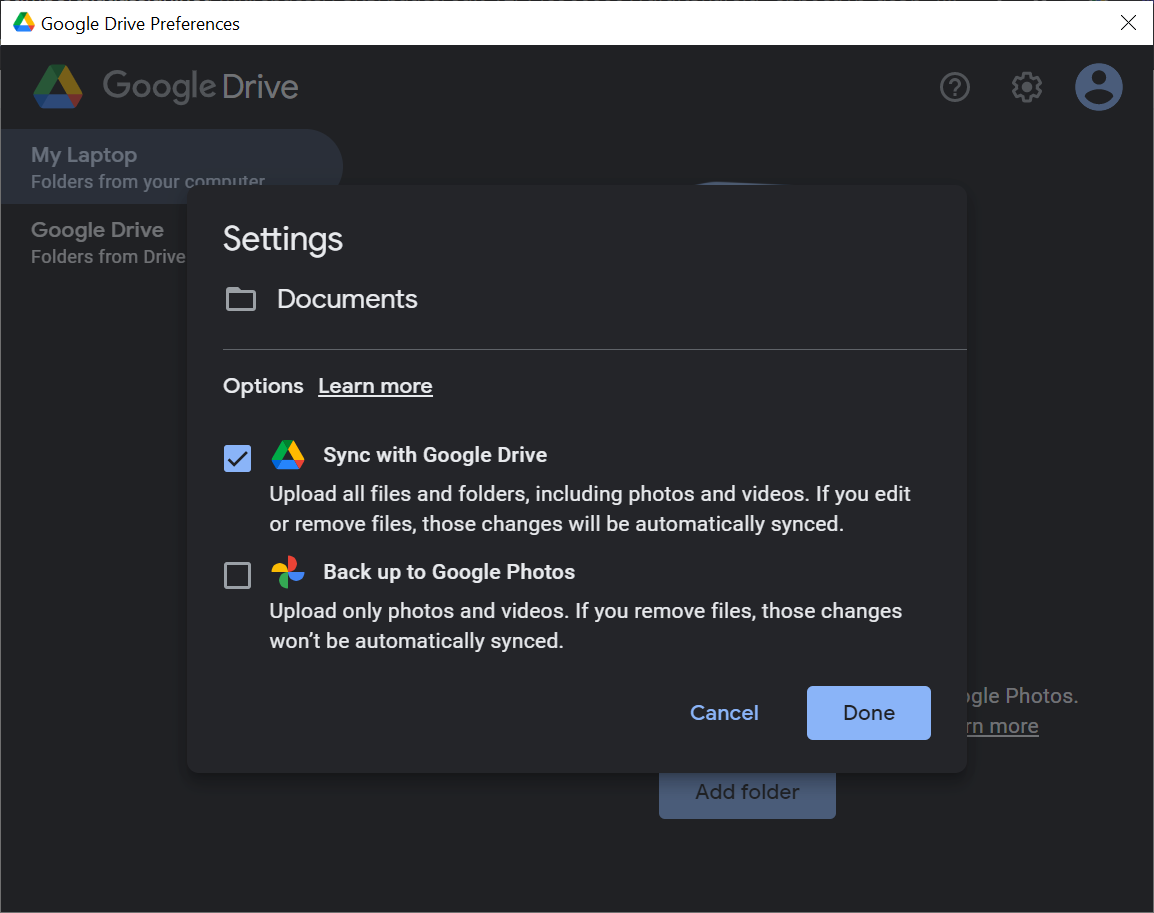
To save all files (including photos and videos) to Google Drive, just select “Done”. Once you are done, the “Preferences” page should look like the following:
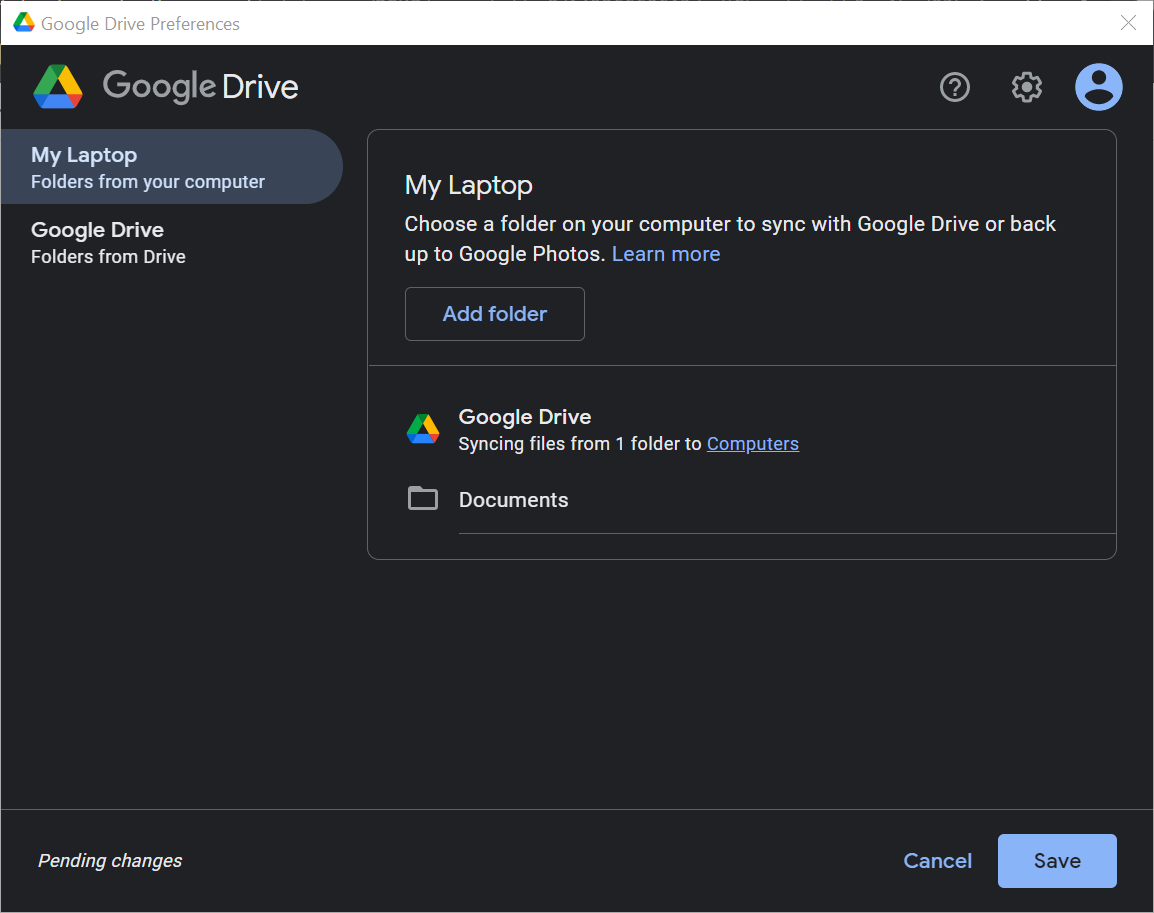
Select “Save”:
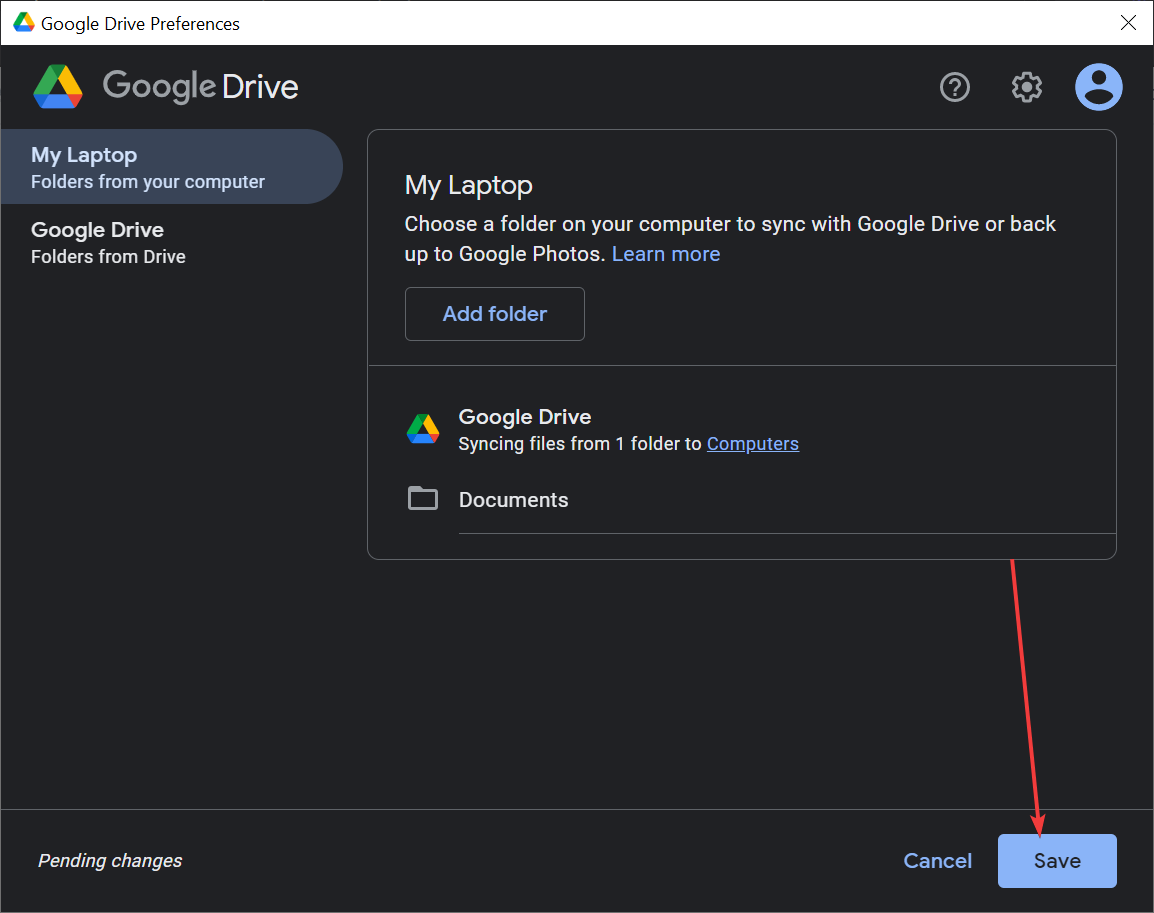
Google Drive will now start to sync the files and folders in the background. This process can vary in time since it will depend on how many files are in the folder.
3. Confirm Backups by Going to the Web Version of Google Drive
To confirm that the backups have synced, open the web version of Google Drive and look for the following folders:
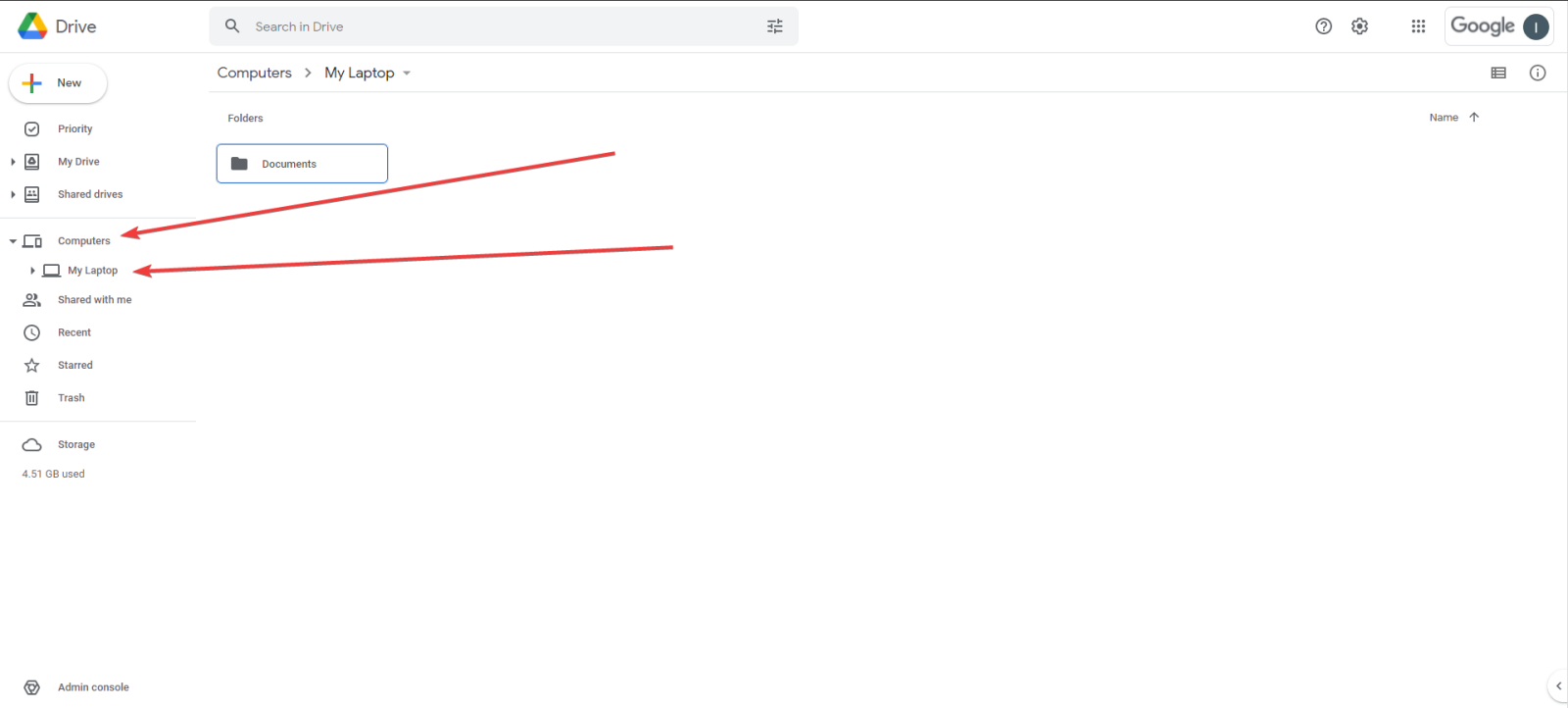
This folder will include all the files and folders in your Documents folder.
Please remember, these files will remain in your Documents folder. They will still be available in this folder, this process is to ensure that each file in that folder will be backed up. Please make sure each local folder that you save to frequently is in this process.