
Instructions for adding your signature on Front
Step by step:
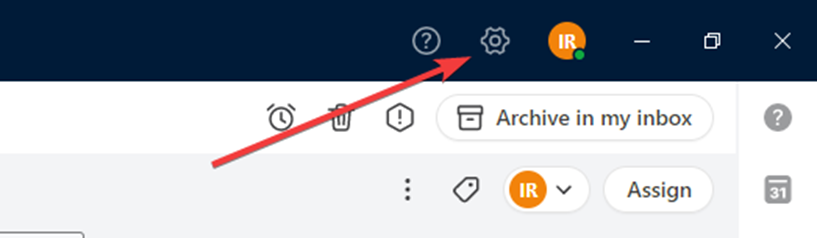
1. Go to Settings
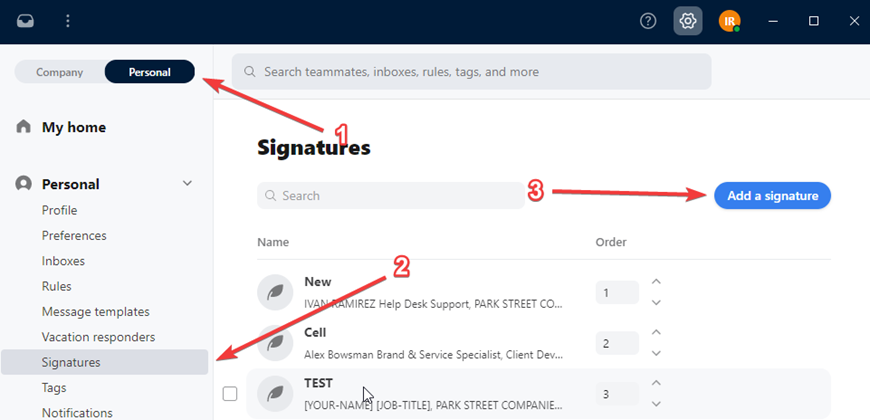
2. Click on Personal > Signatures > Add a Signature
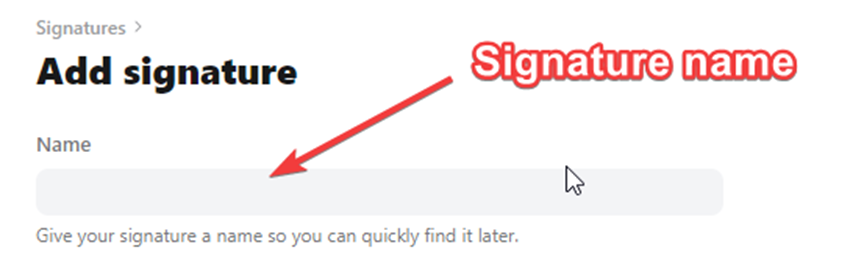
3. Write the name of your Signature
4. Email Code Block
Should you need the HTML code for the email signature, you may copy and paste the code below. This can be used in Front but will not work for Gmail.
Code Block for Parkstreet signature.
<table border="0" cellpadding="0" cellspacing="0" style="width:415px;font-size:10pt;font-family:Arial,Roboto,sans-serif;"><tbody><tr><td align="left" valign="top" width="75" style="font-family:Arial,Roboto,sans-serif;width:75px;vertical-align:top;text-align:left;padding-right:20px;"><div> <a rel="noopener noreferrer" href="https://www.parkstreet.com/" target="_blank"><img border="0" style="width:65px;height:65px;border:0;" height="65" width="65" alt="ParkStreetLogo" src="https://psi-email-signature.s3.amazonaws.com/park_street/ps.logo.png" /></a></div>
</td><td style="width:475px;padding:0;">
<table border="0" cellpadding="0" cellspacing="0" width="475"><tbody><tr><td style="border-bottom:2px solid rgb(189,189,189);padding-bottom:10px;"> <strong><span style="font-size:14px;font-weight:bold;font-family:Arial,Roboto,sans-serif;color:rgb(0,0,0);">[YOUR-NAME]<br /></span></strong> <span style="font-family:Arial,Roboto,sans-serif;font-size:14px;color:rgb(0,0,0);">[JOB-TITLE]<br /></span> <span style="font-family:Arial,Roboto,sans-serif;font-size:14px;color:rgb(0,
0,0);">Park Street Companies</span>
</td></tr><tr><td valign="middle" style="font-family:Arial,Roboto,sans-serif;mso-line-height-rule:exactly;vertical-align:middle;padding-bottom:15px;padding-top:10px;"> <span style="line-height:20px;"><img style="border:0;height:17px;width:17px;vertical-align:middle" width="17" height="17" border="0" valign="middle" alt="email-icon" src="https://psi-email-signature.s3.amazonaws.com/park_street/ps.email.png" /> <a style="text-decoration:none;" rel="noopener noreferrer" href="mailto:[YOUR-EMAIL]@parkstreet.com" target="_blank"><span style="color:rgb(14,14,14);font-family:Verdana,sans-serif;text-decoration:none;font-size:12px;vertical-align:middle;">[YOUR-EMAIL]@parkstreet.com</span></a></span><br /> <span style="line-height:20px;"><img style="border:0;height:17px;width:17px;vertical-align:middle" width="17" height="17" border="0" valign="middle" alt="phone-icon" src="https://psi-email-signature.s3.amazonaws.com/park_street/ps.phone.png" /> <a style="text-decoration:none;" rel="noopener noreferrer" href="Tel:+13059677440" target="_blank"><span style="color:rgb(14,14,14);font-family:Verdana,sans-serif;text-decoration:none;font-size:12px;vertical-align:middle;">+1 (305) 967 7440 x[YOUR-EXT] </span></a></span><br /> <span style="line-height:20px;"><img style="border:0;height:17px;width:17px;vertical-align:middle" width="17" height="17" border="0" valign="middle" alt="website-icon" src="https://psi-email-signature.s3.amazonaws.com/park_street/ps.link.png" /> <a style="text-decoration:none;" rel="noopener noreferrer" href="https://www.parkstreet.com/" target="_blank"><span style="color:rgb(14,14,14);font-family:Verdana,sans-serif;text-decoration:none;font-size:12px;vertical-align:middle;">www.parkstreet.com</span></a></span><br /> <span style="line-height:20px;"><img style="border:0;height:17px;width:17px;vertical-align:middle" width="17" height="17" border="0" valign="middle" alt="location-icon" src="https://psi-email-signature.s3.amazonaws.com/park_street/ps.location.png" /> <a style="text-decoration:none;" rel="noopener noreferrer" href="https://maps.app.goo.gl/o9FaSa6srHKWZJCcA" target="_blank"><span style="color:rgb(14,14,14);font-family:Verdana,sans-serif;text-decoration:none;font-size:12px;vertical-align:middle;">1000 Brickell Ave #215, Miami, FL 33131, United States</span></a></span><br />
</td></tr><tr><td valign="top" style="padding-bottom:10px;"> <a style="font-family:Arial,Roboto,sans-serif;text-decoration:underline;font-weight:bold;font-size:14px;color:#000000;" rel="noopener noreferrer" href="https://hubs.li/Q02CmJ0f0" target="_blank"><span style="font-family:Arial,Roboto,sans-serif;text-decoration:underline;font-weight:bold;font-size:14px;
color:#000000;">Sign up for our daily newsletter</span></a>
</td></tr><tr><td valign="top" style="font-size:10pt;font-family:Arial,Roboto,sans-serif;vertical-align:top;">
<table border="0" cellpadding="0" cellspacing="0"><tbody><tr><td style="padding-top:2px;padding-bottom:2px;padding-right:8px;"><a rel="noopener noreferrer" href="https://www.youtube.com/c/ParkStreetUniversity" target="_blank"><img border="0" height="24" width="24" style="border:0;height:24px;width:24px" alt="youtube icon" src="https://psi-email-signature.s3.amazonaws.com/park_street/ps.yt.jpeg" /></a>
</td><td style="padding-top:2px;padding-bottom:2px;padding-right:8px;"><a rel="noopener noreferrer" href="https://www.facebook.com/ParkStreetCompanies/" target="_blank"><img border="0" height="24" width="24" style="border:0;height:24px;width:24px" alt="facebook icon" src="https://psi-email-signature.s3.amazonaws.com/park_street/ps.fb.jpeg" /></a>
</td><td style="padding-top:2px;padding-bottom:2px;padding-right:8px;"><a rel="noopener noreferrer" href="https://www.instagram.com/parkstreetcompanies/" target="_blank"><img border="0" height="24" width="24" style="border:0;height:24px;width:24px" alt="instagram icon" src="https://psi-email-signature.s3.amazonaws.com/park_street/ps.ins.jpeg" /></a>
</td><td style="padding-top:2px;padding-bottom:2px;padding-right:8px;"><a rel="noopener noreferrer" href="https://www.linkedin.com/company/parkstreetcompanies/" target="_blank"><img border="0" height="24" width="24" style="border:0;height:24px;width:24px" alt="linkedin icon" src="https://psi-email-signature.s3.amazonaws.com/park_street/ps.in.jpeg" /></a>
</td><td style="padding-top:2px;padding-bottom:2px;padding-right:8px;"><a rel="noopener noreferrer" href="https://twitter.com/ParkStreetNews" target="_blank"><img border="0" height="24" width="24" style="border:0;height:24px;width:24px" alt="twitter icon" src="https://psi-email-signature.s3.amazonaws.com/park_street/ps.x.jpeg" /></a>
</td></tr></tbody></table>
</td></tr><tr><td valign="bottom" style="font-family:Arial,Roboto,sans-serif;vertical-align:bottom;height:71px;padding-top:20px;"><div style="font-size: 10px; line-height: 13px; color: rgb(82, 82, 82); font-family: Arial, Roboto, sans-serif; text-align: justify; font-style: italic;"> As a result of the current global shipping environment, bookings and transit times are not guaranteed by service providers. Park Street strongly recommends planning for delays and
potential additional fees.</div><div style="font-size: 10px; line-height: 13px; color: rgb(82, 82, 82); font-family: Arial, Roboto, sans-serif; text-align: justify; font-style: italic;"> Due to an unprecedented increase in import volumes, shipments into Western Carriers may be subject to delays in receiving and inbounding. Park Street nor any third-party providers will be responsible for any fees associated with these delays. Please consider this possibility when
planning your supply chain.</div>
</td></tr></tbody></table>
</td></tr></tbody></table>Code Block for Aldenbridge signature
<table cellspacing="0" cellpadding="0" border="0" style="font-family: Arial, sans-serif; color: rgb(202, 41, 41); background: 0px 0px !important;">
    <colgroup>        <col width="140.98959350585938px">        <col width="370.0000305175781px">    </colgroup>    <tbody>        <tr>
            <td align="left" valign="middle" style="font-size: 10pt; font-family: Arial, sans-serif; color: rgb(202, 41, 41); line-height: 12pt; padding-bottom: 10px; padding-right: 10px; text-align: left; width: 130.997px;" width="170">
                <div><a href="www.aldenbridge.com" target="_blank" rel="noopener noreferrer">
                        <img src="https://psi-email-signature.s3.amazonaws.com/aldenbridge/ab.logo.png" style="width: 112px; height: 39.9467px; border: 0px;" width="150" alt="Logo" border="0"></a>
                </div>                <div> <br> </div>
            </td>            <td>    <class="" valign="top" style="FONT-FAMILY:Arial,sans-serif">
                    <div>
                        <span style="FONT-SIZE:16px;COLOR:#080808;FONT-FAMILY:Arial,sans-serif"><strong>[YOUR-NAME]</strong><br></span>
                        <span style="color: rgb(0, 0, 0);"><span style="letter-spacing: -1px; font-size: 13px;">[JOB-TITLE]</span><br></span>
                        <span style="color: rgb(0, 0, 0);"><span style=" font-size: 14px;">Aldenbridge Companies</span><br><br></span>
                    </div>
                    <span style="line-height:20px"> <img src="https://psi-email-signature.s3.amazonaws.com/aldenbridge/ab.phone.png" alt="phone-icon" valign="middle" border="0" height="17" width="17" style="border:0;height:17px;width:17px;vertical-align:middle"> <a href="Tel:(626) 246 6937" rel="noopener noreferrer" style="text-decoration:none">
                    <span style="color:#080808;font-family:Verdana,sans-serif;text-decoration:none;font-size:12px;vertical-align:middle">(626) 246 6937</span></a></span><br>
                    <span style="line-height:20px">
                        <img src="https://psi-email-signature.s3.amazonaws.com/aldenbridge/ab.email.png" alt="email-icon" valign="middle" border="0" height="17" width="17" style="border:0;height:17px;width:17px;vertical-align:middle">
                        <a style="text-decoration:none" rel="noopener noreferrer" href="mailto:[YOUR-EMAIL]@aldenbridge.com" target="_blank">
                    <span style="color:#080808;font-family:Verdana,sans-serif;text-decoration:none;font-size:12px;vertical-align:middle">[YOUR-EMAIL]@aldenbridge.com</span></a></span>   </span><br>
                    <span style="line-height:20px">
                        <img src="https://psi-email-signature.s3.amazonaws.com/aldenbridge/ab.link.png" alt="website-icon" valign="middle" border="0" height="17" width="17" style="border:0;height:17px;width:17px;vertical-align:middle">
                        <a href="www.aldenbridge.com" rel="noopener noreferrer" style="text-decoration:none"> <span style="color:#080808;font-family:Verdana,sans-serif;text-decoration:none;font-size:12px;vertical-align:middle">www.aldenbridge.com</span> </a> </span><br>
                    <span style="line-height:20px;"><img src="https://psi-email-signature.s3.amazonaws.com/aldenbridge/ab.location.png" alt="location-icon" valign="middle" border="0" height="17" width="17" style="border:0;height:17px;width:17px;vertical-align:middle">
                    <span style="COLOR:#080808;font-family:Verdana,sans-serif;text-decoration:none;font-size:12px;vertical-align:middle;">10310 NW 121st Way, Suite 600, Medley, FL, 33178    </span> </span><br>
            </td>
        </tr>     </tbody> </table>
5. Then we go back to Front, switch the editor from Visual mode to HTML mode and paste the content into the Textbox. Then you can switch back to Visual mode for easier editing.
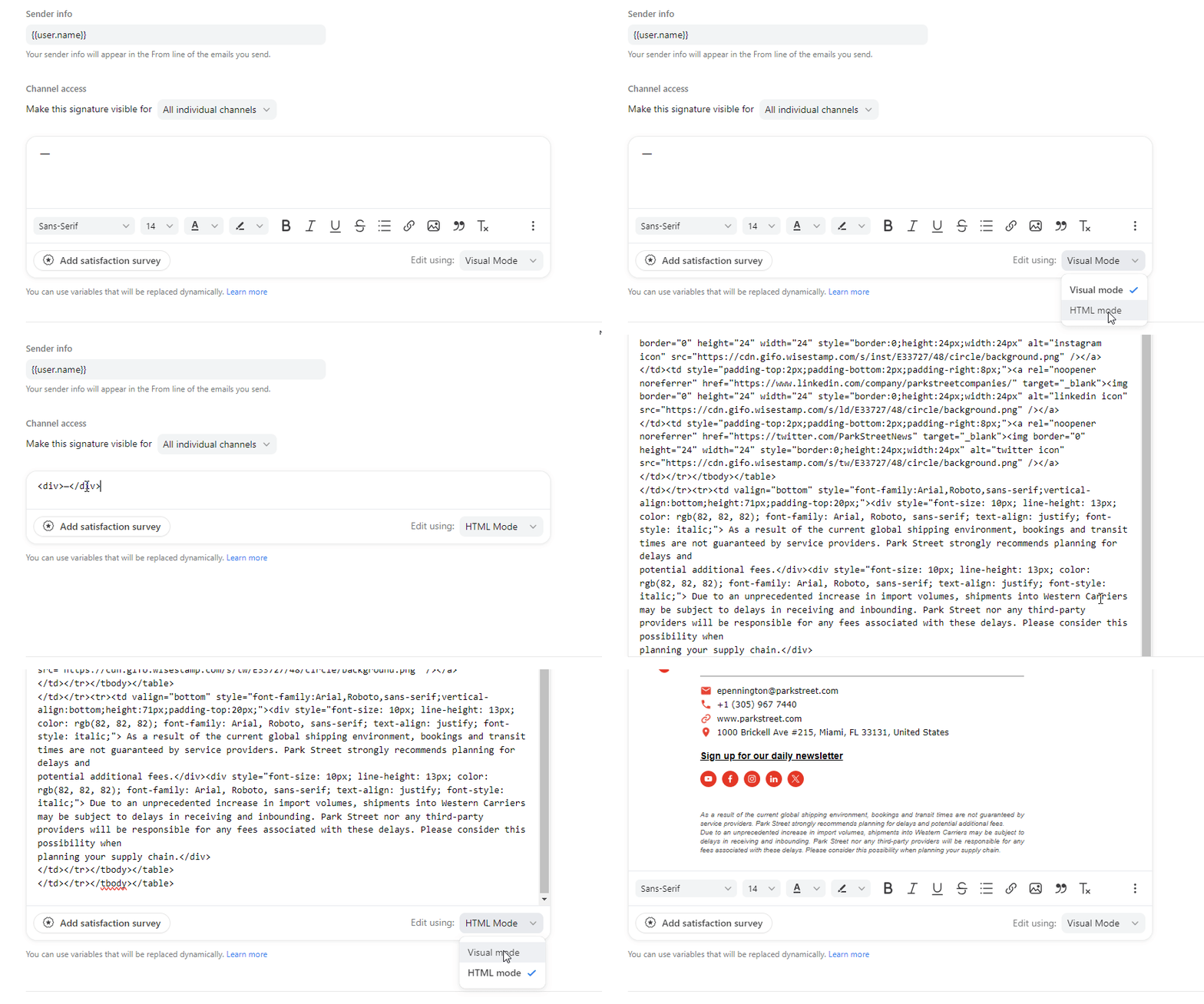
6. Adjust the details with your Name, Position, Phone extension, and Email addres. Position the cursor on each line then delete and type your own information. It is highly recommended to type manually to avoid affecting the code.
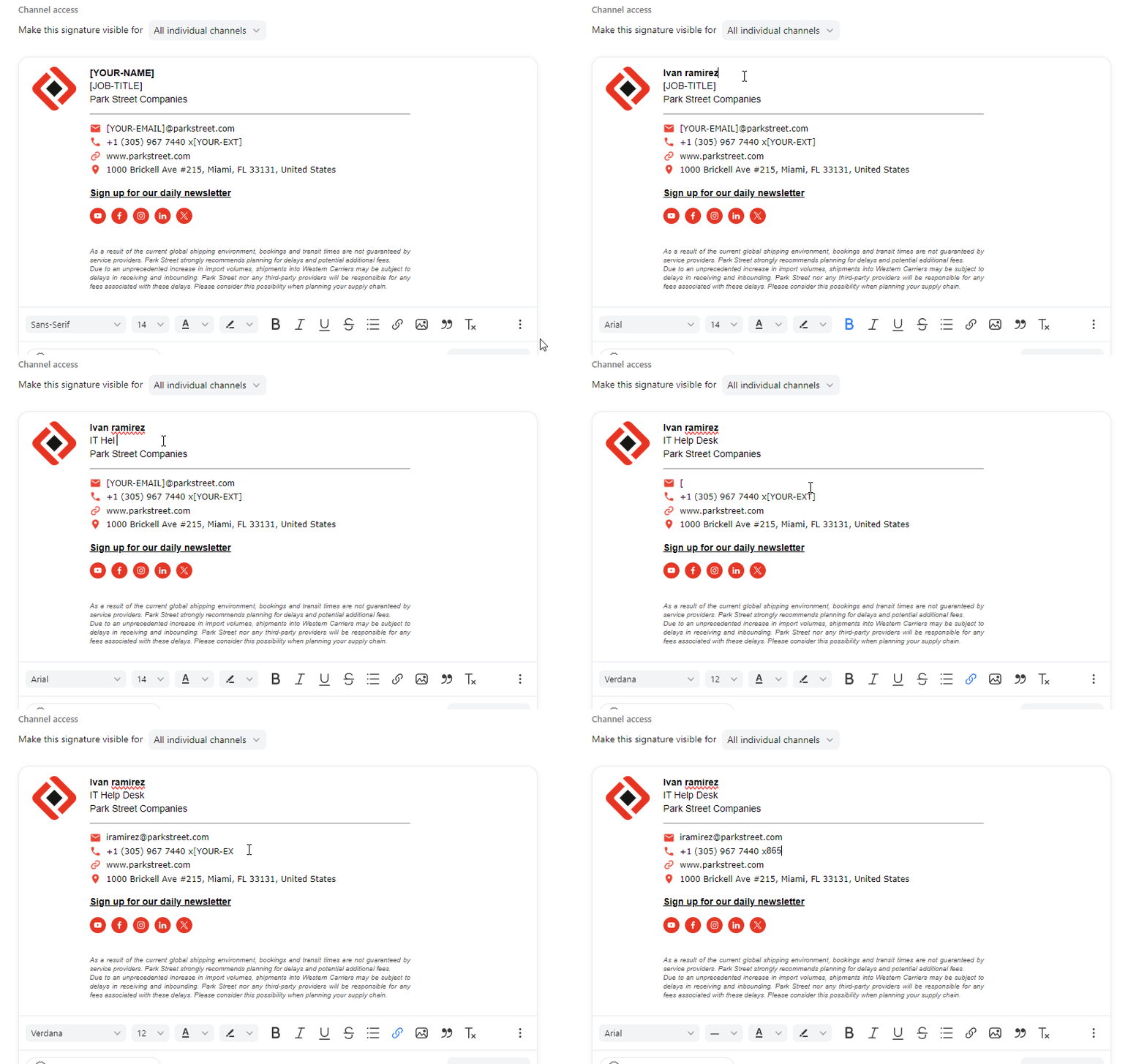
PS: To update correctly your Email address, it is necessary to completely delete the field and retype it. Once you type your email address, highlight it and click on the "Insert Link" button.
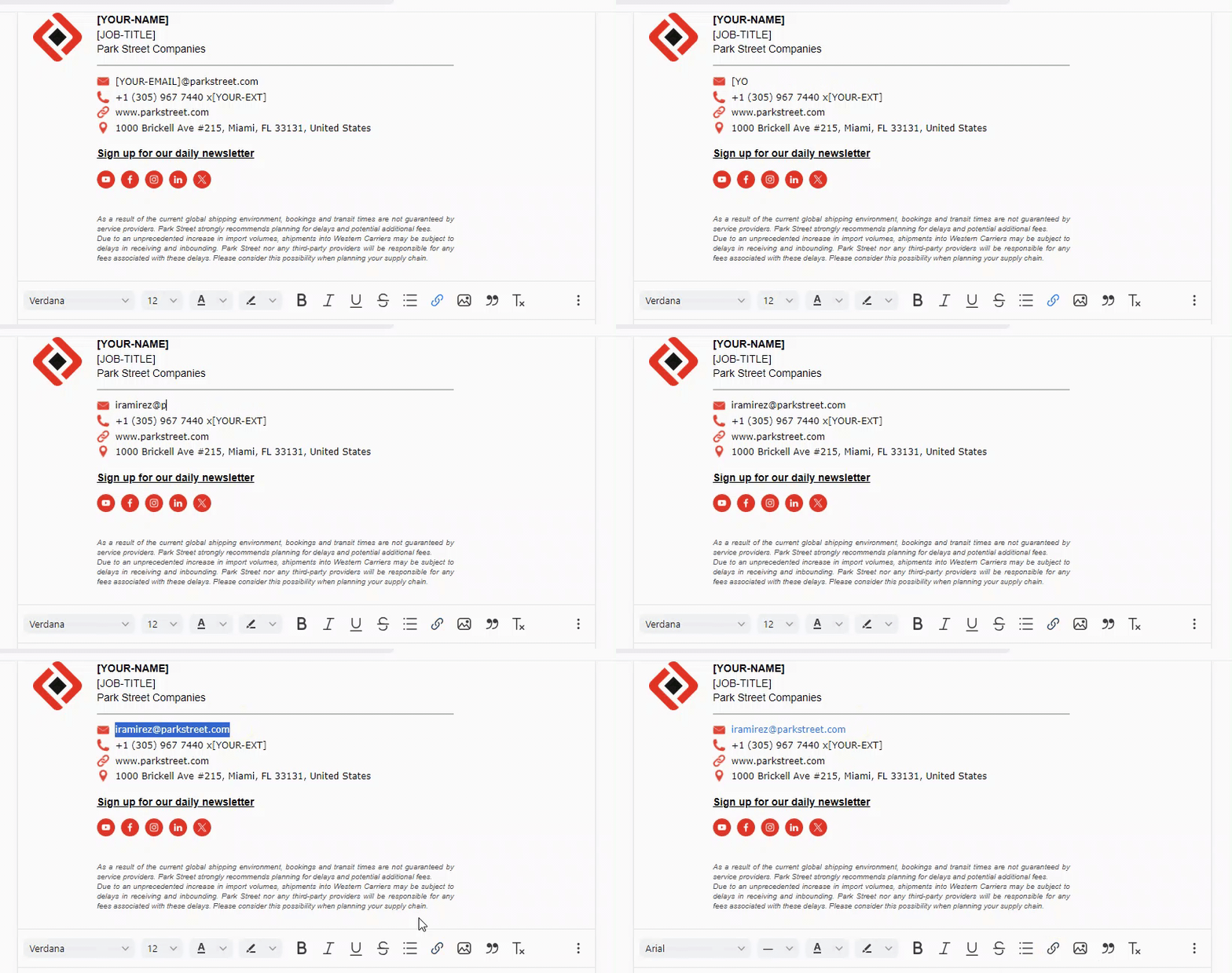
Please note: The shipping disclaimer is not necessary for all departments, only those it is relevant for. If you are unsure ask your director for clarification
7. Finish the process by clicking on Create.
Instructions for adding your signature on Gmail
1.- In order to add the email signature in Gmail, you can use the following template and just copy it using the keyboard shortcut "Ctrl + A" then right click and Copy.
Signature Template (ParkStreet)
Signature Template (Aldenbridge)
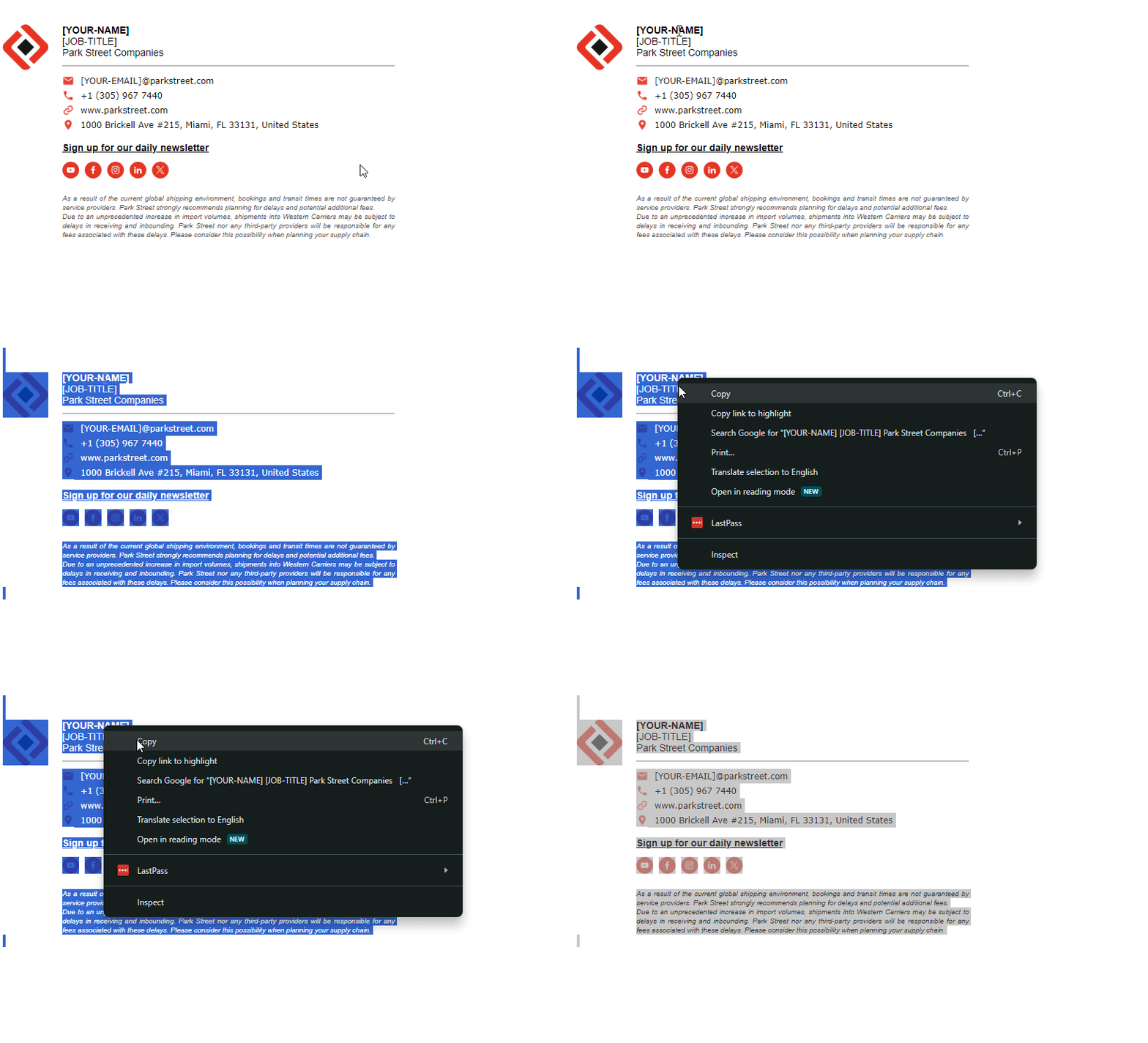
2.- Once you got it, go to Gmail and click on Settings (gear icon on the top right) and select “See all Settings”.
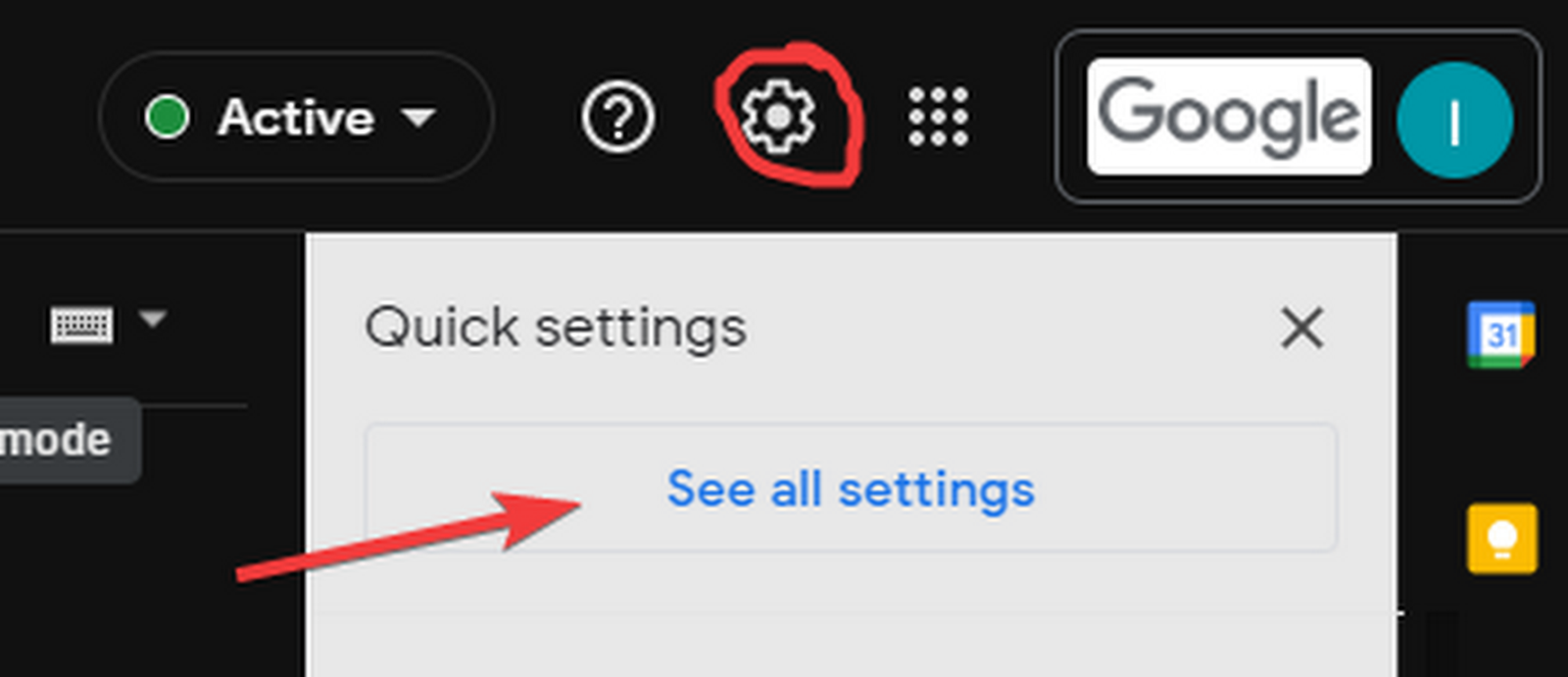
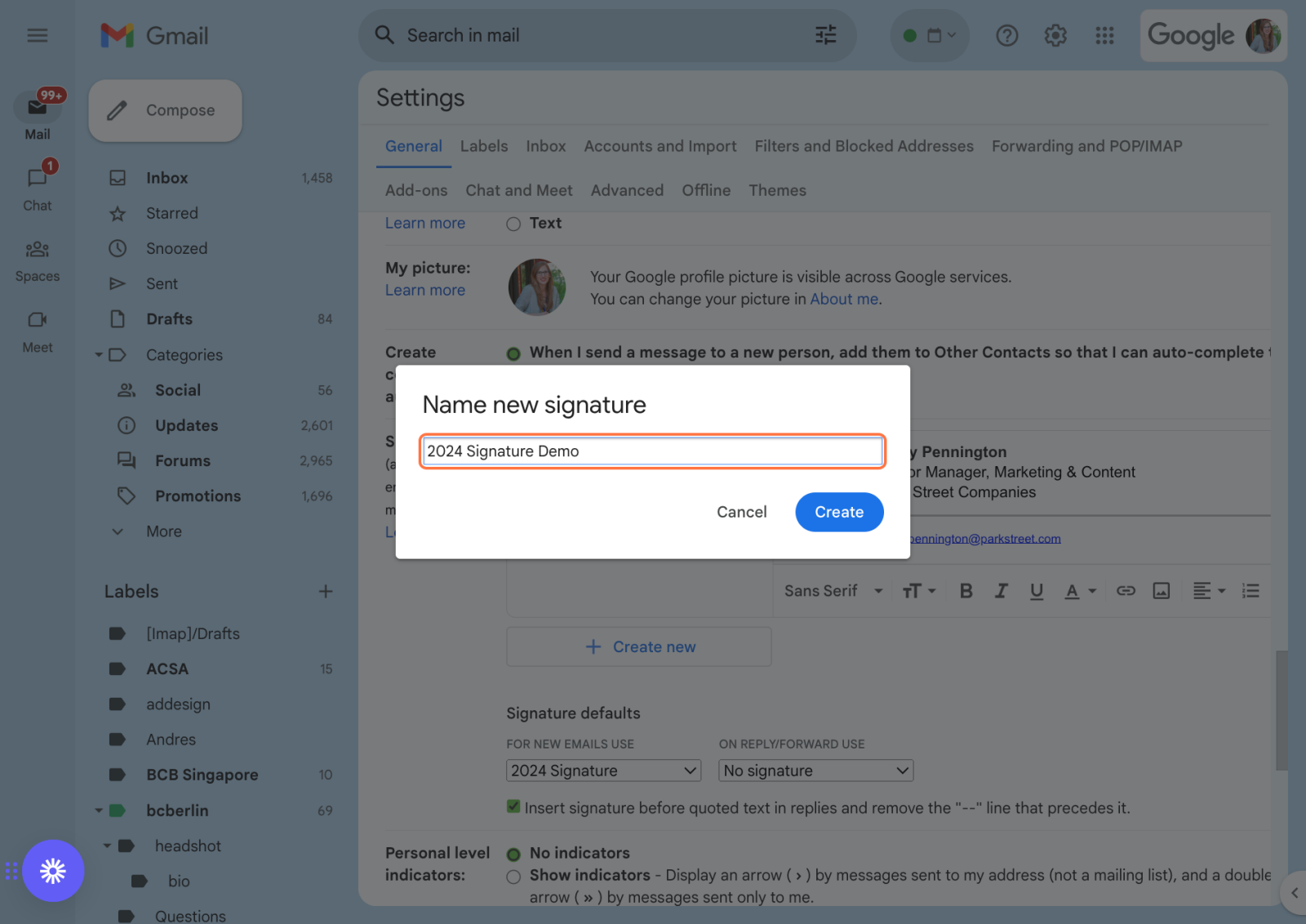
3.- Scroll down in the General tab to the Signature section, then click on “Create new”, type any name and click on Create.
4.- Paste the Email Signature Template into the box.
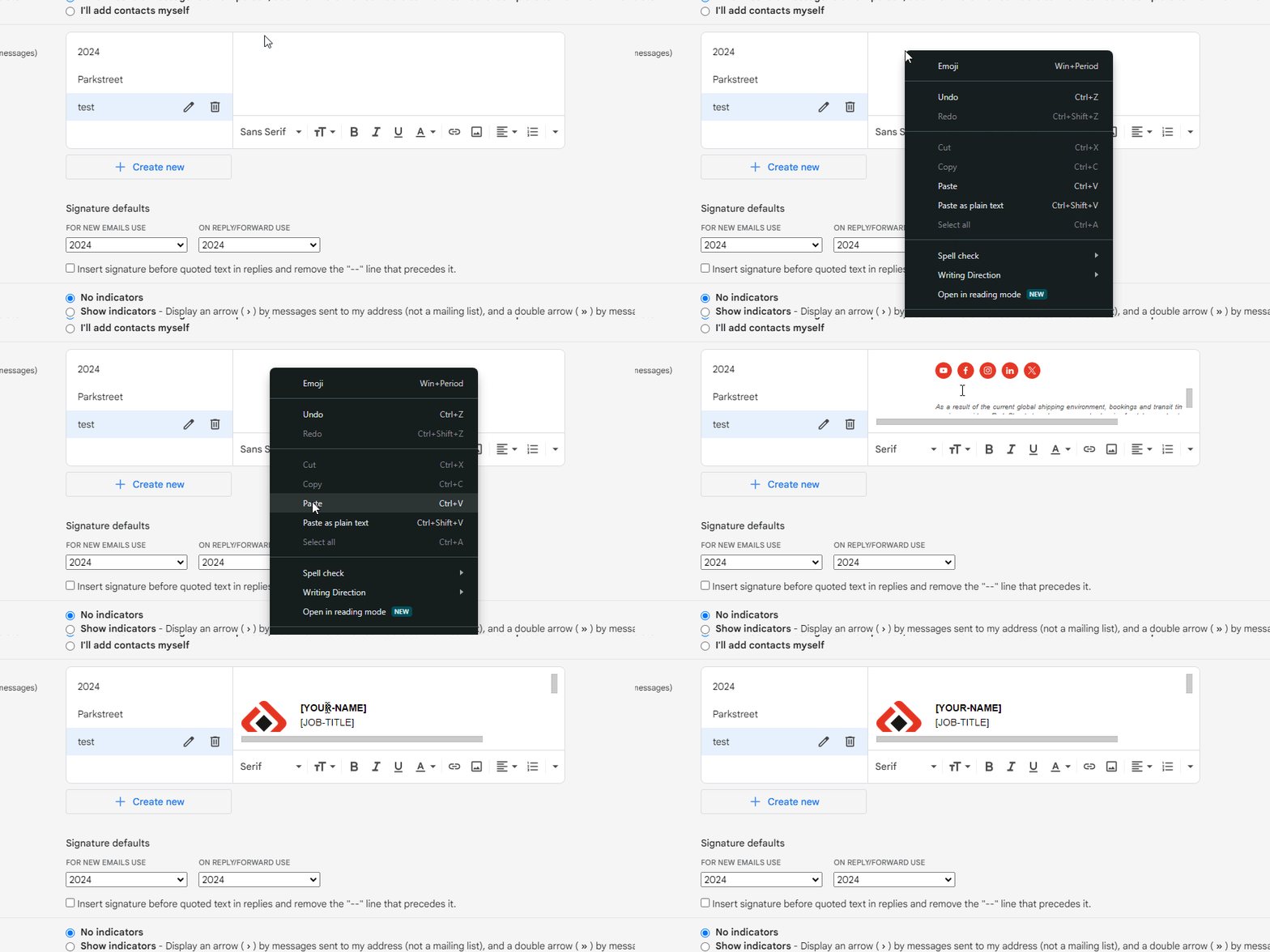
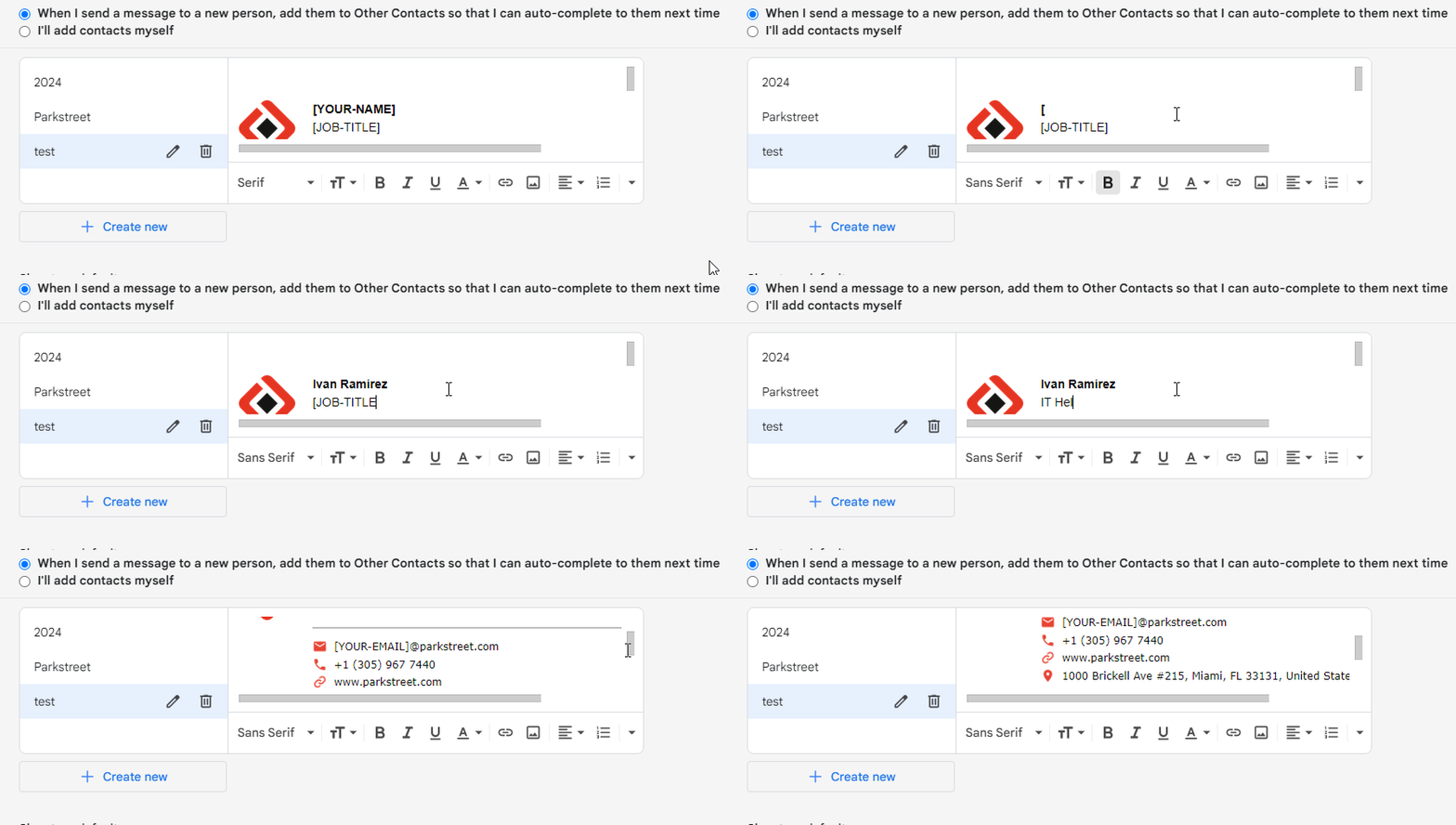
5.- Adjust the details with your Name, Position, Phone extension, and Email. It is highly recommended to type manually to avoid affecting the Signature structure.
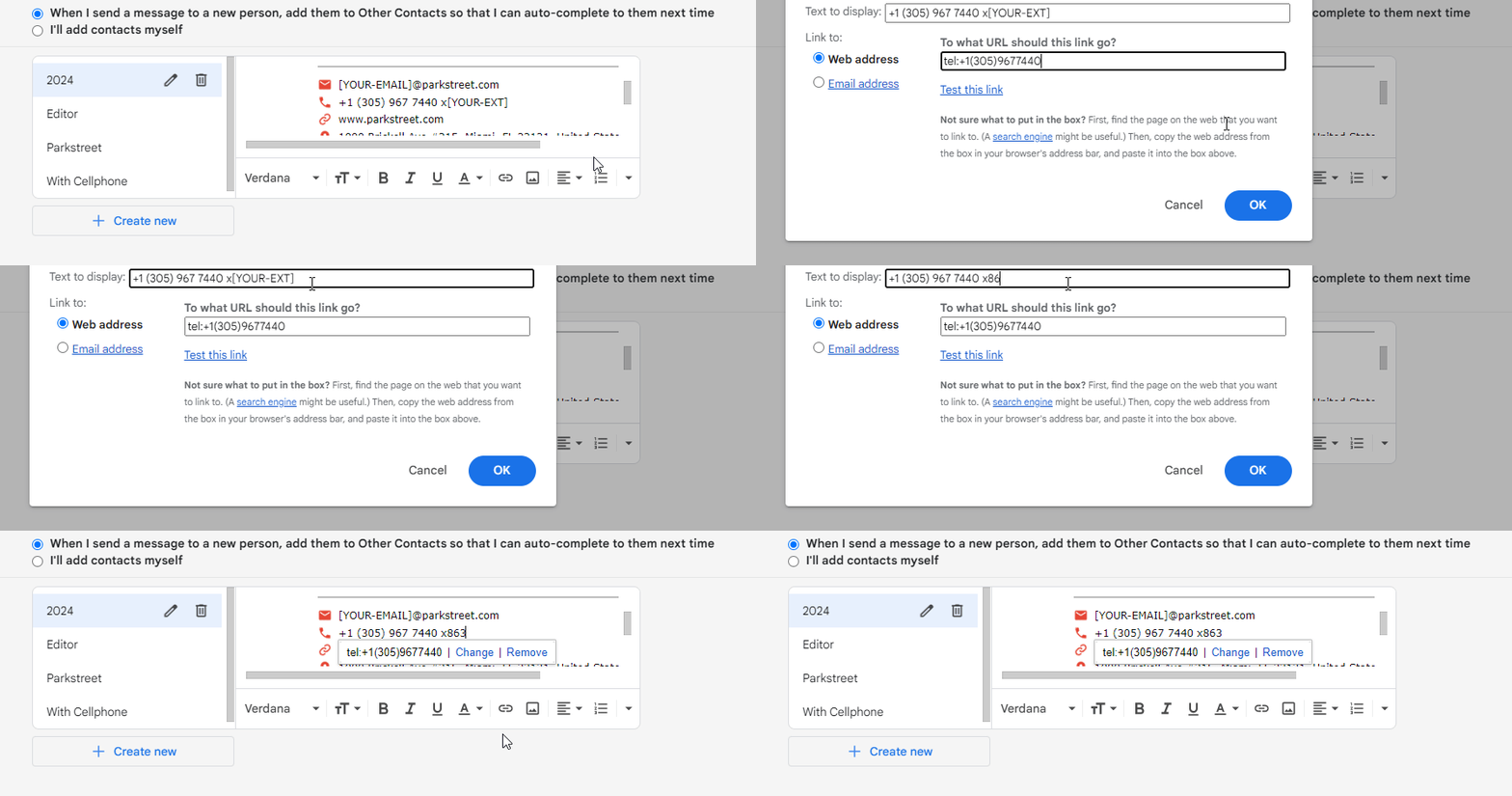
PS: To update correctly your Email address, hold your mouse cursor over the email link and left click. This will bring up a small window, click “Change” and delete or replace the text with your email signature in both fields (Text to display and Link to Email Address) , then click OK.
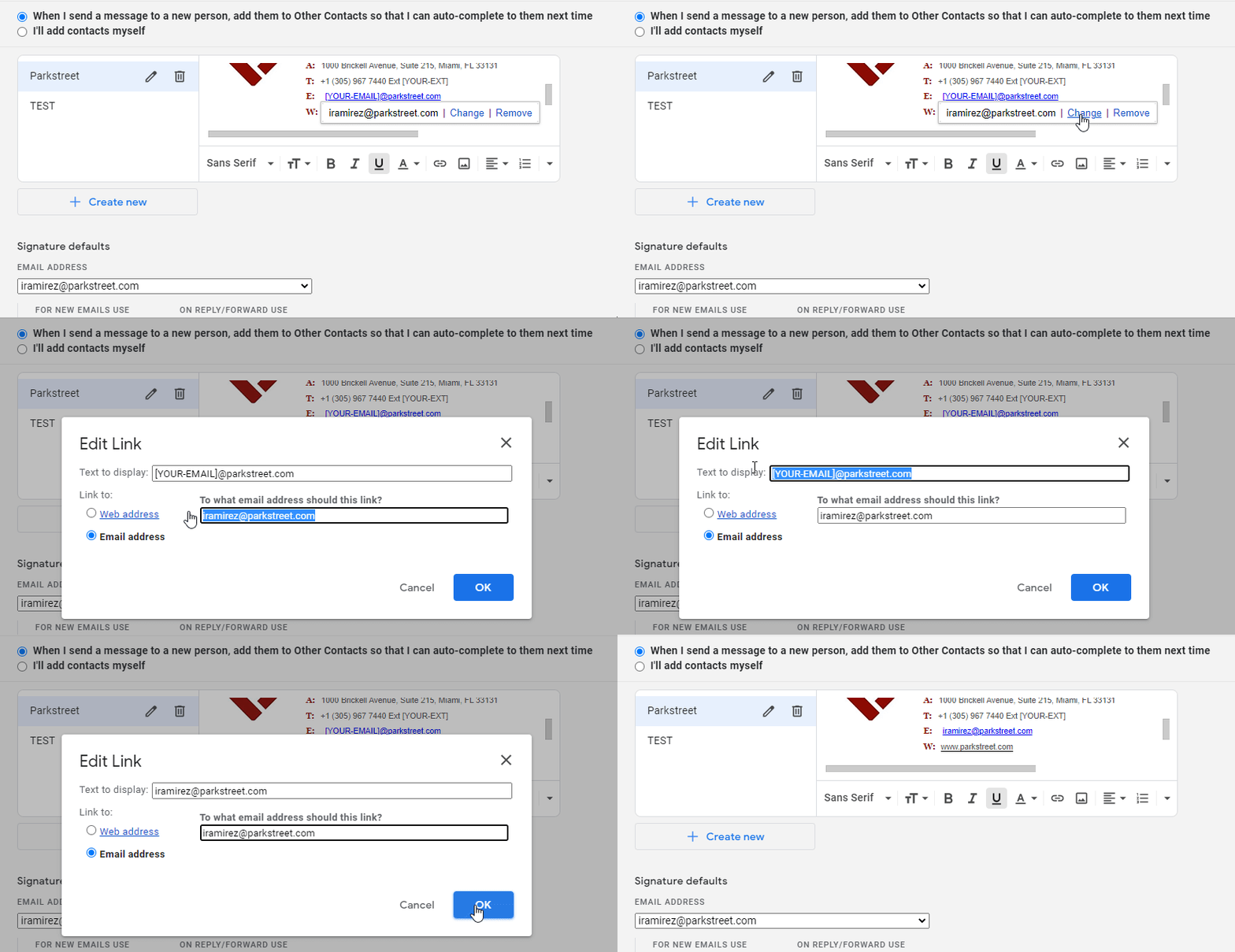
PS2: Same for your Phone Extension, hold your mouse cursor over the phone number and left click. This will bring up a small window, click “Change” and udpate ONLY the display text with your phone extension , then click OK.
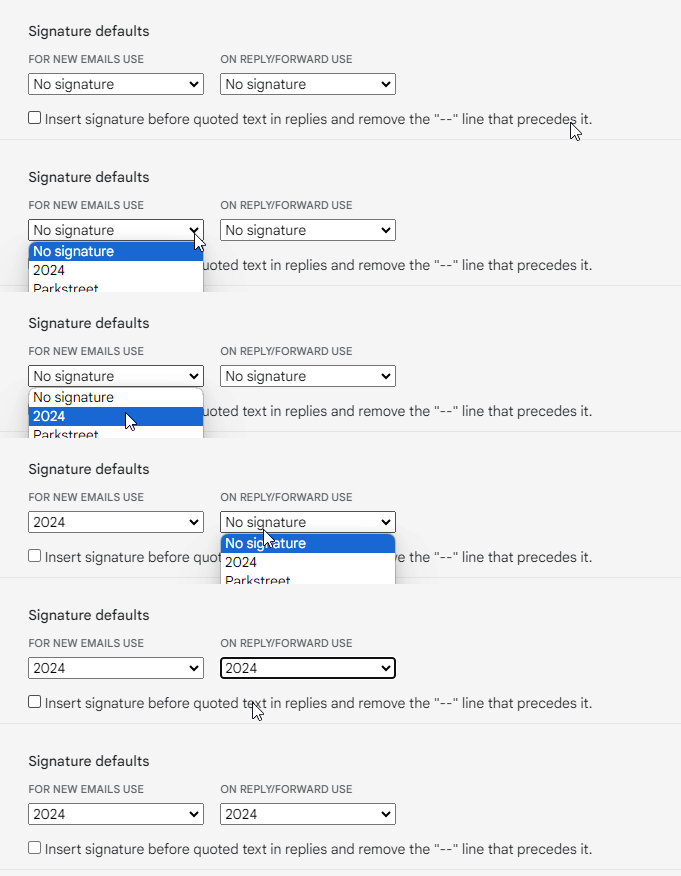
Make sure you have change the Signature defaults from None to your new signature.
Please note: The shipping disclaimer is not necessary for all departments, only those it is relevant for. If you are unsure ask your director for clarification
6.- Scroll to the bottom and click “Save Changes”
Instructions for adding your signature on Outlook
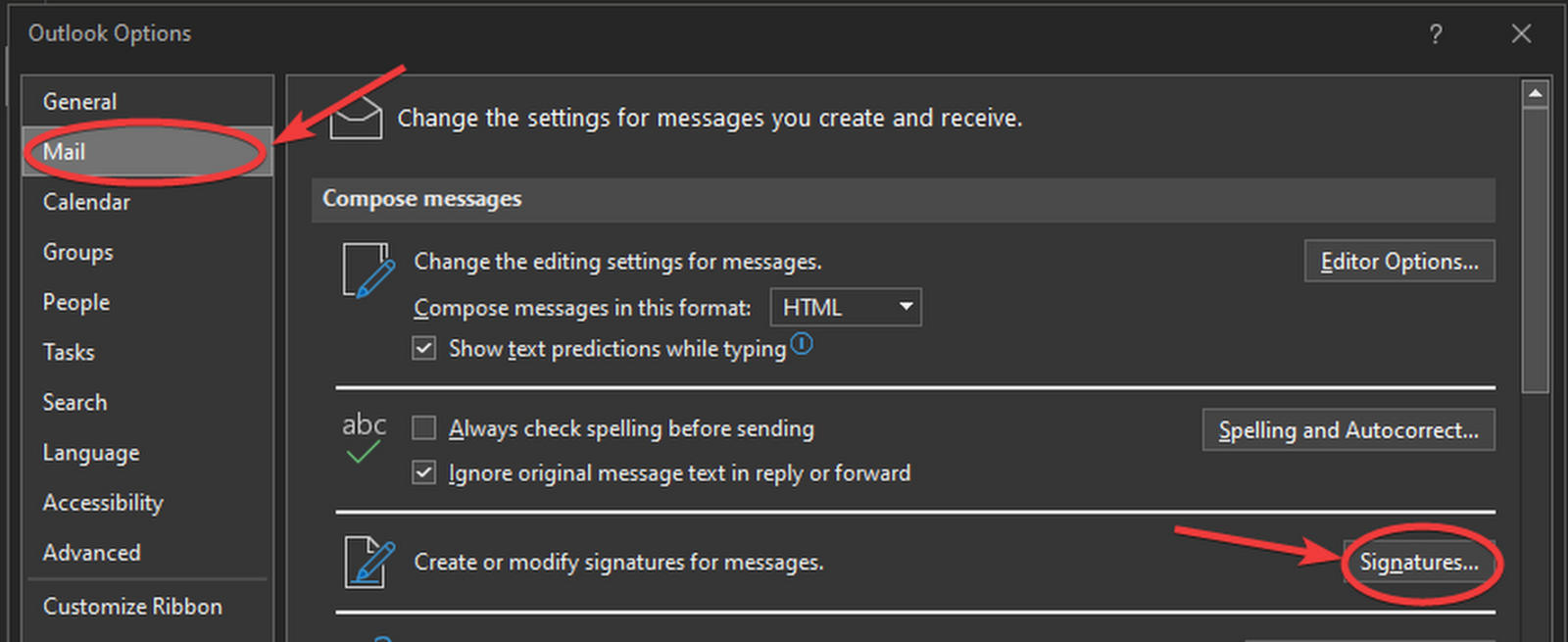
1.- Click File > Options > MAIL > on the right side of the screen you will see the Signatures button.
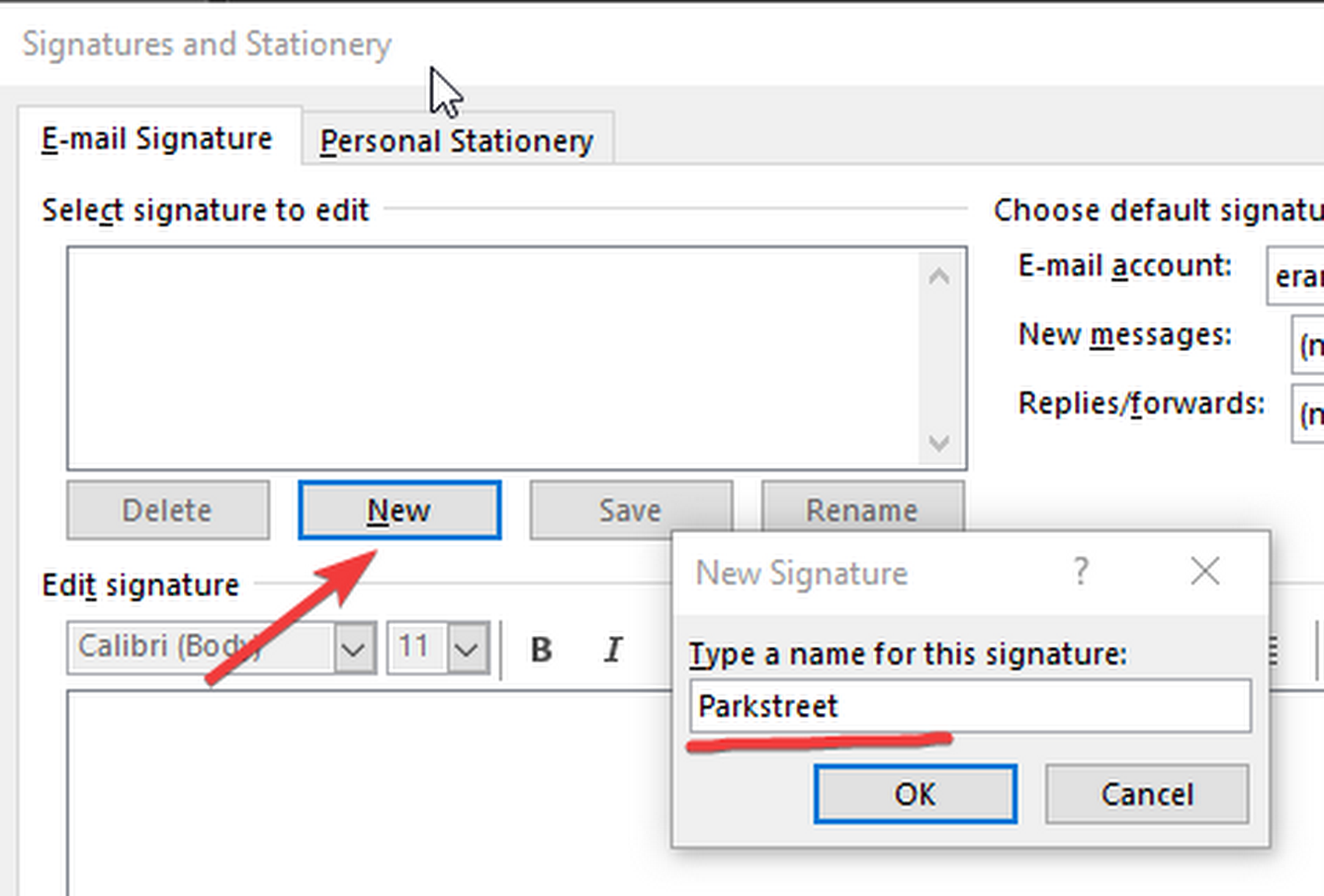
2.- A window will pop up, then click on New and write the name.
3.- Same as before, click on the link to open the template and just copy it using the keyboard shortcut "Ctrl + A" then right click and Copy.
Signature Template (ParkStreet)
Signature Template (Aldenbridge)
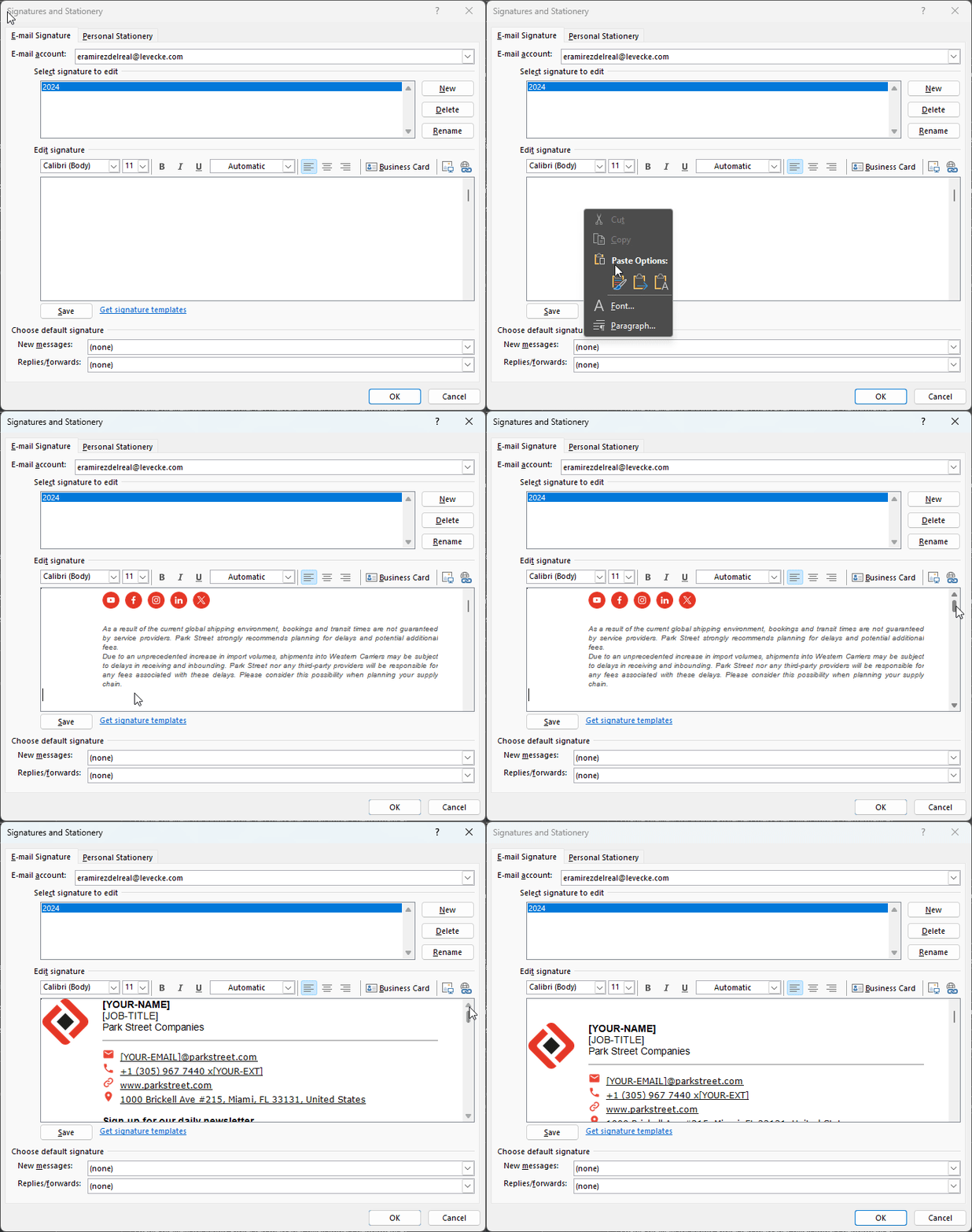
4.- Adjust the details with your Name, Position, Phone Extension, and Email Address. It is highly recommended to type manually to avoid affecting the Signature structure.
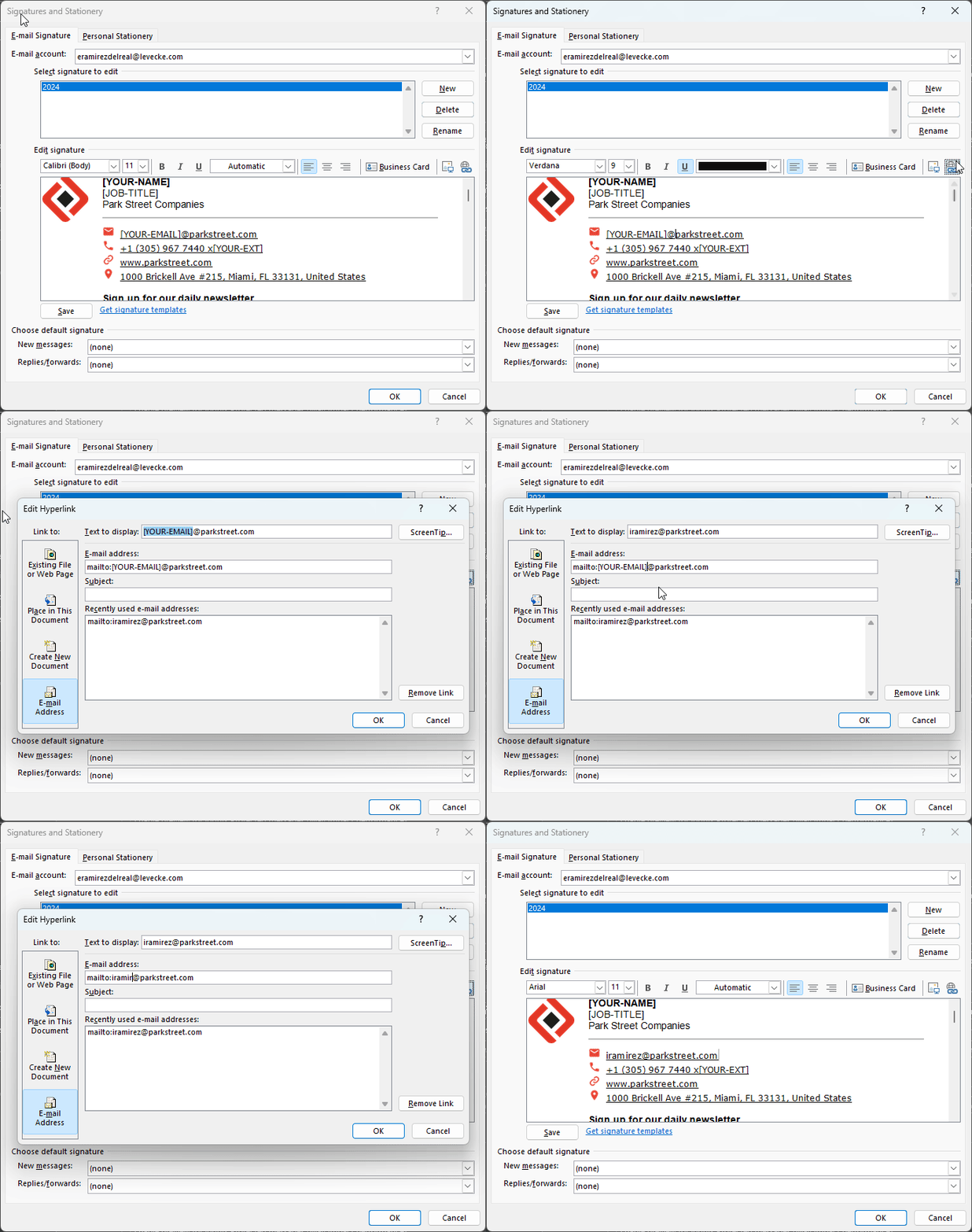
PS: To update correctly your Email address, Left-click on the e-mail address and then click on the Hyperlink button in the upper right corner, after that update the text with your email signature in both fields (Text to display and Email Address) , then click OK.
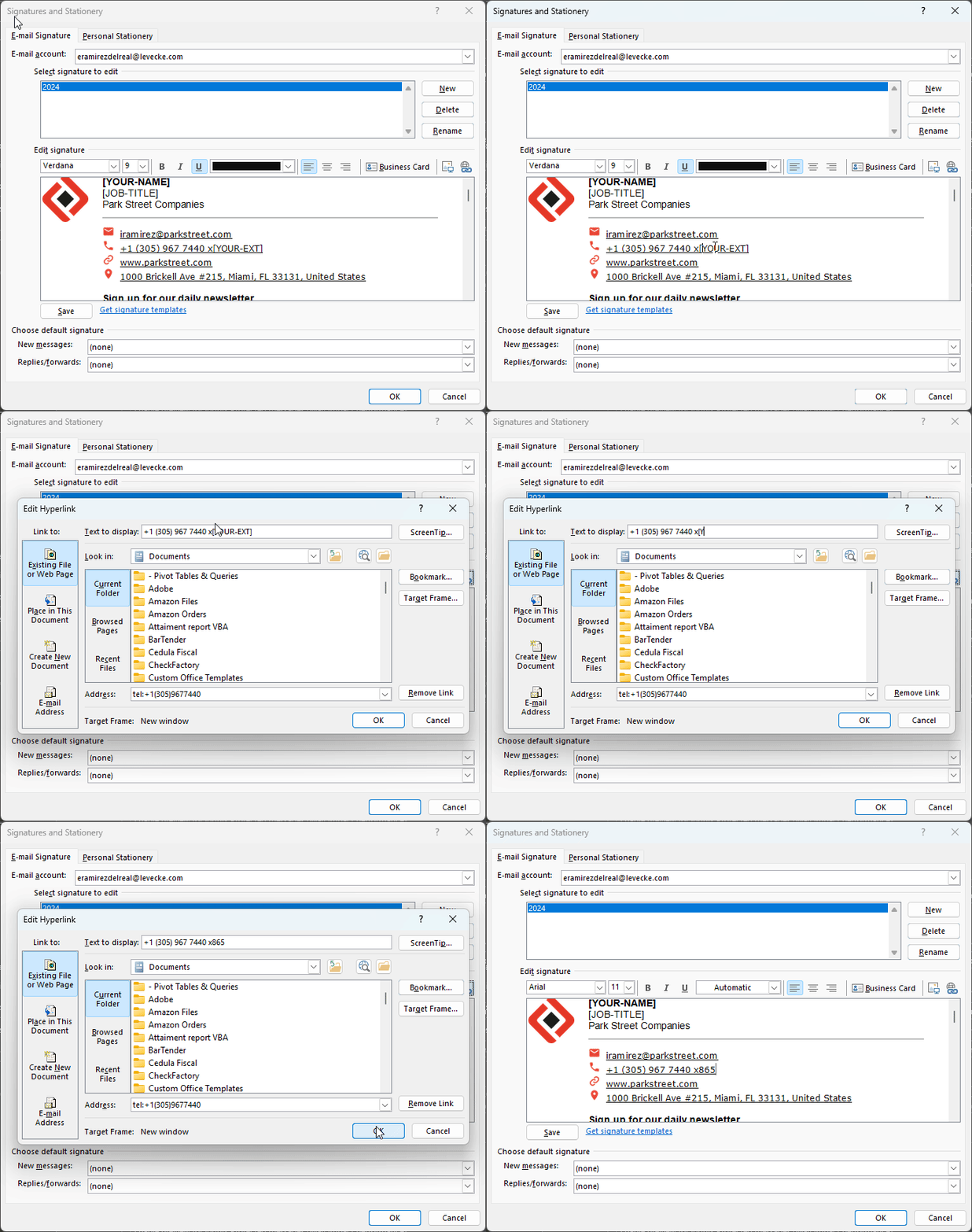
PS2: Same for your Phone Extension, Left-click on the e-mail address and then click on the Hyperlink button in the upper right corner. This will bring up a small window, update ONLY the display text with your phone extension , then click OK.
Don't forget to change the Default signature for New messages and Replies.
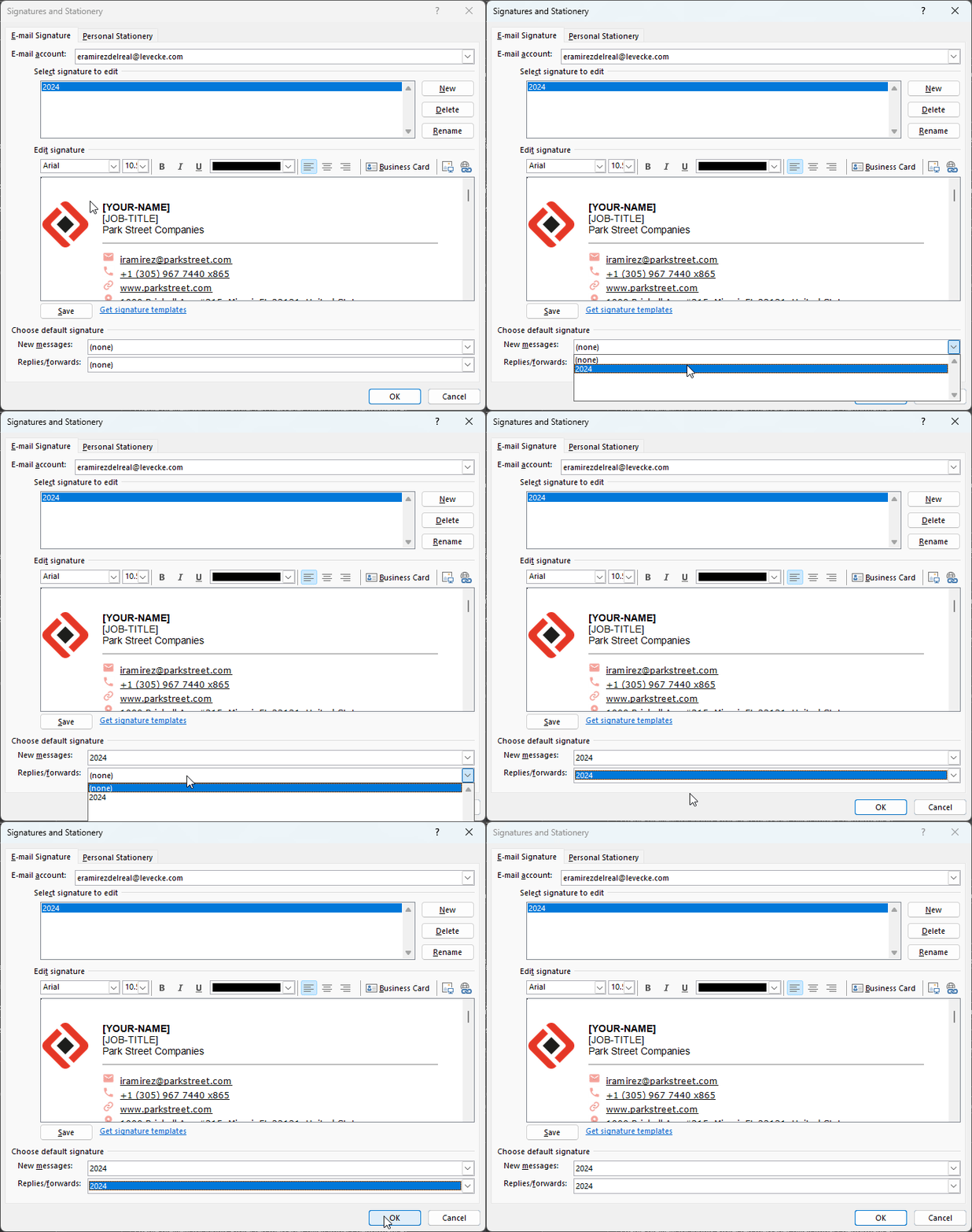
5. Click OK and your Outlook signature is complete.
Please note: The shipping disclaimer is not necessary for all departments, only those it is relevant for. If you are unsure ask your director for clarification
The icons are in a bucket called psi-email-signature in the PSI WEB PROD account.