
This guide will walk you through the steps to add a Gmail account inside another Gmail account so that you can send and receive emails from both accounts using just one inbox.
Step 1: Enable POP in the Gmail Account You Want to Add (New gmail account)
- Log into the Gmail account you want to connect.
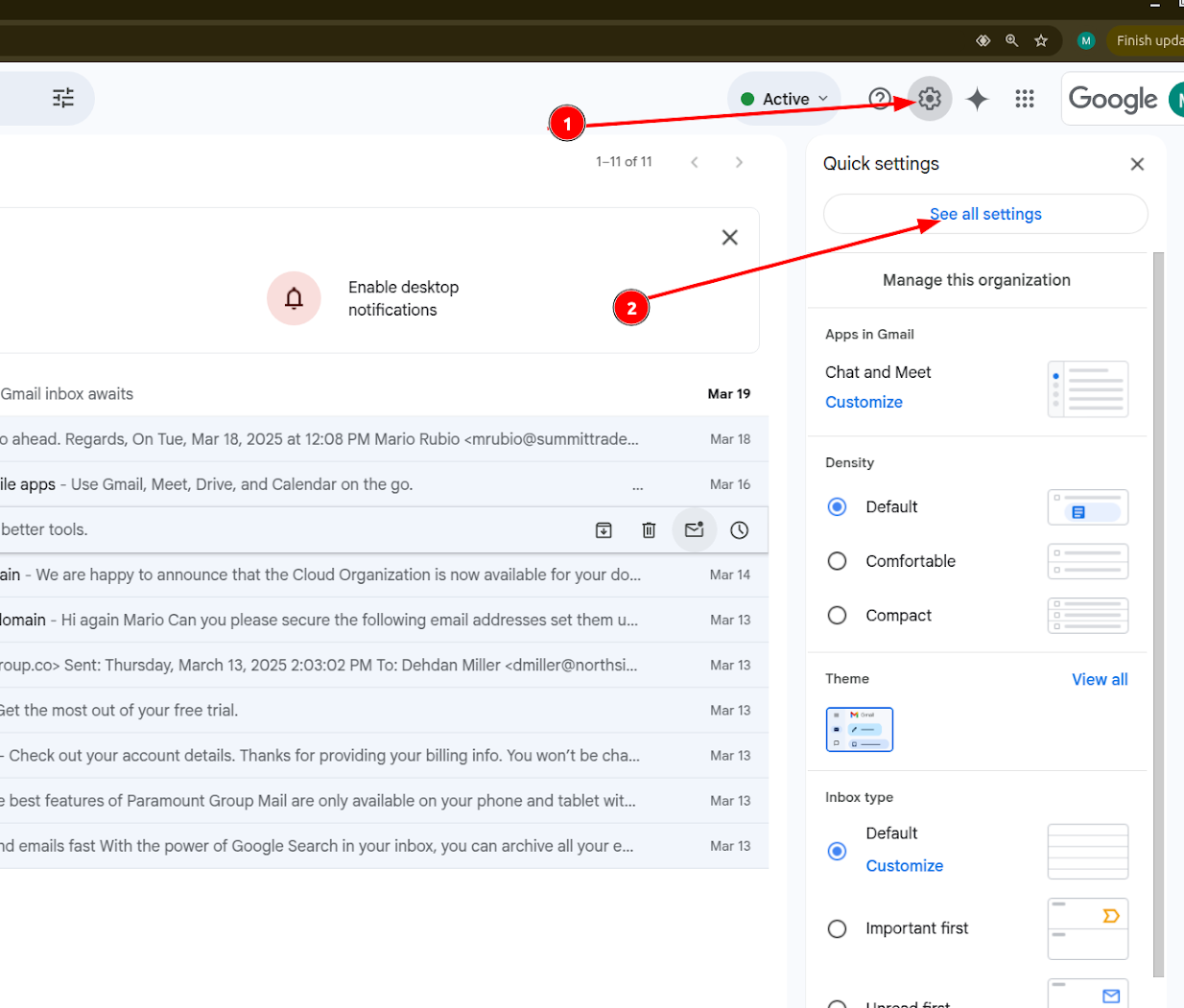
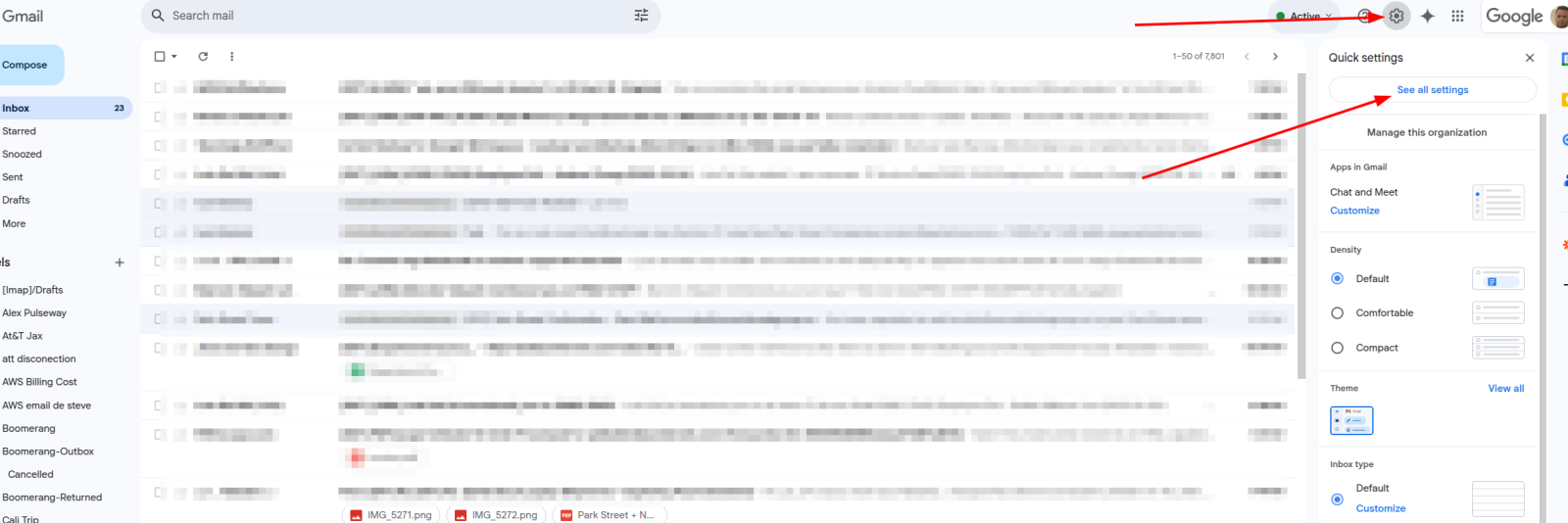
- Click the gear icon (⚙️) > See all settings.
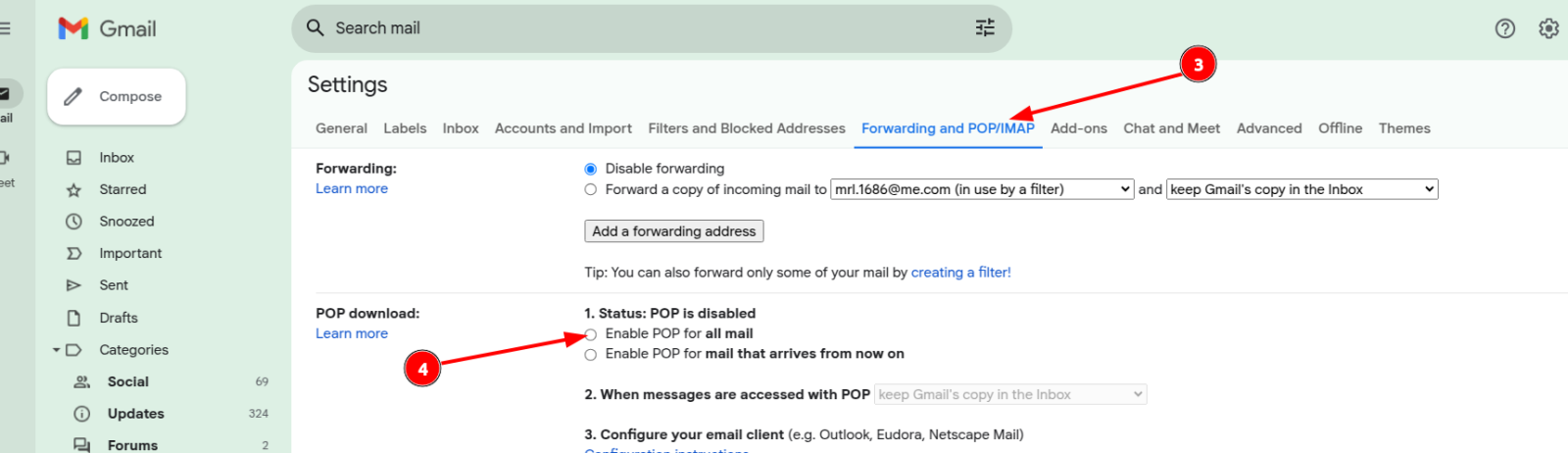
- Go to the Forwarding and POP/IMAP tab.
- Under the POP Download section, select:
- Enable POP for all mail
- Scroll down and click Save Changes.
Step 2: Generate an App Password (Required by Gmail for POP Access)
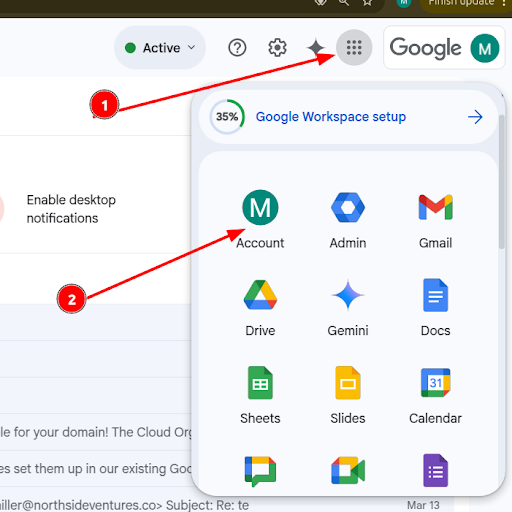
- In the same Gmail account (the one you're adding), go to your Google Account (https://myaccount.google.com).
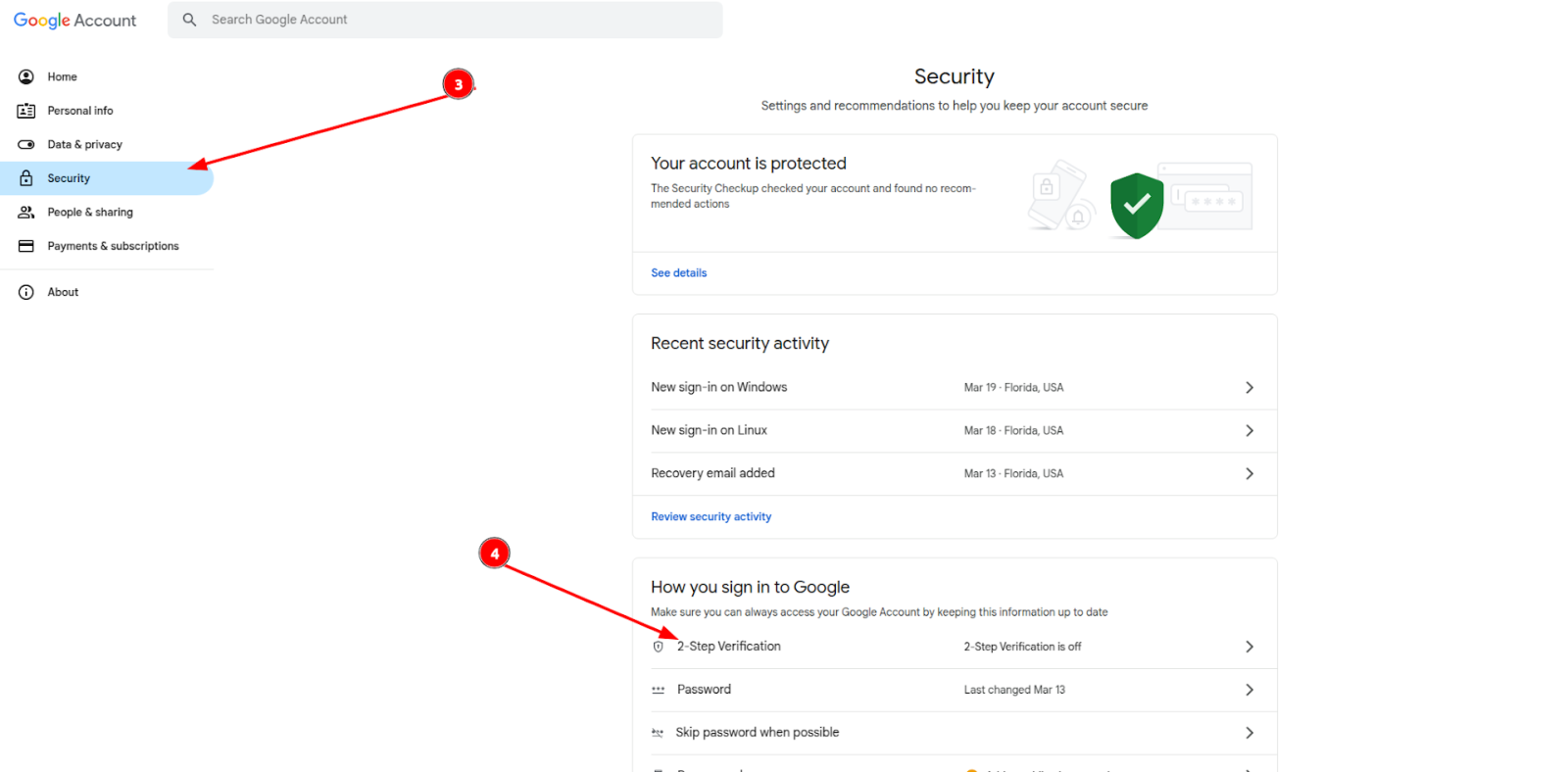
- On the left menu, select Security.
- Under "Signing in to Google", enable 2-Step Verification (if not already enabled).
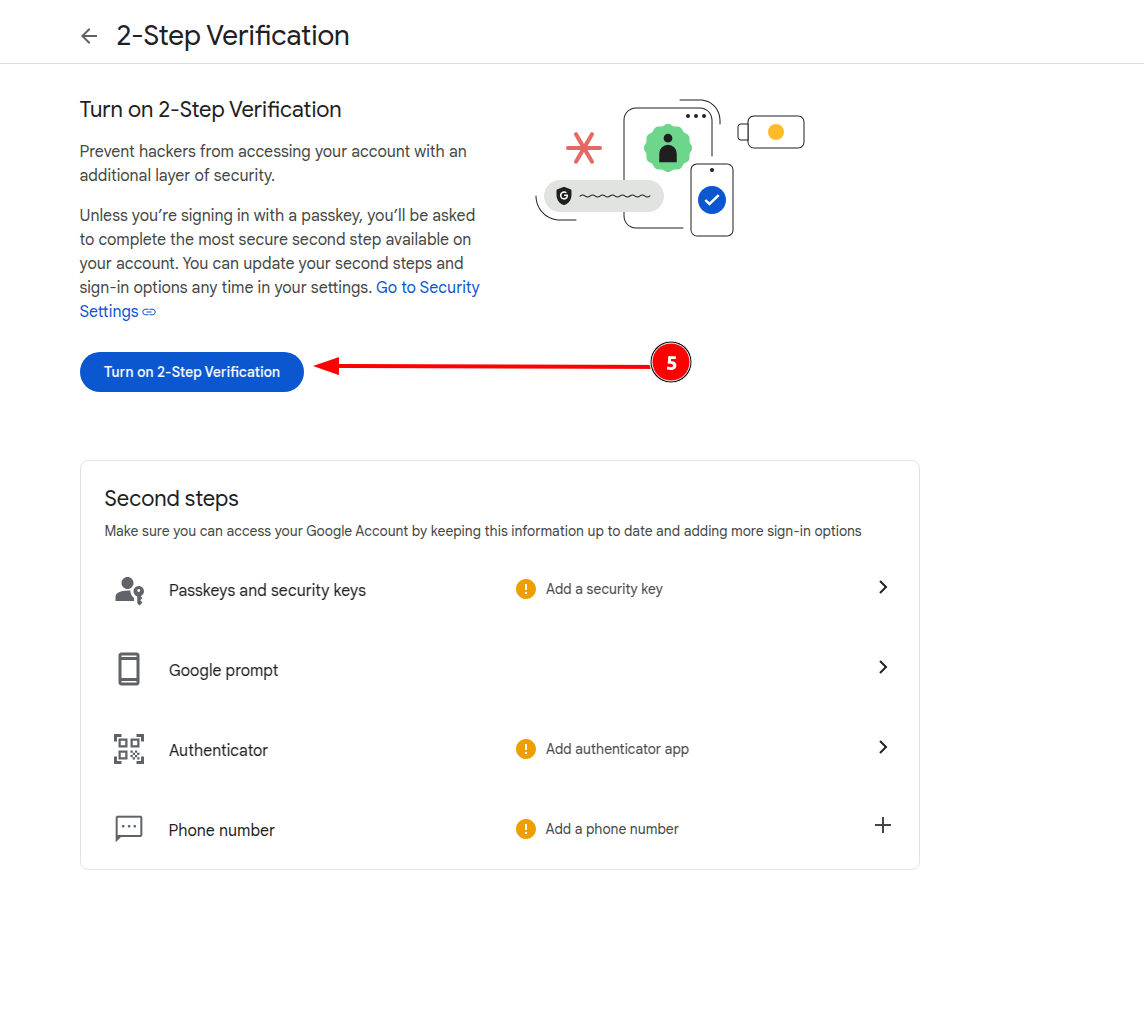
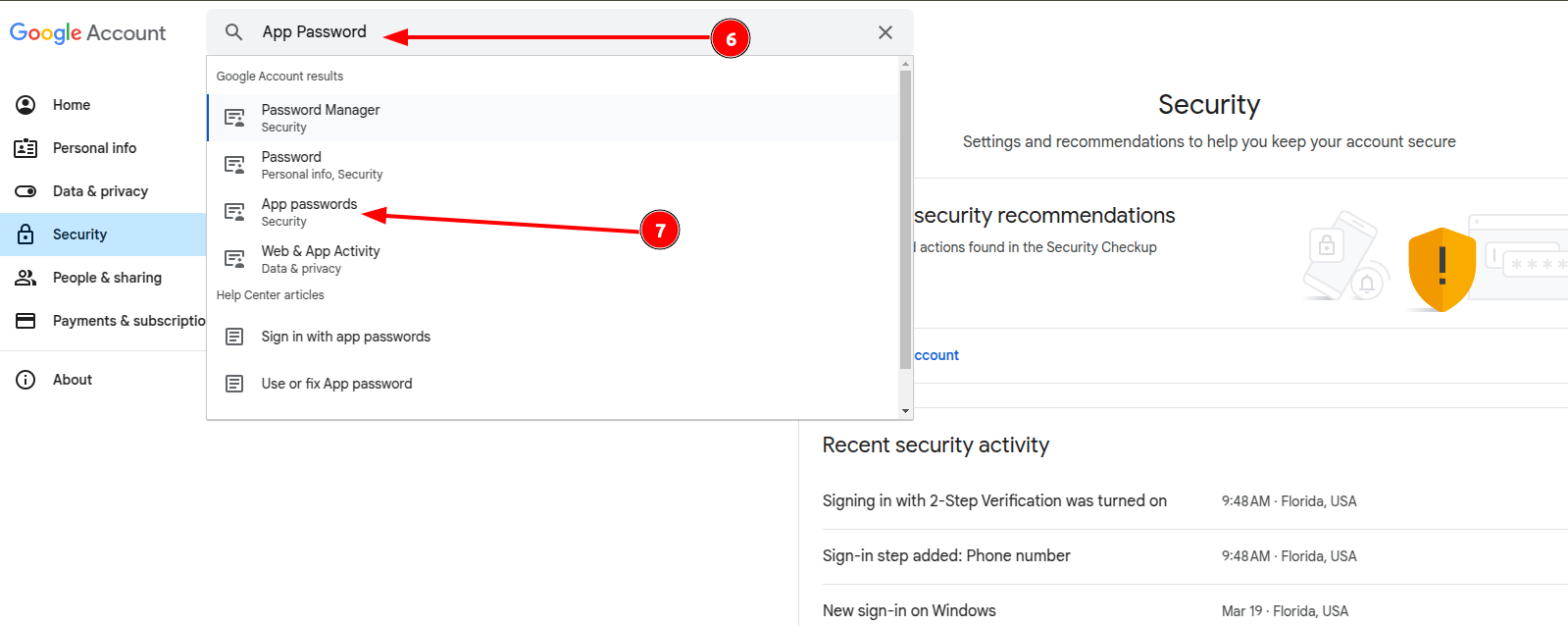
- After 2FA is active, search for App Passwords in the search bar or scroll to the option under Security.
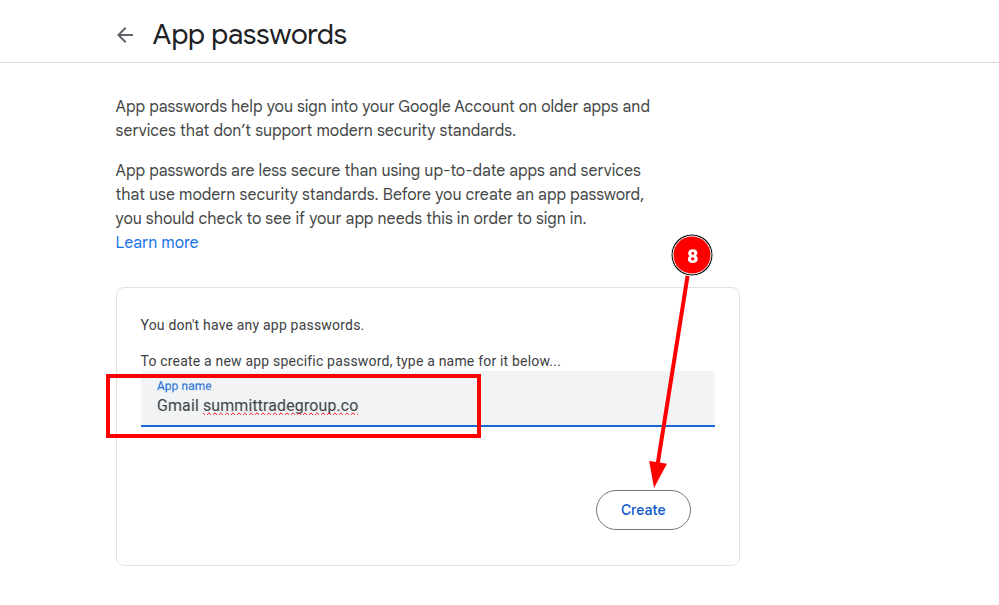
- Select Mail as the app and Other (Custom name) if you want to label it.
- Click Generate.
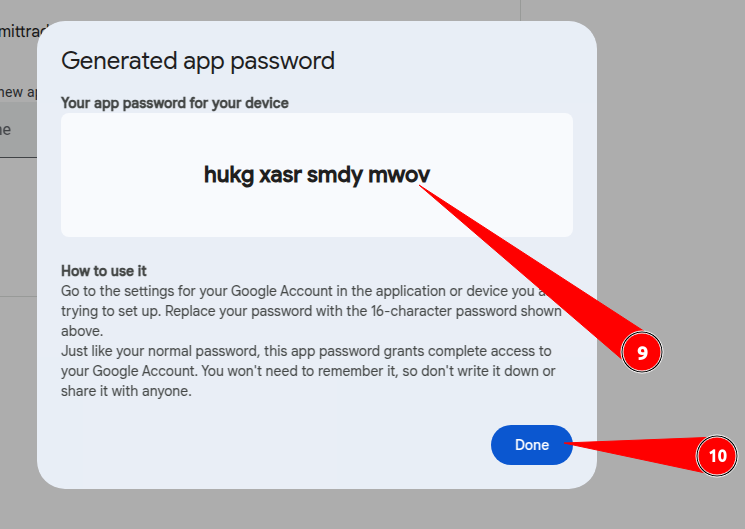
- A 16-character password will be shown—copy it exactly as it appears (spaces included).
Step 3: Add the New Gmail Account to Your Main Gmail
- Log into your primary Gmail account (the one you'll use to manage both inboxes).
- Click the gear icon > See all settings.
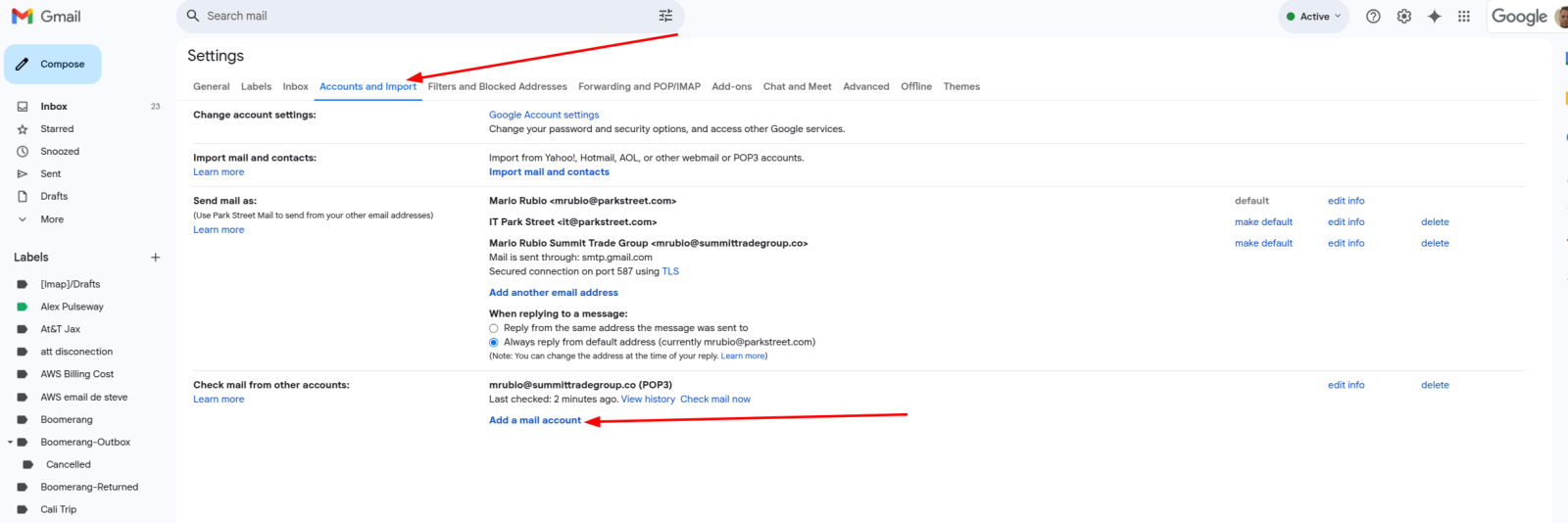
- Go to the Accounts and Import tab.
- Under "Check mail from other accounts", click Add a mail account.
- Enter the email address of the Gmail account you want to add and click Next.
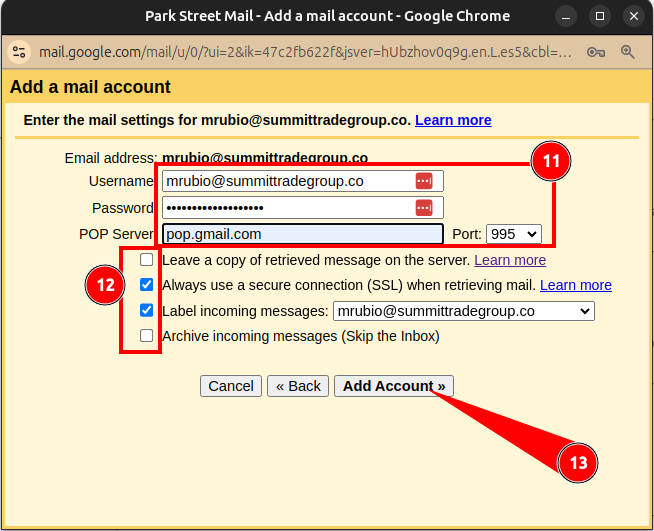
- Enter your full email address, username, and paste the App Password into the password field.
- Fill in the rest of the POP settings as follows:
- POP Server:
pop.gmail.com - Port:
995 - Check "Always use a secure connection (SSL)"
- Label incoming messages
- POP Server:
- Then click Add Account.
Complete the configuration with these steps
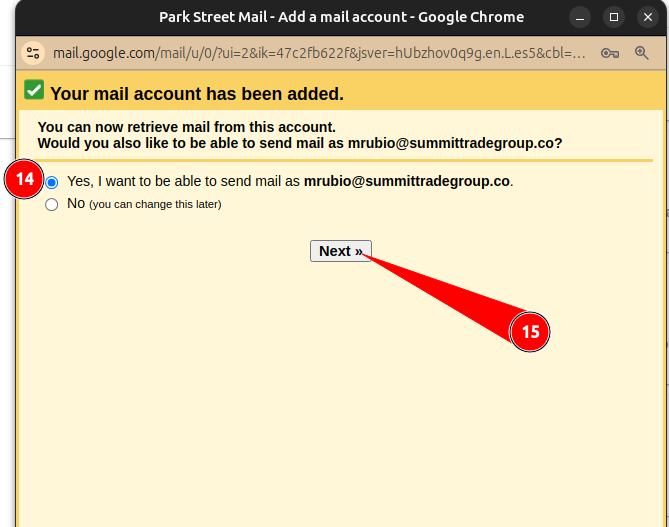
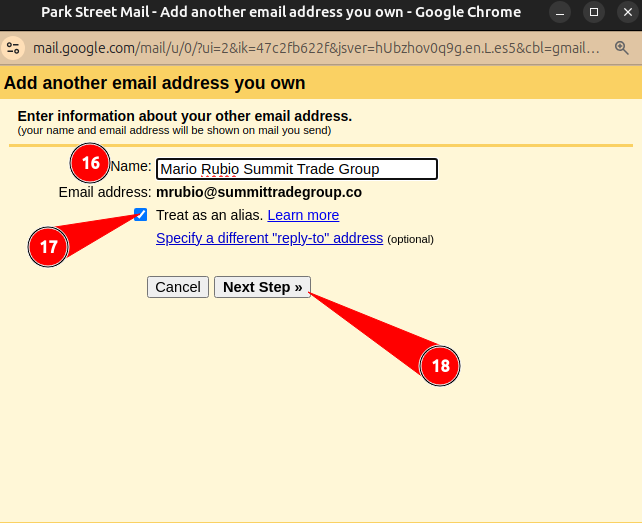
Here use the same password used previously
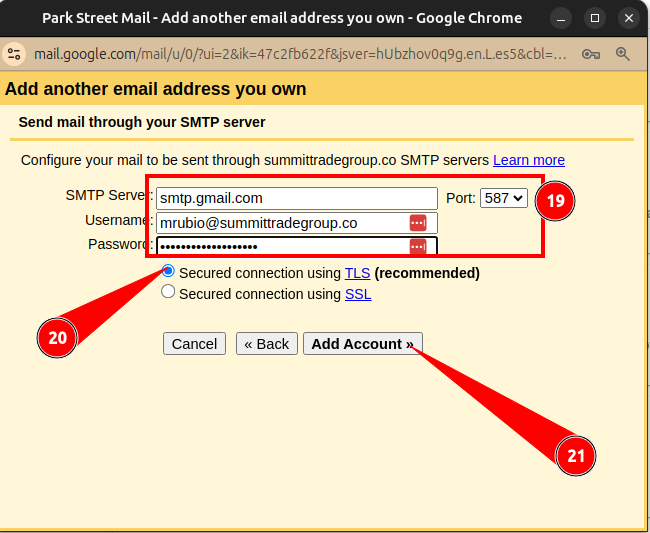
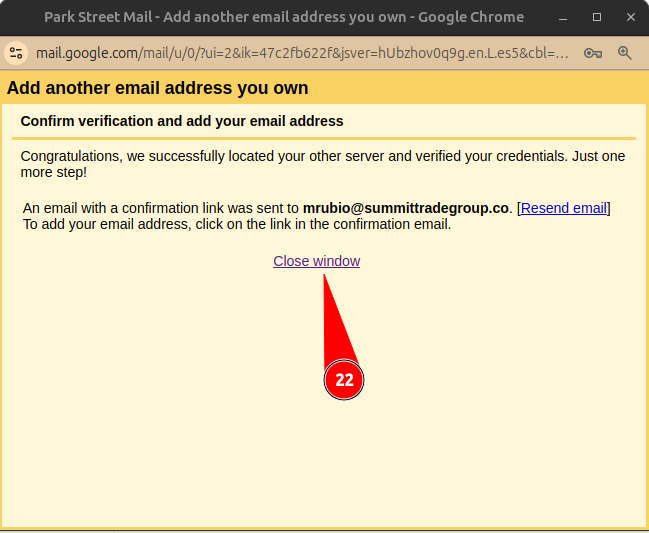
Step 4: Confirm the Setup
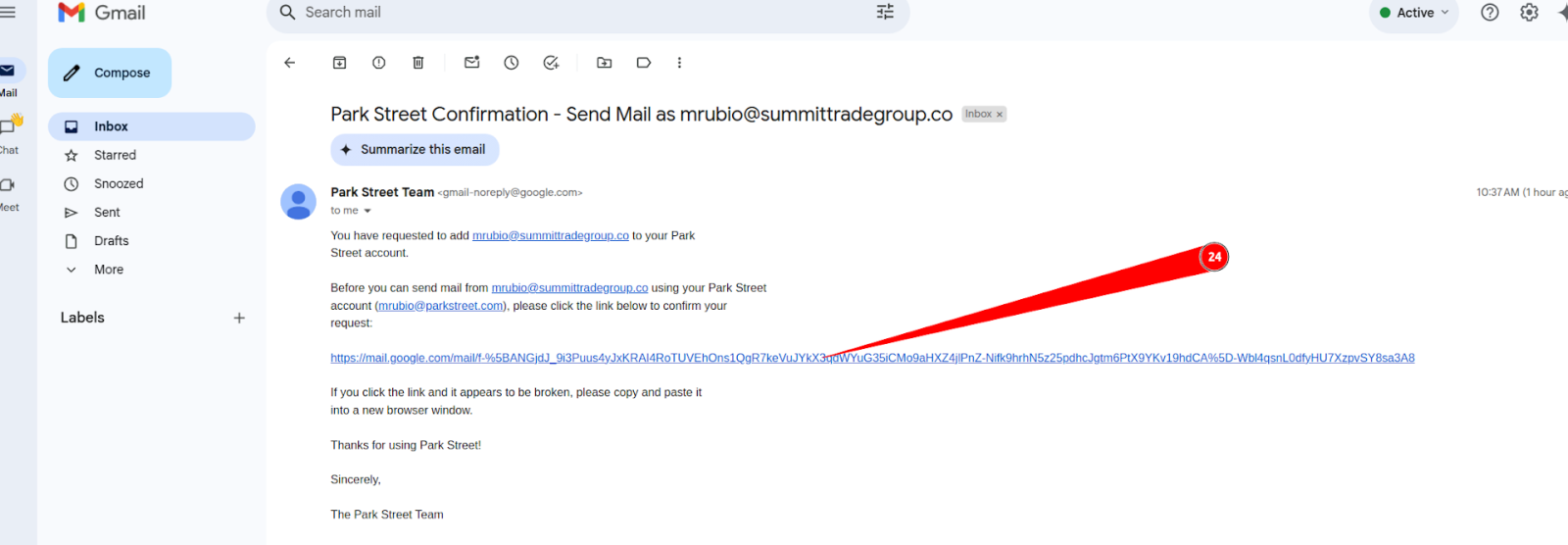
- You’ll receive a confirmation email in the Gmail account you're adding.
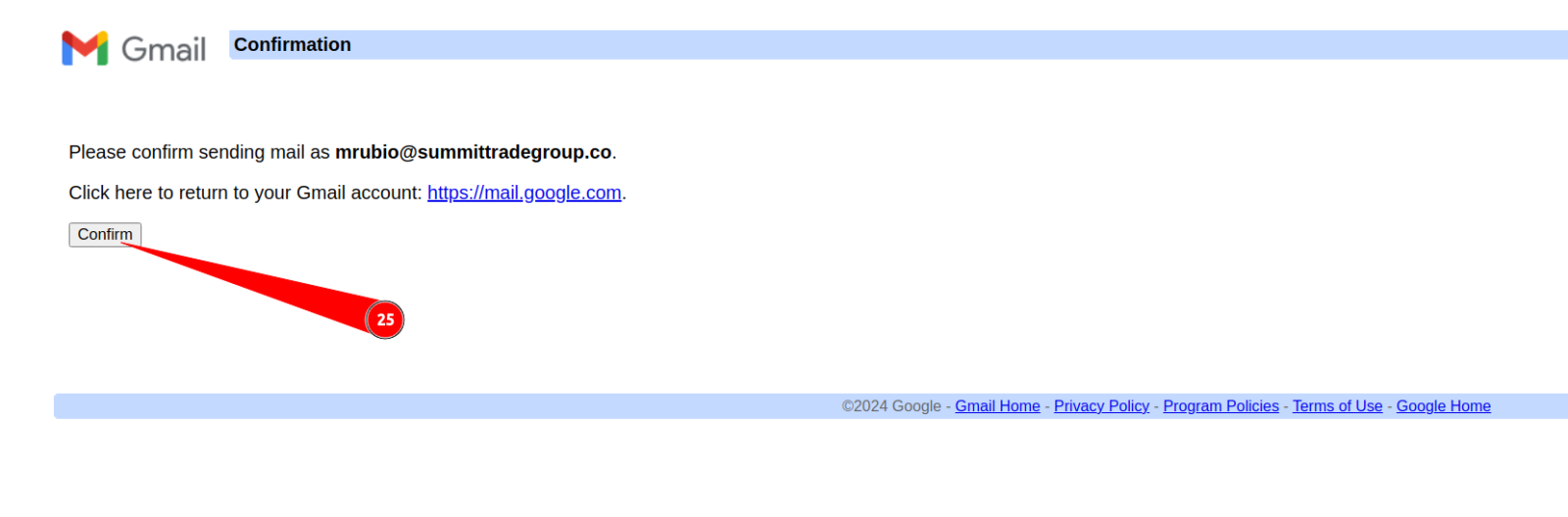
- Click the verification link inside the email to authorize the connection.
- Once confirmed, your primary Gmail account will start pulling emails from the secondary account.
- You can also send emails as the other account by enabling that option during setup.
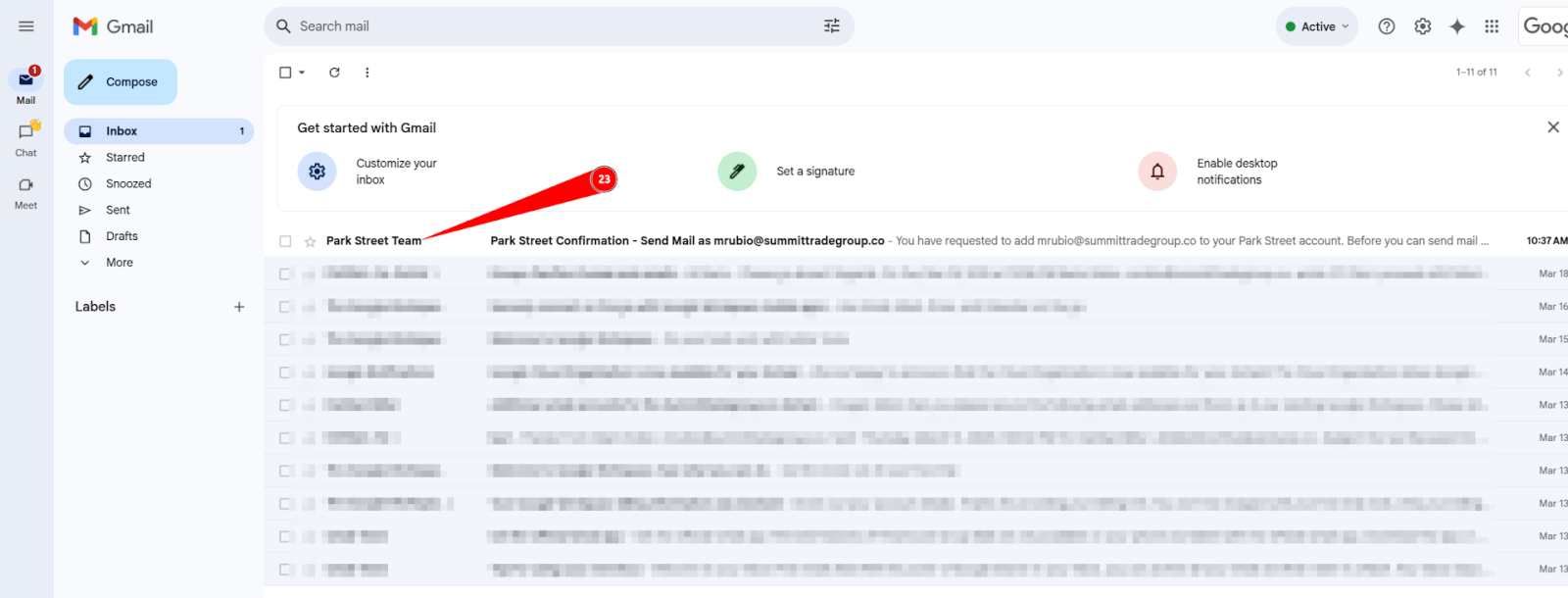
On the left-hand side of Gmail, under your labels, you will now see your newly added account listed. From there, you can view all emails associated with that account.
Be careful when replying to emails — make sure to select the correct "From" address (reply domain) to ensure the response is sent from the intended account.