This guide explains how new users can accept their UPDF invitation, create an account, install the desktop app, set UPDF as the default PDF viewer, and sign in.
📌 Note: Park Street IT installs and configures UPDF directly on all Park Street–managed employee computers. For employees of contracted partner companies (for example, Sykes/Foundever, Cloudstaff, or Consumer Sketch), the partner company's local IT team should use this guide to install and configure UPDF because Park Street IT does not manage those devices.
Part 1: Accept the Invitation and Create Your Account
Step 1 — Open the invitation email
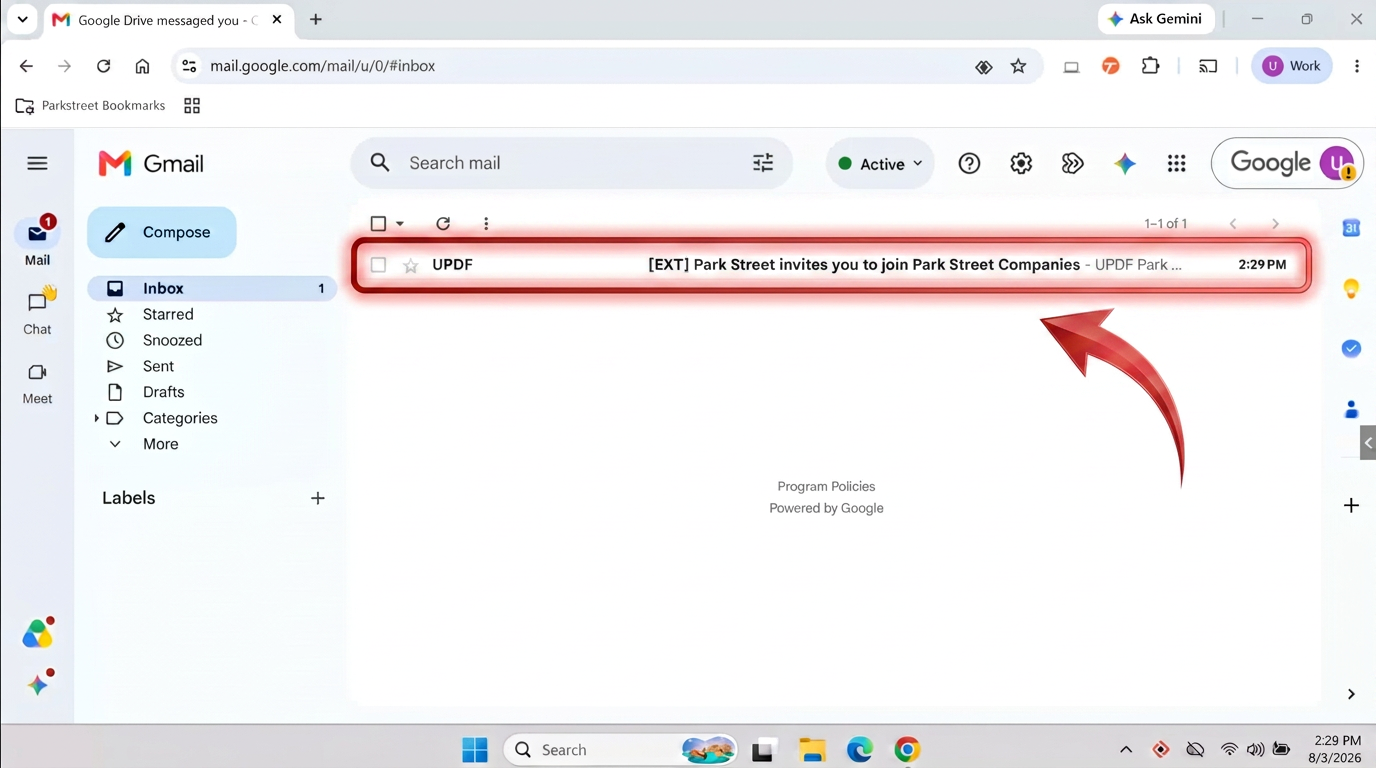
In Gmail, open the email from UPDF titled "Park Street invites you to join Park Street Companies."
Step 2 — Open the invitation details
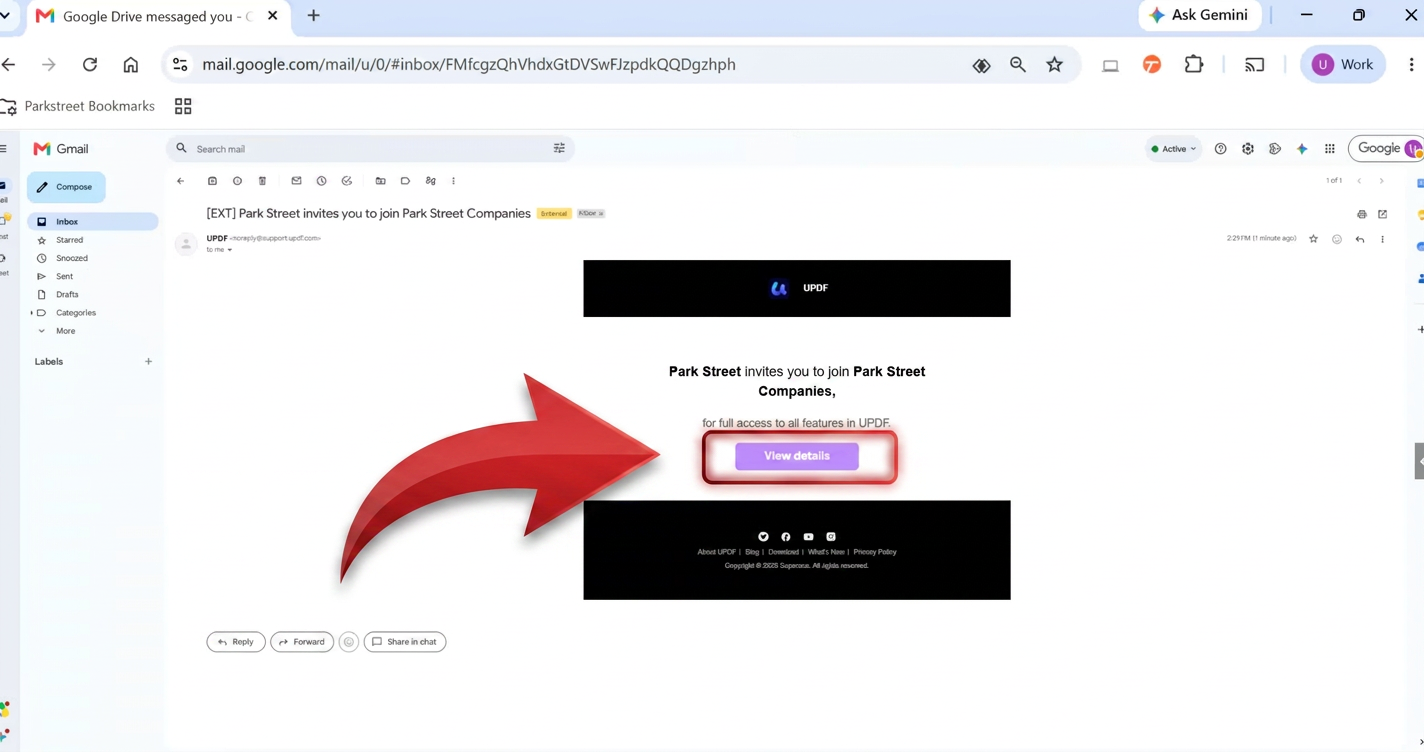
Open the email and click View details.
Step 3 — Accept the invitation
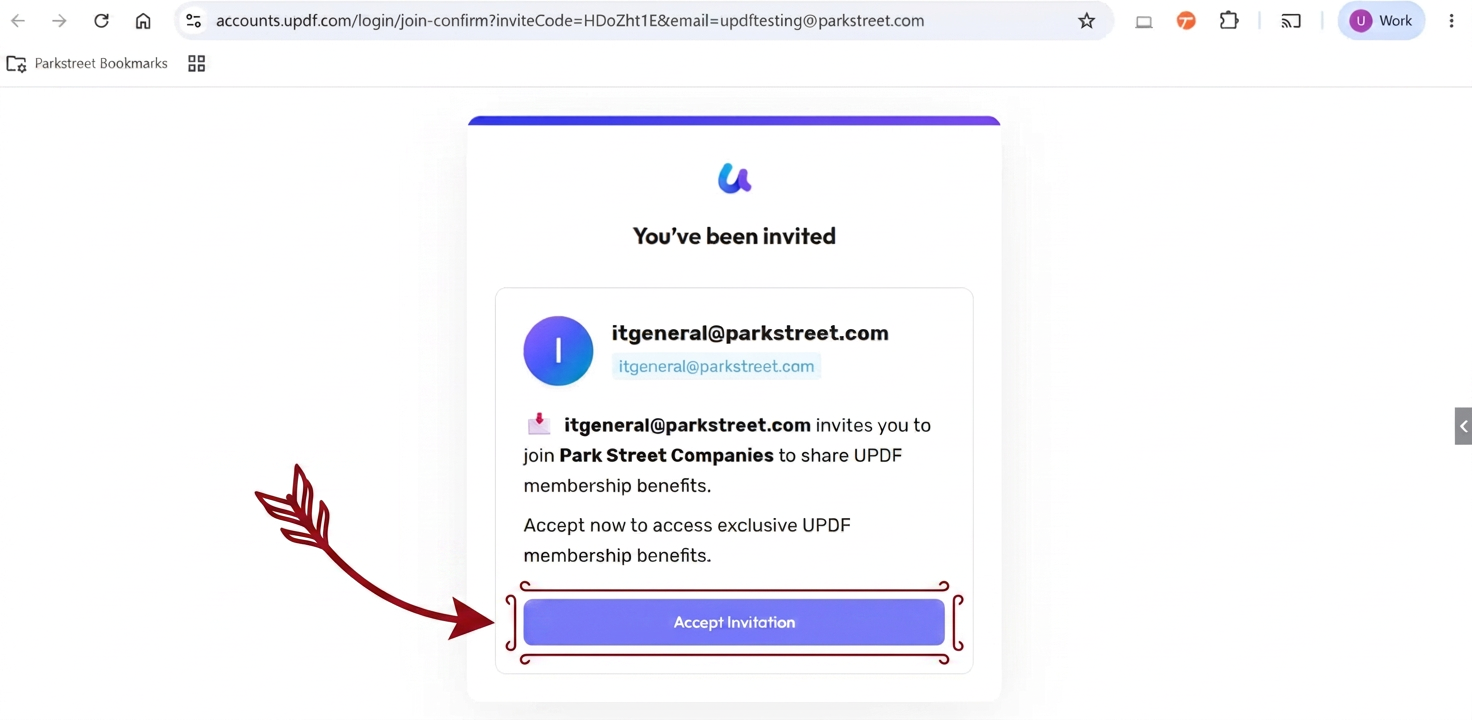
On the "You've been invited" page, click Accept Invitation.
Step 4 — Confirm your email address
On the "Welcome to UPDF" page, confirm that your email address is correct, then click Continue.
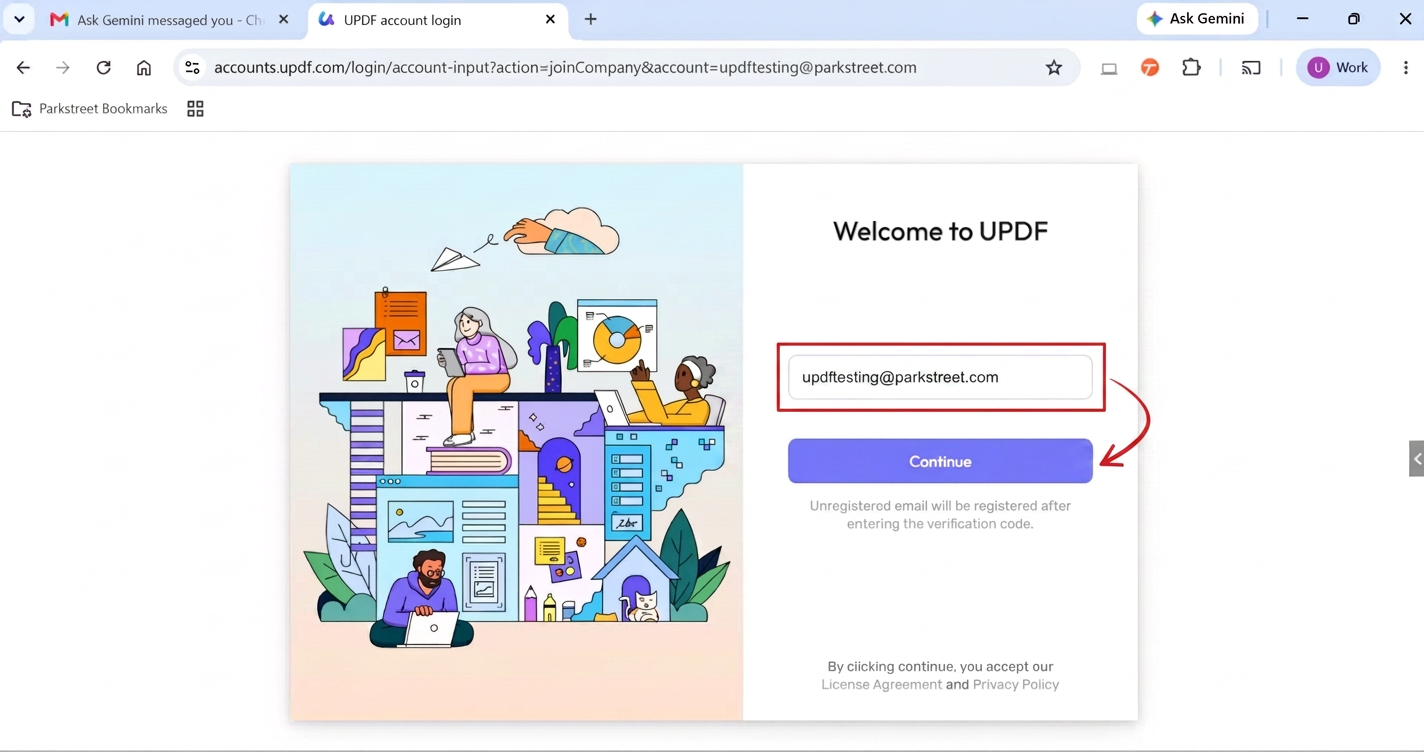
Step 5 — Request the verification code
UPDF will send a verification code to your email address. The code is valid for 10 minutes.
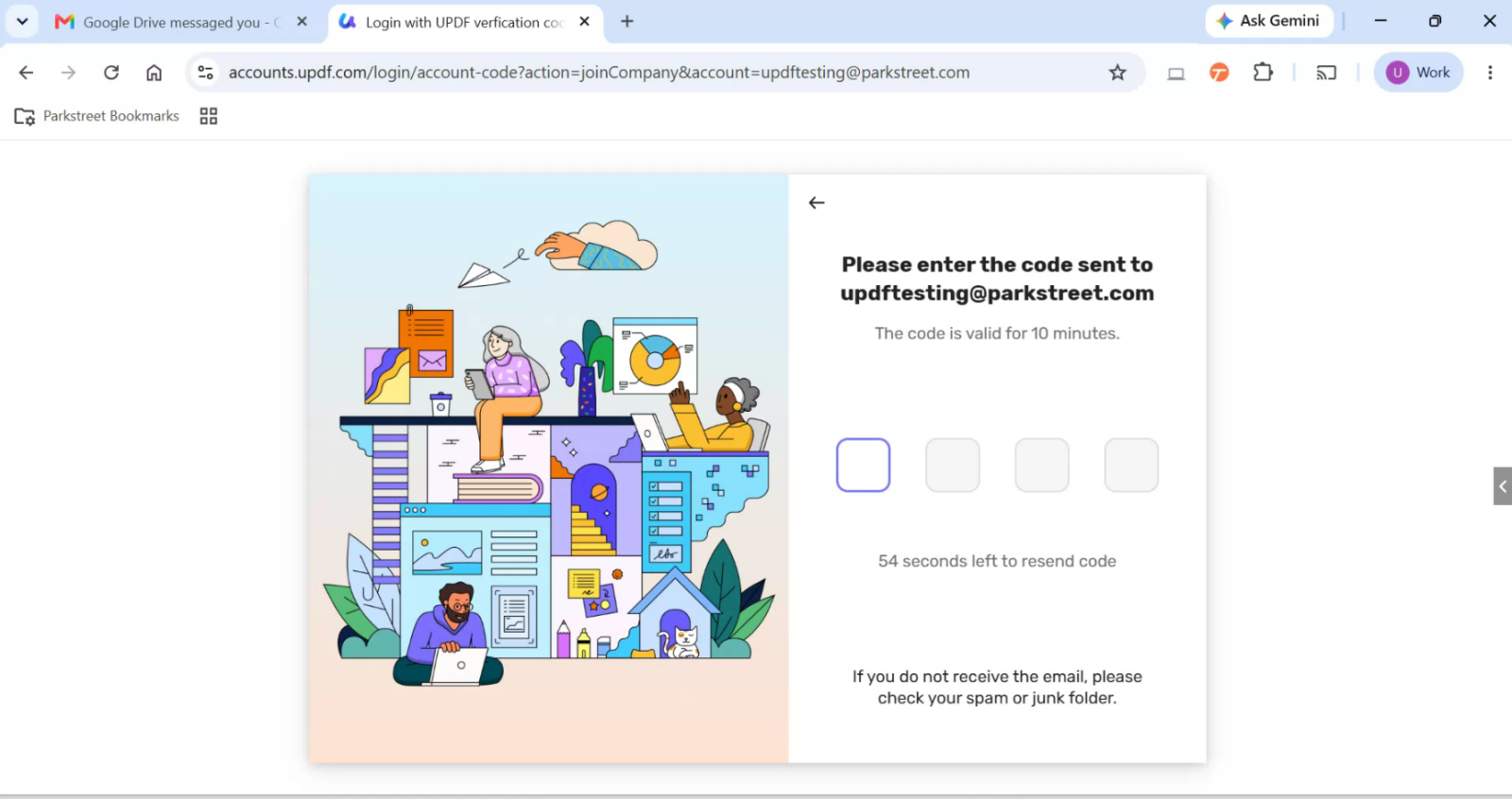
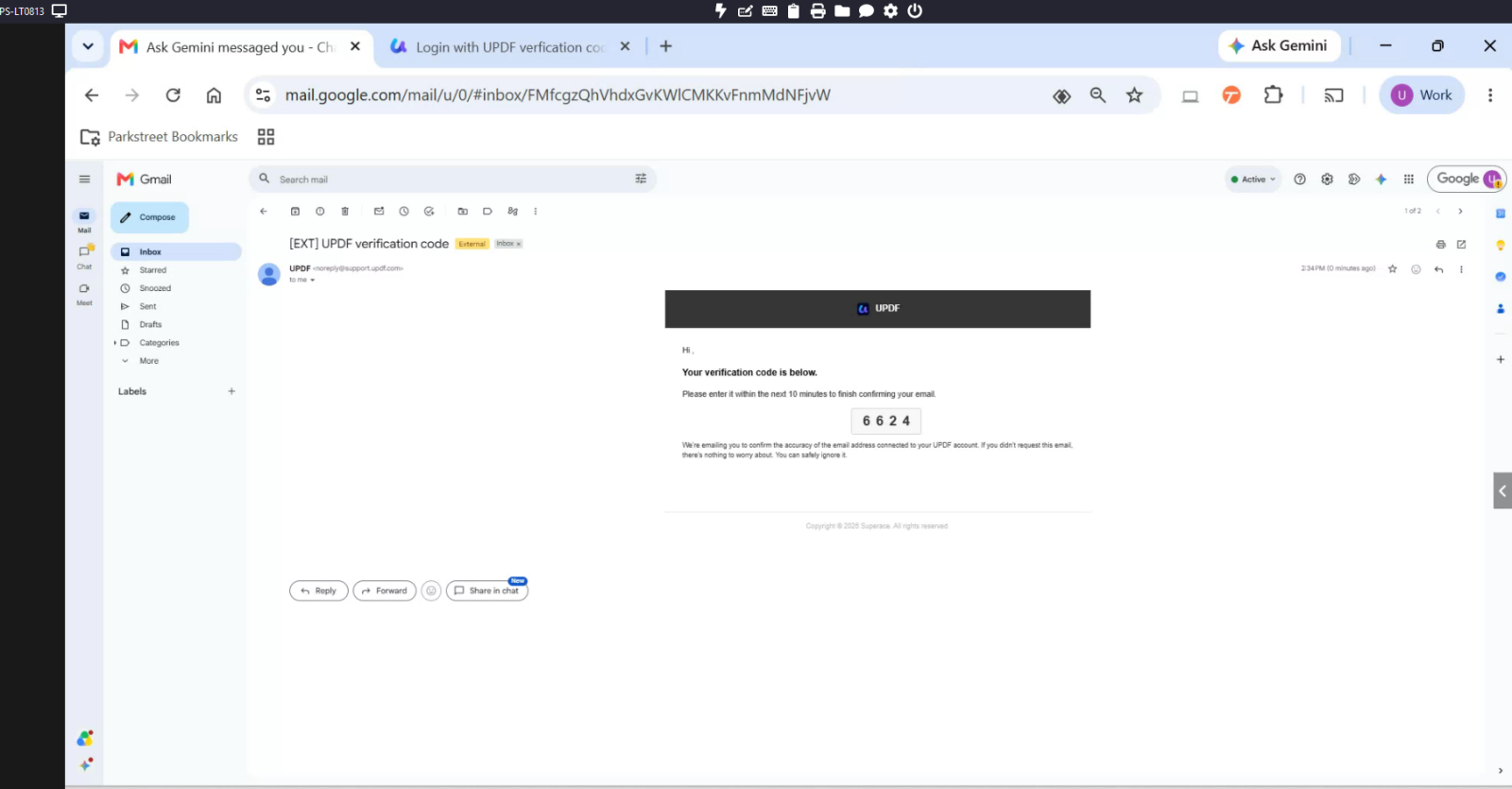
Step 6 — Find the verification code in Gmail
Return to Gmail and open the email titled "UPDF verification code." Copy the 4-digit code shown in the email.
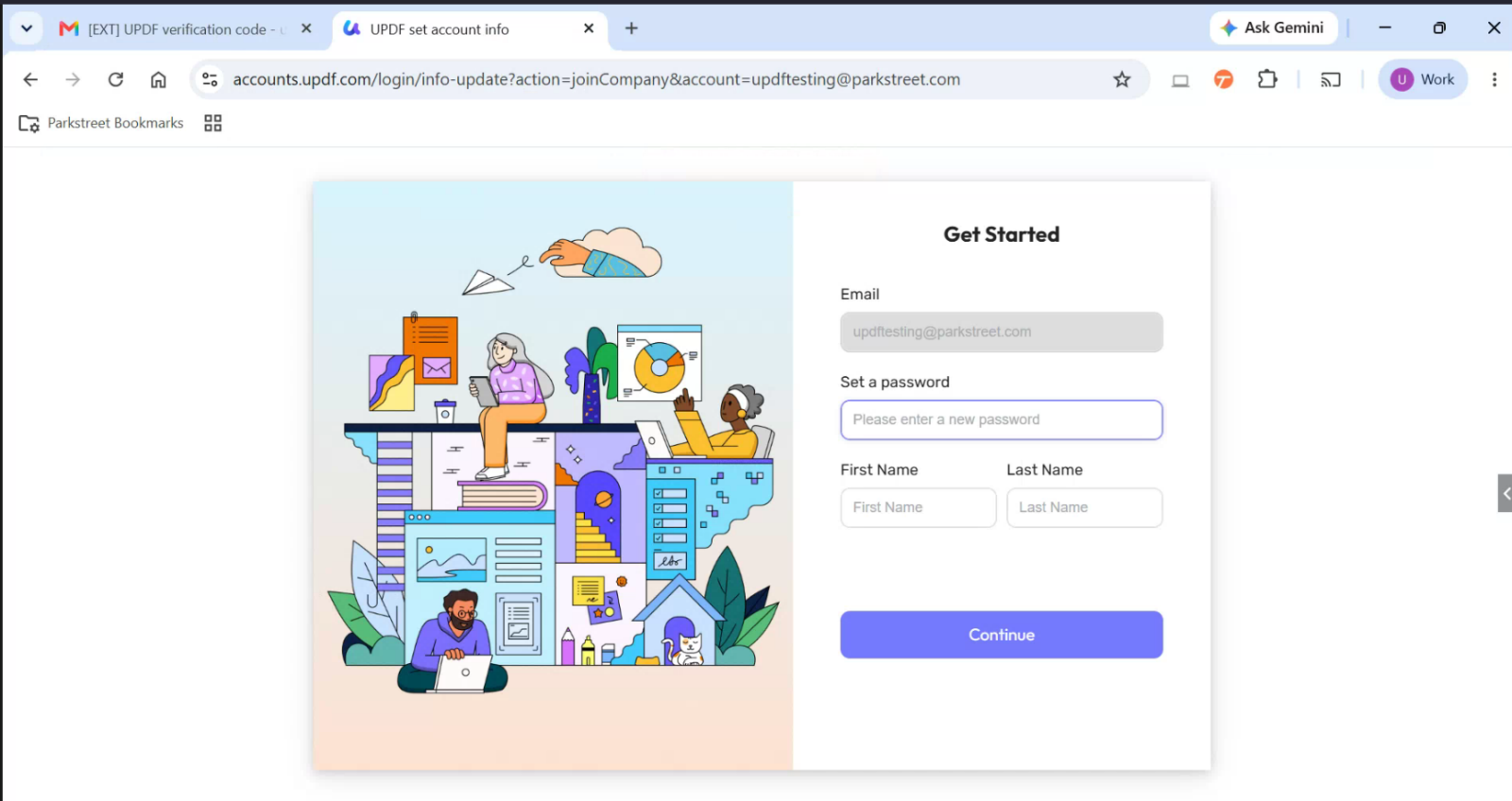
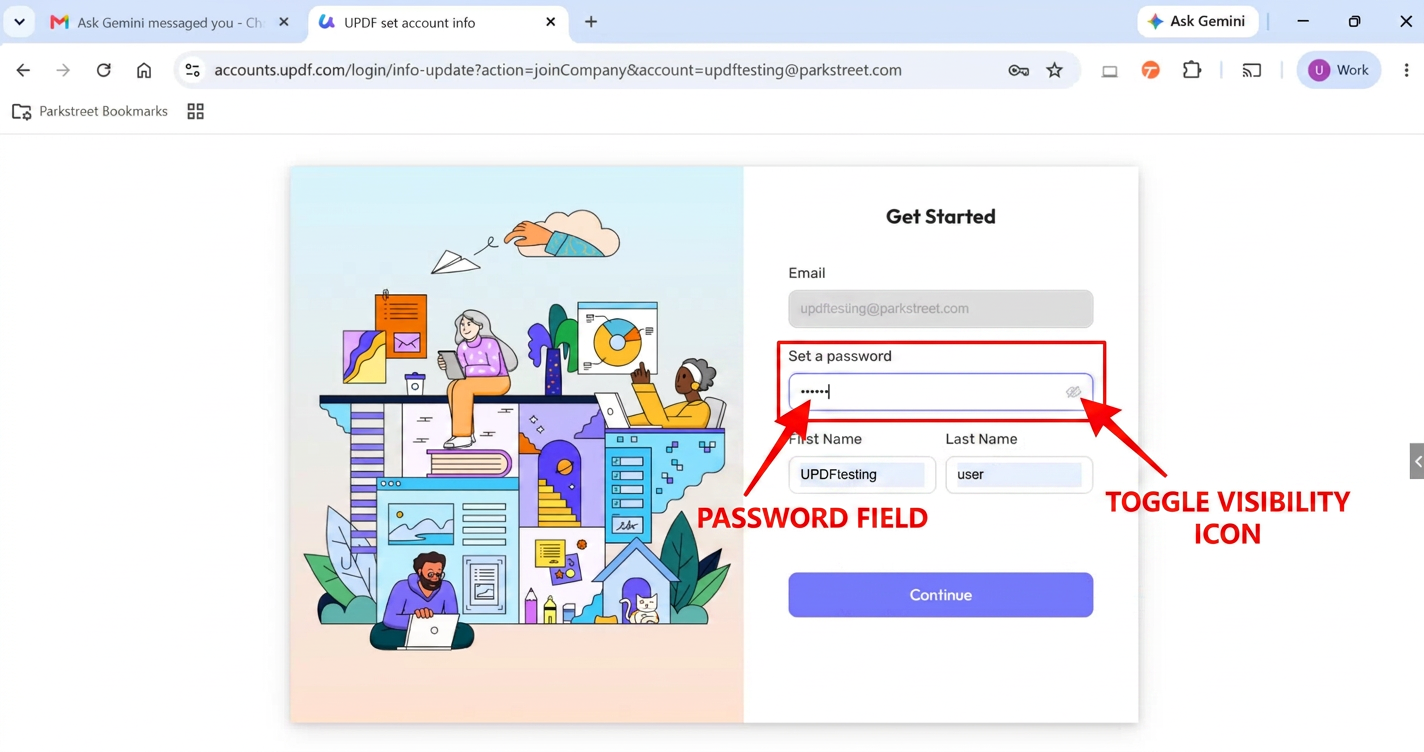
Step 7 — Create your password and enter your name
Enter the verification code, create a password, and enter your first and last name. Then click Continue.
⚠️ Important: Save this password. You will use it later to sign in to the UPDF desktop app.
Step 8 — Confirm account setup and download UPDF
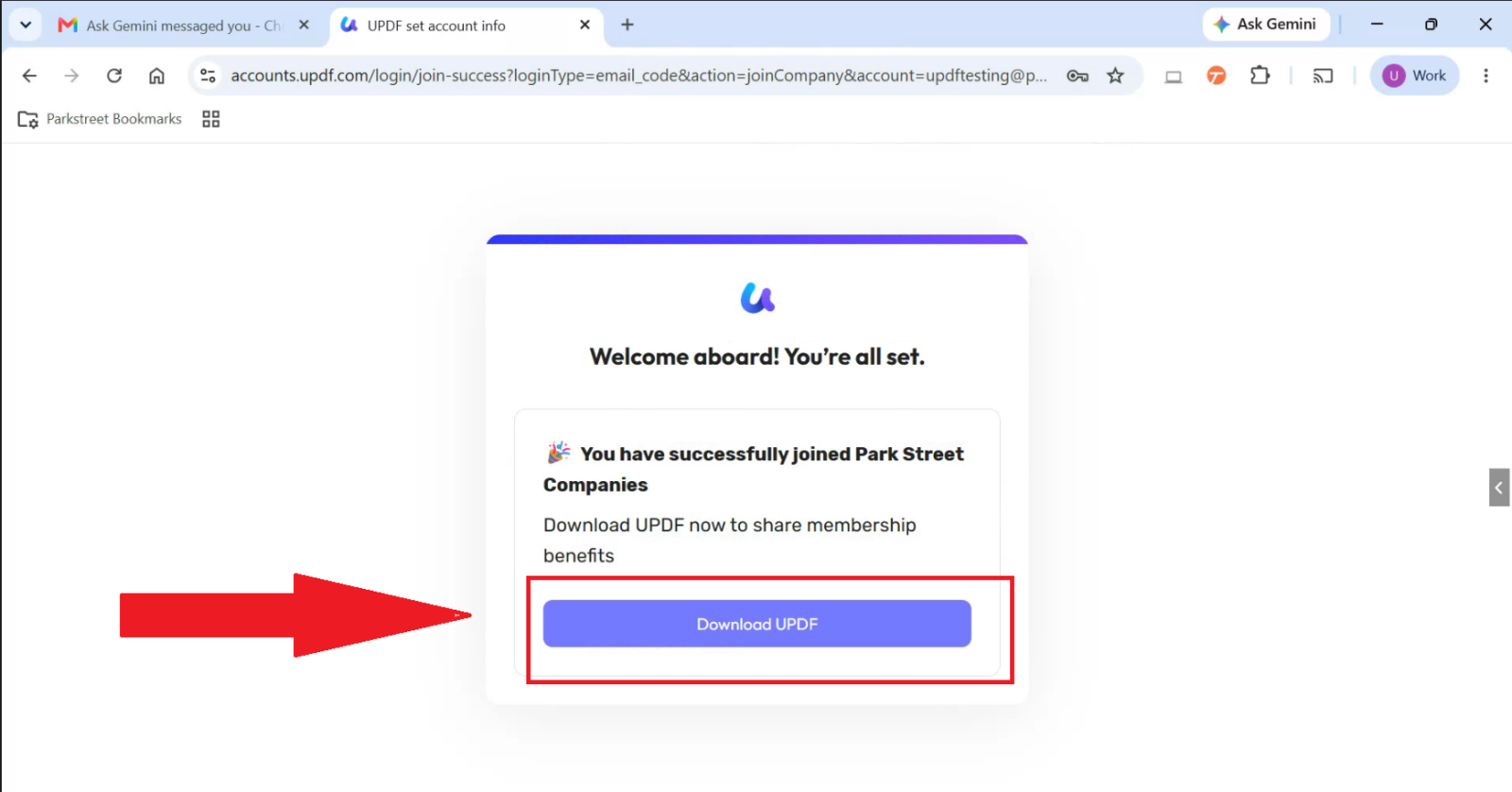
When you see "Welcome aboard! You're all set," your account has been added to Park Street Companies. Click Download UPDF to download the desktop app.
Part 2: Install UPDF and Set It as the Default PDF Viewer
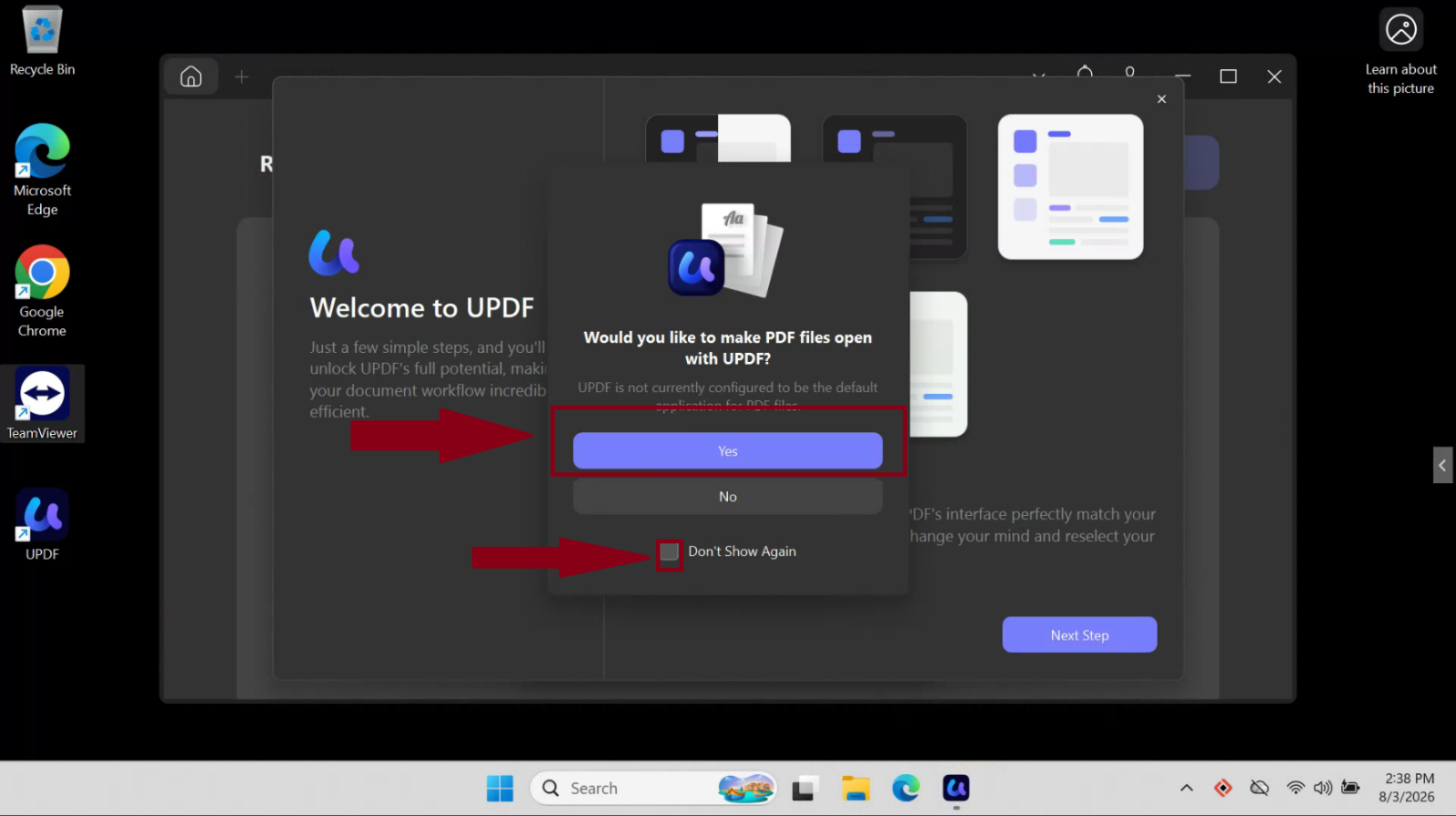
Step 9 — Set UPDF as the default PDF app when prompted
The first time you open UPDF, the app may ask: "Would you like to make PDF files open with UPDF?" Click Yes.
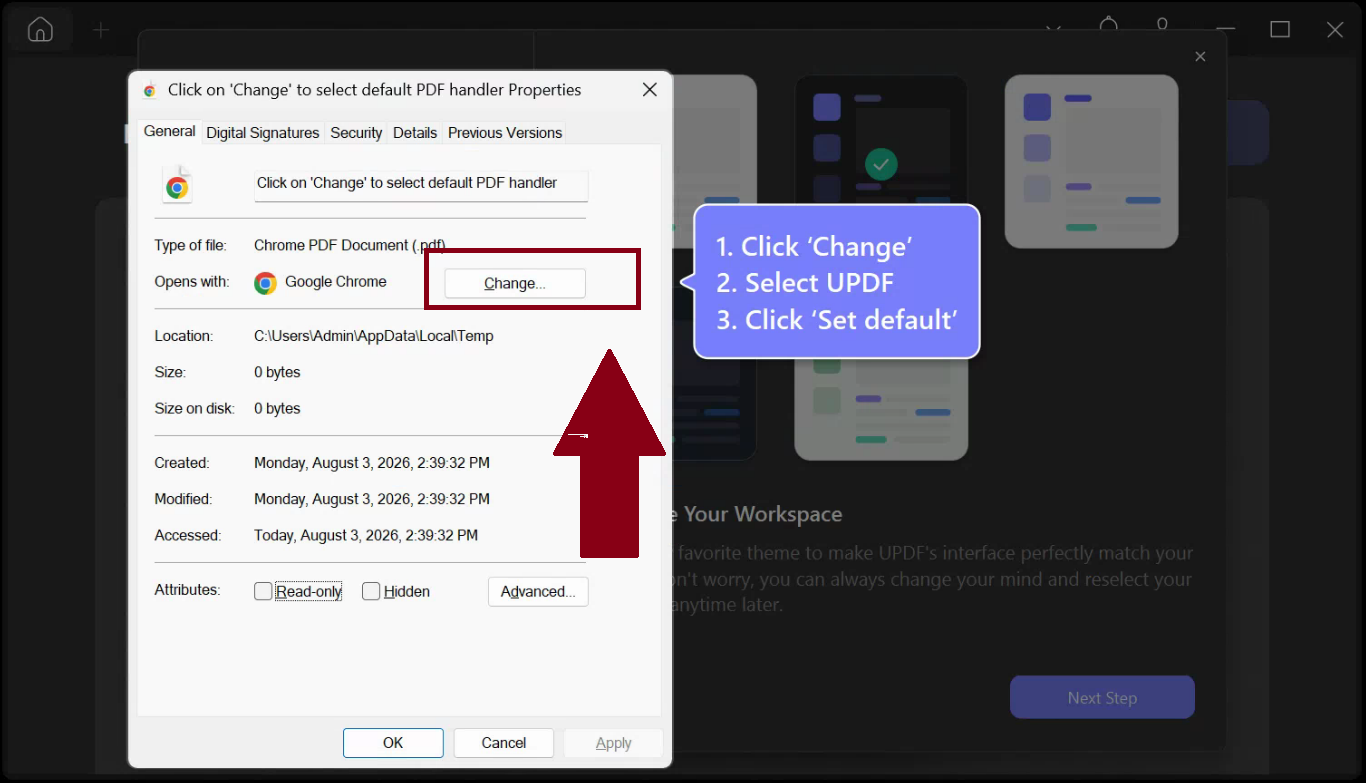
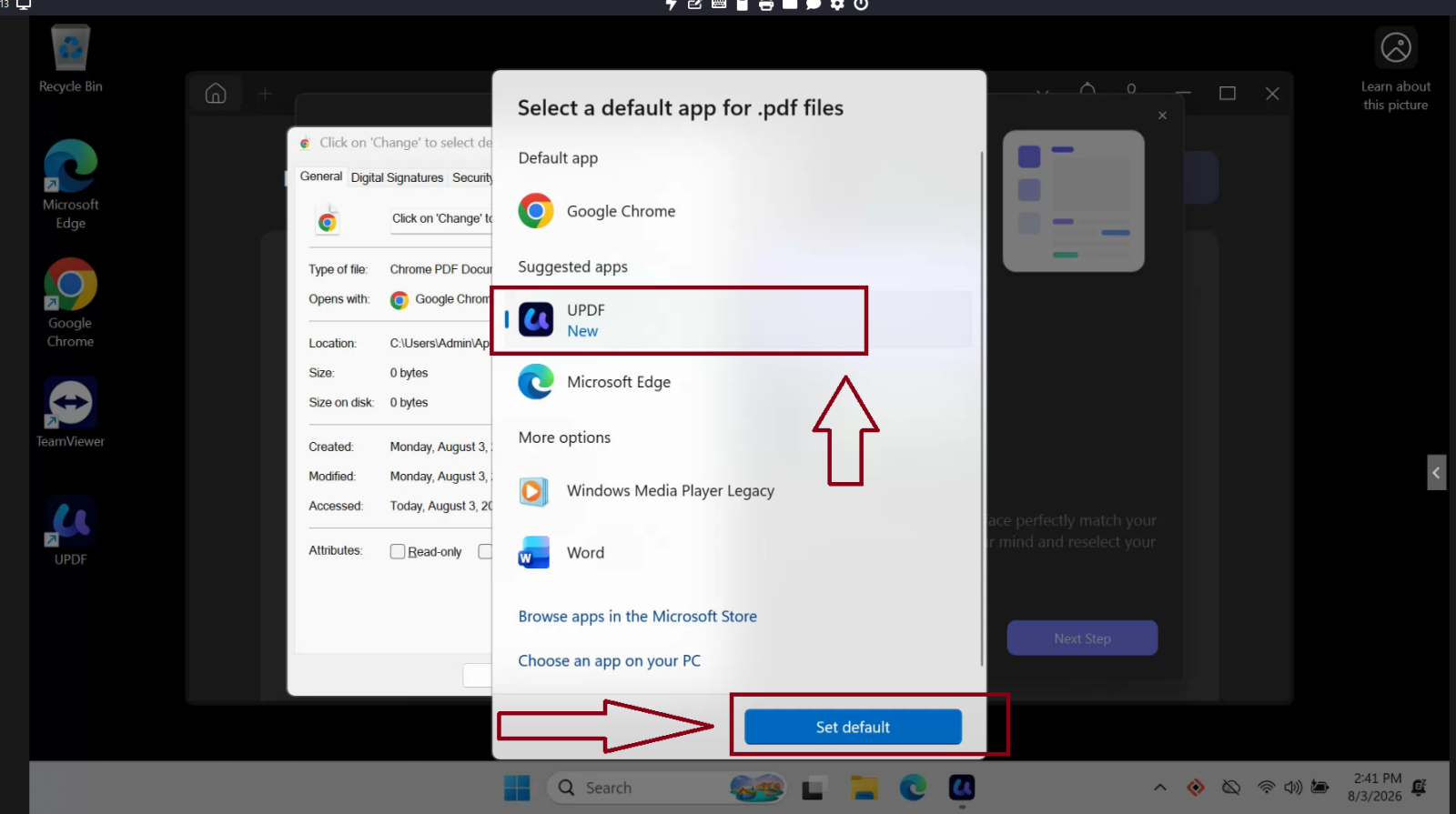
Step 10 — Set UPDF as the default PDF app manually, if needed
If UPDF does not prompt you automatically, follow these steps:
- Right-click any PDF file.
- Click Properties.
- Next to Opens with, click Change.
- Select UPDF.
- Click Set default.
Part 3: Sign In to the UPDF App
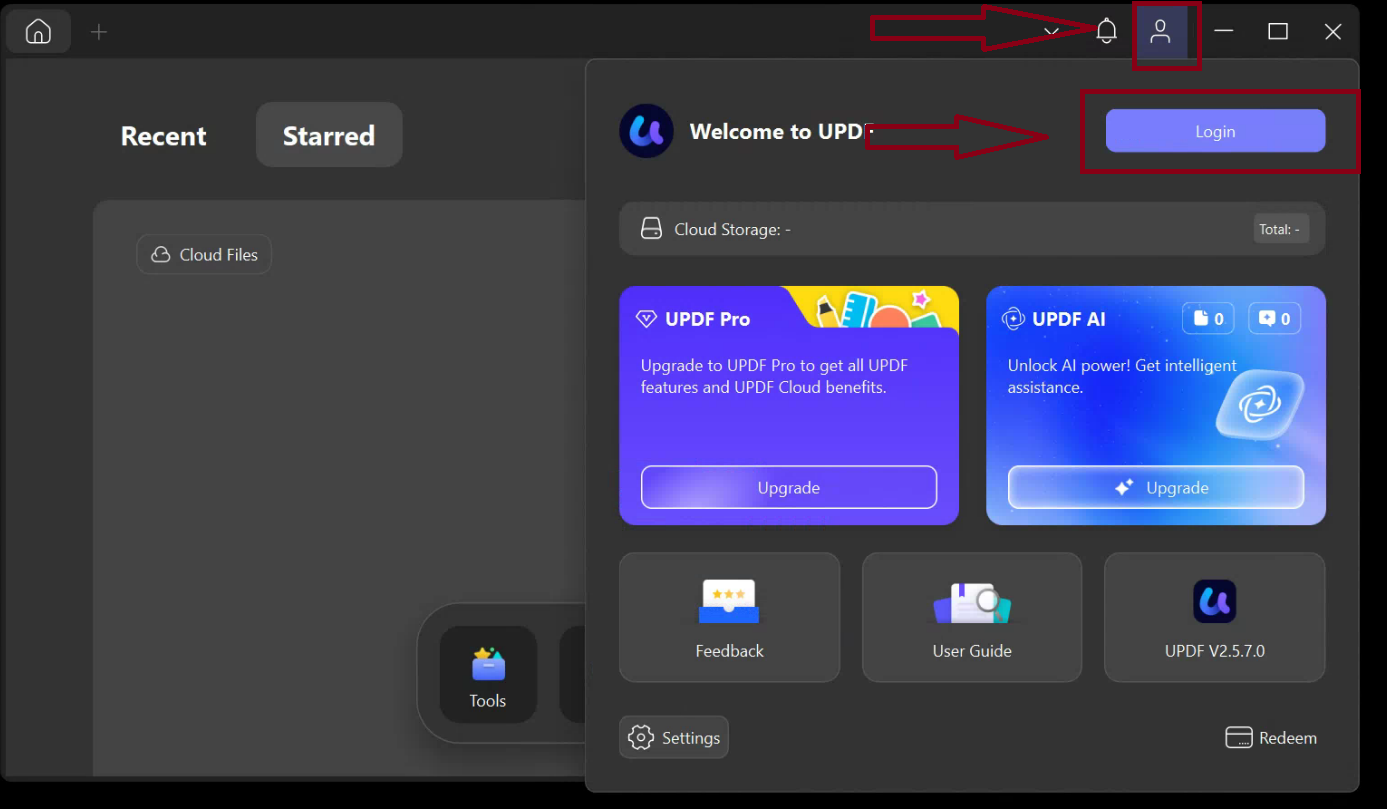
Step 11 — Open the login screen
In the UPDF app, click the profile icon in the top-right corner, then click Login.
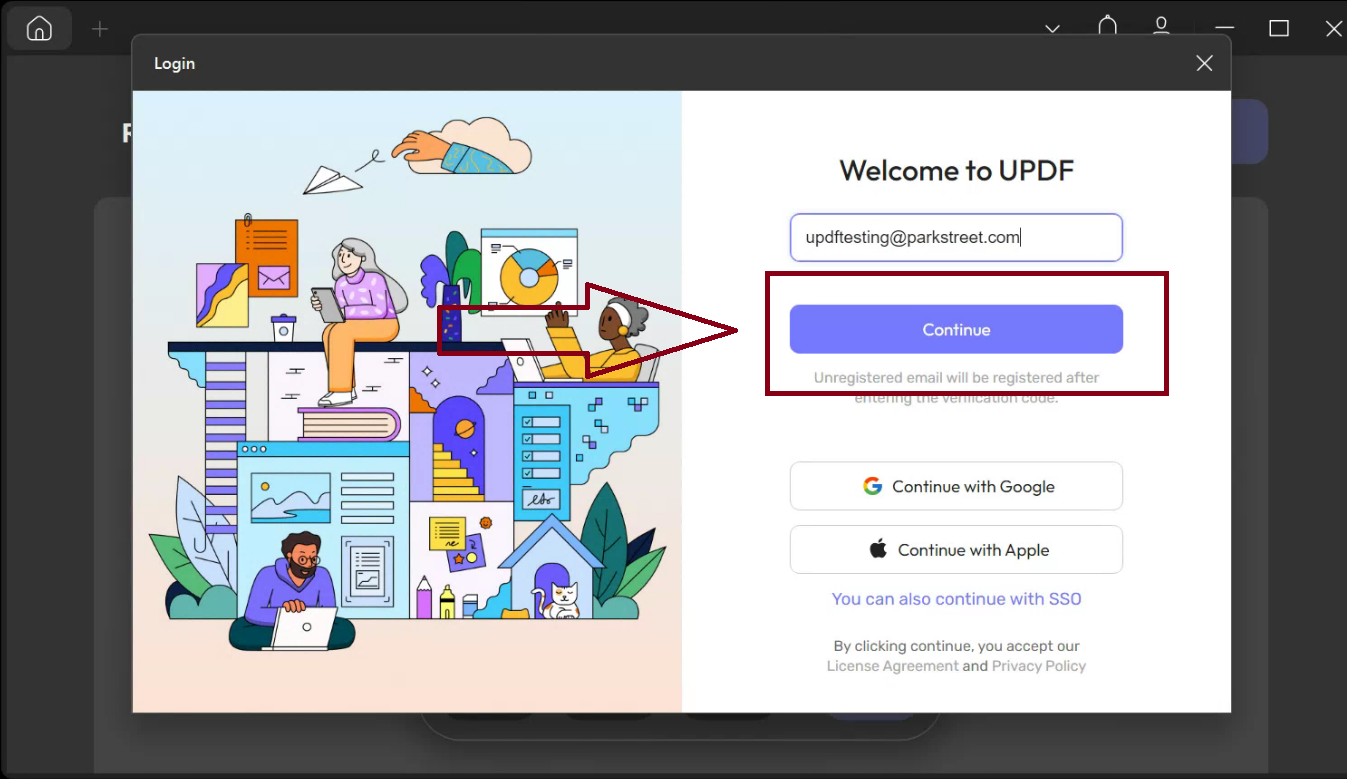
Step 12 — Enter your email address
Enter your Park Street email address, then click Continue.
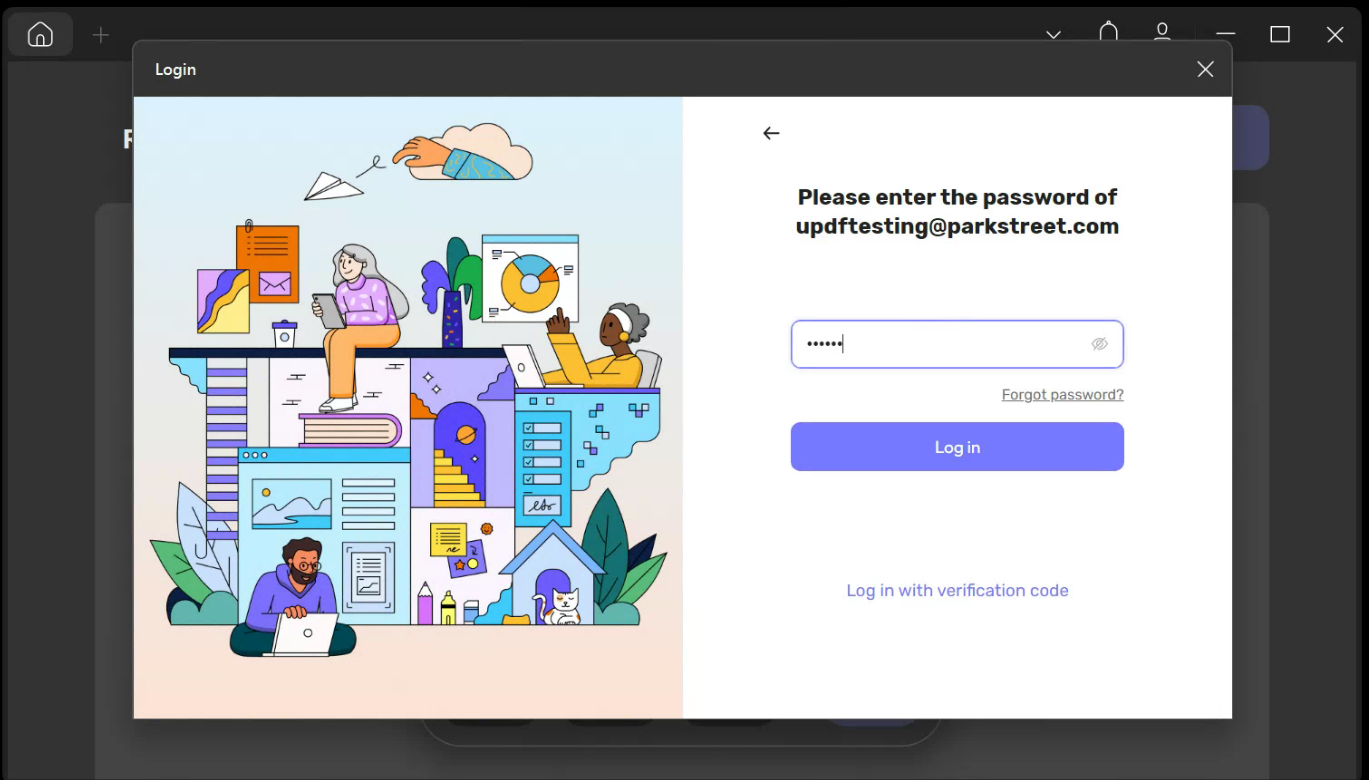
Step 13 — Enter your password
Enter the password you created in Step 7, then click Log in.
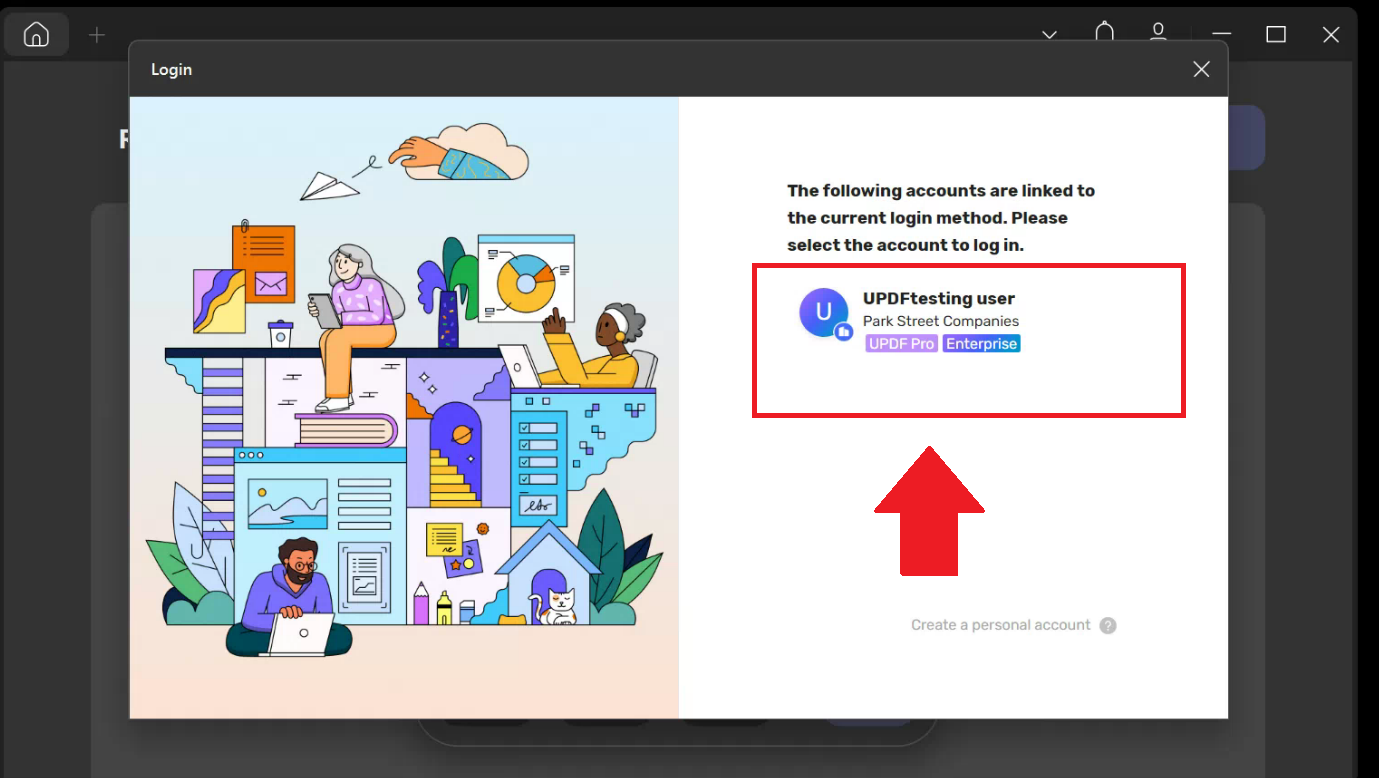
Step 14 — Select your account
If prompted, select your account under Park Street Companies.
Step 15 — Confirm that you are signed in
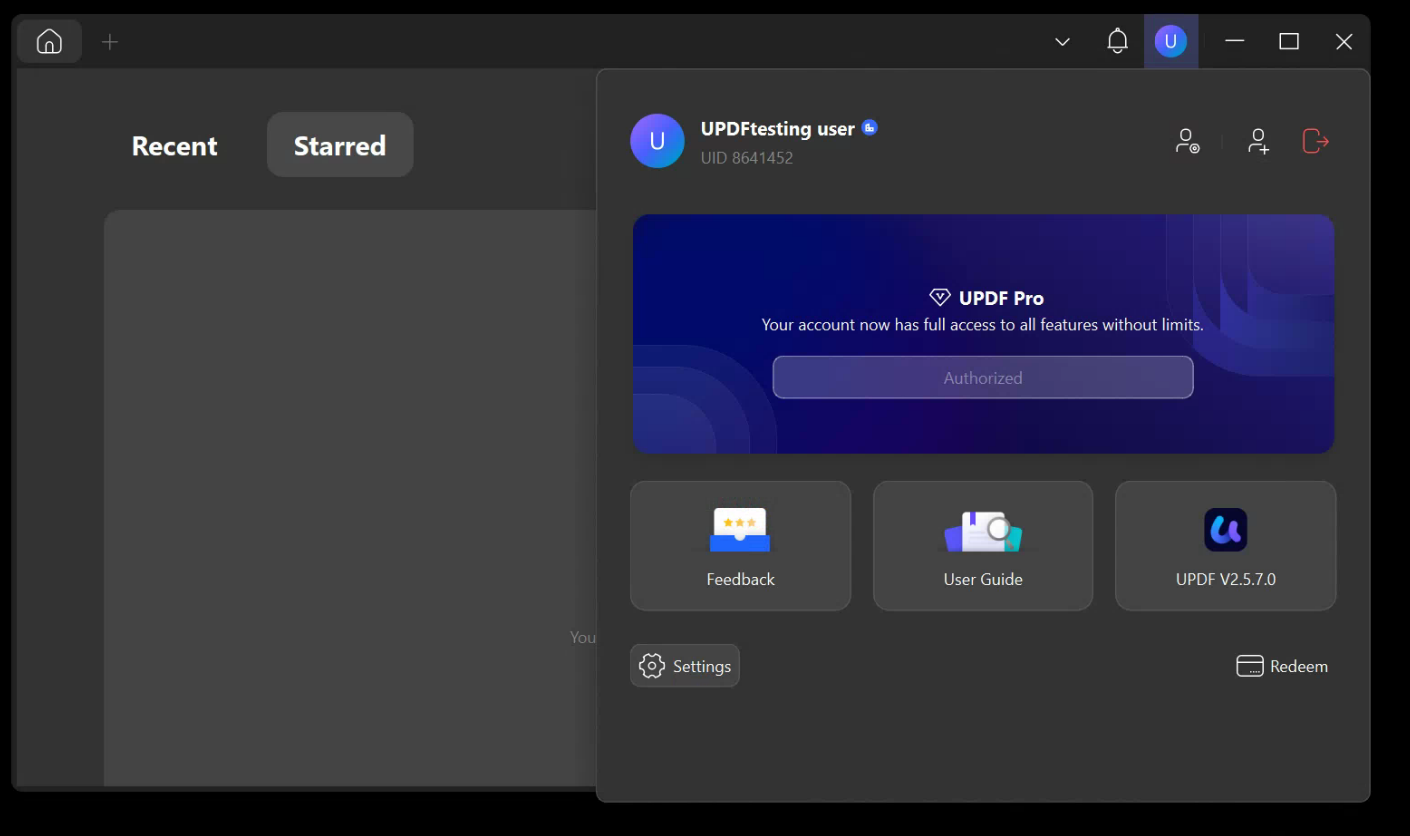
Click the profile icon again and confirm that your account shows UPDF Pro — Authorized.
You are now ready to use UPDF.