
This guide is intended to help you set up your PDFEscape desktop application.
1. Open the PDFEscape Desktop application and select the following link to sign into your PDFEscape account:
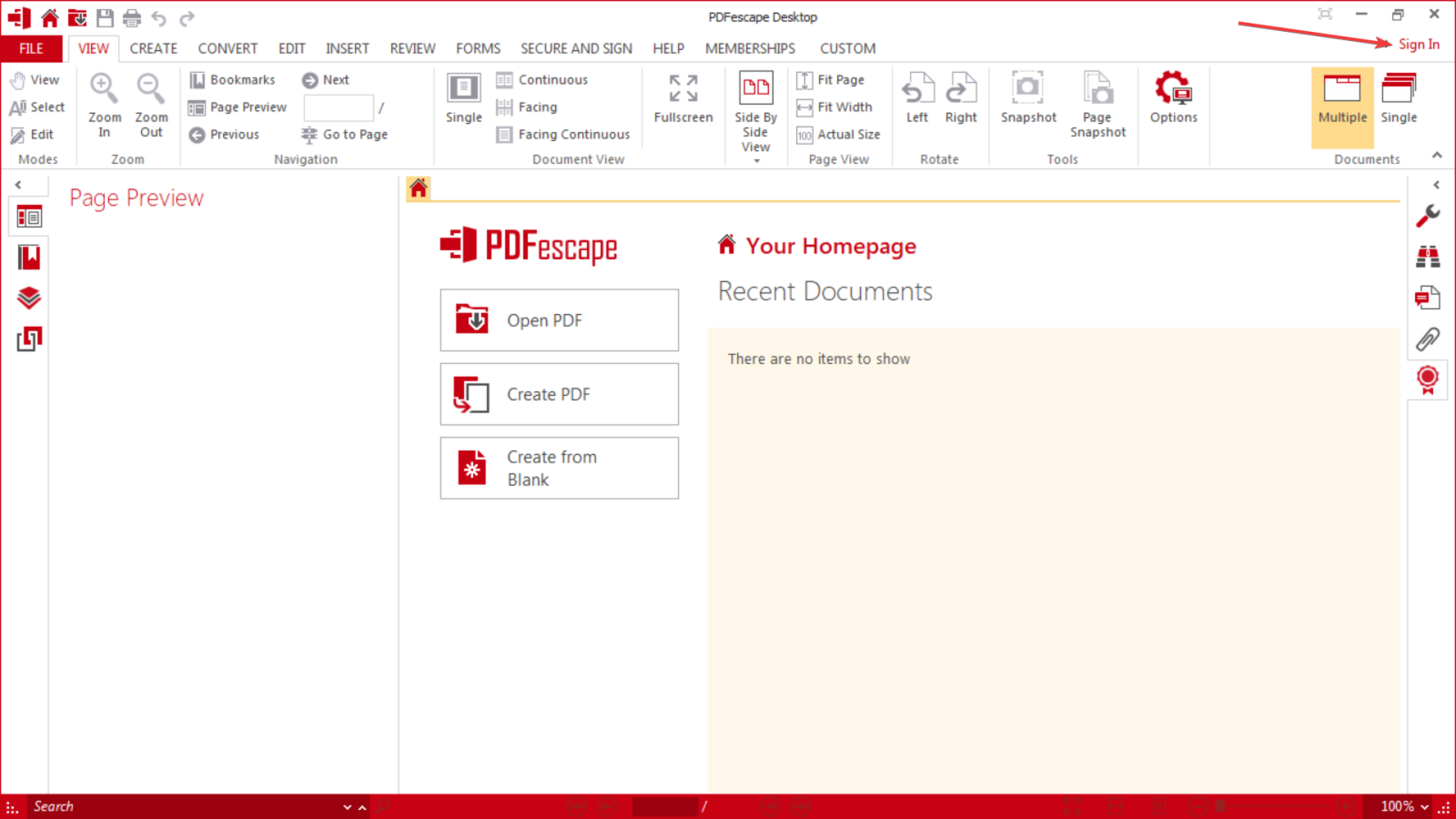
2. Once you click “Sign In”, the following browser window opens:
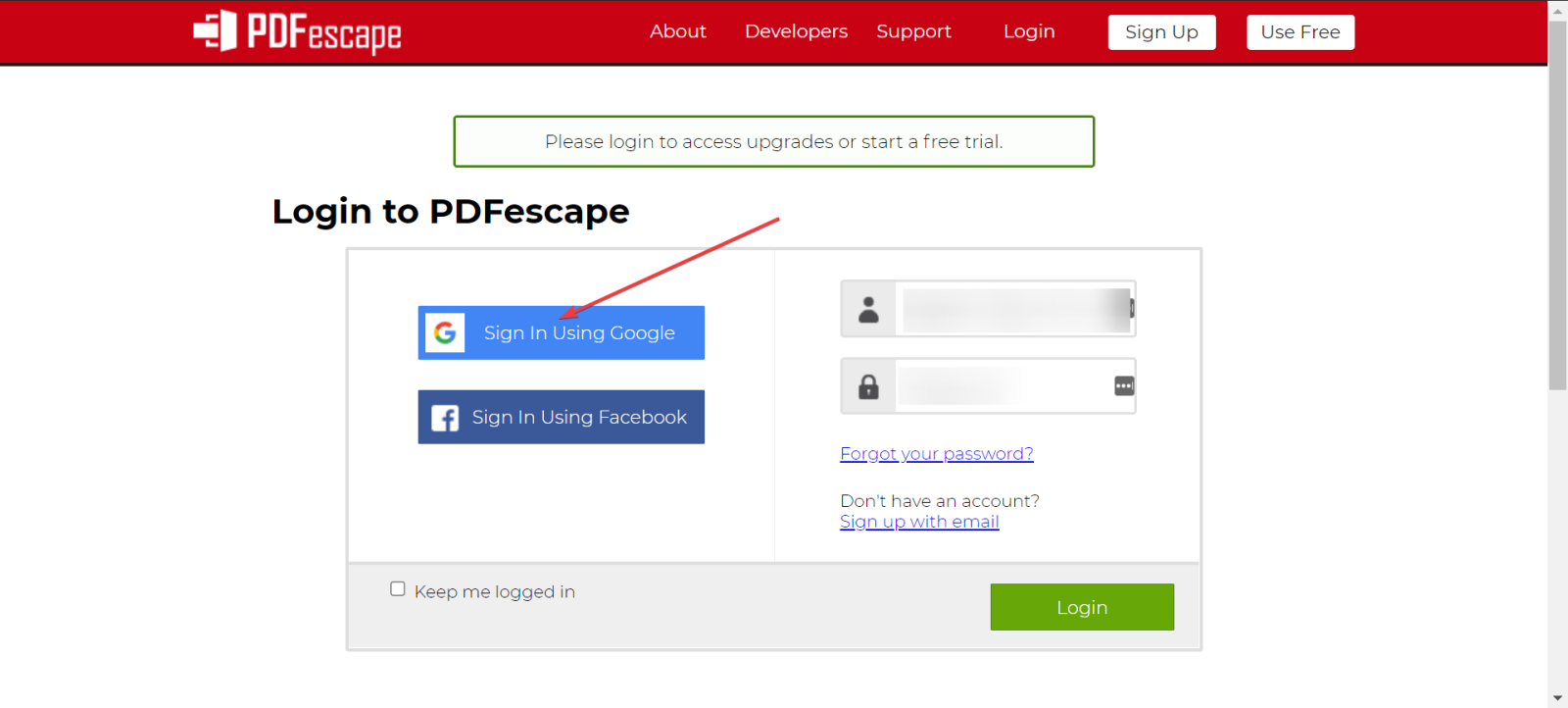
Select the “Sign In Using Google” option and select your Park Street Google account.
3. Once you logon, the following page appears:
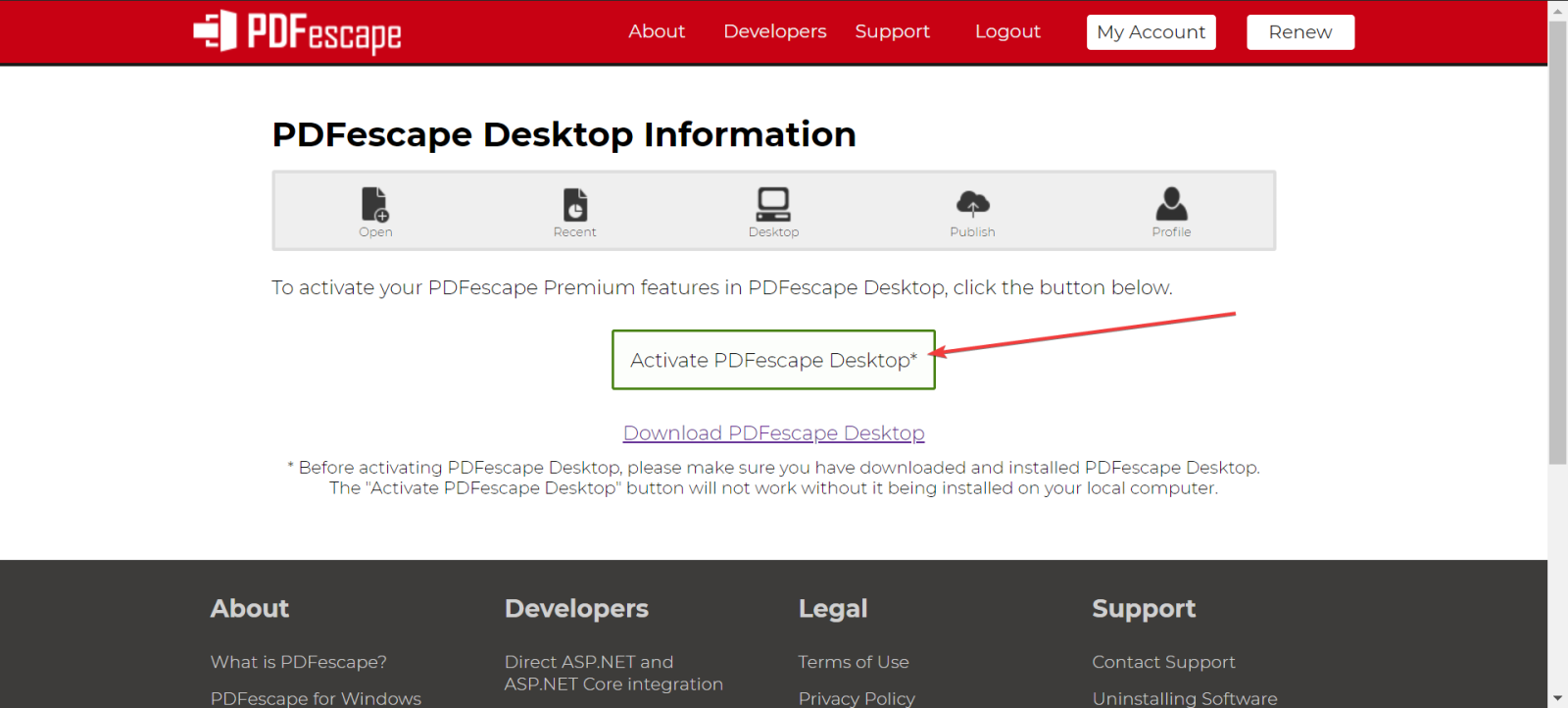
Select the “Activate PDFEscape Desktop” link. The following page will appear once you open this link:
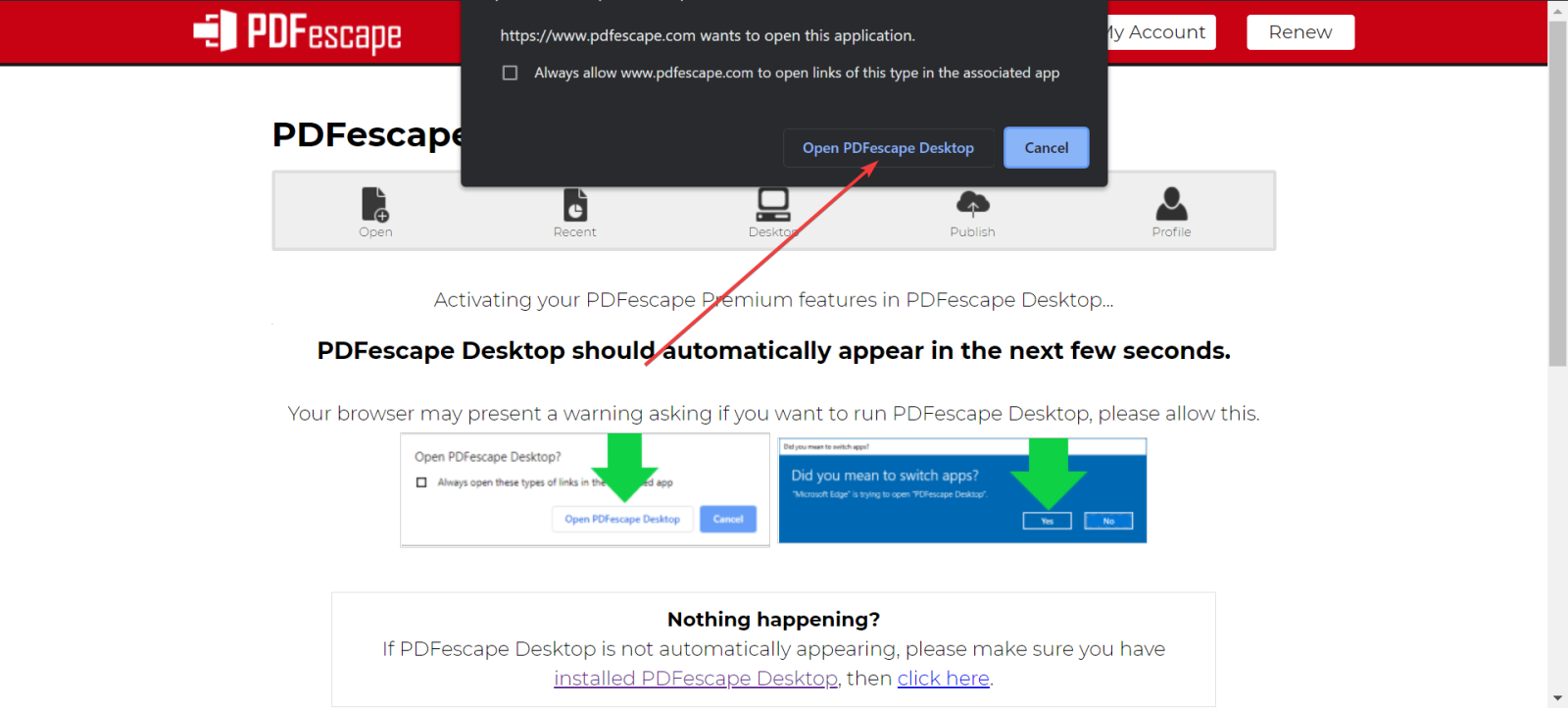
At the top of the page, a small pop-up will appear, once this appears, select the “Open PDFEscape Desktop” option.
This will then activate the Desktop application with your premium license and you will have access to the premium features.