
Microsoft AutoUpdate makes sure your copy of Office will always be up-to-date with the latest security fixes and improvements. If you are a Microsoft 365 subscriber, you'll also receive the newest features and tools.
Check for updates and install
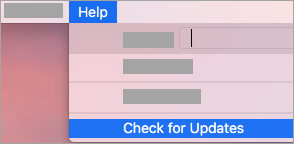
1.- Open an Office app such as Word, then on the top menu, click Help > Check for Updates.
If you don't see Check for Updates, run the latest version of Microsoft AutoUpdate tool, then check for updates again.
2.- Select Automatically keep Microsoft Apps up to date to receive the latest security fixes and feature improvements as soon as they become available, helping your Mac stay protected and up to date.
3.- Click Update to download and install all the available updates.
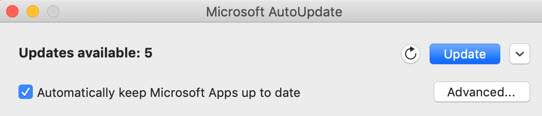
4.- If you want to learn about the details of each update before installing, click the arrow next to the Update button and review the apps, versions and installation date. Then click Update All or Update next to individual apps.

Update Office from the Mac App Store
If you downloaded Office from the Mac App Store, and have automatic updates turned on, your apps will update automatically. But you can also manually download the updates:
- Open the Mac App Store from your Dock or Finder.
- Click Updates on the left side menu, then click Update All, or the Update button next to the apps that you want to update.