
Category: IT / Onboarding
Audience: New Employees
Last Updated: February 2026
Owner: IT
Overview
This guide walks new employees through the steps to access Park Street's official Slack workspace (park-street-imports.slack.com). Slack is the company's primary internal communication platform.
Prerequisite: Your corporate @parkstreet.com email account must be active before you begin.Step 1 – Open Slack
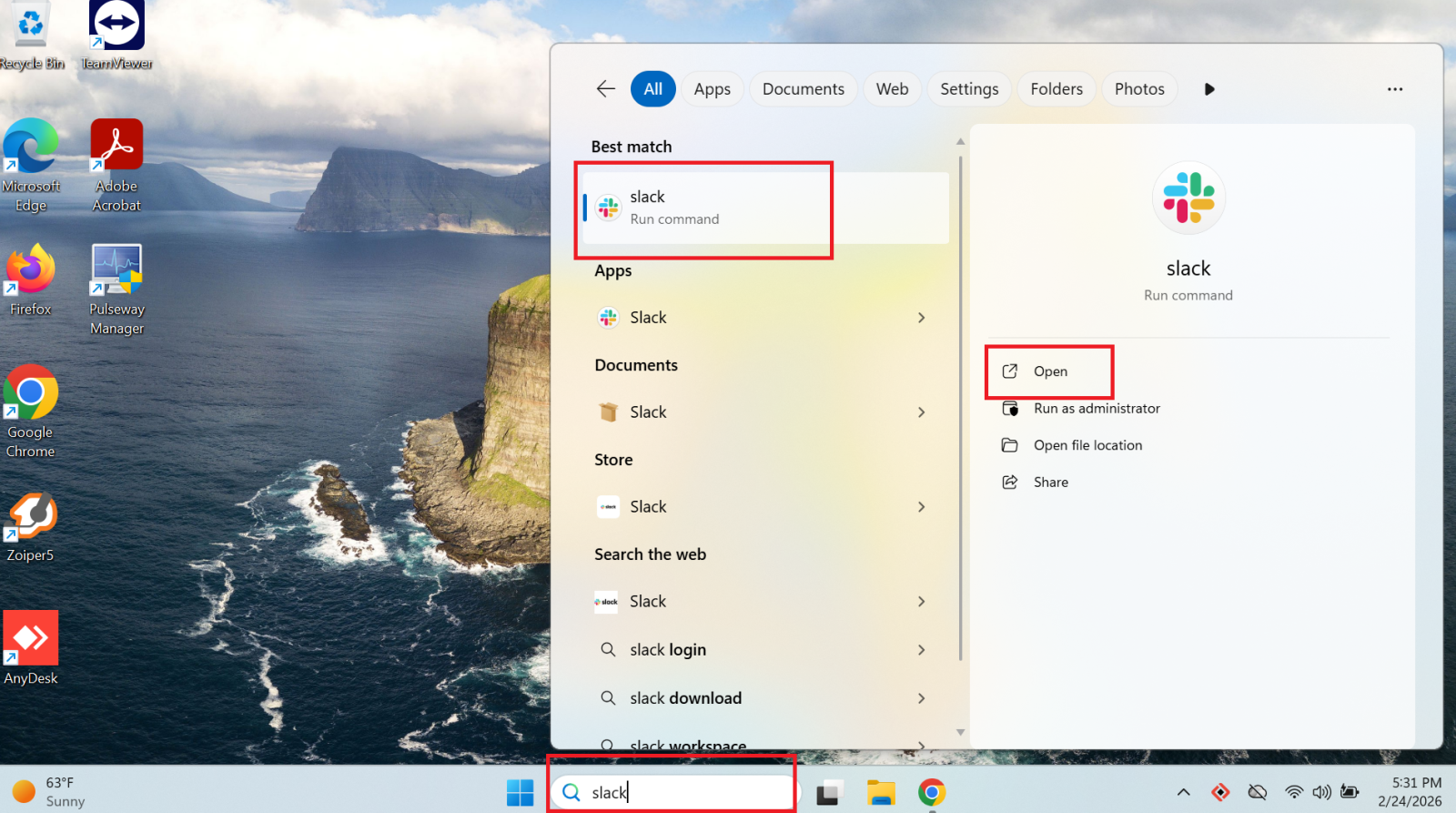
Slack comes pre-installed on all company devices. Search for it in the Start menu or find it on your desktop and open it.
If Slack is not installed on your device, contact IT before proceeding.
Step 2 – Sign In with Google
- Click the green "Sign In to Slack" button. A window will open in your web browser.

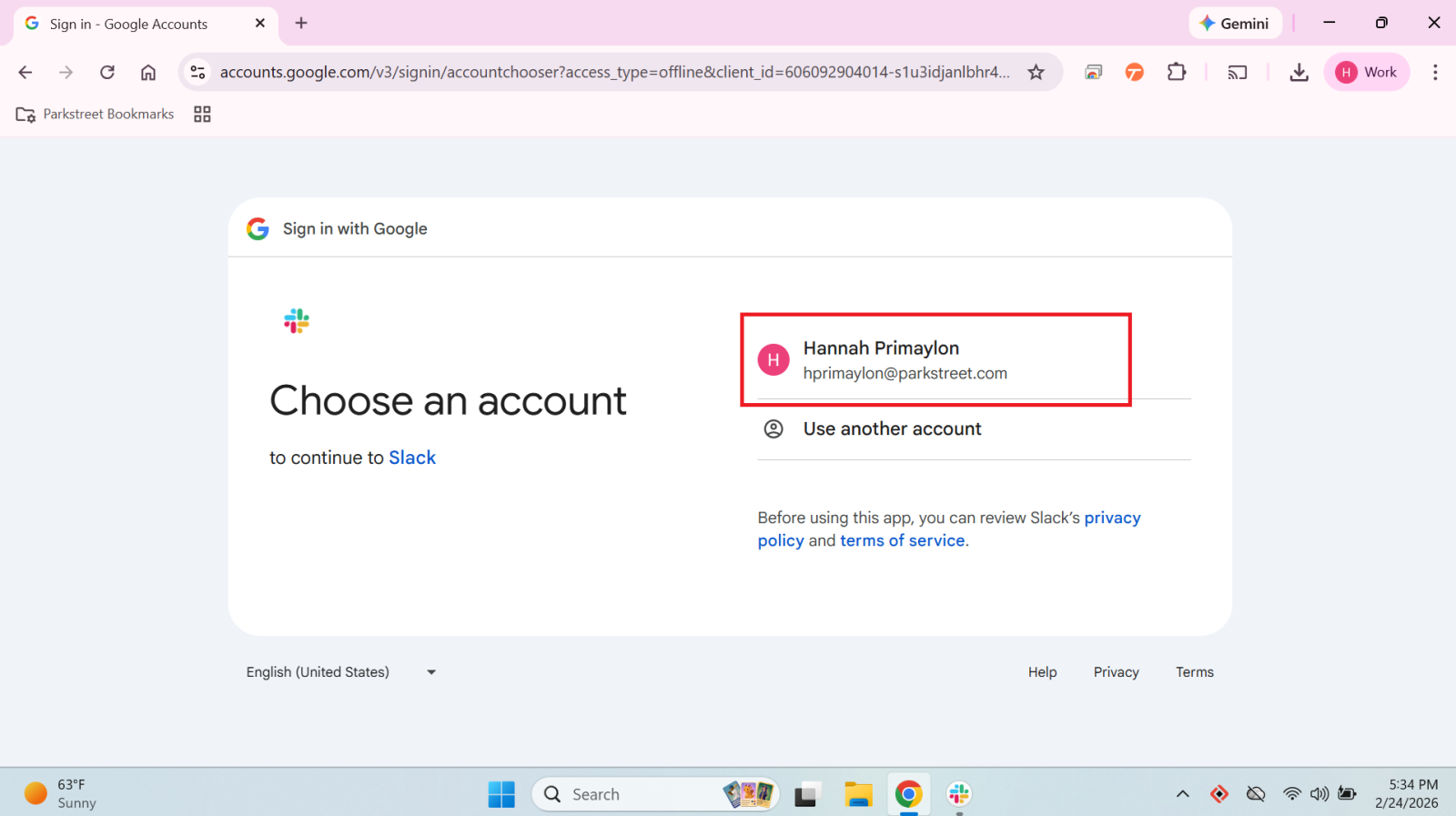
- Select the "Google" option to authenticate.
- Choose your corporate account (yourname@parkstreet.com) and click Continue.


Step 3 – Join the Park Street Workspace
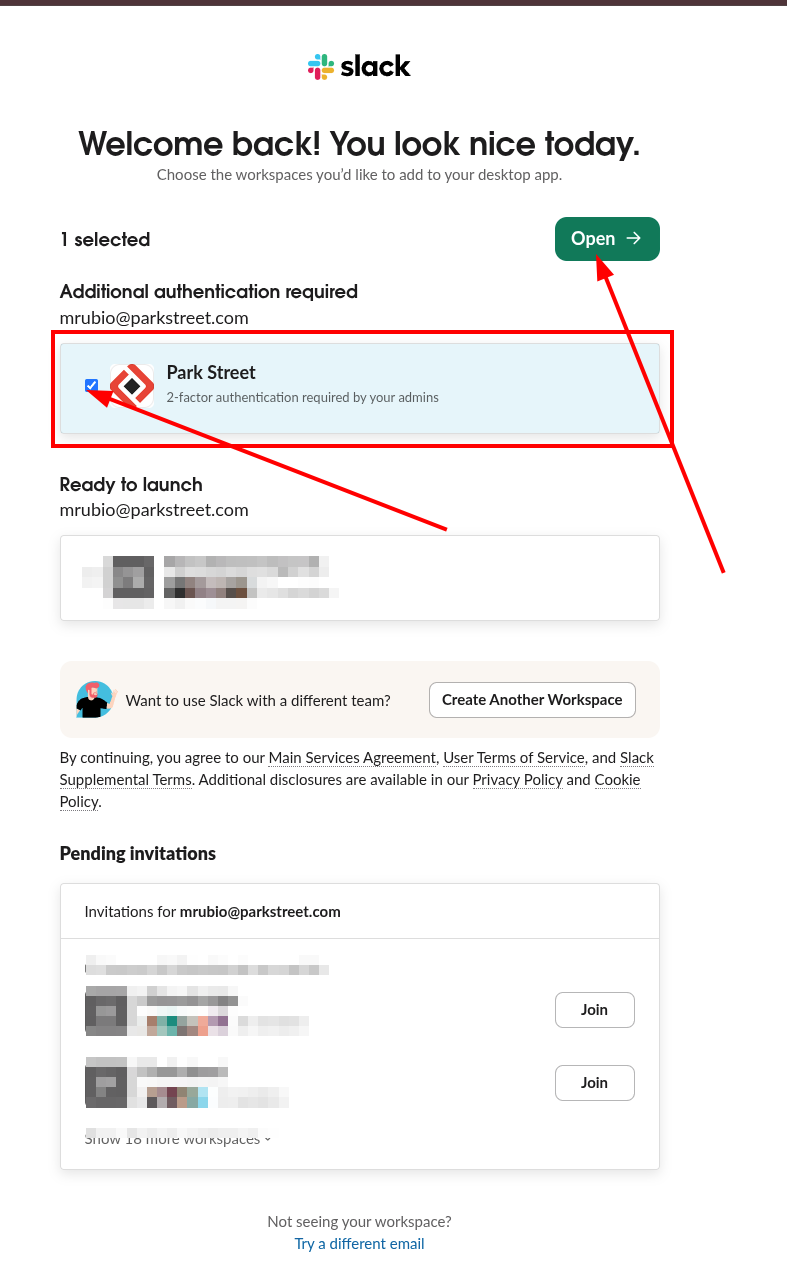
- After authenticating, you will see Slack's welcome screen with your pending invitations.
- Locate the Park Street workspace.
- Click select Park Street and Open it.
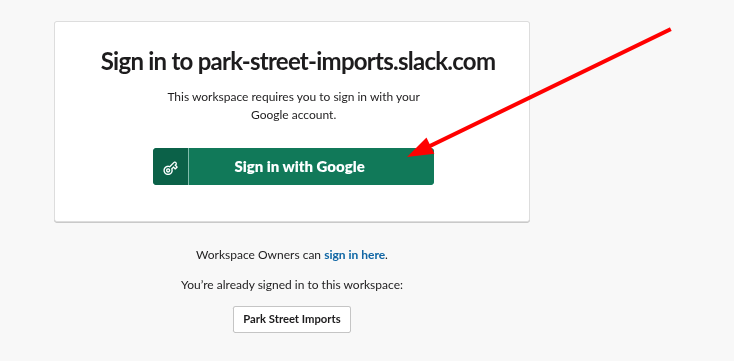
- Sign in to park-street-imports.slack.com.
Step 4 – Redirect to the Desktop App
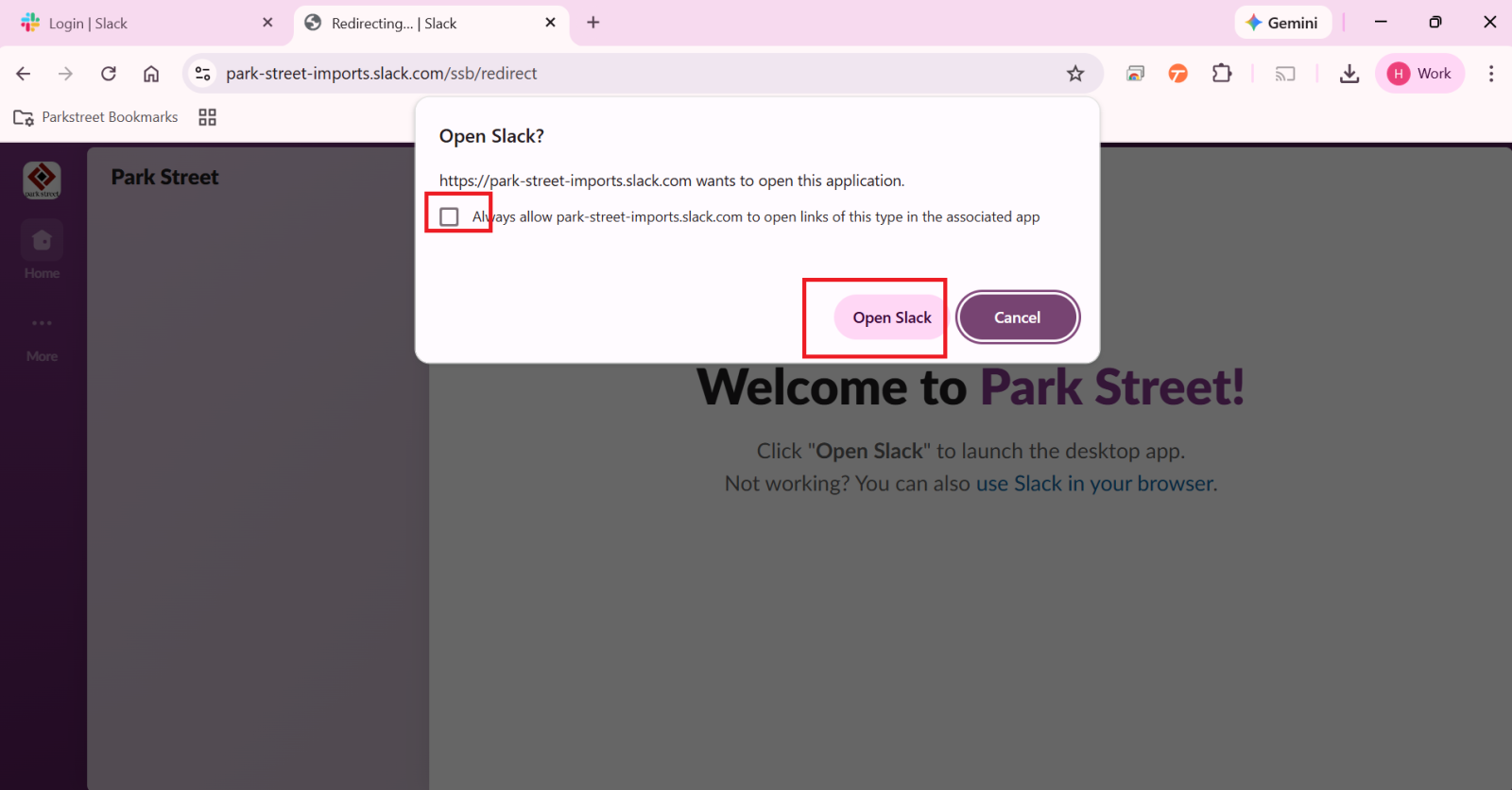
- Your browser will display a prompt: "Open Slack?.
- Check the box "Always allow park-street-imports.slack.com to open links of this type".
- Click Open Slack.
Step 5 – Final Permissions (Camera Access)
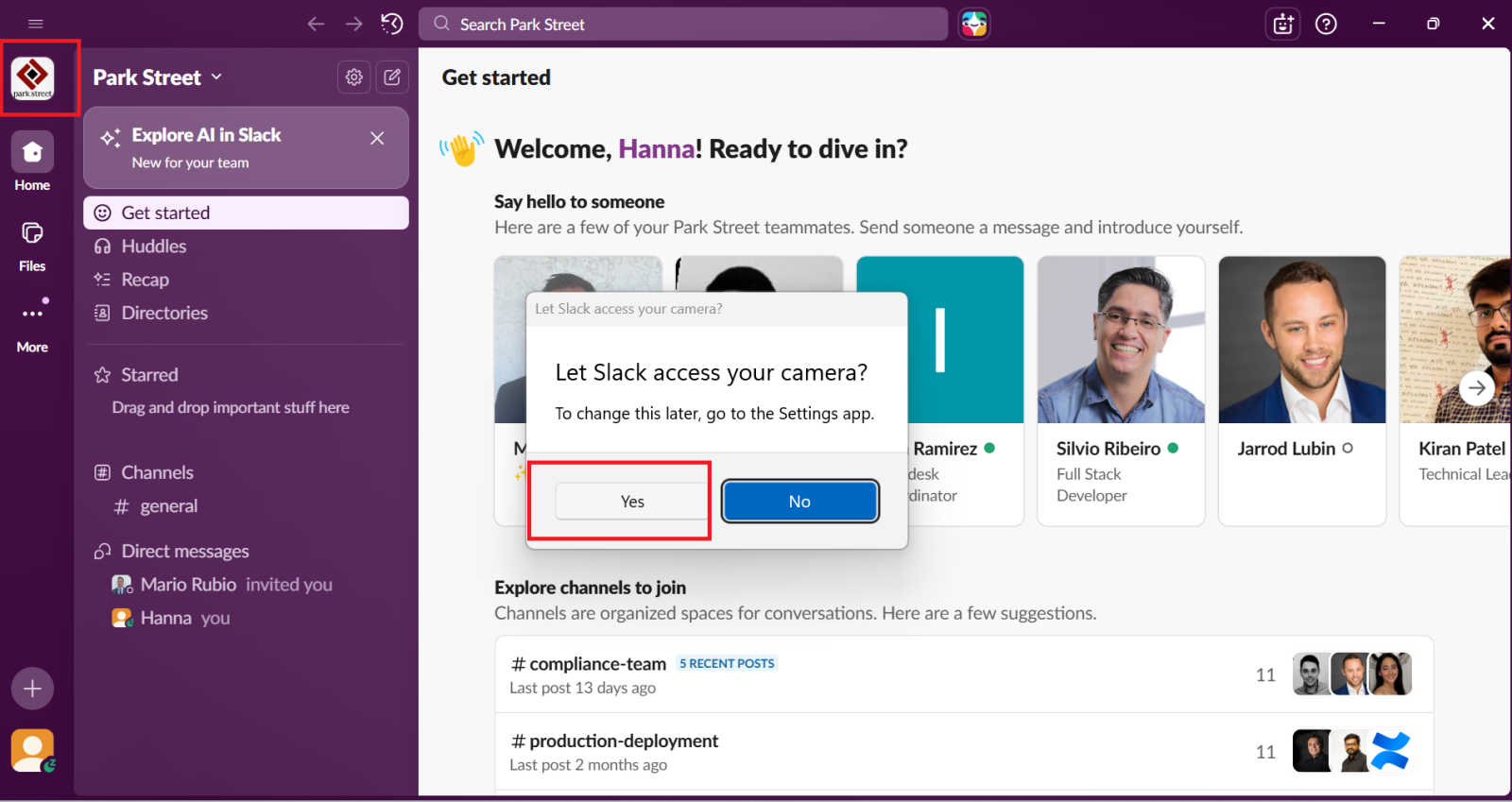
- When Slack opens for the first time, a pop-up will request camera access.
- Click Yes to ensure you can participate in video calls and Huddles.
✅ You're All Set!
Once you've completed the steps above, you'll see your profile and available channels in the left sidebar. You're ready to start communicating with your team.
🛠️ Troubleshooting
| Issue | Solution |
|---|---|
| Workspace invitation does not appear | Open an IT ticket or contact internal support |
| Slack is not installed on your device | Open an IT ticket or contact internal support |
| Error when authenticating with Google | Make sure you are using your @parkstreet.com account |
| Browser does not redirect to the app | Navigate directly to park-street-imports.slack.com |
| Cannot enable camera after setup | Go to Preferences > Audio & Video inside Slack |