
Use this guide to install Slack on your iPhone and sign in to the Park Street workspace with your Park Street email address.
Overview
Slack is Park Street’s primary communication tool for team messages, channels, announcements, and support conversations. Follow the steps below to download the Slack app on your iPhone, verify your Park Street email, and access the Park Street workspace.
Before you begin
Make sure you have:
- An iPhone with internet access
- Access to your Park Street email account
- Permission to install apps from the App Store
Step 1: Download Slack from the App Store
- Open the App Store on your iPhone.
- Search for Slack.
- Tap Get or the download icon to install the app.
- Once the installation is complete, tap Open.
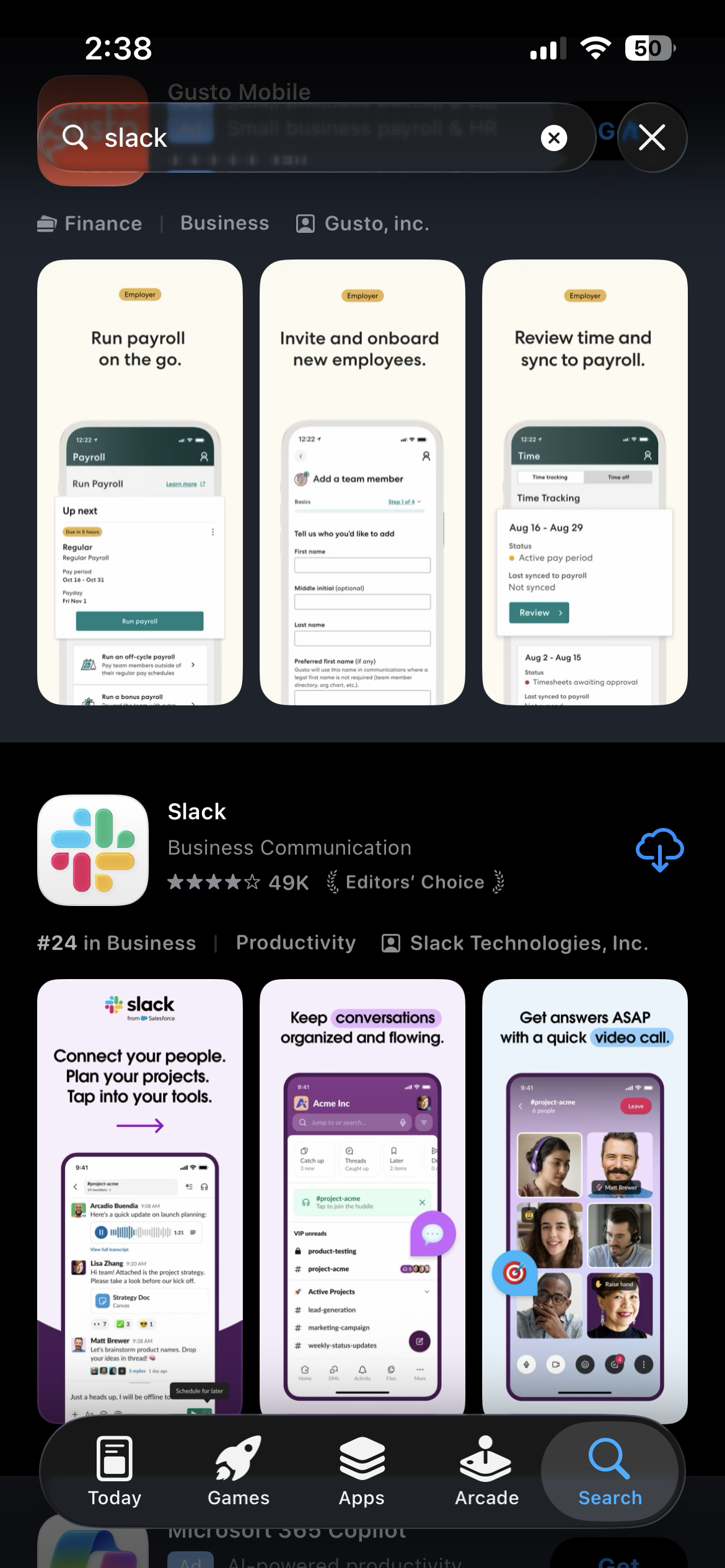
Step 2: Start the sign-in process
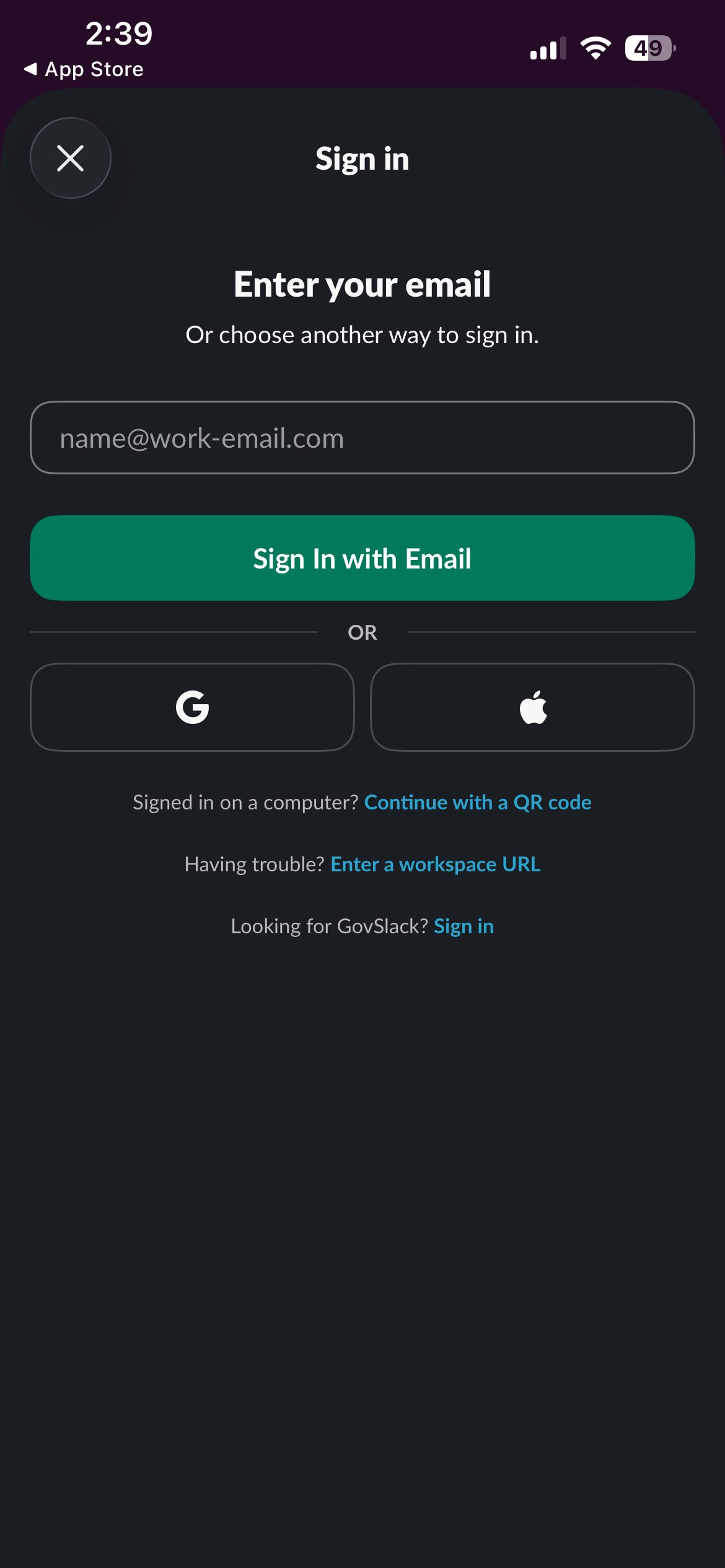
- Open the Slack app.
- Tap Sign in or Get Started.
- When prompted, choose the option to sign in using your email address.
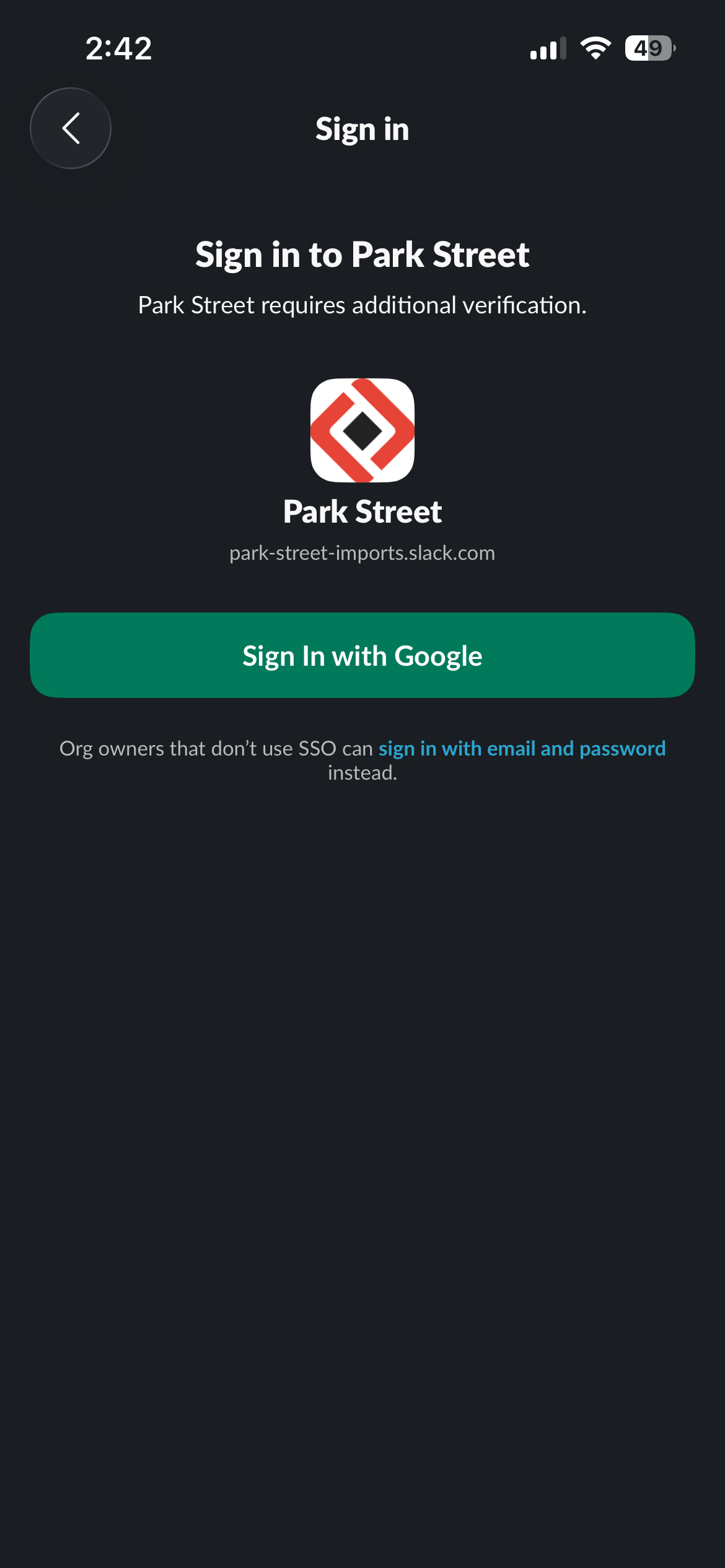
Step 3: Enter your Park Street email
- Enter your Park Street email address.
- Example format:
yourname@parkstreet.com
- Example format:
- Tap Continue.
- Slack will send a verification message to your Park Street email.
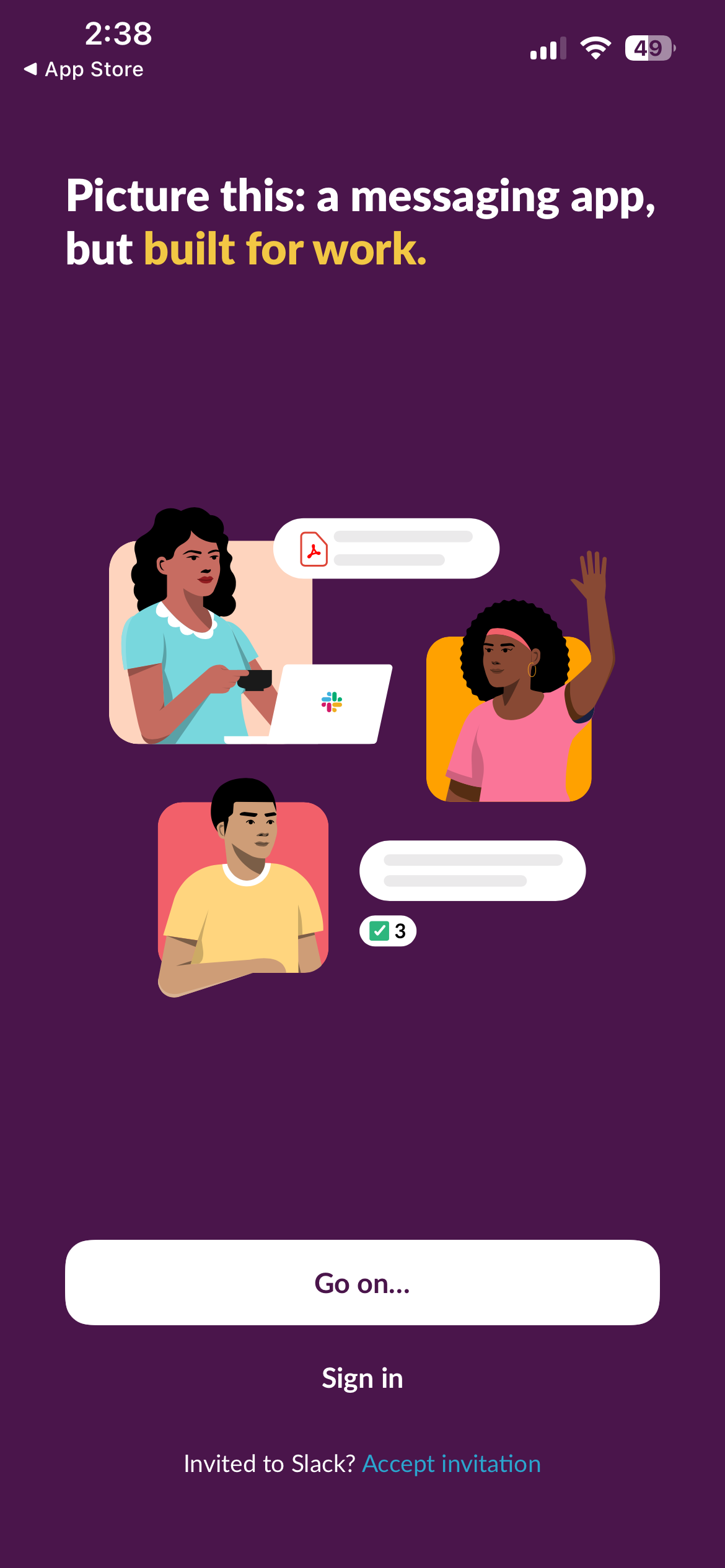
Step 4: Verify your email
- Open your Park Street email inbox on your iPhone.
- Look for the verification email from Slack.
- Follow the instructions in the email to confirm your identity.
- Return to the Slack app if it does not open automatically.
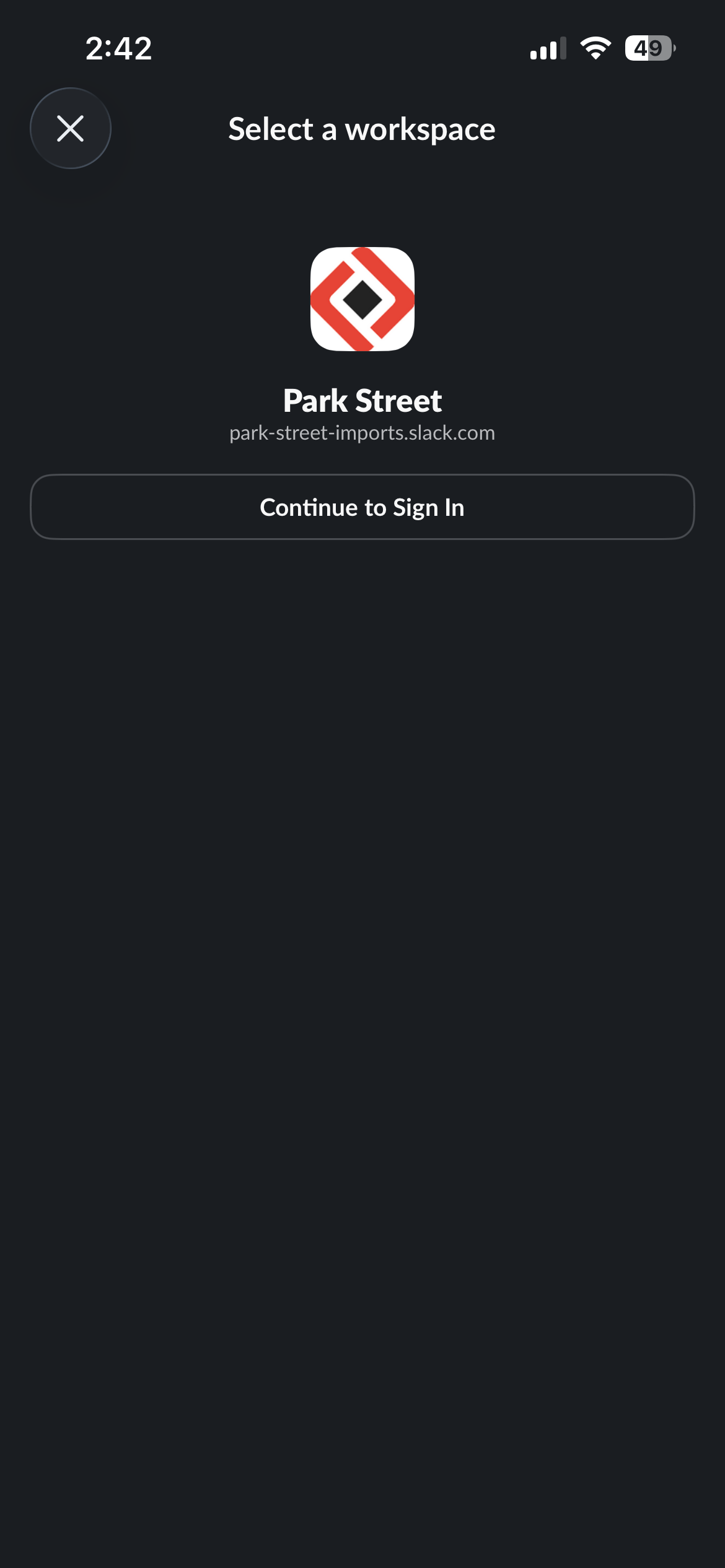
Step 5: Access the Park Street workspace
After your email is verified, Slack will take you into the Park Street workspace.
From there, you can:
- View your Slack channels
- Send direct messages
- Receive company and team updates
- Communicate with Park Street teams from your iPhone
Troubleshooting
I did not receive the verification email
- Confirm that you entered your Park Street email address correctly.
- Check your Spam, Junk, or Promotions folder.
- Wait a few minutes and try again.
- Make sure your iPhone has a stable internet connection.
Slack is asking for a workspace URL
If Slack asks for a workspace URL, use the Park Street workspace information provided by IT or your manager. If you are unsure, contact IT for assistance.
I cannot access the Park Street workspace
If you verified your email but still cannot access the workspace, contact IT and include:
- Your Park Street email address
- A screenshot of the message you see in Slack
- The step where you are getting stuck
Related information
Slack’s official guidance for mobile sign-in confirms that users can open the Slack app, tap Sign in, choose a sign-in option, and follow the prompts. If a workspace uses single sign-on, users may need to authenticate with the company’s SSO provider to finish signing in.