
How to Clear Cache and Cookies for a Single Website in Chrome
Follow these steps to remove cached files and cookies for one specific website in Google Chrome. This keeps the rest of your browsing data intact.
Use this guide when one website is loading incorrectly, showing outdated information, or having login/session issues.
Step 1 — Open the Chrome menu
Open Google Chrome and click the three-dot menu icon in the top-right corner.
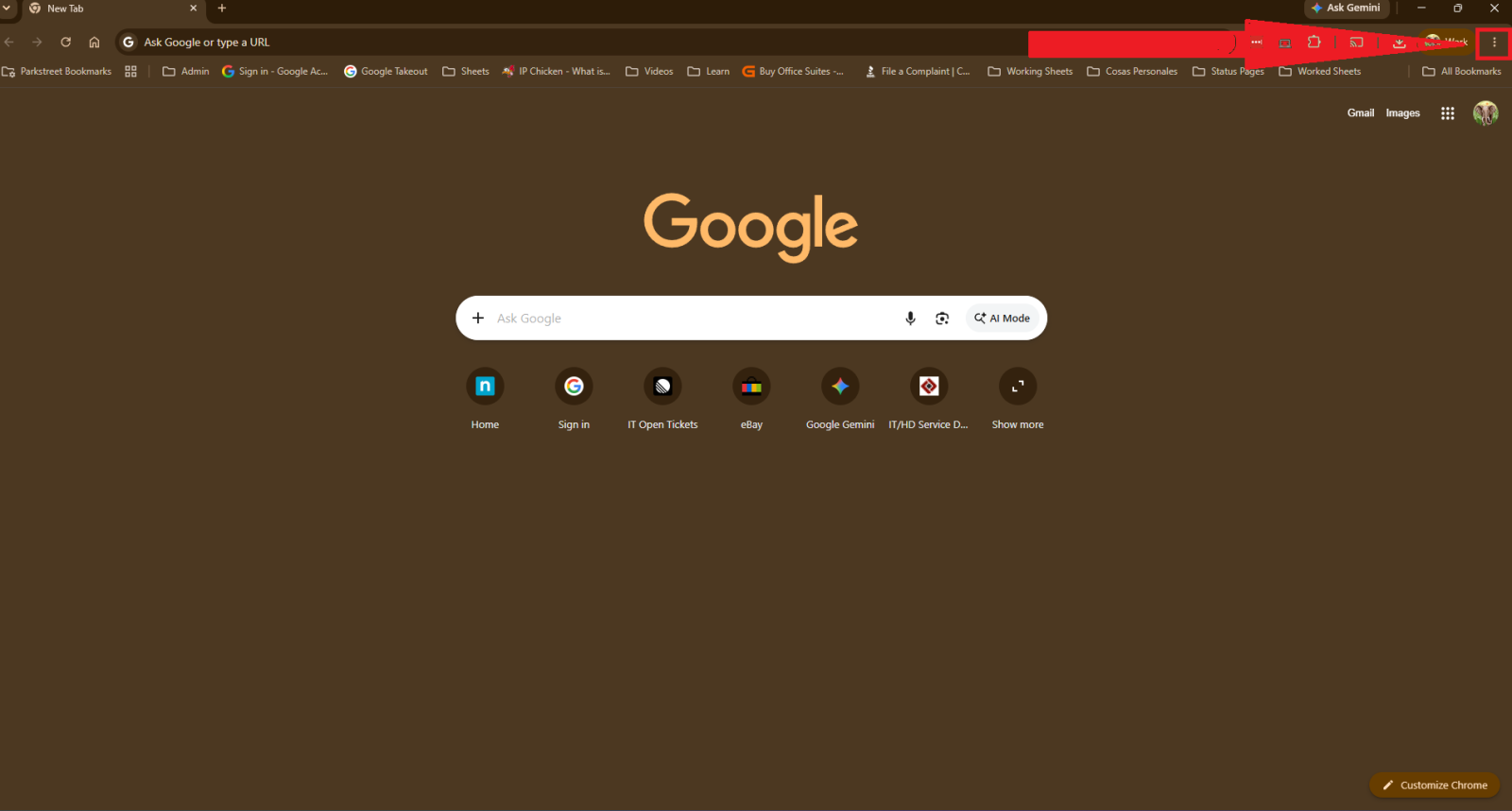
Step 1 — Open the Chrome menu
Step 2 — Open Settings
From the dropdown menu, select Settings.
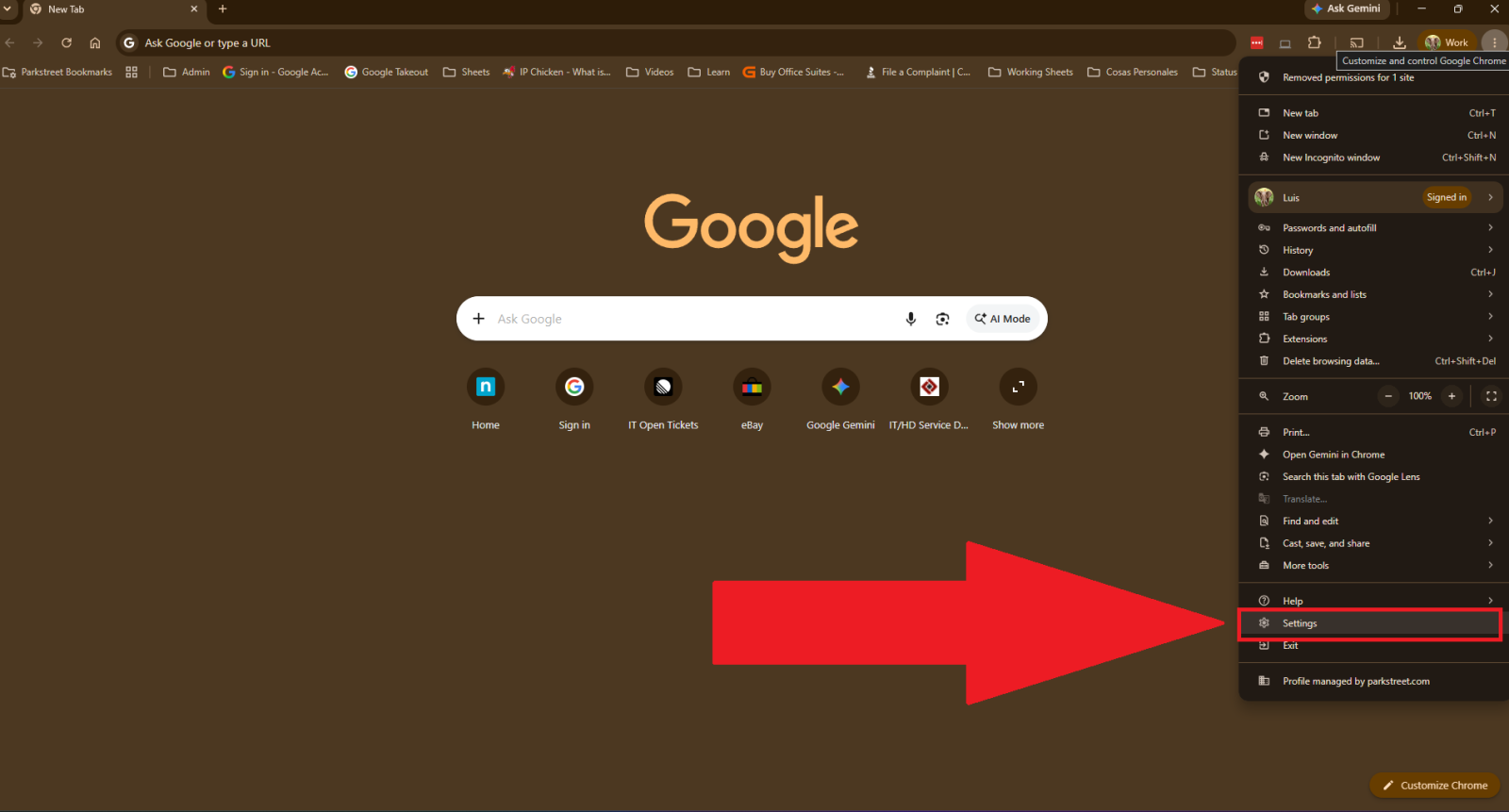
Step 2 — Open Settings
Step 3 — Go to Privacy and Security
In the left-hand menu, click Privacy and security. Then select Site settings.
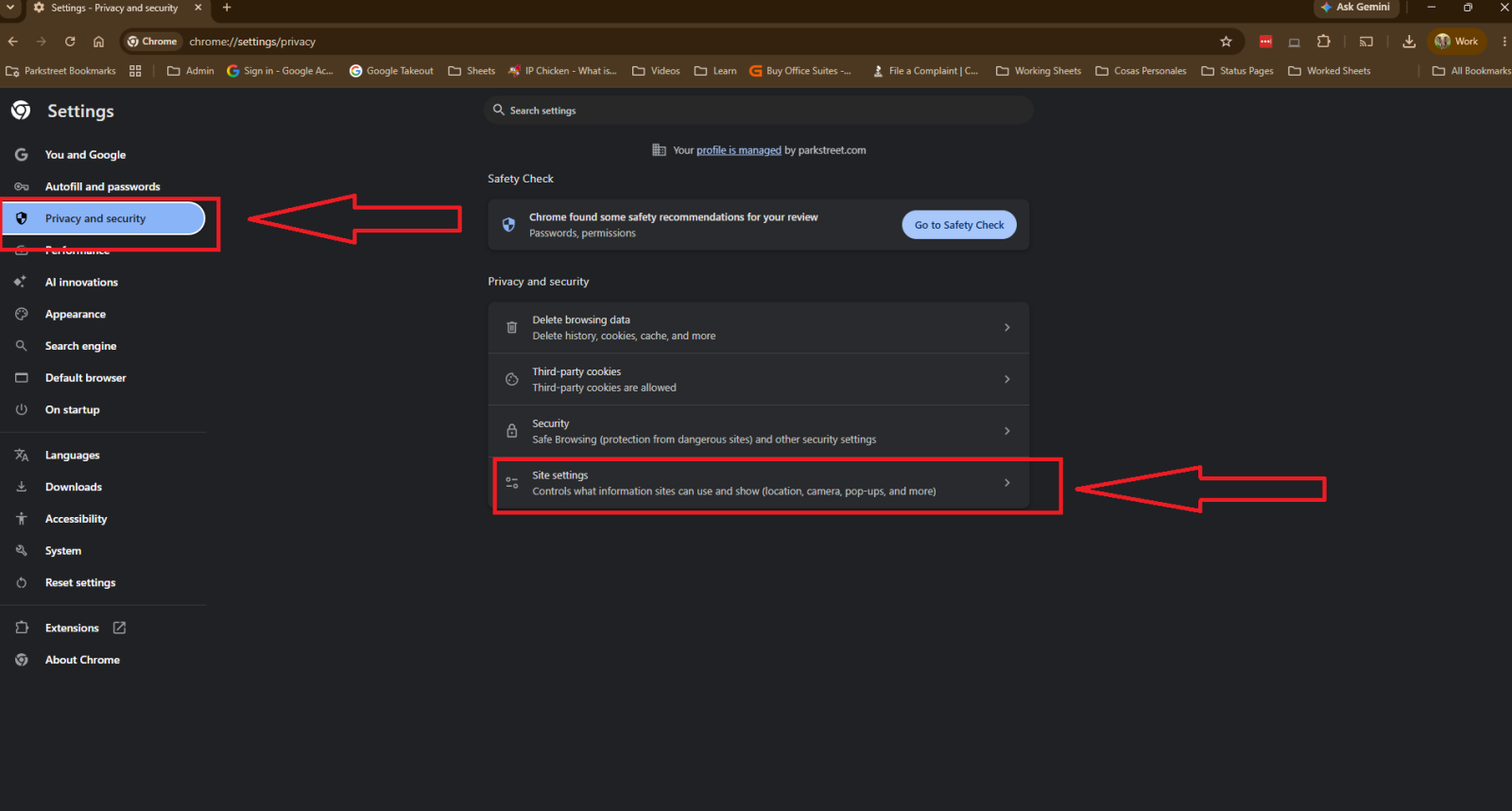
Step 3 — Go to Privacy and Security
Step 4 — View site data
Scroll down and click View permissions and data stored across sites.
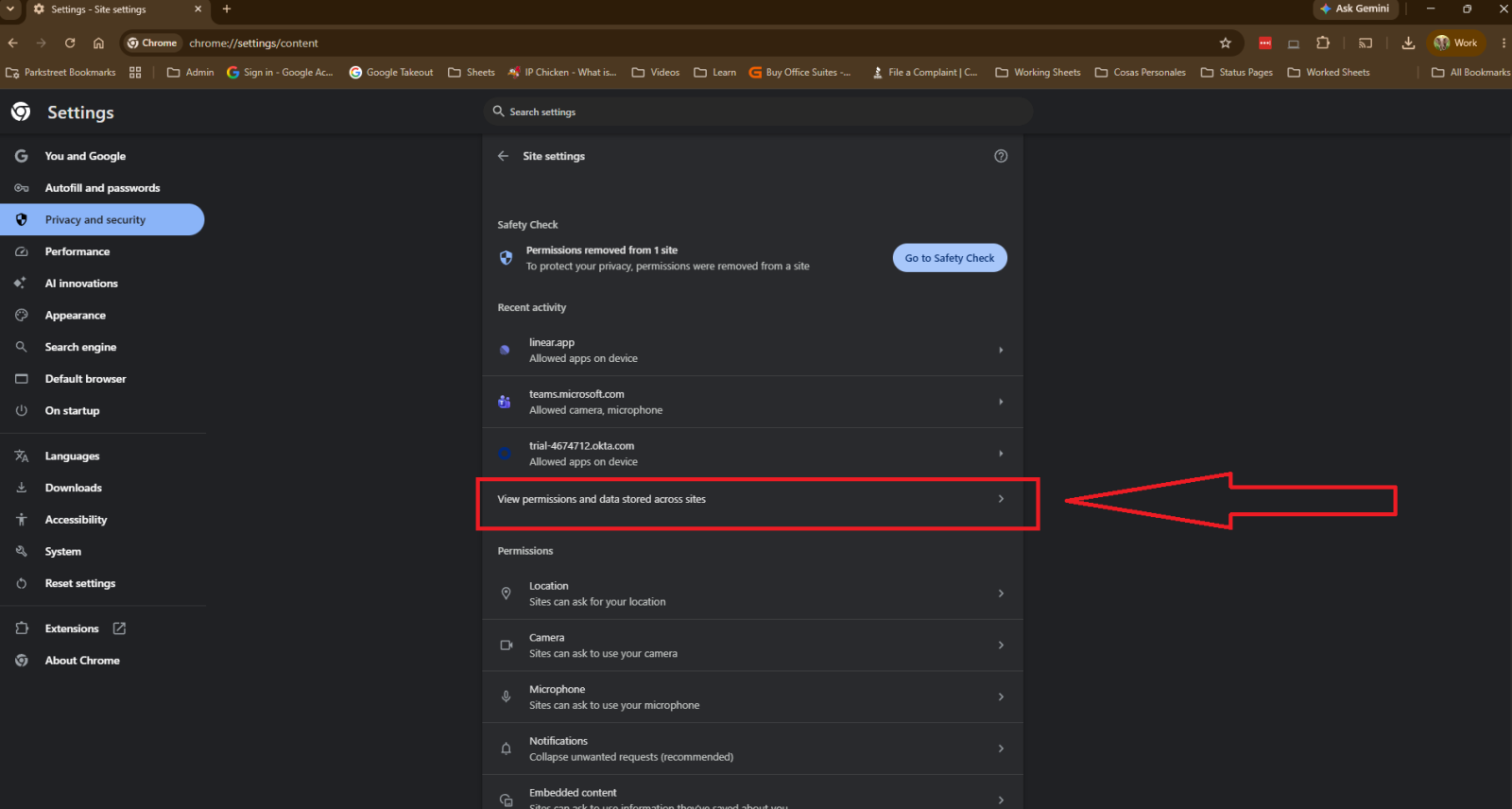
Step 4 — View site data
Step 5 — Search for the website
Use the search bar to find the specific website. For example, type parkstreet.
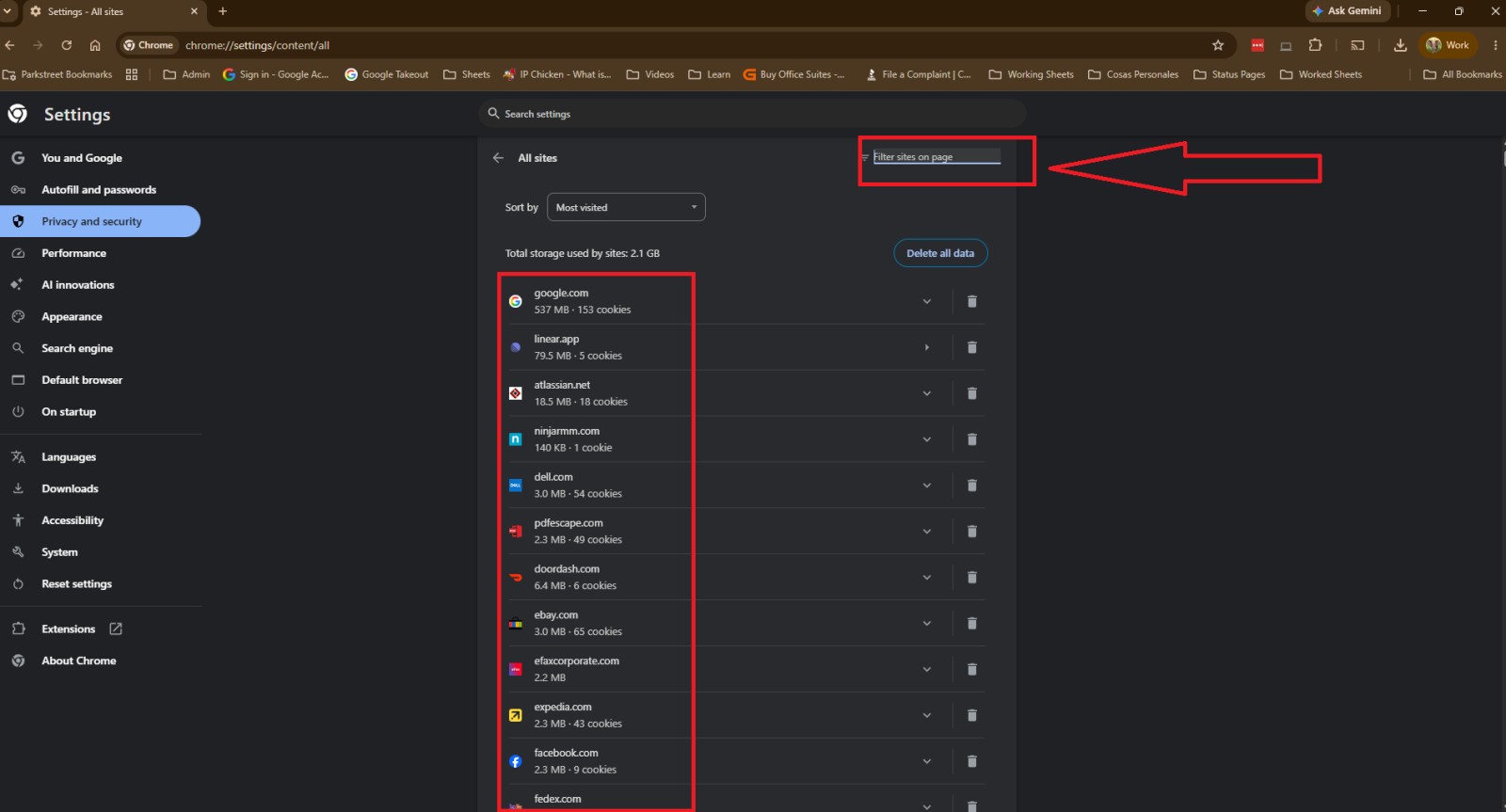
Step 5 — Search for the website
Step 6 — Delete the site data
Click the trash icon next to the website’s entry. If Chrome asks for confirmation, confirm the deletion.
Tip: If the website still does not load correctly after completing these steps, close and reopen Chrome, then try again.