
The software we use to map G-Drive into our Windows file system is called Google Drive. This program syncs any files that are within this drive into Google Drive. It is represented in the file system as G:\Google Drive. There are instances where this program causes issues such as:
These are some of the most common errors that are experienced when using Google Drive. The following Guide can help you solve some of these common errors. It is useful to note that some of the solutions can be used to solve problems for issues not mentioned above. If you are having issues that are not mentioned here or that none of these solutions can fix, please proceed with submitted a ticket.
1. Missing files that are not in Shared Drive folders
There is a known issue in Google Drive where files do not appear in Shared Drive folders. Although it could mean that the file in question was deleted, sometimes this is not the case. This issue has been addressed to Google before and the recommended steps include:
- Navigate to the folder that is missing files. (If the folder is in a Shared Drive, go to the specific path of the folder.)
- Once you reach the folder that is causing issues, in this example, the IT folder:
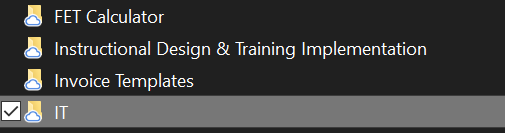
While having it selected as shown above, while holding SHIFT, right click and the following menu should appear:
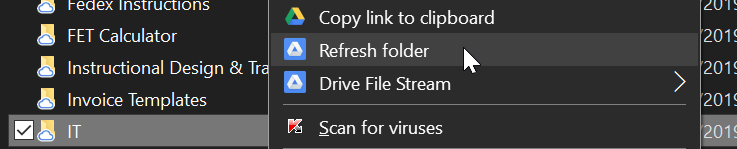
Then click on the Refresh Folder option. After this, click the folder to view the contents and the missing files should appear.
2. Slow or unresponsive.
G-Drive caches files that are currently in use or when there are significant changes in files through out the work day. One of the ways that this can be solved is through closing Drive through Task Manager or through the application.
To close Drive through Task Manager, follow the following steps:
- Open Task Manager.
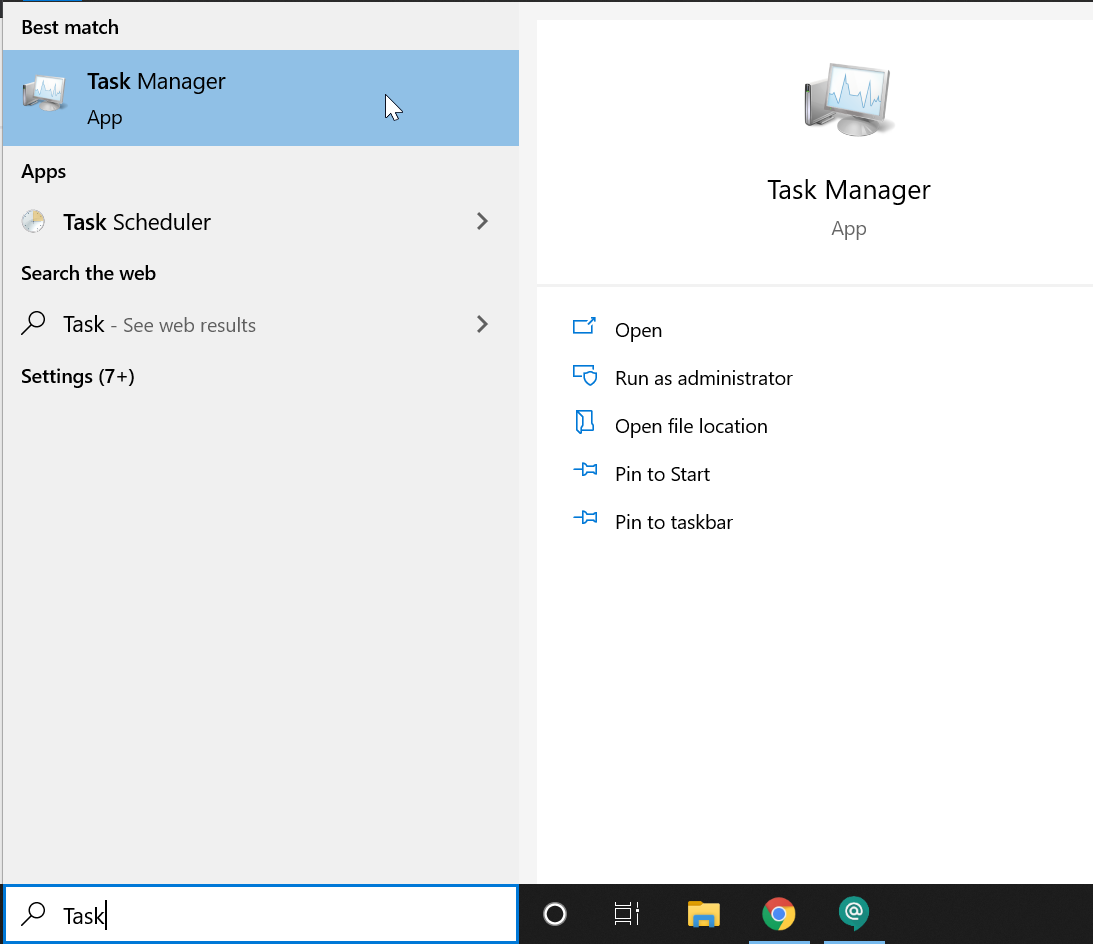
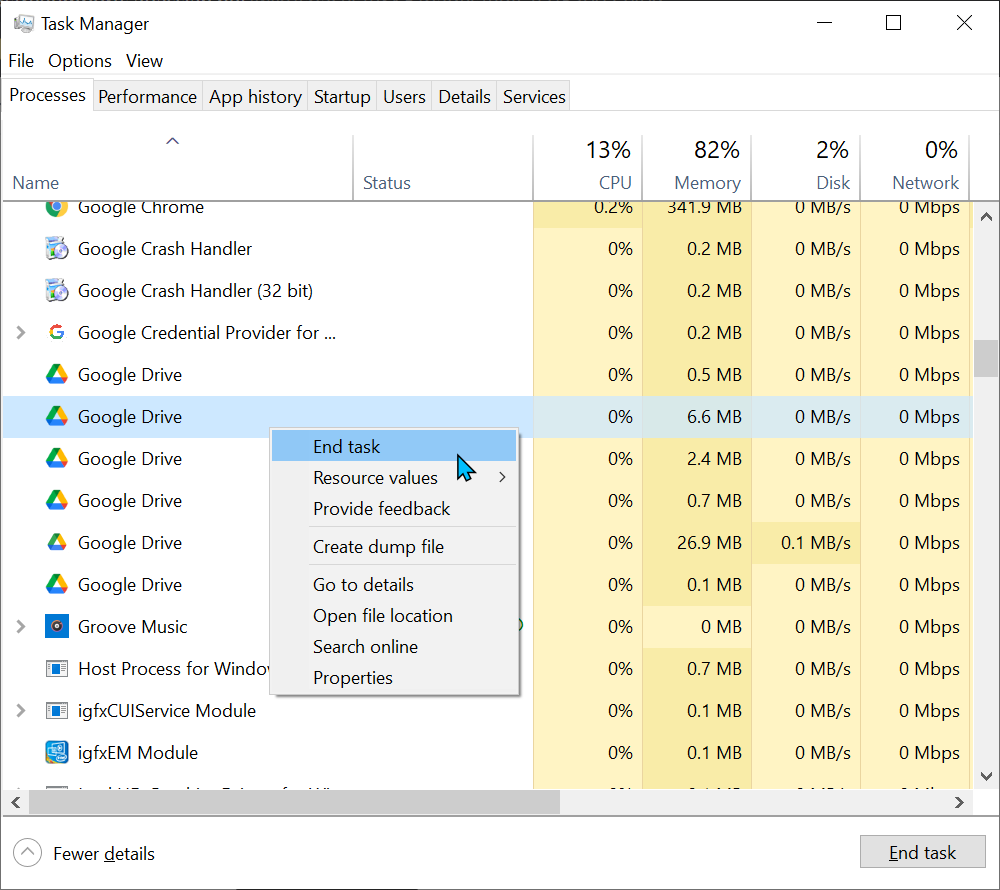
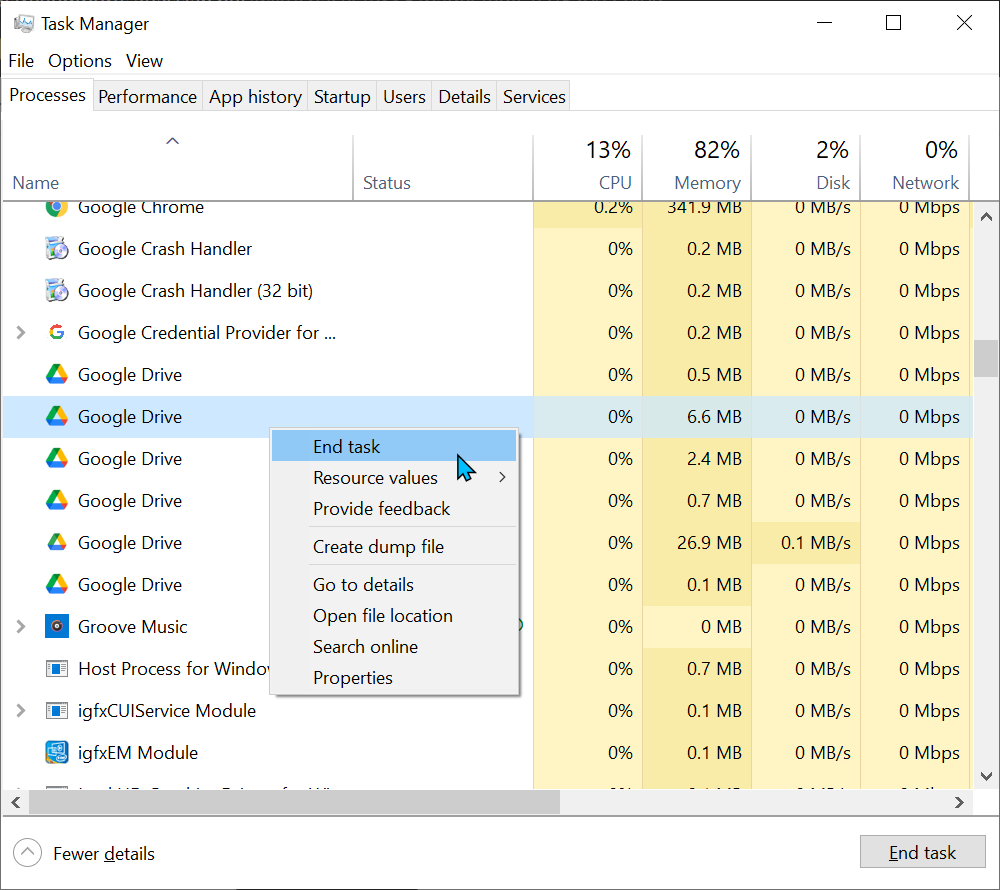
- Look for Drive under Background Processes and right click. Then choose the option End task.
To close Drive through the menu of the application, do the following:
- Go to the task tray on the bottom right of the screen:
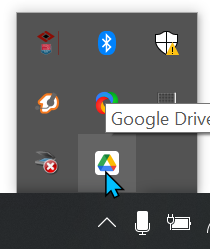
- While hovering over it, right click it and the following menu should appear:
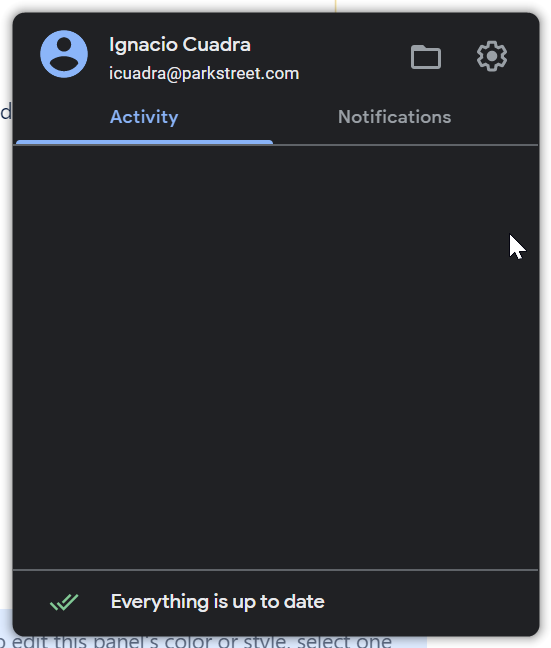
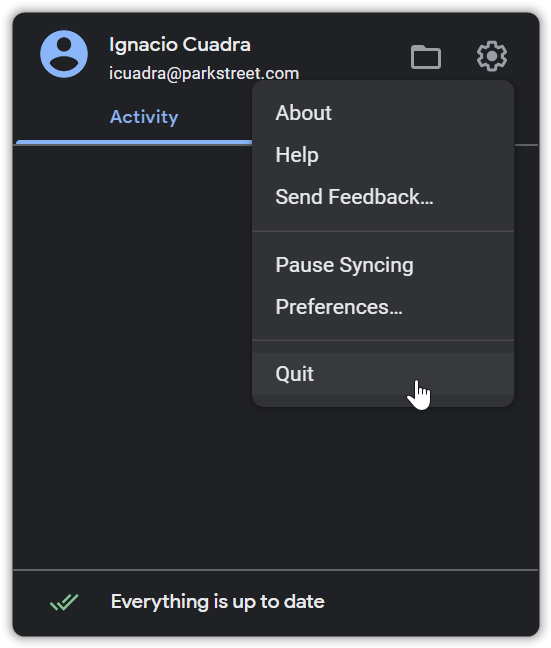
- Click the gear icon, then proceed to click the Quit option:
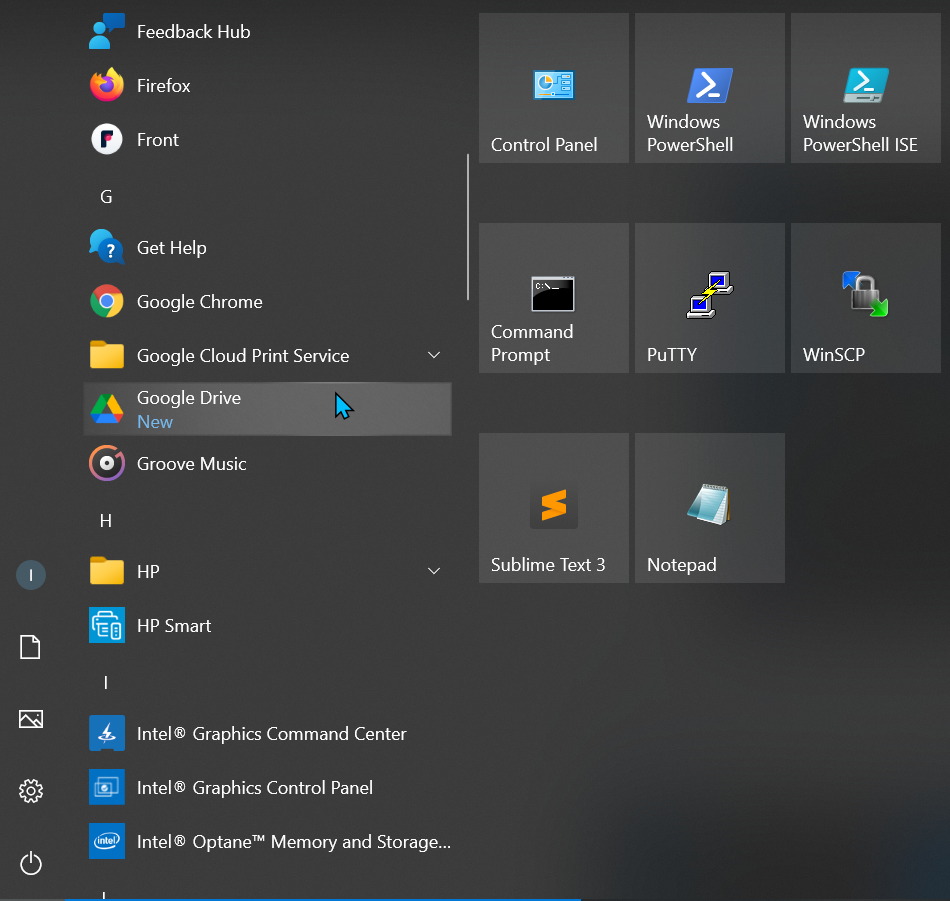
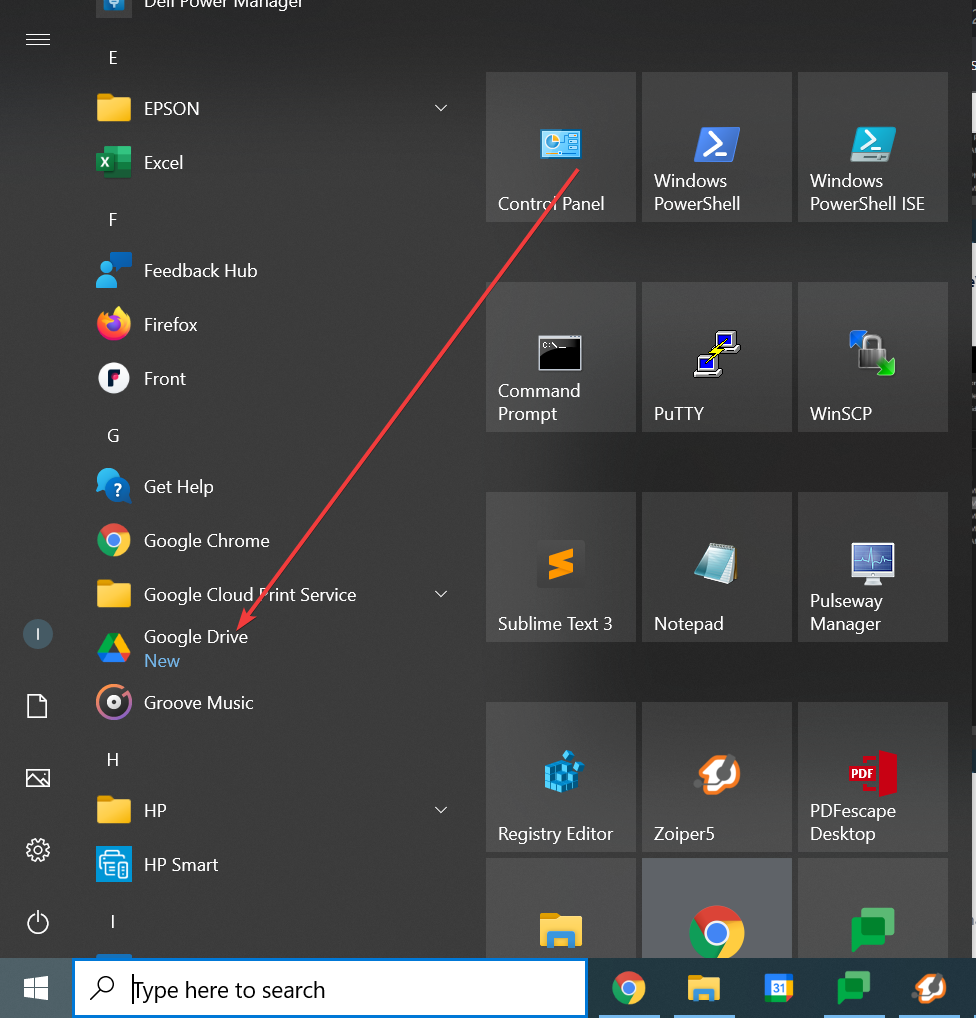
Once these steps are followed, all that is left is to open Google Drive from the Start Menu:
3. Only shows G:\? as the drive name in the Windows File System.
This error happens when Google Drive still has not been opened or when some error has caused the application launch to linger and not fully open. The first option to fix this is to open Drive.
- Open Drive from the Start Menu:
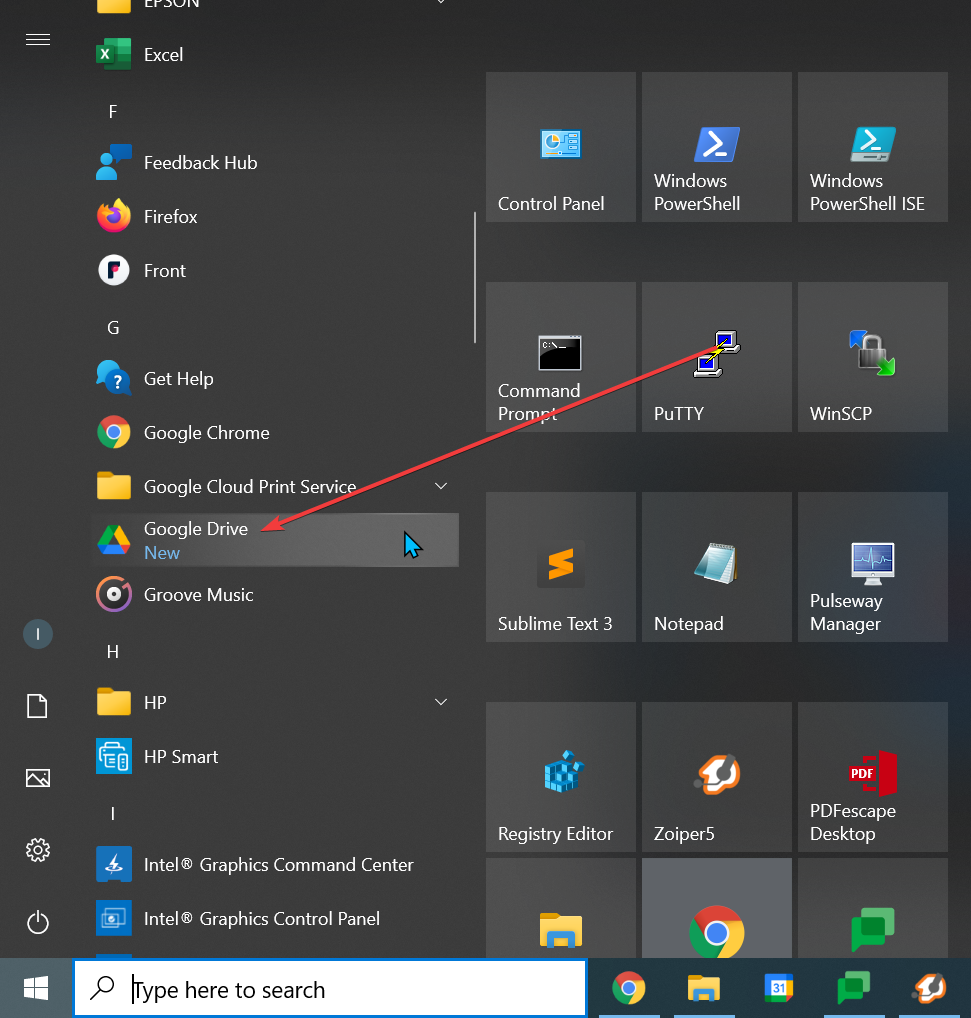
- Once that is done, the drive in File Explorer should look like this:

If there is the following notification and Drive still shows the G:\? name, the application needs to closed through Task Manager.
To close Drive through Task Manager, follow the following steps:
- Open Task Manager.
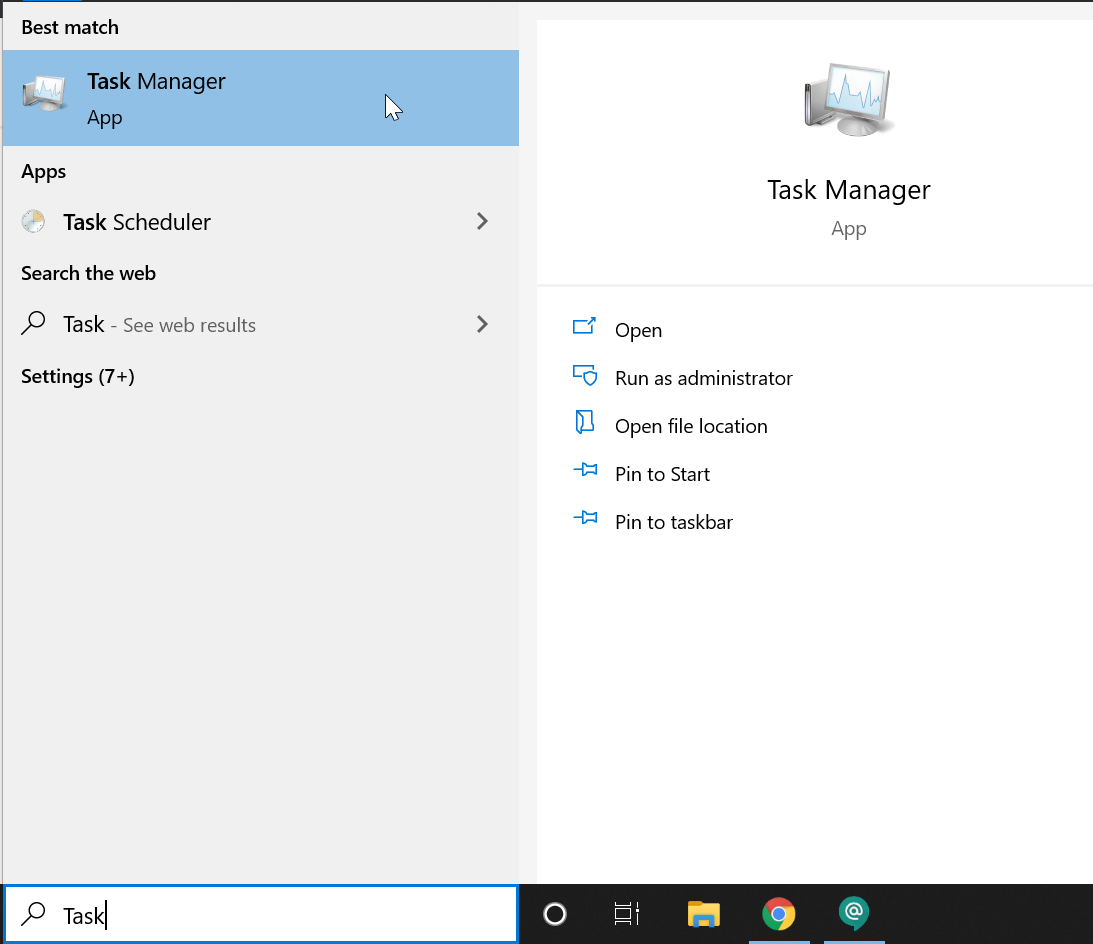
- Look for Drive under Background Processes and right click. Then choose the option End task.
4. Errors when clicking on pinned shortcuts.
This error occurs when Drive has not been started or as previously discussed, contents of a folder or Shared Drive are missing.
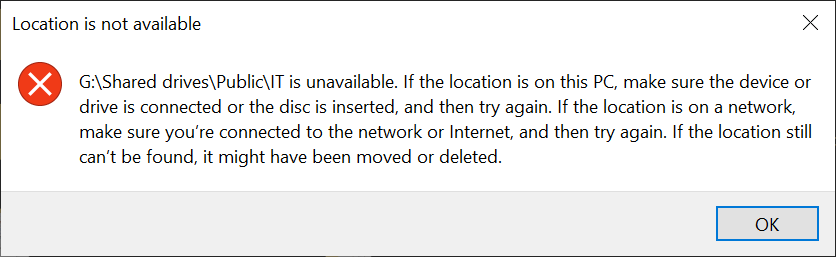
This error can be fixed by removing the local cache for Google Drive. This can be done by following these steps:
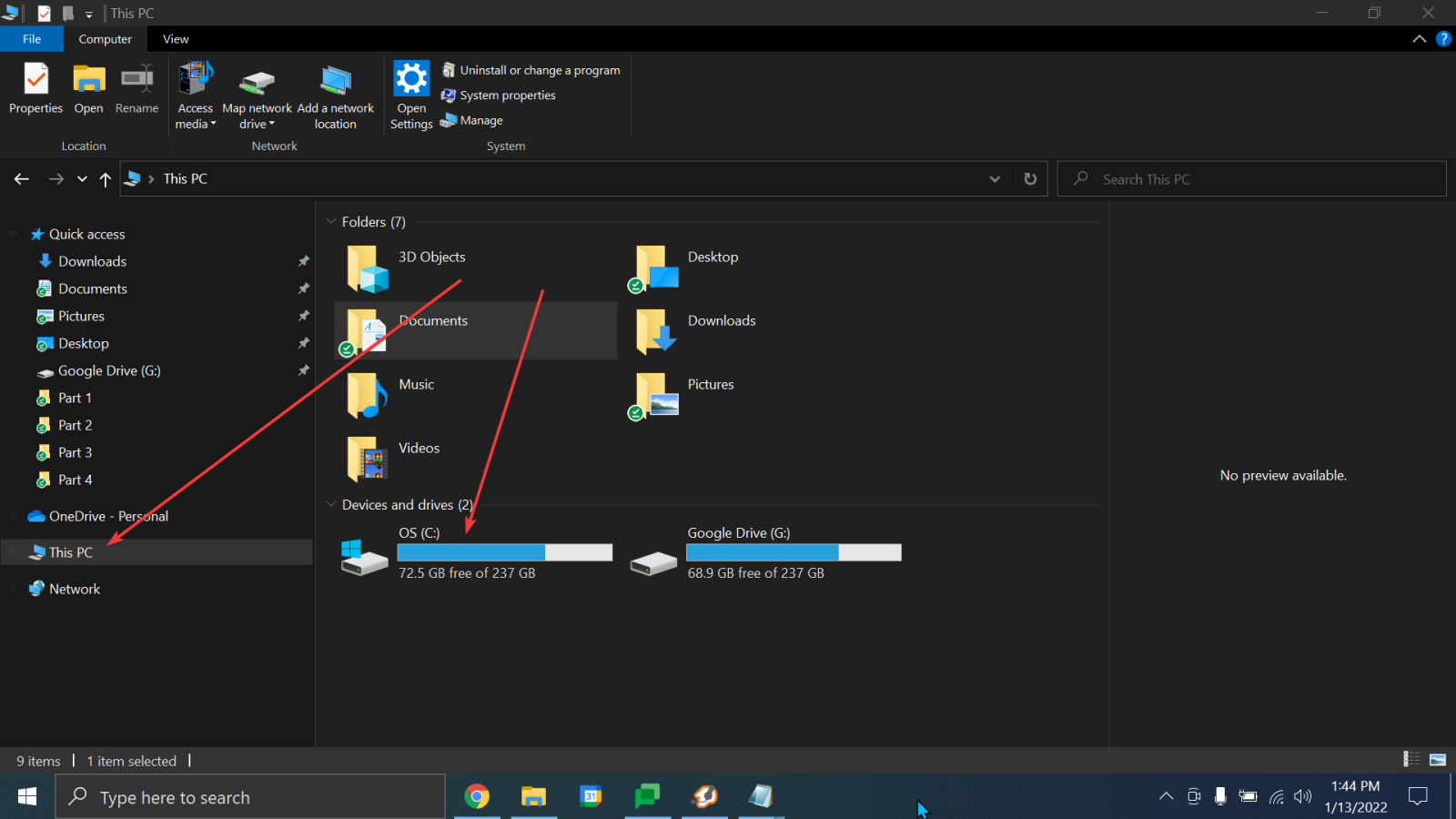
- Open File Explorer and select “This PC” then, select the “C:” drive
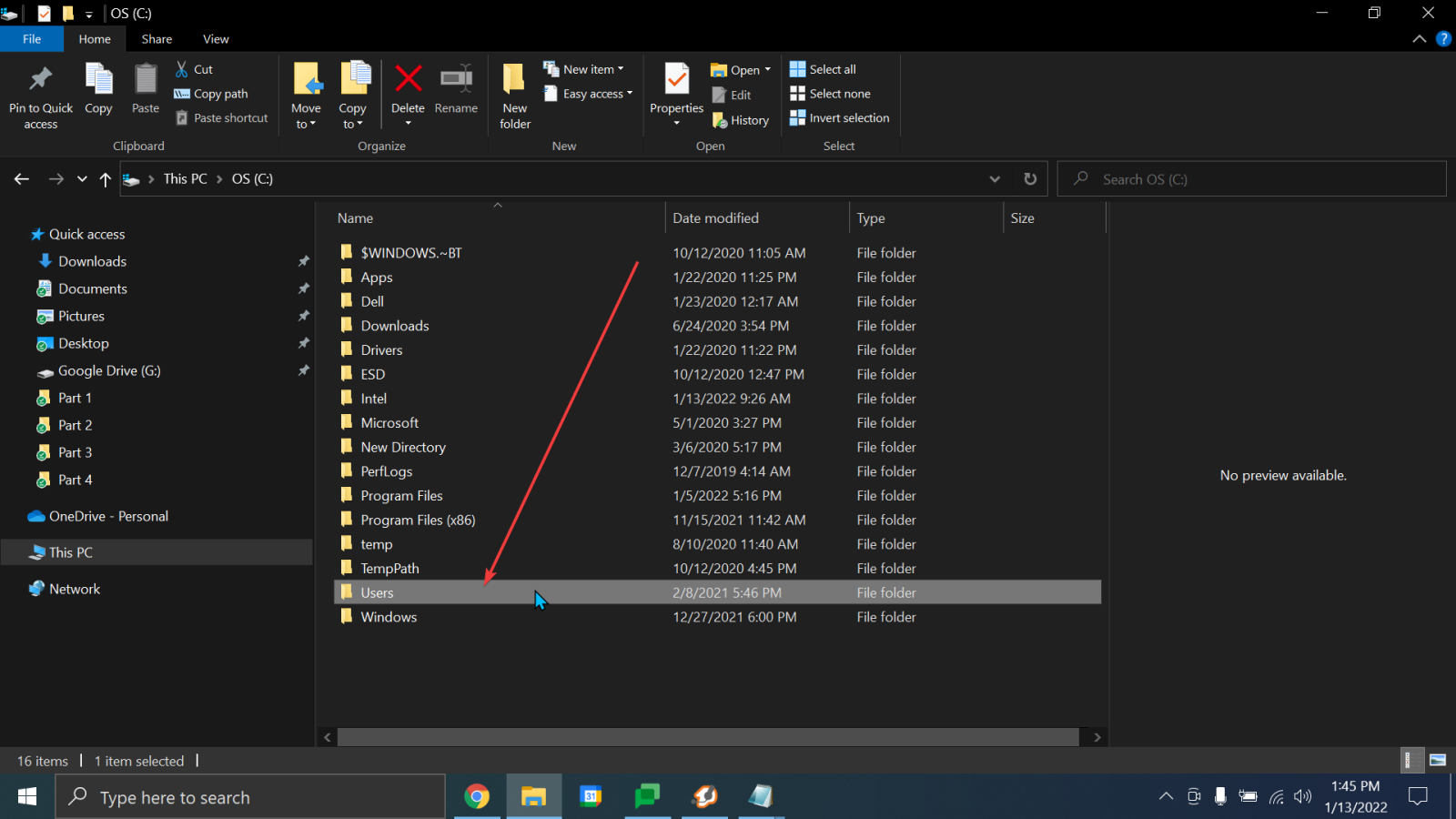
2. Select the “Users” folder
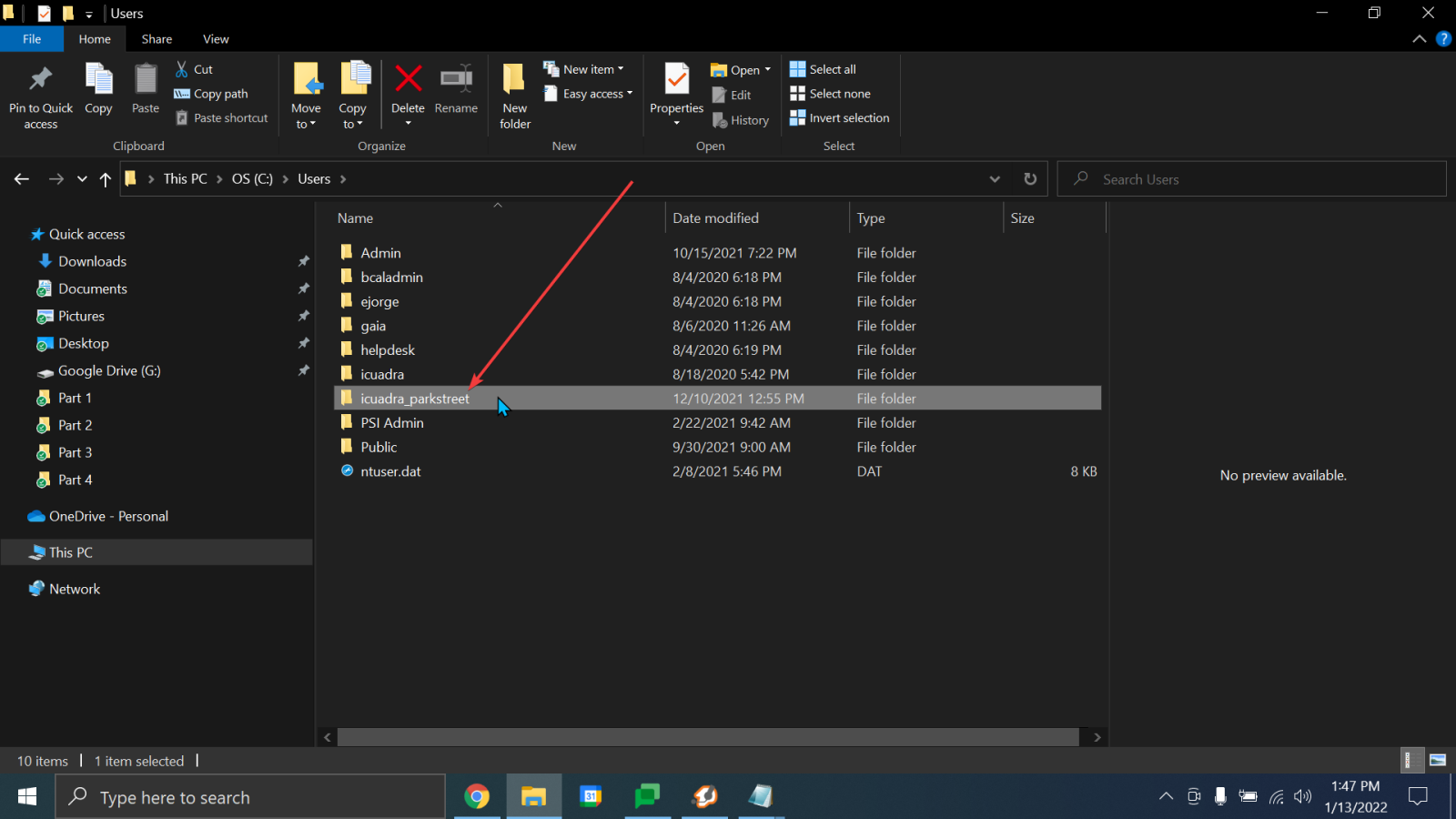
3. Select your user account
4. Ensure that hidden items are shown and select the app data folder
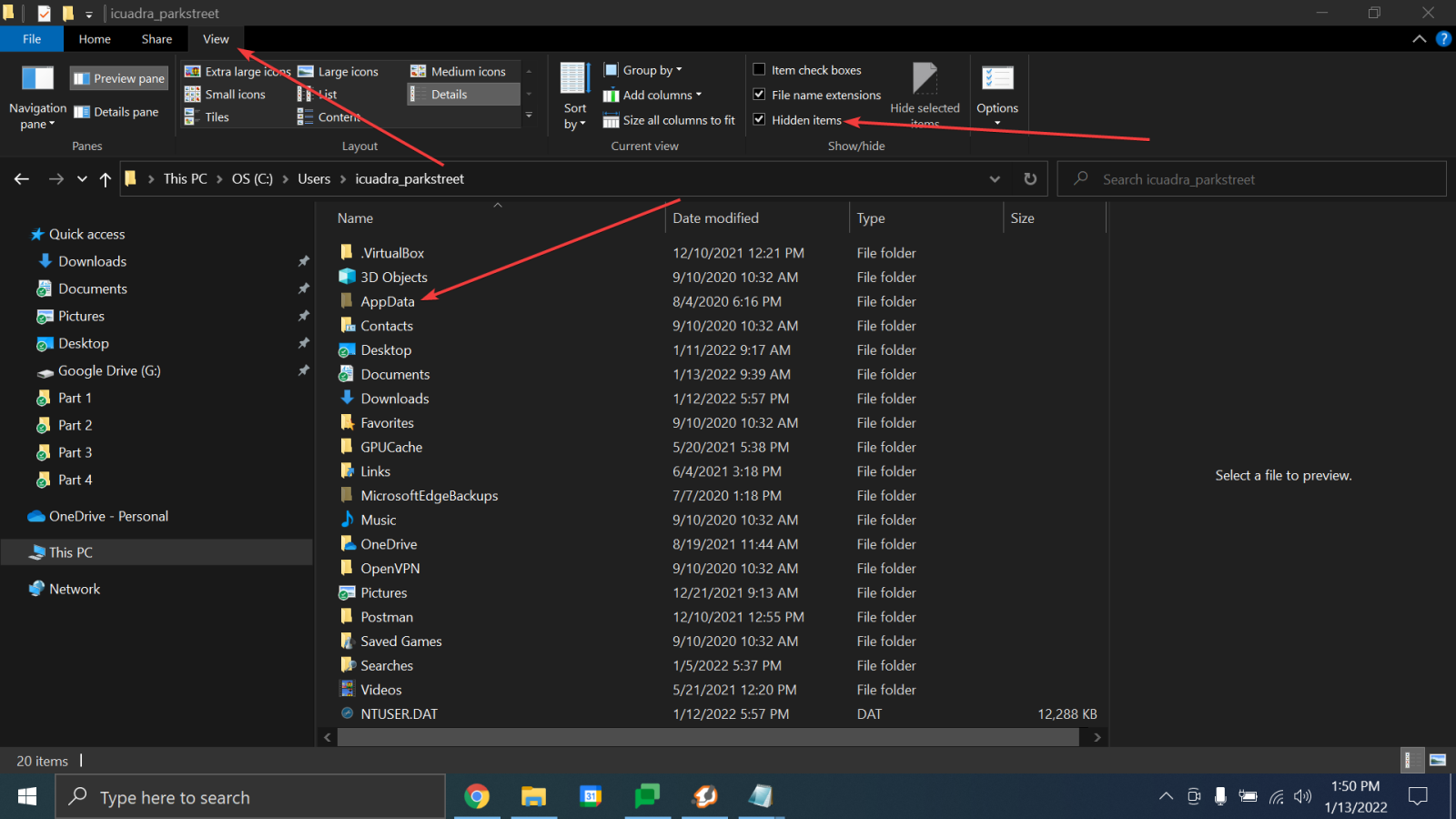
5. Navigate to the following path: C:\Users\your username\AppData\Local\Google and delete the DriveFS folder
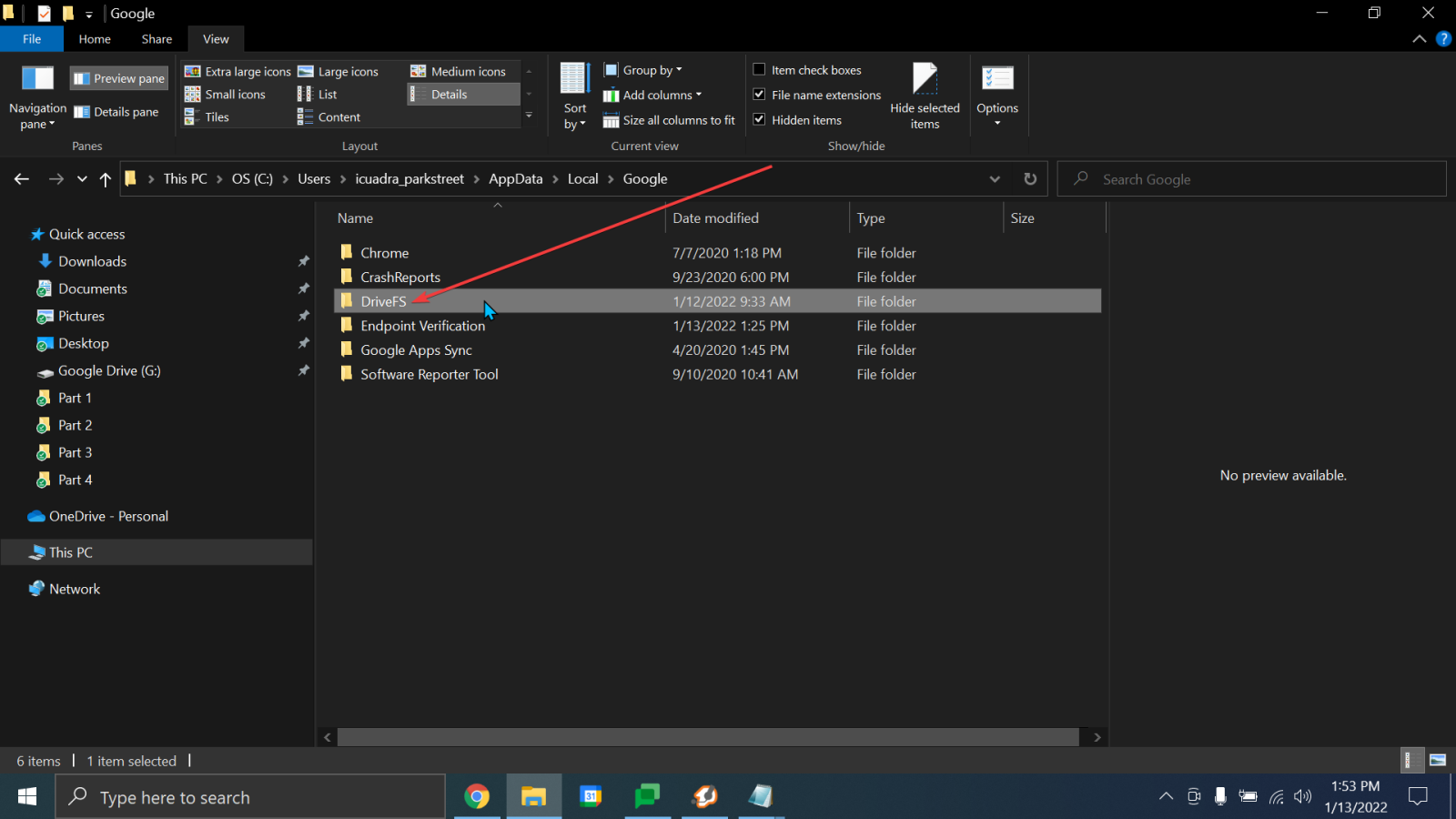
6. Once it’s done deleting, open Google Drive and login when prompted
If any issue keeps occurring, please submit a Help Desk ticket.